ChatGPT for Google Workspace Admins: Approval Checklist
A practical guide for Google Workspace admins vetting ChatGPT extensions: OAuth scopes, data handling, admin console controls, and an approval checklist.

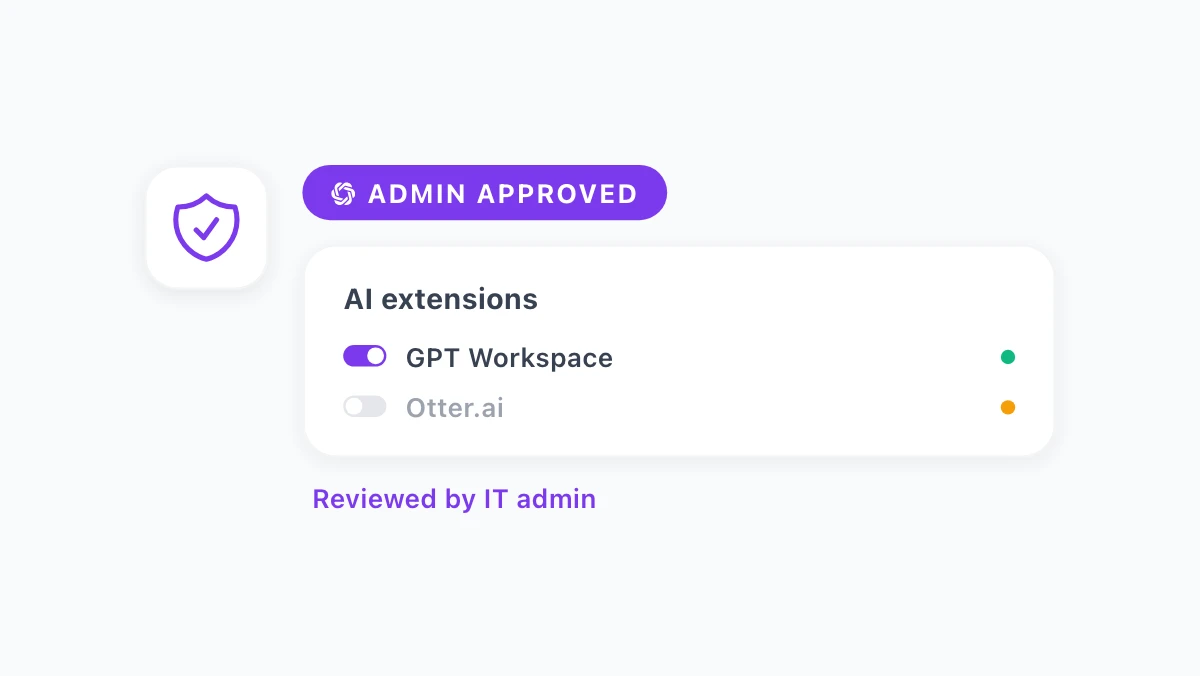
Every guide on this blog so far has been written for the person using AI inside Google Workspace: the recruiter, the accountant, the project manager, the executive assistant. There is another person in that chain who rarely gets mentioned.
ChatGPT for Google Workspace admin questions look different from end-user questions. An admin isn’t asking how to write a better email, but what data an extension can see, where that data goes, and what happens if something goes wrong.
This guide covers why AI extensions need their own approval process and the specific risks to check before allowing one. It also walks through how the Google Workspace Admin Console handles app access, plus a checklist you can use for any AI tool your team wants to install, including GPT Workspace.
Why AI Extensions Need Their Own Policy
Google Workspace already has security policies for email, file sharing, and third-party app access. AI extensions get lumped into “third-party app” review by default, but they behave differently from a typical integration.
A CRM connector reads specific fields you configure. An AI extension inside Gmail or Docs can potentially read the full content of whatever document or email thread is open when someone invokes it.
That’s a different risk profile, even when the extension itself is well built. As Gemini becomes the default AI layer inside core Google Workspace apps, employees increasingly compare it against ChatGPT, Claude, and other tools they already use elsewhere.
Some install browser extensions on their own before IT even knows the tool exists. That pattern, often called shadow AI, is why more organizations are formalizing a specific google workspace ai governance policy in 2026 instead of treating AI tools as just another line item in general app review.
Without a clear policy, you end up in one of two positions. Either every AI extension gets blocked by default and teams lose the productivity gains other departments are already getting from these tools, or nothing gets reviewed and staff install whatever they find first.
What to Check Before You Approve an AI Extension
Before allowing any AI tool into your Workspace environment, there are five questions worth answering. Skipping any of them means you’re approving based on trust rather than verification.
Data Access Scope
What can the extension actually read? An extension that only activates inside the current document or email thread is a very different proposition from one that requests standing access to your entire Drive.
Check whether the tool requests broad, always-on access or narrower, session-based access tied to the app you’re actively using. The narrower the scope, the smaller your exposure if the vendor is ever compromised.
OAuth Scopes and Permissions
Every Google Workspace integration authenticates through OAuth, and the specific scopes it requests tell you exactly what it can and cannot do. Google groups these scopes into sensitivity tiers, and the Admin Console flags which category each requested scope falls into.
Read the scope list before approving, not after a user reports a problem. A tool that only requests scopes tied to the Docs, Sheets, or Gmail UI it operates in is a lower-risk profile than one requesting broad Drive or account-level access it doesn’t clearly need for its stated function.
Where Data Is Stored and For How Long
Ask the vendor directly: does content pass through their servers only for the duration of a request, or is it stored afterward? If it’s stored, for how long, and in which region?
This matters for chatgpt google workspace security reviews specifically because the underlying AI models (GPT, Claude, Gemini) are usually operated by separate companies from the extension vendor. Your organization’s content may pass through more than one company’s infrastructure depending on which model a user selects.
Encryption in Transit and at Rest
Confirm that data moving between Google Workspace, the extension, and any AI model provider is encrypted in transit. If the vendor stores anything, even temporarily, ask whether that storage is encrypted at rest as well.
Most reputable vendors publish this on a security or trust page. If you can’t find it within a couple minutes of searching, treat that as a gap worth flagging, not necessarily a dealbreaker.
Compliance With Your Organization’s Existing Policy
Your company likely already has language in its data handling policy about third-party processors, data residency, or acceptable use of external tools. Run the AI extension against that existing policy instead of writing new rules from scratch.
If your organization operates under HIPAA, GDPR, or SOC 2 commitments, confirm the vendor’s own compliance posture matches what your policy requires. Do this before rolling the tool out to any team handling regulated data.

Managing AI Extensions in the Google Workspace Admin Console
Google Workspace gives admins two main levers for controlling third-party apps, and both apply to AI extensions the same way they apply to any other Marketplace app. ChatGPT-based tools go through the identical review path as any other integration your organization already vets.
The first lever is Marketplace app settings, found under Apps in the Admin Console. From there you can allow all apps, restrict installs to an admin-curated allowlist, or require every app to go through approval before any user in the organization can install it.
The second lever is API controls and app access, found under Security. This is where OAuth scopes come into play directly, letting you classify third-party apps as trusted, limited, or blocked, and set org-wide rules for which scopes any app is allowed to request at all.
For most organizations evaluating an AI extension for the first time, a practical sequence works well. Install the extension in a sandbox account or test OU first, review exactly which OAuth scopes it requests during setup, then decide whether to allow it org-wide, restrict it to specific groups, or block it while you gather more information.
If you decide to allow an extension, you can typically push it to specific organizational units rather than the whole company. That lets you pilot with one department, like the finance or recruiting team already asking for it, before expanding access more broadly.
Approval Checklist for AI Extensions
Use this list for GPT Workspace or any similar AI tool your team requests:
- Scope review: List every OAuth scope requested and confirm each one maps to a feature the tool actually uses.
- Data retention: Get a written answer on how long content is retained after a request completes.
- Storage location: Confirm which region or country the vendor’s infrastructure and any subprocessors are located in.
- Encryption: Verify encryption in transit and, if applicable, at rest.
- Model providers: Identify which AI models the tool connects to (OpenAI, Anthropic, Google, others), since each has its own data handling terms.
- Admin-level deployment: Confirm whether the tool supports org-wide install via Marketplace, rather than requiring every employee to install it individually and inconsistently.
- Audit visibility: Check whether the Admin Console logs installs, usage, and permission changes for this app the same way it does for other Marketplace apps.
- Revocation path: Confirm you can revoke access org-wide in one action if you need to shut it off.
Once approved, don’t treat the decision as permanent. Revisit usage every quarter, especially as new departments start asking for access.
A department-level usage view like this helps you catch two things early. It shows departments quietly adopting a tool you never formally approved, and it flags departments you did approve but who aren’t actually using it, a signal to check whether the rollout needs more training rather than more access.
How GPT Workspace Addresses These Questions
Is GPT Workspace safe for admins to approve? The honest answer depends on your organization’s specific risk tolerance, but here is how the tool is built with respect to the questions above.
GPT Workspace authenticates through standard Google OAuth and requests scopes tied to the specific app you’re using it in: Docs, Sheets, Slides, Gmail, or Drive. It does not request blanket access to your entire Workspace account by default.
The extension is designed to process document and email content for the duration of the active session rather than building a persistent copy of your organization’s content on its own servers. Because it lets users choose between GPT, Claude, and Gemini for a given task, the model actually handling a request depends on which one the user picks, and that provider’s own data handling terms apply to that request.
For organizations that want centralized control, GPT Workspace can be deployed through the Google Workspace Marketplace at the admin level rather than through individual browser installs. That gives you the same allow, restrict, or block options described earlier in this guide, applied to one app instead of a patchwork of individually installed extensions across your teams.
None of this replaces your own review. Read the current privacy documentation at gpt.space and run it through the checklist above before you approve it, the same way you would for any tool requesting access to your organization’s Google Workspace data.
Try GPT Workspace With Your Team
That’s the practical version of ChatGPT for Google Workspace admin decision-making: pilot small, verify specifics in writing, then scale to the teams already asking for it.
If your recruiting, finance, or admin team is already asking for AI inside Gmail, Docs, and Sheets, a controlled pilot is a reasonable next step. Install GPT Workspace in a test OU, run it through the checklist above, and decide from there whether to expand access.