How to Insert a Drop Down List in Excel the Right Way
Learn how to insert a drop down list in Excel with data validation, dynamic ranges, dependent lists, and practical fixes for common errors.


You’re in a spreadsheet, someone’s typing into a shared tracker, and the same field now holds NY, New York, and nyc. The report looks messy, the filter results are off, and nobody wants to clean the column by hand. That’s exactly the kind of problem a properly built drop down list in Excel prevents, because it’s part of Data Validation, not just a neat visual trick.
A drop-down list gives people a short set of approved choices, so they don’t invent new spellings or stray off-menu. It also gives you one place to manage the allowed values, which is much easier than hunting through hundreds of cells after the fact. When the list is set up correctly, Excel can also block invalid entries, guide users with prompt text, and keep a workbook more consistent for forms, orders, trackers, and recurring reports.
Table of Contents
- Why a Drop Down List in Excel Is Worth Setting Up Properly
- Building Your First Drop Down List Step by Step
- Choosing the Right Source for Your List
- Creating Dependent Drop Down Lists That Update Automatically
- Three Assumptions That Break Excel Drop Down Lists
- Practical Tips for Managing and Maintaining Your Lists
Why a Drop Down List in Excel Is Worth Setting Up Properly
A teammate pastes three versions of the same location into one column, and the problem spreads from there. A pivot table counts the same thing three ways, a filter splits the records, and someone has to decide which cell is right. A drop down list in Excel solves that at the input stage by making the allowed values explicit before the data lands.
That matters because the drop-down is part of Data Validation, not just a visual control. Microsoft’s guidance shows the basic setup clearly, select the cells, open Data Validation from the Data tab, choose List, provide a source, and keep In-cell dropdown checked so the arrow appears in the cell.Microsoft’s Data Validation guidance The same workflow also supports a typed source such as Low,Average,High, which is useful for standard inputs across teams.Microsoft’s drop-down list guidance
Practical rule: if the value should come from a fixed vocabulary, use a drop-down instead of trusting free typing.
What the list protects
The first gain is consistency. If users can only choose from approved values, you avoid mixed spelling, casing, and slight label changes for the same thing. That keeps downstream work cleaner, especially when the workbook feeds summaries, review sheets, or handoff files.
The second gain is maintenance. When the source list changes, you update it once instead of fixing dozens of cells by hand. Microsoft also treats validation as an input system, not a cosmetic effect, because it pairs the list with an Input Message and an Error Alert that can guide or block entry.Microsoft’s drop-down list guidance
The two failure modes to watch are simple. First, a dropdown can look fine but still let bad data in if the workbook is set up poorly. Second, the source list can drift out of sync with the cells using it, which is why the source choice matters as much as the menu clicks.
Building Your First Drop Down List Step by Step
Start by selecting the cell or range where the list should appear. Then go to the Data tab on the ribbon and click Data Validation. In the dialog box, open the Allow menu and choose List.
At that point, Excel asks where the allowed values live. You can type them directly in the Source box, or point Excel to a range of cells. Microsoft documents both patterns, including comma-separated entries such as Yes,No,Maybe, which is the fastest way to build a short list.Microsoft’s create a drop-down list guidance
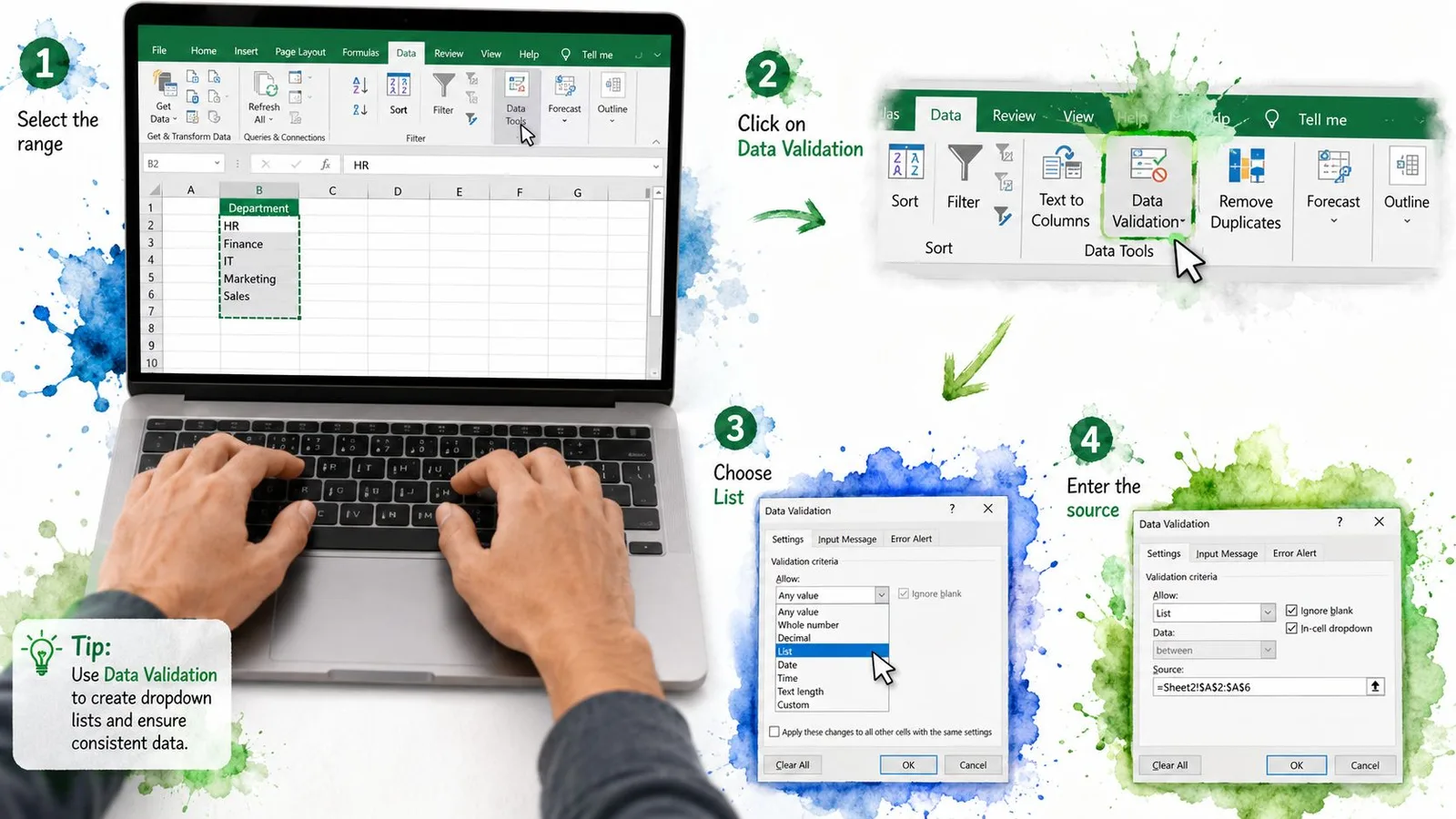
The two Source options that trip people up
If your list is tiny and stable, type the items right into the box. That keeps everything inside the rule, which is handy for quick forms or simple approval fields. If the values live in cells, click the collapse-arrow button and select the range, such as =Sheet2!$A$1:$A$10.
Don’t miss the In-cell dropdown checkbox. If it stays checked, the arrow shows in the cell. If you clear it, the validation rule still exists, but users won’t see the arrow, which often makes them think the list is broken.
You’ll also see the Input Message and Error Alert tabs. Leave them for a moment if you’re building your first list, but remember they’re part of the same validation system. Microsoft also recommends testing both valid and invalid entries after setup, which is the fastest way to catch a misconfigured source or an unexpected bypass.Microsoft’s more on data validation guidance
A quick test is enough. Click the arrow, choose one item, then try typing something that isn’t on the list. If Excel accepts it, stop and check the alert style and source range before you trust the workbook.
Choosing the Right Source for Your List
The source you choose decides how much work you do later. A typed list is quick, a cell range is flexible, and an Excel Table is usually easier to maintain when the workbook keeps growing. Named ranges created through Formulas > Name Manager behave like ranges, so they carry the same trade-offs as a regular cell reference.
| Drop Down List Source Comparison | Best For | Key Limitation |
|---|---|---|
| Comma-separated inline list | Short, fixed choices such as Yes/No, department codes, or a small status set | Editing gets awkward once the list grows |
| Cell range or named range | Medium lists that may be sorted or filtered on a sheet | The reference can become stale if the layout changes |
| Excel Table source | Lists that expand over time and need easier maintenance | Requires a slightly more structured setup |
A short decision rule helps. If you have a few stable items, inline text is enough. If the list grows or many people share the file, use a Table. If you are working in a legacy workbook with a frozen layout, a range may be the quickest option.
Why Tables age better
Microsoft’s support notes that table-based sources can grow as the source data grows, which helps in files that change over time.Microsoft’s create a drop-down list guidance That means you can add new items to the source table without reopening the validation dialog every time. It also makes the source easier to audit, because the list lives in a structured object instead of a loose cell block.
A plain range takes more upkeep. If rows are inserted or deleted, the reference may stop covering the full list unless someone updates it. Microsoft’s more on data validation guidance An inline list has the opposite problem. It is easy to create, but annoying to edit later because the items are buried inside the validation rule.
Keep the source where the maintenance burden is lowest, not where it looks tidiest on day one.
Creating Dependent Drop Down Lists That Update Automatically
A dependent list is just a second drop-down that changes based on the first one. If the first cell says Fruit, the next cell should show fruit options. If it says Vegetable, the second list should switch without extra clicks.
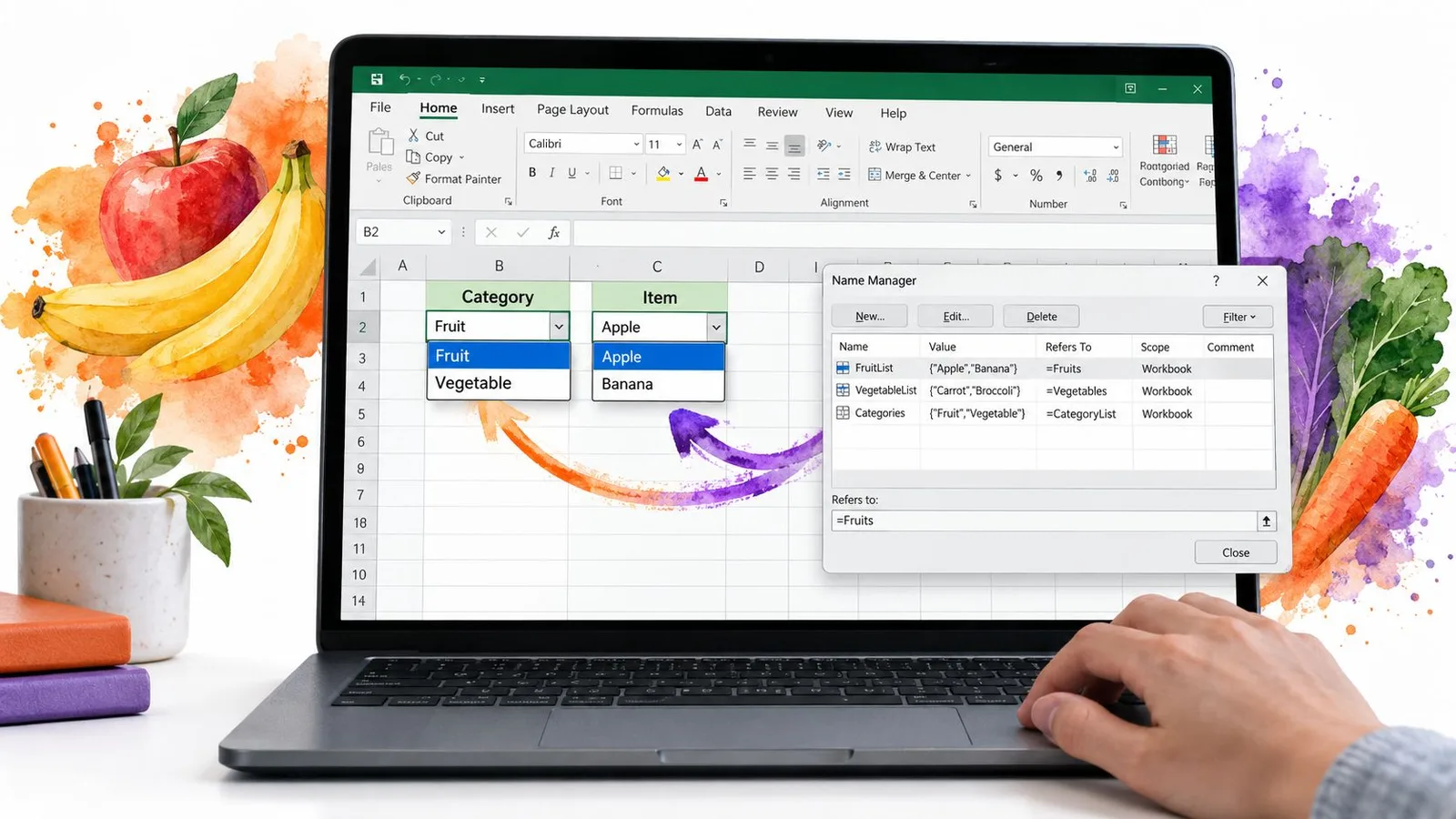
A rebuildable example you can copy
Set up your sheet like this. Put Fruit, Vegetable, and Grain in the first column as your top-level choices. Then place lists under matching headers in three separate columns, one column for fruit items, one for vegetables, and one for grains. After that, give each source range a name that matches the header exactly.
Now select the dependent cell. Open Data Validation, choose List, and enter =INDIRECT($A2) as the source. The INDIRECT formula tells Excel to turn the text in the first cell into a named reference, so the second list follows the first choice.
The reference cell needs to be locked correctly in the formula, or the source will drift when you copy the validation down a column. That’s the common snag. The other trap is simpler, INDIRECT only works when the referenced name exists, so the names and headers must match character for character.
After you build it, test a few rows. Choose Fruit in column A, then open the dependent list in column E and make sure it shows the matching items. Repeat with Vegetable and Grain so you can see the cascade working instead of assuming the formula did its job.
Later, if you want to compare list-building ideas for Sheets-style workflows, keep a note of this formula generator for spreadsheet helpers, then come back to Excel and keep the names consistent.
Three Assumptions That Break Excel Drop Down Lists
A drop-down list can feel like a lock on a cell, especially after you finish setting it up and see the arrow appear. Excel treats it as validation, though, and that difference matters as soon as other people touch the file.
Validation is not the same as security
Validation can show a prompt and block a bad entry when the alert is set to stop, but it does not turn the workbook into a secure container.how Microsoft warns about pasted and filled values bypassing validation Copying, filling, dragging, and recalculation can still bypass or disturb the rule unless the sheet is protected and the setup is checked carefully.
If someone pastes a value into a restricted cell, the dropdown did not necessarily fail. The input path may have skipped the check entirely, like walking around the front door instead of opening it. Pair the validation rule with sheet protection, then test the workbook the way users are likely to use it.
Paste can sneak around the rule
Another common assumption is that the list stops every pasted value. Excel does not work that way. Microsoft warns that copied and filled values can bypass validation, so a workbook can look clean and still contain entries that do not belong.how Microsoft warns about pasted and filled values bypassing validation
That matters in shared files, where people move fast and may overwrite a cell without opening the dropdown first. A stronger setup uses the Error Alert tab, protects the sheet, and checks the file after copy and paste actions.
Hiding a sheet doesn’t hide the source forever
A hidden source sheet can keep the workbook tidy, but it is not a security boundary. Named ranges and workbook references still resolve, and the list can still be managed through Excel’s naming tools. If someone can open Name Manager or point a formula at the source correctly, the list source is still available.
Image-backed choices follow the same rule. Native Excel validation does not place images inside the list itself, so image-linked behavior needs extra workbook logic, such as named ranges, lookup formulas, or linked picture techniques, as shown in ExtendOffice’s image drop-down example. If you are cleaning the source data before it feeds a rule, this AI data cleaning tool for spreadsheet work can help prepare the list first.
Practical Tips for Managing and Maintaining Your Lists
A dropdown lasts only if the source behind it stays clean. If the values drift, the list may still open, but the validation system behind it starts to fail. That is why source design, prompt text, and sheet protection belong together from the start.
Build the list for the person who opens it later
Write an Input Message that says what belongs in the cell and how the person should use the list. Keep it short and clear, like a label on a storage bin. Microsoft notes that this message appears when a validated cell is selected, so it can guide the user before they type.
Use Error Alert settings to match the risk. Stop fits cells that must accept only listed values. Warning gives users a chance to correct the entry without blocking them at once.
AutoComplete helps in long lists. Microsoft says users can type the first few characters of an item and accept the match with Enter, which reduces scrolling and makes the list easier to use.
Keep the source list maintainable
If your source is still a comma-separated list, move it into a Table reference once it starts growing. That keeps the dropdown tied to the source range, so new items can flow in without reopening the dialog every time. If you need to remove the rule, select the cell, open Data Validation, and choose Clear All.
Protect the source sheet too. Lock the cells that hold allowed values so nobody changes the list by accident after the workbook is shared. Test both valid and invalid entries as part of the setup, since validation only works if you confirm how it behaves in real use.
If you are cleaning the source data before it feeds a rule, this spreadsheet data cleaning resource can help you prepare the list first.
A list that’s easy to edit once is nice. A list that stays correct after three other people touch the file is what you need.
A simple quarterly checklist
- Check the source range: Confirm the list still includes every allowed value and no blanks.
- Test the alert behavior: Try a valid entry and an invalid one to confirm the rule still works as expected.
- Review the source type: Replace a cramped inline list with a Table if the values are growing.
- Confirm the prompt text: Make sure the message still matches the field’s purpose.
- Scan for bypasses: Paste, fill, and drag a sample cell to see whether the workbook still catches bad input.
- Verify shared files: Open the workbook on a different machine or account and confirm the arrow, source, and alert still work.
If you want help building cleaner spreadsheet workflows around validation, source lists, and data cleanup, visit GPT Workspace, an AI agent for spreadsheet workflows. It fits naturally alongside Excel-style list building because it helps teams prepare, classify, and clean spreadsheet data before it reaches a validation rule.