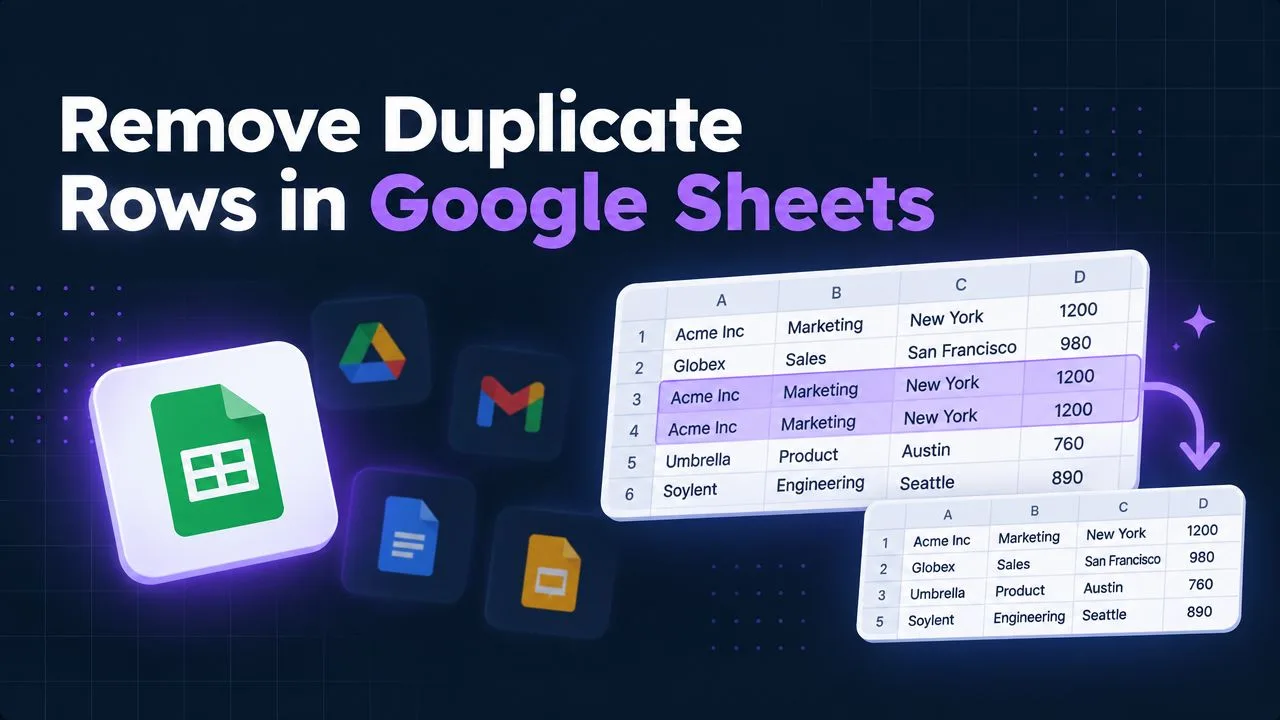
How to Upload Excel to Google Sheets
Learn how to upload Excel to Google Sheets using Drive, the Sheets UI, or copy-paste. Includes tips on formulas, formatting, and fixing common import errors.


You’ve just received a client’s Excel workbook, and the team needs to edit it together in Google Sheets before the next meeting. The upload itself may take moments. The risk is what happens afterward: a date can be interpreted through the wrong regional convention, a formula can lose an external reference, and an embedded image can disappear even though the spreadsheet opens normally.
To upload Excel to Google Sheets reliably, treat the process as a small migration rather than a file transfer. Choose the import path based on the workbook’s complexity, preserve the original file, and validate important values, formulas, and visuals before anyone starts working from the converted copy.
Table of Contents
- Why the Upload Method You Choose Matters
- Uploading Through Google Drive
- Alternative Import Methods and When to Use Them
- File Size Limits and Technical Constraints
- Hidden Data Fidelity Risks After Upload
- Troubleshooting Common Conversion Problems
Why the Upload Method You Choose Matters
A complete Excel workbook and a small extracted table aren’t the same migration. If you’ve received a workbook with multiple tabs, linked formulas, charts, and client-specific formatting, moving only the visible data can create cleanup work that isn’t obvious until someone edits the file.
There are three practical paths:
- Google Drive upload: Best for moving the workbook as a complete file into a shared cloud workspace. You can retain the original Excel file and create a Google Sheets version.
- Sheets import: Best when Excel data needs to become part of an existing Google Sheets project. Google documents this workflow through File > Import, where you can create a new spreadsheet, insert new sheets, or replace the current spreadsheet. Google’s import guidance describes these options and confirms that the original Excel file can remain intact when conversion takes place.
- Direct copy and paste: Best for a quick extract, such as one report table or a selected range. It’s faster, but it doesn’t represent a full workbook migration.
The decision affects more than convenience. A full conversion gives the team a native Sheets file for collaborative editing, while copy-paste can strip away workbook-level relationships, named structures, charts, and automation. Even when the visible cells look correct, formulas may behave differently after conversion because Excel and Sheets don’t use identical feature sets or reference conventions.
Practical rule: Preserve the source workbook, create a working copy, and validate the working copy before you distribute it.
For a client file, I’d use Drive or the Sheets import dialog rather than copy-paste. For a small extract that will be treated as static input, copy-paste is reasonable. The right method is the one that matches the amount of structure you need to preserve.
Uploading Through Google Drive
Google Drive is usually the cleanest choice for a complete workbook migration. It keeps the file organized with the rest of your Workspace content and gives you a clear place to control access after conversion.
The upload and conversion path
- Open Google Drive and sign in.
- Select New > File upload.
- Choose the Excel file from your computer.
- After the upload finishes, right-click the file and choose Open with > Google Sheets.
- If the file opens in Excel compatibility mode, use File > Save as Google Sheets to create a native Sheets copy.
Google also supports an automatic conversion preference in Drive. Open Settings, then enable Convert uploads to Google Docs editor format if you want future Excel uploads to convert automatically. I’d use that setting only when your team has a consistent validation process, because automatic conversion removes a deliberate review step.
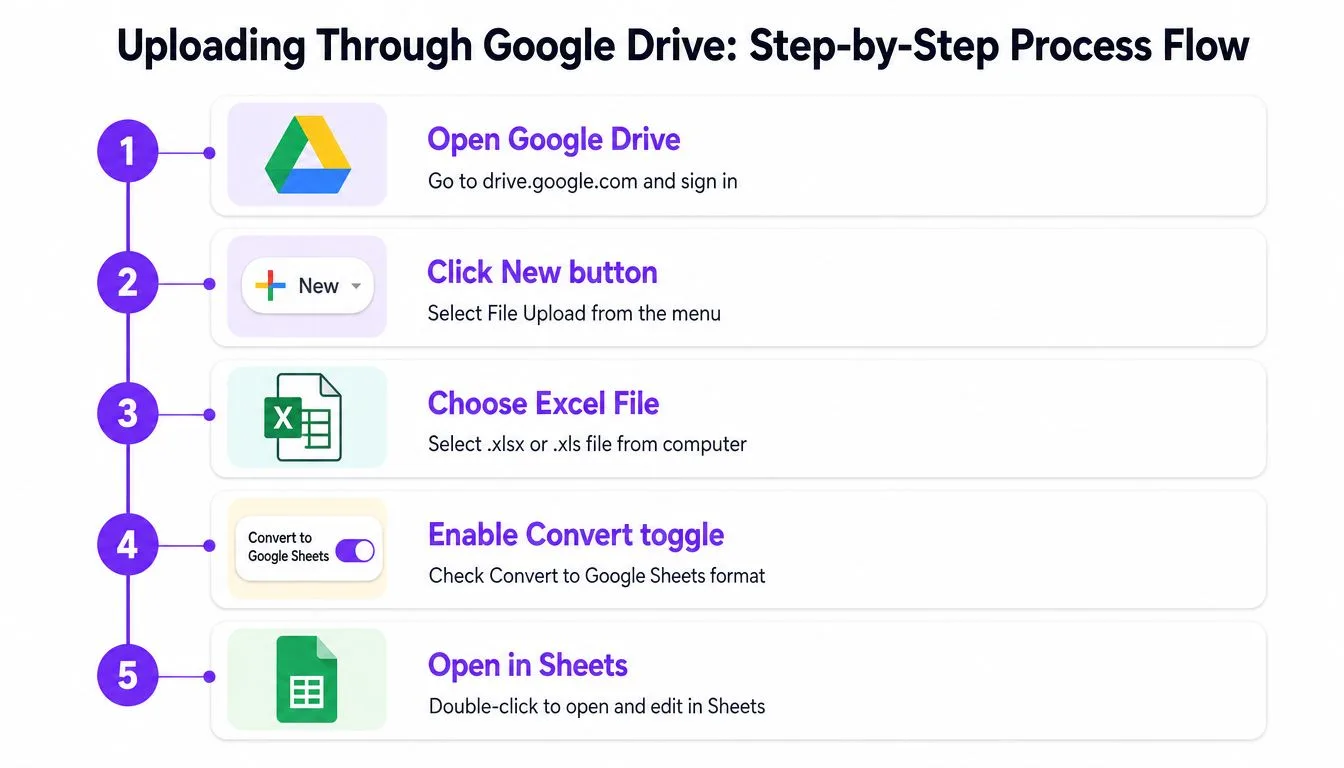
The original Excel file stays available in Drive, while the converted Google Sheets version becomes a separate editable document. That separation matters. If a formula, chart, or formatting rule changes during conversion, you can compare the working copy with the untouched source rather than trying to reconstruct what was lost.
Verify the result before sharing
Check the file name and format, confirm that every expected tab exists, and open several critical ranges. Then share the converted file with the right people and move both versions into a clearly named Drive folder. Give collaborators edit access only to the Sheets copy unless they specifically need the original Excel file.
A short walkthrough can help new users follow the same process:
Alternative Import Methods and When to Use Them
The Sheets import dialog is the better option when you already have a destination workbook. Open that spreadsheet, choose File > Import, upload the Excel file, and select the result you want. Google’s documented choices include creating a new spreadsheet, inserting new sheets, or replacing the spreadsheet.
For an existing project, Insert new sheet(s) is usually the safest choice. It adds the imported tabs without overwriting the workbook your team is already using. Replace spreadsheet is appropriate only when the uploaded workbook is meant to become the complete replacement and you’ve already preserved the existing file.
Match the method to the job
| Situation | Preferred method | Why |
|---|---|---|
| Complete workbook migration | Drive upload and conversion | Preserves the workbook as a separate source and working copy |
| Adding selected workbook tabs to an existing project | File > Import | Lets you insert data without rebuilding the destination |
| One table or a limited range | Copy and paste | Avoids converting irrelevant workbook content |
| Data that must become static | Paste special, values only | Removes formula dependencies from the pasted range |
Copy-paste is useful when the workbook contains a large amount of material but you need only a small extract. For example, you might copy a finalized customer list into a shared planning sheet rather than converting an entire reporting workbook. The trade-off is that charts, macros, linked workbooks, and workbook-level relationships don’t come along as part of the selected range.
Use Paste special deliberately. Values only are safer when you want a fixed snapshot. Formulas are appropriate when the destination should continue calculating, but they can introduce references that don’t work in Sheets. Formatting only can help when the destination already contains correct values and you want to apply visual styling separately.
Multi-sheet workbooks deserve extra care. If only two tabs matter, importing those tabs into a controlled destination is usually less disruptive than converting the entire file and asking collaborators to ignore everything else.
File Size Limits and Technical Constraints
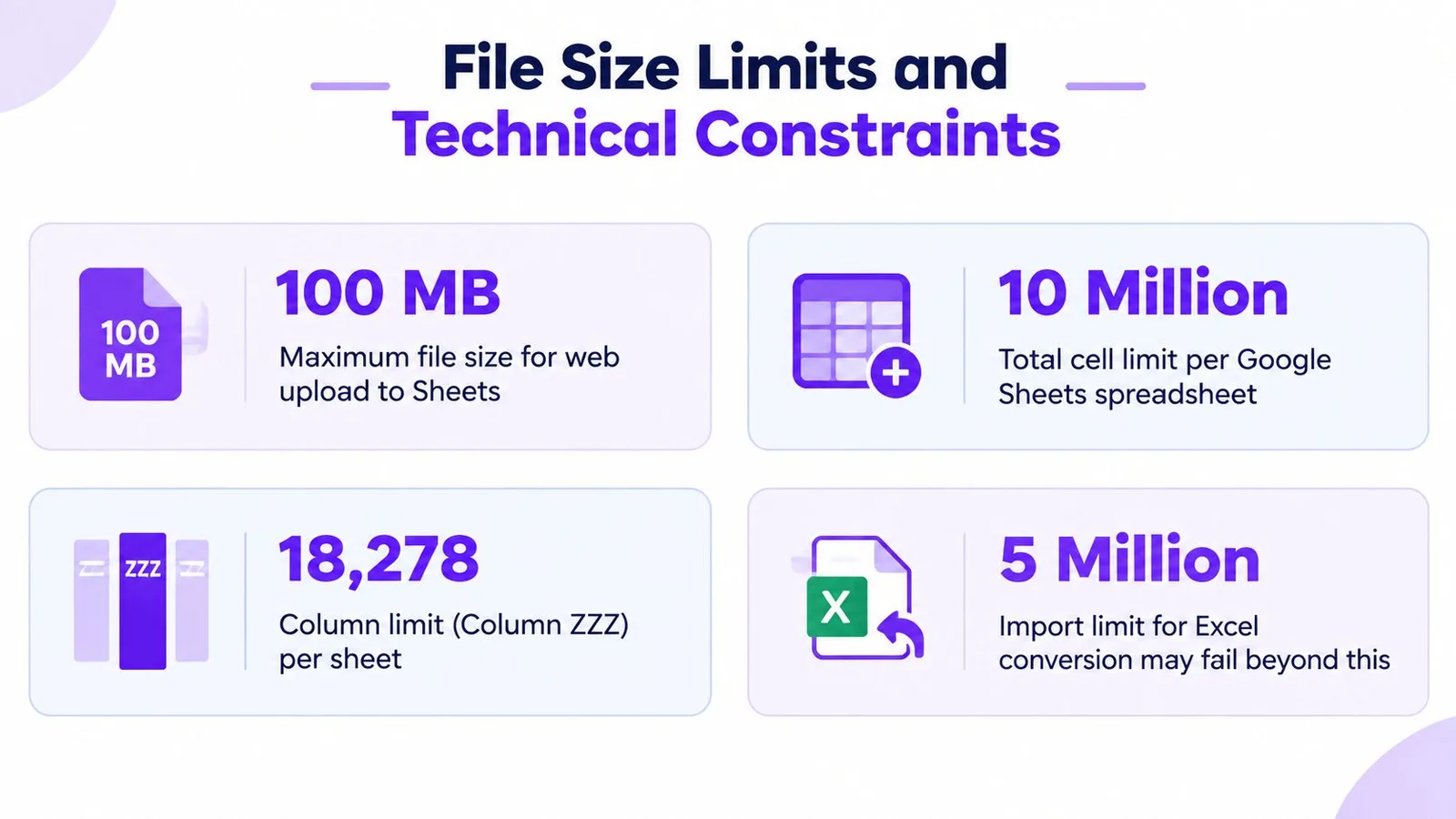
Before you start a large migration, check both the file’s size and the amount of spreadsheet content. Google Sheets allows CSV and Excel uploads up to 100 MB through the web interface, and larger files are rejected, according to the documented file-size guidance. A file can remain below that boundary and still be too dense for the spreadsheet itself.
Google Sheets has a 10 million-cell spreadsheet cap. That limit counts the grid’s total cell capacity, so rows alone don’t tell you whether a workbook will fit. 100,000 rows with 100 columns already reaches the cap, as explained in Google’s Workspace update on Excel conversion.
What can fail even when the file uploads
Conversion doesn’t guarantee feature compatibility. Unsupported Excel features may be ignored, and password-protected Excel files can’t be converted into Sheets. Macros, linked workbooks, and embedded charts may also fail to carry over cleanly.
Look for these risks before uploading:
- Wide data tables: A moderate row count can still consume the cell allowance when many columns are populated.
- Dense formatting: Extensive formatting and unused ranges can make a workbook heavier than its visible data suggests.
- External relationships: Formulas linked to other workbooks may lose their source references.
- Automation: VBA macros won’t become native Sheets automation automatically.
- Protected files: Remove password protection from a working copy before conversion if you’re authorized to do so.
If the workbook is too large or too complex, split it by business function, archive old tabs, remove unnecessary ranges, or separate raw data from reporting views. Don’t delete the original. Keep a source copy so the restructuring remains reversible.
Hidden Data Fidelity Risks After Upload
A successful upload only proves that Sheets accepted the file. It doesn’t prove that every value retained its intended meaning.
Locale settings are a common source of trouble. Excel may store dates, decimal separators, and time values according to the workbook’s regional conventions, while Google Sheets interprets or displays them using the destination spreadsheet’s locale. A value can look plausible while being treated as text, parsed as a different date, or calculated differently from the source.
Validate values, not just appearance
Start with fields where an interpretation error would affect a decision:
- Dates used for deadlines, billing, or reporting periods
- Decimal values used in totals or rates
- Times used in schedules or service-level calculations
- Currency fields with regional separators
- IDs that resemble dates or numbers but must remain text
Compare a sample of critical rows against the Excel source. Check row and column coverage, inspect formulas in important totals, and test whether numeric fields still participate in calculations. Formatting is only the display layer. A cell that appears to contain a date may still hold a text string, and a number that looks right may have been parsed differently.
Formula drift deserves its own review. A formula can remain visible while its reference changes, especially when it points to another workbook or uses an Excel-specific feature. Toggle formula display in Sheets and inspect the formulas behind key outputs rather than checking only the rendered results.
For recurring cleanup, GPT Workspace’s Sheets data-cleaning workflow can help analyze selected ranges, classify inconsistent values, and generate spreadsheet formulas. It should support your validation process, not replace comparison with the source workbook.
Validation rule: Check critical values, formula behavior, and source coverage before collaborators treat the converted file as authoritative.
If the locale is wrong, adjust the spreadsheet’s locale and then recheck affected dates, numbers, and formulas. Don’t assume that changing the display format repairs an underlying value that Sheets already interpreted incorrectly.
Troubleshooting Common Conversion Problems
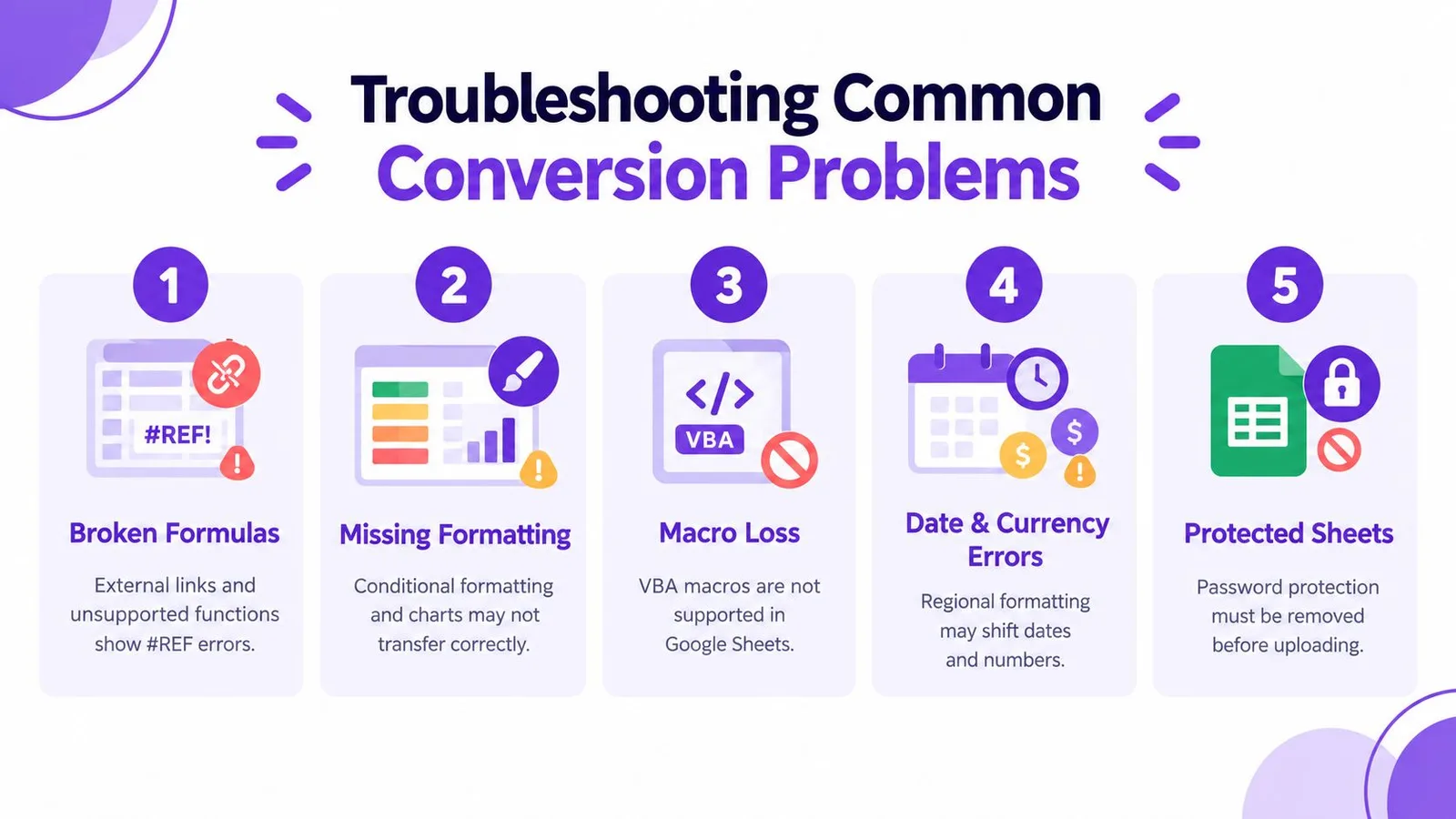
Most conversion issues fall into a few recognizable groups. Work through them in order, starting with source-file restrictions and then checking formulas, visuals, and layout.
Fix the source and formula problems first
- Password protection: Create an authorized working copy with protection removed before attempting conversion. Google’s documented conversion limits exclude password-protected Excel files.
- Broken formulas: Look for references to external workbooks, unsupported functions, and errors such as
#REF!or#NAME?. Replace external dependencies with Sheets-compatible references or rebuild the calculation. - Lost macros: VBA doesn’t run as native Google Sheets automation. Recreate the required workflow with Apps Script rather than assuming the macro survived.
- Damaged layout: Recheck merged cells, column widths, conditional formatting, and chart placement. If the layout is operationally important, compare the converted file with the source page by page.
- Unexpected structure: If imported content is misaligned, use this guide to merging cells in Google Sheets only after confirming that merging is needed. Merged cells can make filtering and later data cleanup harder.
Handle images separately
Images aren’t ordinary cell data. Google Sheets supports Insert image in cell and Insert image over cells, so decide whether each visual belongs inside the grid or should float above it. Google’s image insertion documentation explains both placement modes.
Sheets images must be under 50 MB and use PNG, JPG, or GIF formats. SVG isn’t supported, according to Google’s spreadsheet image requirements. Convert unsupported images before uploading, then insert them manually if they didn’t transfer.
Finish with a short acceptance check: confirm the expected tabs, spot-check locale-sensitive fields, test key formulas, inspect charts and images, and verify sharing permissions. GPT Workspace can work inside Sheets to generate formulas, clean selected data, and analyze imported ranges, which makes it useful when the remaining problems are repetitive rather than structural. Visit GPT Workspace to review how its Google Workspace tools can support post-upload cleanup and spreadsheet validation directly in your existing workflow.