How to Clean Data in Excel: A Practical Guide
Master how to clean data in Excel using Power Query, formulas, and automation. Streamline your workflows and eliminate duplicates with expert techniques.


You’ve just opened a CSV export from a CRM or survey platform. Names appear with different capitalization, some values contain invisible spaces, dates refuse to sort properly, and repeated records have inflated the totals. The temptation is to fix each visible problem directly in the original file, but that approach makes the next export harder, not easier.
Learning how to clean data in Excel is less about memorizing isolated formulas and more about creating a process you can explain, repeat, and audit. Preserve the source, separate transformation logic from output, standardize values deliberately, and validate the result before anyone builds a report from it.
Table of Contents
- Why Data Cleaning Matters for Your Workflow
- The Essential Pre-Cleaning Checklist
- Removing Duplicates and Standardizing Text
- Building Repeatable Workflows with Power Query
- Leveraging AI for Advanced Cleaning Tasks
- Protecting Identifiers and Validating Data
Why Data Cleaning Matters for Your Workflow
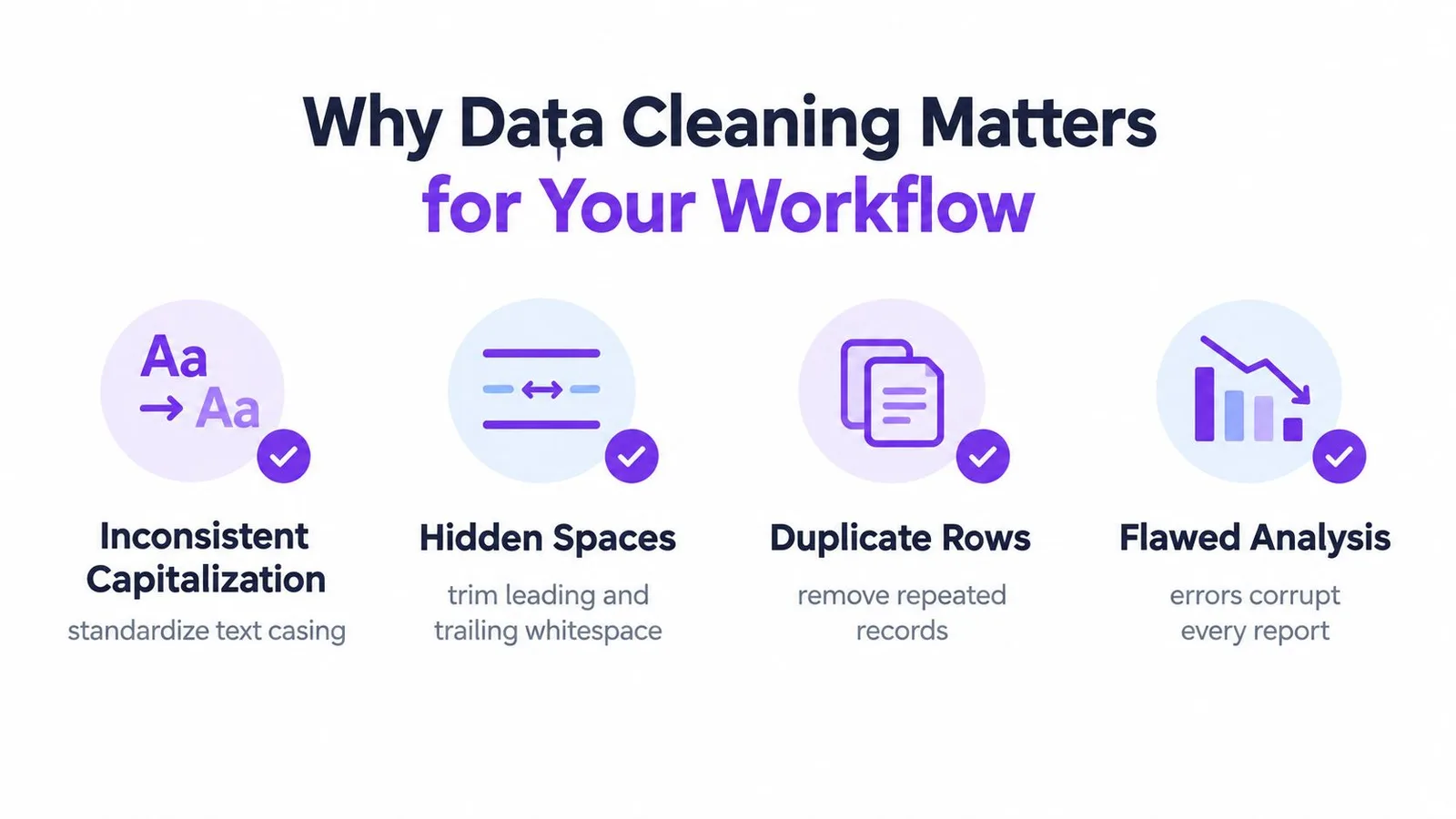
A spreadsheet can look tidy and still produce unreliable results. Retail, retail, and RETAIL may represent the same category to a person, while Excel treats inconsistent text as separate labels in summaries. A trailing space can cause a lookup to miss a customer, and duplicate records can inflate a count without creating an obvious visual warning.
The foundational structure is simple: one row should represent one observation, one column should represent one variable, and each cell should contain one piece of information. Preserve the raw import on a separate worksheet before creating a cleaned copy. These spreadsheet hygiene rules make duplicate checks, missing-value reviews, and formatting changes easier to inspect and repeat, as described in this standardized spreadsheet preparation guidance.
Preserve the evidence before changing values
Start with a copy of the received workbook. Keep the original headers and values intact, then use a separate cleaning sheet for helper columns, mappings, formulas, and validation checks. The final analysis-ready table should be distinct from both the raw source and the transformation logic.
That separation matters when a stakeholder asks why a category changed, why a row disappeared, or whether a date was corrected or merely reformatted. You can compare the original value with the cleaned value instead of relying on memory or undo history.
Practical rule: If you can’t explain a cleaning action and repeat it on the next export, treat it as a temporary repair.
A clean dataset also protects downstream work. Pivot tables, charts, formulas, and external reports all inherit the quality of their source rows. Before turning cleaned data into a visualization, follow the same discipline described in this guide to making a graph in Google Sheets, especially when the source contains categories that haven’t been standardized.
The Essential Pre-Cleaning Checklist
Before applying formulas or transformation tools, create a safe working environment. Microsoft recommends backing up the raw file, using a tabular structure, and completing broad cleanup actions before modifying individual columns in its Excel data-cleaning guidance.
Secure the source
- Save a separate copy. Keep the received workbook unchanged. Give the working file a clear name and record the source filename and date in a notes sheet or cleaning log.
- Create distinct layers. Use a
Rawsheet for the untouched import, aCleaningsheet for helper logic, and anOutputsheet for the finished table. - Convert the working range into an Excel Table. Select the data, choose Insert > Table, confirm that headers are present, and use descriptive column names. Tables make blanks and headers easier to inspect and help formulas fill down consistently.
- Remove structural obstacles. Merged cells, unrelated tables beside the dataset, blank header cells, and multi-part values inside one column can interfere with sorting, filtering, and later imports.
Complete broad checks first
Run Find and Replace for known spelling variations, but limit the selected range before making replacements. A global replacement can alter a legitimate note, identifier, or formula reference. Use spell-check for narrative fields and inspect the result rather than accepting every suggestion.
For imported text, create a helper column instead of overwriting the raw field. =TRIM(A2) removes ordinary leading and trailing spaces, while =CLEAN(A2) removes nonprintable characters, as documented in Microsoft’s CLEAN function reference. For stubborn copied text, you may need to replace unusual spacing before applying these functions.
Inspect before transforming
Check the actual extent of each column, confirm that headers are in one row, and look for blanks, errors, mixed formats, and unexpected values. Don’t assume that a cell displaying a date contains a true Excel date, or that a number aligned like other numbers is stored numerically.
The safest sequence is backup, inspect, transform, validate, publish. It prevents a convenient shortcut, such as pasting cleaned values over the original, from becoming an irreversible data decision.
Removing Duplicates and Standardizing Text
Duplicate removal is only reliable after you define what makes a row unique. An exact match across every column isn’t always the right rule. A customer ID, order reference, or survey response key may define uniqueness even when notes, timestamps, or formatting differ.
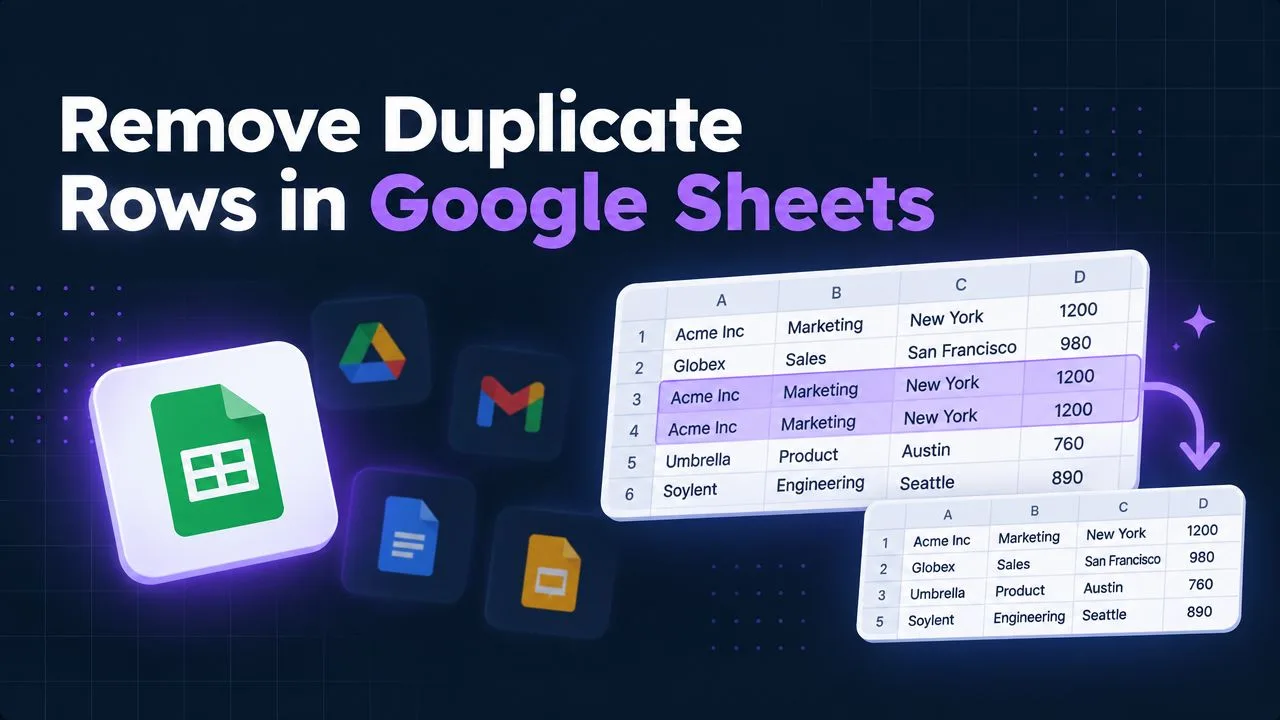
Excel offers two useful approaches. Conditional formatting highlights duplicate values for review, while Data > Remove Duplicates deletes matching records according to the columns you select, as explained in Microsoft’s duplicate-handling documentation.
Inspect first, delete second
Use conditional formatting when you need to investigate. It lets you see repeated values without changing the dataset, which is useful when two records share a name but belong to different accounts. After deciding which fields define a true duplicate, copy the relevant data to a working table and use Remove Duplicates with the correct columns checked.
The native tool is deterministic, but it only compares the scope you choose. If you select every column, two records with the same identifier but different notes may survive. If you select only a broad category, legitimate records may be deleted.
A duplicate is a business rule, not merely a visual resemblance between rows.
Standardize text before comparing
Whitespace and hidden characters can make equal values appear different. Use helper columns to normalize text before deduplication:
- TRIM ordinary spacing:
=TRIM(A2)removes leading and trailing spaces and normalizes repeated internal spaces. - CLEAN imported text:
=CLEAN(A2)removes nonprintable characters that may arrive from older systems or copied web content. - Replace unusual spaces: Use
SUBSTITUTEwhen copied content contains a nonstandard space thatTRIMdoesn’t handle by itself. - Map known variants: Create a controlled lookup table that maps spelling or label variations to one approved category.
After checking the cleaned column against the raw value, paste values into the output layer if you need a static deliverable. Keep the formulas or query steps documented elsewhere so the transformation remains understandable.
Manual deduplication works well for a controlled, one-off file. It becomes fragile when the same export arrives repeatedly. Formula patterns can be useful, and this Excel formula creation resource can help translate a desired transformation into a working expression, but formulas scattered across helper columns require maintenance when the source layout changes.
For recurring work, Power Query provides a stronger alternative because it records the transformations and can reapply them to refreshed data. The trade-off is a learning curve, but the resulting process is easier to inspect than a long chain of edits.
Building Repeatable Workflows with Power Query
Manual cleanup is appropriate when the file is small, familiar, and unlikely to return. The moment the same report arrives every month, rebuilding the process by hand creates unnecessary risk. Power Query changes the task from editing cells to defining a sequence of transformations that Excel can refresh.
Separate the pipeline from the workbook view
A practical Power Query workflow looks like this:
- Connect to the source. Import the CSV, workbook, folder, or database rather than manually copying values into a report sheet.
- Profile the imported fields. Review blanks, errors, unexpected types, and duplicate candidates before applying corrections.
- Apply transformations. Trim text, replace values, split columns, set data types, remove errors, and remove duplicates according to defined rules.
- Load the result. Output the cleaned table to a worksheet or data model, leaving the raw source available for comparison.
Power Query stores these actions in its applied steps. When the source is updated, refreshing the query reruns the recorded sequence instead of asking an analyst to repeat every click.
This is especially useful for survey exports and CRM extracts, where the same fields often contain inconsistent capitalization, hidden spaces, incomplete values, or changing category labels. Guidance on data cleaning tools for market research emphasizes these issues as explicit cleaning tasks rather than cosmetic formatting problems.
Protect sensitive fields during transformation
Power Query doesn’t know the business meaning of an identifier unless you define it. Set types deliberately, especially for account numbers, ZIP codes, membership codes, and long IDs. A field that looks numeric may need to remain text because leading zeroes or exact character sequences carry meaning.
Dates require the same care. A displayed date isn’t necessarily a valid date value, and changing a format doesn’t resolve an ambiguous source convention. Establish the intended interpretation first, then parse the field with the appropriate locale or transformation.
Before publishing the output, validate:
- Row counts: Check that removals and filters were expected.
- Key uniqueness: Confirm that the identifier intended to be unique remains unique.
- Totals: Compare important numeric totals with the source.
- Category coverage: Review unexpected labels and missing mappings.
- Date boundaries: Look for values that fall outside the period the export should cover.
Power Query is more maintainable than rebuilding formulas for recurring exports, but it still needs ownership. Name queries clearly, document assumptions, and test the refresh when the source layout changes. A refreshable workflow isn’t automatically correct. It becomes dependable when each step has a defined purpose and the output is validated.
You can watch the workflow in context here:
Leveraging AI for Advanced Cleaning Tasks
Excel’s newer assistance features can speed up inspection, but they work best inside a defined cleaning workflow. Microsoft’s AI-based Clean Data feature suggests fixes for inconsistent text issues, inconsistent number formats, and extra spaces. You access it from the Data tab, as described in the Clean Data in Excel documentation.

Use suggestions for discovery, not blind replacement
AI suggestions help expose patterns that are slow to find by hand. They can flag inconsistent casing, spacing, or number display, giving you a focused review queue. Check whether each proposed change matches the field’s meaning before accepting it.
Standardizing a customer segment is reasonable when every variation represents the same label. Similar-looking labels may still describe different groups, so classification needs a business rule. Decide whether values are equivalent, whether blanks should stay blank, and whether an unusual entry is an error or a valid exception.
GPT Workspace can work with selected spreadsheet ranges for AI data cleaning, help generate formulas, classify entries, and draft Apps Script for spreadsheet automation. It can turn a plain-language rule into a draft transformation for a connected Sheets workflow or another spreadsheet process. Test that draft on representative cases, including exceptions, before adding it to a recurring pipeline.
AI can accelerate pattern finding. It can’t define your data policy for you.
Make AI output useful beyond the current workbook by logging each accepted suggestion as a named rule. The next export can then reuse that rule instead of sending the same pattern through another manual review. Record the trigger, intended result, and known exceptions in the cleaning log.
Sensitive identifiers, dates, and survey logic still require human sign-off. A correction can look tidy while changing the value’s meaning, so route those fields through a stricter review path before automation.
Protecting Identifiers and Validating Data
The most damaging cleanup errors often affect values that look untidy but are meaningful. ZIP codes can contain leading zeroes, account numbers can resemble ordinary numbers, and long IDs can lose their intended representation when Excel converts them automatically. Treat these fields as identifiers first and numbers second.
Keep identity separate from calculation
Define the role of each column before changing its type. If a value is used for arithmetic, convert it deliberately and validate the result. If it identifies a record, keep it as text unless the source system explicitly requires another type.
A safe pattern is:
- Preserve the raw identifier. Don’t overwrite the imported field.
- Create a typed helper field. Convert only when the business rule requires it.
- Compare values side by side. Check for lost leading characters, altered formatting, or unexpected blanks.
- Test uniqueness. Use filters, conditional formatting, or a duplicate check against the defined key.
- Publish only after review. Keep the original value available for reconciliation.
Dates also deserve conditional treatment. Determine whether the source uses day-month-year or month-day-year before parsing. A display format changes appearance, but it doesn’t necessarily convert text into a valid date value.
Prevent new errors with validation
Data validation restricts the type of data or values users can enter into cells, making it useful for preventing future inconsistencies. Use dropdown lists for controlled categories, date rules for date fields, and numeric limits where the business process defines acceptable values. Validation won’t repair the existing import, but it can stop the next manual edit from introducing another spelling variant.
A complete workflow is therefore:
- Raw layer: Keep the received data unchanged.
- Inspection layer: Identify blanks, errors, duplicates, unusual formats, and suspicious values.
- Transformation layer: Clean text, standardize categories, parse dates, and set types with helper columns or Power Query.
- Validation layer: Compare row counts, totals, key uniqueness, categories, and date ranges.
- Output layer: Publish the analysis-ready table and retain a concise cleaning log.
The method matters more than any single function. TRIM, CLEAN, conditional formatting, Remove Duplicates, validation rules, and Power Query each solve different problems. Used inside a documented workflow, they preserve meaning while making the result repeatable.
GPT Workspace brings AI assistance to Google Workspace, including spreadsheet data cleaning, formula generation, selected-range analysis, classification, and automation support. Use it to draft or review transformations while keeping your raw data, validation checks, and cleaning decisions under your control, then visit GPT Workspace to explore the workflow.