Duplicates in Google Sheets How to Find and Remove Them
Learn how to find, highlight and remove duplicates in Google Sheets with built-in tools, formulas and Apps Script. Clean your data fast.

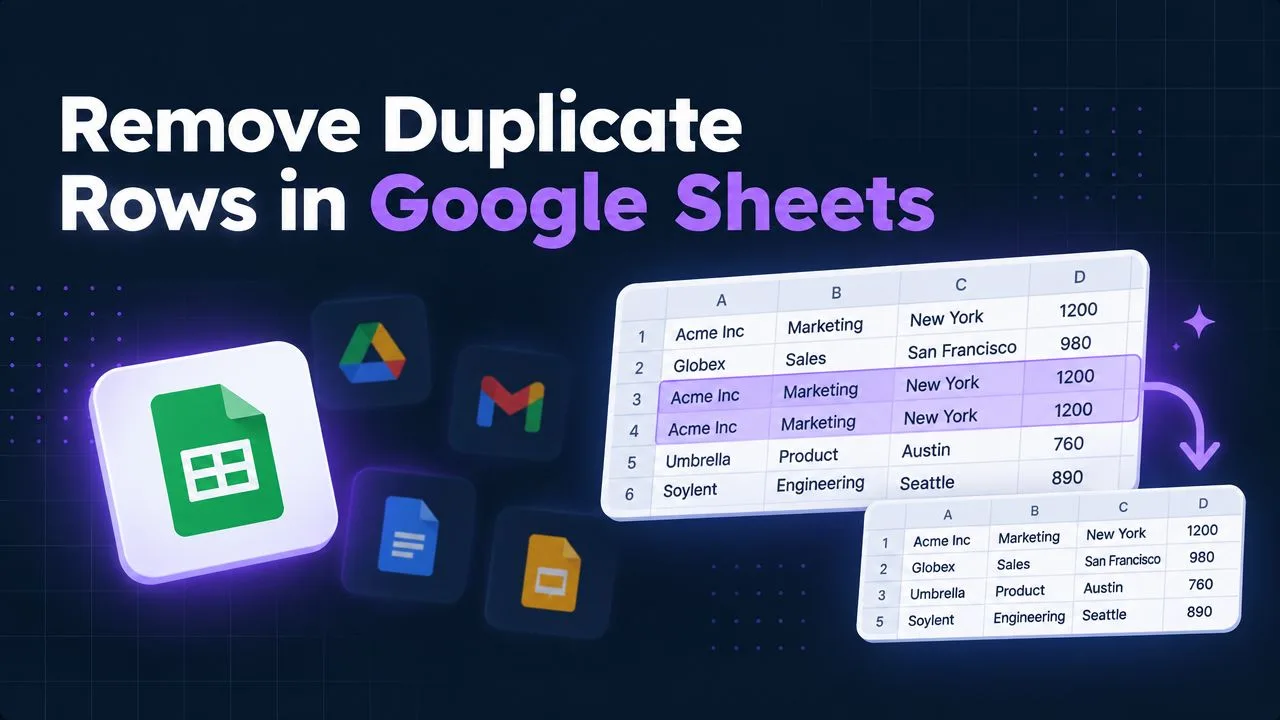
You open a shared Google Sheet and find the same customer, order, or lead repeated across several rows. Some entries differ only in capitalization, formatting, formulas, or an embedded image, so a quick visual scan doesn’t tell you what can safely be removed. Cleaning duplicates in Google Sheets works best as a controlled workflow: define the matching rule, detect records without destroying them, inspect the results, then delete or automate only after the data makes sense.
Table of Contents
- Why Duplicate Data Sneaks Into Your Sheets
- What Google Sheets Counts as a Duplicate
- How to Remove Duplicates With Built In Tools
- How to Highlight and Filter Duplicates With Formulas
- How to Automate Deduplication With Apps Script and AI Help
- Best Practices to Keep Your Sheets Duplicate Free
Why Duplicate Data Sneaks Into Your Sheets
A marketing team exports leads from a form, an operations manager pastes an updated list beneath the export, and another colleague imports a CRM file into the same tab. The sheet still looks familiar, but the same person now appears under slightly different names, email formats, or source labels. A later report counts rows instead of unique records, so totals become inflated before anyone notices.
Duplicates also arrive through form responses, copy-paste, imports, integrations, and collaborative editing. A teammate may paste a range twice while reconciling records. An automation may append a row after a retry. Two people may enter the same order before either sees the other’s update. These aren’t unusual mistakes. They’re normal consequences of treating a spreadsheet as both a data-entry form and a shared database.
The difficult part is deciding what “duplicate” means for the dataset. Two rows with the same email may represent one contact, while two rows with the same company name may represent separate people. A repeated product code might be an error, but a repeated status is usually expected. The correct key comes from the business rule, not from the most convenient column.
Three practical ways to handle the problem
- Built-in removal: Use Google Sheets when you have a defined range and are ready to remove matching rows after checking the selected columns.
- Formula-based review: Use
COUNTIF,UNIQUE, orQUERYwhen you need a visible, reversible audit trail before changing the source data. - Automation: Use Apps Script when the same cleanup happens repeatedly or spans a workflow that needs consistent rules.
Visual inspection alone fails because formatting and formulas can hide the underlying comparison. A row may look different while Sheets evaluates the relevant values as duplicates, or it may look similar while a meaningful identifier differs. Start by defining the fields that make two records the same, then choose the least destructive method that answers the question.
What Google Sheets Counts as a Duplicate
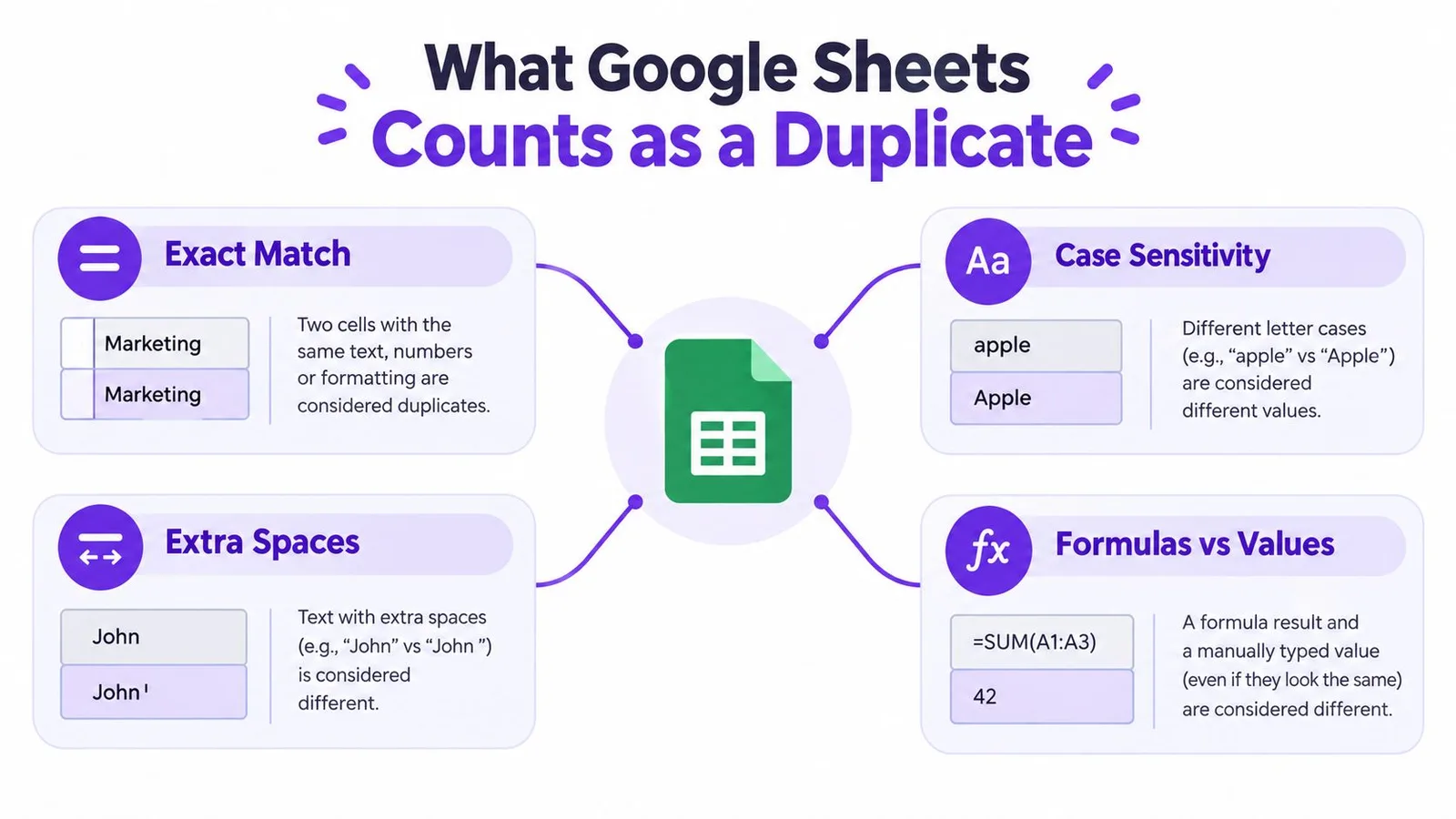
Google Sheets’ definition is broader than exact visual matching. Its official duplicate-removal guidance explains that cells can be treated as duplicates even when they differ by case, formatting, or formulas. In practice, two rows may look different on screen but still evaluate to the same underlying value set.
That matters when a column contains formulas, imported values, or inconsistent formatting. Don’t assume that changing a font, number format, or formula presentation creates a distinct record. Sheets evaluates the selected data according to its duplicate logic, rather than relying only on what your eye sees.
Choose the comparison scope deliberately
The built-in workflow is column-selective. You choose the range, tell Sheets whether it includes headers, and select the columns that determine duplicate status. The Google Sheets duplicate-removal instructions from Ablebits also describe this selection logic and the resulting report of removed duplicate values.
Use a full-row comparison when you want to preserve exact record integrity. This asks whether every selected field matches. Use a narrower key, such as an email address or order identifier, only when that field is canonical for your process. Selecting only a name column can delete valid records that happen to share a name.
Images require a separate check. Google supports both “Image in cell” and “Image over cells”, as described in the Google Workspace update on images in Sheets. An in-cell image behaves like spreadsheet content and automatically resizes to fit its cell, while an over-cells image floats independently of the grid. Google’s image help documentation also states that a cell can contain only one image. If visuals are important to record identity, keep them in a structured column and inspect those rows before deletion.
How to Remove Duplicates With Built In Tools
For a one-off cleanup, the native tool is usually the fastest option. First make a copy of the spreadsheet or duplicate the worksheet. Then select the complete data range, including every field that should remain aligned when a row is removed. Selecting only one column can leave you with a matching decision that doesn’t reflect the full record.
Open Data > Data cleanup > Remove duplicates. That exact path is documented in Google’s Help Center workflow.
Google Sheets then asks you to confirm whether the selected range has header rows. It also shows the columns available for comparison. Leave all relevant columns selected for exact full-row cleanup. If the business rule says one field defines uniqueness, select that field intentionally and document the choice before proceeding.
A safe removal sequence
- Copy the source: Preserve the original tab so you can compare or restore it if the rule was too broad.
- Select the range: Include the full table, not just the visible identifier column.
- Confirm headers: Tell Sheets whether the first row contains column names.
- Choose comparison columns: Select the fields that define a duplicate for this dataset.
- Run the cleanup: Review the confirmation message, which reports how many duplicate values were removed.
The tool removes rows based on the selected column combination. It doesn’t remove every repeated value globally, and it won’t understand your business context. A repeated email may be a duplicate in a contact list, but a repeated email in an order-history table may belong to several legitimate orders.
Practical rule: If you can’t explain why the selected columns make two records identical, don’t delete yet. Highlight or extract a review copy first.
After removal, check row counts, formulas, filters, totals, and any image-bearing records. Pay particular attention to formulas that reference row positions. A deleted row can change what downstream ranges include, even when the remaining data looks clean.
How to Highlight and Filter Duplicates With Formulas
Formula-based detection is safer when you’re still deciding what counts as a duplicate. It leaves the source rows intact, makes the rule visible to collaborators, and supports review before deletion.
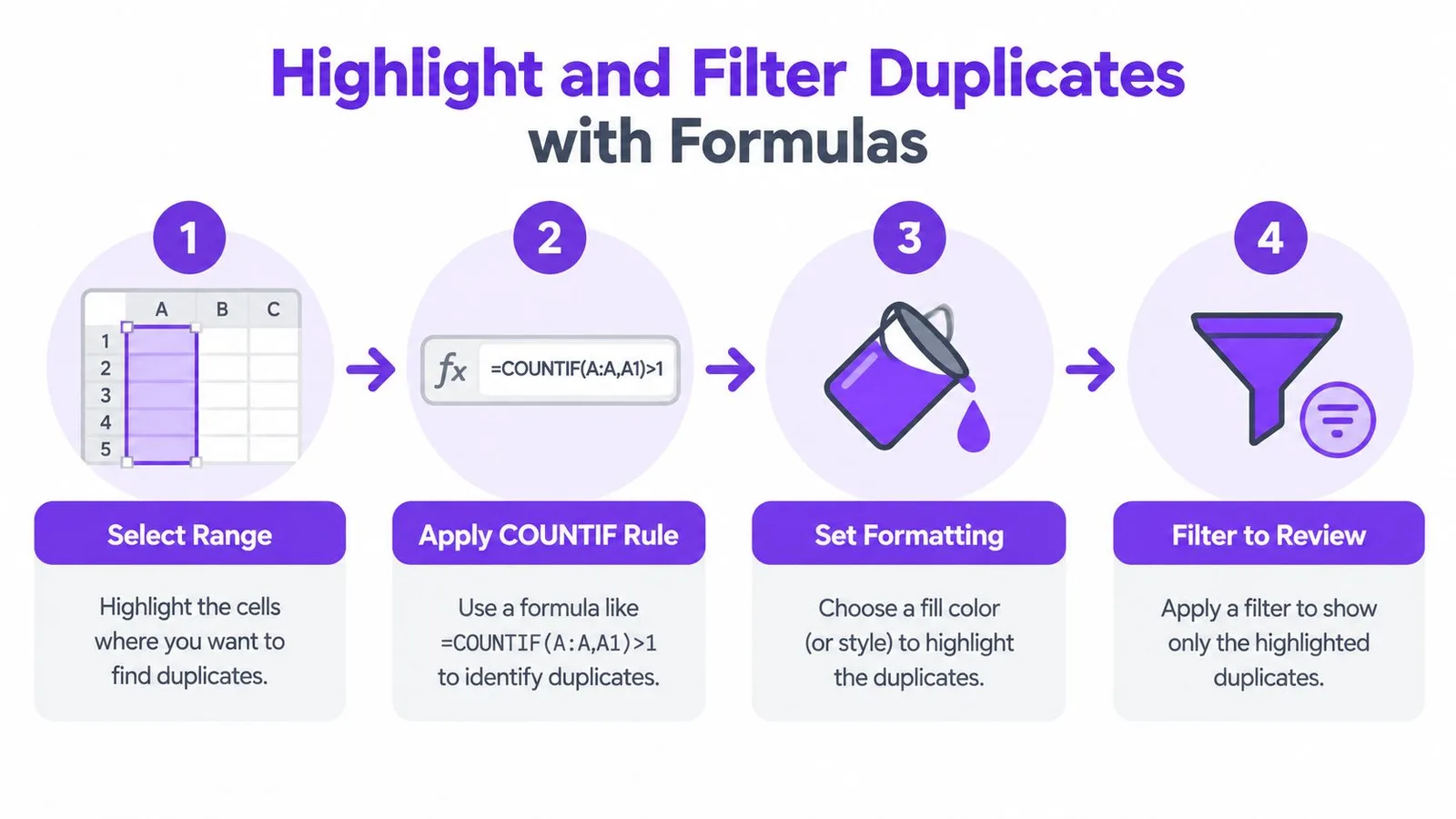
For a single-column check, select the target range, open Format > Conditional formatting, choose Custom formula is, and use:
=COUNTIF(A:A, A1)>1
The rule counts how often the current value appears in column A. Any result greater than one is highlighted. For a bounded dataset, replace the whole-column reference with the actual range and lock the range while leaving the row reference relative. For example, a rule applied to a selected block can use the equivalent pattern with an absolute comparison range and a row-relative cell.
Highlighting is for inspection, not deletion
Conditional formatting changes appearance, not the underlying data. Filter the highlighted range and inspect each group. Check whitespace, case, identifiers, dates, and related fields before deciding whether rows represent the same entity.
For multi-column logic, create a helper key that combines normalized fields, or apply a rule across the relevant range. The COUNTIF duplicate method documented by Zapier shows the canonical formula pattern and how the same approach can be adapted to broader ranges. A helper key makes the comparison easier to audit because colleagues can see exactly which fields drive the match.
For a reversible clean copy, use UNIQUE on a duplicate worksheet. You can first sort or normalize the data, then return distinct rows from the selected columns. QUERY can provide a more controlled output when you need filtering or a specific projection. Keep the source table unchanged until the clean result has been checked.
A practical audit looks like this:
- Create a copy: Put the formula output on a separate tab.
- Compare counts: Check the source, highlighted groups, and clean output.
- Inspect exceptions: Review records with different formatting or incomplete identifiers.
- Replace deliberately: Only paste the cleaned values over the source after validation.
Sorting can make repeated rows appear together, but it doesn’t prove they are duplicates. Exact formula methods are more reproducible because the logic remains in the sheet. For teams that regularly build or troubleshoot spreadsheet formulas, this guide to creating Excel formulas can also help translate a plain-language rule into a formula you can inspect.
Use UNIQUE or QUERY when you want a clean comparison table, not when you need fuzzy matching across inconsistent names. These formulas match on the exact selected fields. If the key is incomplete, the output can undercount true duplicates or merge records that should remain separate.
The video below shows the formula-based review pattern in action.
How to Automate Deduplication With Apps Script and AI Help
Automation makes sense when the same sheet receives recurring imports, form submissions, or synchronized data. The safest pattern is not “delete anything that looks similar.” It is a defined scan over a selected range, using a documented key, with an option to flag matches before removal.
In Apps Script, the basic sequence is straightforward:
- Read the values from the target sheet.
- Build a key from the chosen columns.
- Track keys that have already appeared.
- Flag or collect later rows with the same key.
- Remove those rows only after a review mode has passed.
A script should preserve headers, skip blank keys when appropriate, and process rows from the bottom upward if it deletes them. That prevents row numbers from shifting while the script works. For recurring cleanup, add a time-based trigger or run the function from a custom menu, but keep a log of the selected range, key columns, and action taken.
GPT Workspace can draft and explain Apps Script inside a Google Workspace workflow. Its AI data cleaning for Google Sheets capability is relevant when you want to describe the columns and matching rule in natural language, then review the suggested transformation before applying it.
Images still need explicit handling. An image stored inside a cell is part of the row layout, while an image placed over cells floats separately. Since each cell supports only one image, don’t assume that a visual layer identifies a record reliably. Use a stable text or numeric key, and treat images as a review signal unless your script is designed to compare the underlying image references.
Automation should begin in flag mode, not delete mode. Run it against a copy, inspect the flagged rows, compare counts, and only then allow destructive actions. A script that runs consistently with the wrong key can create a larger cleanup problem than a manual pass.
Best Practices to Keep Your Sheets Duplicate Free
Good deduplication is mostly preparation. The removal click is easy. Choosing the right key, preserving an original, and checking the result are what protect the dataset.
Use this routine whenever you clean a shared sheet:
- Work on a copy: Duplicate the file or worksheet before changing rows.
- Normalize first: Standardize case, whitespace, dates, and identifier formatting before comparison.
- Choose key columns carefully: Use a canonical identifier when one exists, otherwise compare the full row.
- Review visually: Check highlighted groups, formulas, formatting, and image-bearing rows.
- Verify counts: Compare source and cleaned outputs before replacing the original table.
- Prefer reversible formulas: Use
UNIQUE,QUERY, or a helper key when the rule is still being tested. - Automate repeat work: Move a stable rule into Apps Script only after manual validation.
Data validation can reduce inconsistent entries at the point of entry, while controlled form fields can keep responses more uniform. A periodic UNIQUE output on a review tab can expose new repeats without changing the source. For broader spreadsheet maintenance, Google Sheets AI tools from GPT Workspace include formula assistance, selected-range analysis, data cleaning, classification, and Apps Script drafting.
Keep the source table authoritative and place derived checks beside it or on separate tabs. That separation makes it easier to distinguish a detected duplicate from a deleted duplicate, and it gives collaborators a clear audit trail when the sheet changes.
The reliable habit is simple: detect first, inspect second, delete last. If the same issue returns, improve the input process or automate a reviewable rule instead of repeatedly fixing the output.
GPT Workspace brings AI assistance directly into Google Sheets and other Google Workspace apps, helping with formula creation, selected-range analysis, data cleaning, and Apps Script drafting. Use it to turn your deduplication rule into a reviewable workflow, then visit GPT Workspace to explore the available tools.