Gemini Custom Instructions in Google Workspace: Setup and Limits
Gemini custom instructions now work in Gmail, Sheets, Slides, Drive and Chat. See how to set them up, what the limits are, and where GPT Workspace fits.

Yapay zeka ile taslak oluşturulmuş, ardından mevcut GPT Workspace ürününe göre kontrol edilmiştir.
Every AI chat starts the same way. You paste your tone, your format, your “no bullet points please,” and then you do it again in the next window. Gemini custom instructions in Google Workspace are Google’s fix for that repetition.
On September 2, 2026, Google expanded custom instructions beyond Docs. They now apply in Ask Gemini in Drive, Ask Gemini in Chat, and the Gemini side panel in Gmail, Sheets, and Slides.
This guide covers how to set them up, what the limits are, and the other September changes to the Gemini side panel. It also shows where GPT Workspace, a Chrome extension and Google Workspace Add-on that puts AI directly inside Docs, Sheets, Slides, and Gmail, still does something different.
What Google Changed in September 2026
Three announcements landed within two weeks, and they fit together. Read them as one story: Gemini is becoming a single assistant that follows you across apps.
The first is custom instructions. Google says they help Gemini adapt to your style, tone, and formatting preferences without you repeating them in every conversation. The rollout began September 2 and takes up to 15 days to reach everyone on Rapid Release and Scheduled Release domains.
The second is the unified side panel. 9to5Google reported that Google upgraded all Gemini side panels in Workspace to share the same features. That means you can ask for a spreadsheet from Gmail, or send an email for review from Docs.
The third is connectors. On September 15, Google announced MCP integrations for Asana, Atlassian Rovo, HubSpot, Intuit Mailchimp, Intuit QuickBooks, Monday, and Salesforce. They are on by default for users with Gemini access, and admins manage them under Third-Party Connectors in the Admin console.
How to Set Up Gemini Custom Instructions
You can set instructions in two ways. Both take under a minute.
Option 1: Settings, then Personalization
Open Gmail, Docs, Sheets, or Slides and click Ask Gemini at the top right. In the side panel, open the menu at the top left, then Settings, then Personalization. Type your instructions and click Save.
Google’s own labelling for this screen is “Your Instructions for Gemini in Workspace”. It lists everything you have saved in one place, so you can edit or delete entries later.
Option 2: Tell Gemini in the chat
You can also just ask. Type something like “Remember that I always want summaries in five bullets or fewer,” and Gemini stores it as an instruction. This is faster, but check the Personalization screen afterwards to confirm what it saved.
What to put in your instructions
Vague instructions produce vague results. Be specific about your role, your tone, and the format you want back.
A good one reads like a brief: “I run customer success for a B2B SaaS company. Write in plain English, no exclamation marks, and keep emails under 120 words.” A bad one reads like a slogan: “Be professional and concise.”
Example Instructions You Can Copy
Here are three starting points. Edit the details to match your job.
For Gmail: “I write to customers and partners. Keep replies under 120 words, use plain English, and end with one clear next step.” This one stops the padding that assistants add to every email.
For Sheets: “When you write formulas, explain them in one sentence and use ranges like A2:A500 instead of whole columns.” It saves you from decoding a formula you did not write.
For Slides: “Titles are sentences, not labels. No more than four bullets per slide, and each bullet under 12 words.” Slide decks improve fast once the length rule is fixed.
Test each instruction with a real task before you trust it. If Gemini ignores a rule, shorten it and remove anything that contradicts another instruction.
Common Mistakes With Gemini Personalization Settings
Most problems come from three habits. They are easy to avoid once you spot them.
Stuffing everything into one giant instruction is the first. Gemini follows a short, single-purpose rule better than a wall of text, so split them up.
Mixing contradictory rules is the second. “Be brief” and “explain every step in detail” cannot both win, and you will get inconsistent output.
Saving sensitive data is the third. Instructions are stored in your account and reused in many places, so keep client names, passwords, and private figures out of them.
Limits You Should Know Before Relying On It
Custom instructions are useful, but they have edges. Here is what the current documentation and coverage say.
You can save up to 1,000 active instructions, which is far more than you will use. Instructions are shared across eligible Workspace products, so something you add in Gmail also applies in Docs, Slides, and Sheets.
At launch the feature was reported as available in English and in the US only. Check the Google Workspace Learning Center page on Gemini instructions for the current list, because that is the kind of detail Google changes quietly.
There are no admin controls for custom instructions, according to the announcement. If you manage a domain, that means you cannot switch them off centrally or push a company-wide style guide through this feature.
One-off prompts win. If your saved instruction says “always use bullets” and you ask for a paragraph, the specific request overrides the saved one.
Gemini Side Panel vs GPT Workspace: Where Each One Fits
Google’s side panel is strongest at one thing: it knows your Workspace. It can pull from Drive, Gmail, and Calendar, and now from tools like Salesforce and HubSpot.
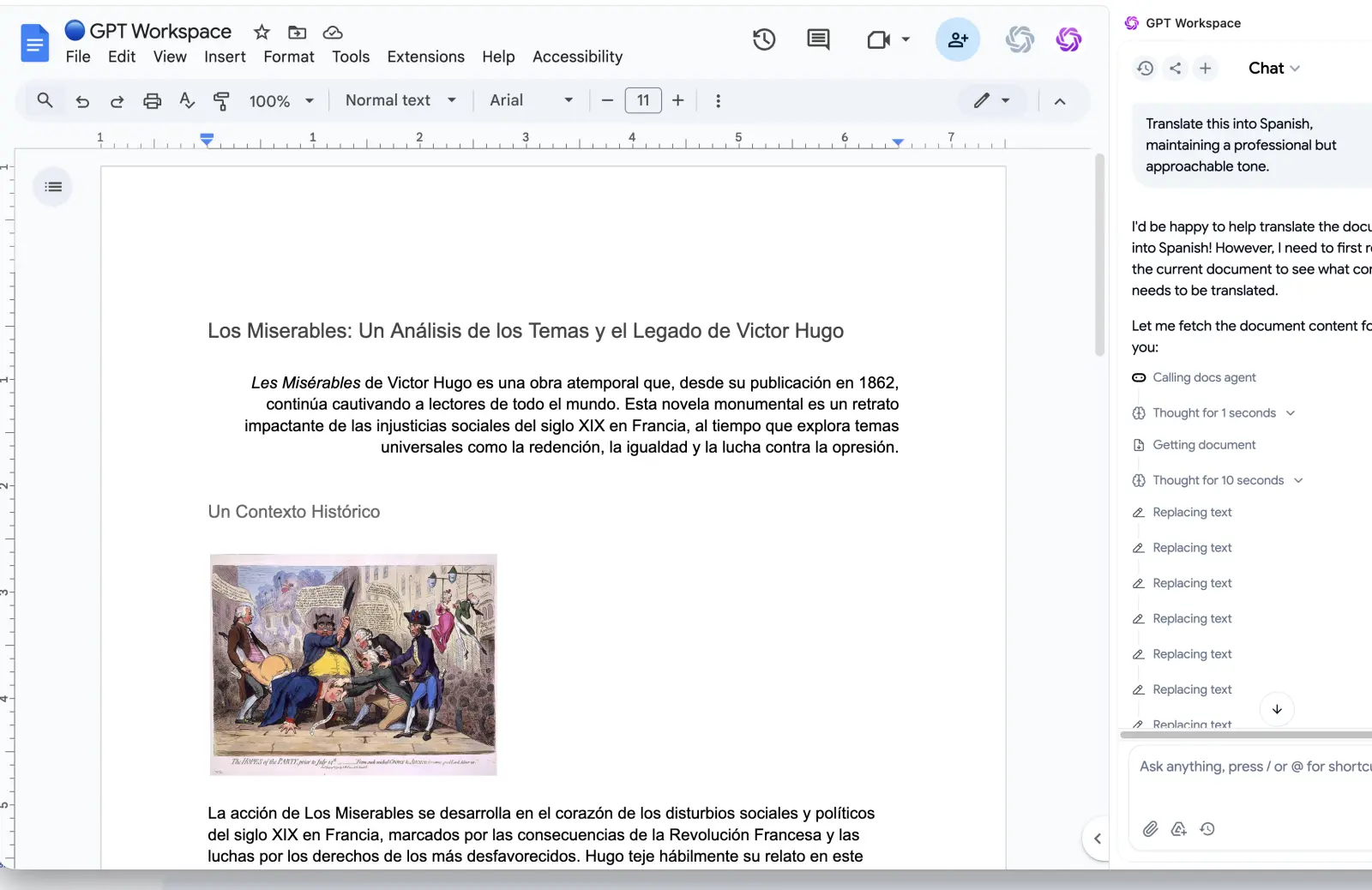
GPT Workspace works differently. It sits in the same apps but lets you pick the model, including OpenAI models, Claude, and Gemini, and it runs prompts you have saved as reusable templates. If you want the full comparison, we covered it in GPT Workspace vs Gemini.
 Try GPT Workspace
Use ChatGPT, Claude, and Gemini directly inside Google Docs, Sheets, Slides, Gmail, and Drive. No tab switching.
Get Started FreeCustom instructions vs saved prompts
Custom instructions are always on. Every request passes through them, whether you want that or not.
A saved prompt is opt-in. You choose it when the task calls for it, which is safer when one document needs a formal voice and the next needs a casual one. Our list of best ChatGPT prompts for Google Workspace shows the kind of templates worth saving.
Model choice
Gemini custom instructions only steer Gemini. If you prefer another model’s writing for a task, you leave the side panel or use an add-on that supports that model.
That is the practical gap. Google is building one excellent default assistant, and some teams want to choose the model per task.
Connectors and cross-app work
The MCP connectors are the most interesting part of September. Being able to ask Gemini about a Salesforce account from a Gmail thread removes real friction.
But the list is fixed at seven tools for now, and admins control access. If your stack sits outside that list, you will not get the same benefit yet. For Google’s broader agent strategy, see our breakdown of Google Workspace Studio vs GPT Workspace.
A Practical Setup for Most Teams
Here is what I would do this week if I were setting this up for a team of ten.
First, write three short instructions in Gmail: your role, your tone, and your length limit. Test them in Sheets and Slides to confirm they carry over.
Second, keep task-specific prompts out of custom instructions. Anything that applies to one kind of document belongs in a saved prompt, not in a global setting.
Third, review the Third-Party Connectors setting if you are an admin. It is on by default, so decide deliberately who gets it.
Finally, keep an alternative available for work where you want a different model. A second opinion from another model catches things the first one misses.
Frequently Asked Questions
Conclusion
Gemini custom instructions in Google Workspace remove the most annoying part of daily AI use: re-explaining yourself. Set a short brief once and every side panel follows it.
Use them for stable preferences like tone and length, and keep task-specific work in reusable prompts. If you want to pick the model per task, try GPT Workspace alongside Gemini and compare the results on your own documents.