AI for Social Media Managers: Plan, Write, and Repurpose Content Faster
AI for social media managers speeds up content calendars, captions, and client reports inside Google Sheets, Docs, and Slides. Real workflows, no extra tabs.

A social media manager’s job is rarely just “posting.” It’s researching trends, writing captions for five platforms that each want a different tone, building a content calendar three people need to approve, and then explaining the results to a client who wants a number, not a vibe. Most of that work is repetitive. None of it is the part you actually got hired for.
That’s where AI for social media managers earns its place. It doesn’t replace the strategy or the judgment calls about what a brand should say. It drafts the calendar rows, the caption variants, the hashtag sets, and the report summaries so you spend your time deciding what’s good instead of typing the first version of everything from scratch.
This guide walks through the specific workflows: building a content calendar in Google Sheets, writing captions and hashtags with ChatGPT, repurposing one piece of content across platforms, and putting together client reports in Slides and Docs, all without leaving Google Workspace.
Why Social Media Managers Are Moving AI Work Into Google Workspace
The old workflow looked like this: open a separate AI chat tab, write a prompt, copy the output, paste it into your calendar spreadsheet or your caption doc, then reformat because the paste broke your columns. Every step is small. Multiplied across 20 posts a week, it’s hours.
AI tools for social media managers built into Google Workspace skip that loop entirely. GPT Workspace adds a sidebar directly inside Sheets, Docs, Slides, and Gmail, so a prompt output lands exactly where you need it: in the cell, in the doc, in the deck. No copy-paste, no reformatting, no second tab competing for your attention.
The other shift is volume. A solo social media manager juggling three client accounts used to cap out around 15-20 posts a week before quality dropped. With AI drafting the first pass of captions and calendar structure, the same person can plan and write for 40-50 posts a week and still have time to edit each one properly.
 Try GPT Workspace
Use ChatGPT, Claude, and Gemini directly inside Google Docs, Sheets, Slides, Gmail, and Drive. No tab switching.
Get Started FreeBuilding an AI Social Media Content Calendar in Sheets
A content calendar is the backbone of the job, and it’s also the part most people build by hand, row by row. AI can generate the whole first draft in minutes, then you adjust dates, swap topics, and lock in what’s actually going live.
Step 1: Set Up Your Calendar Structure
Create columns for date, platform, post type, topic, caption, hashtags, status, and asset link. This structure matters because it’s what the AI will fill in later, so get it right before generating anything.
Step 2: Generate a Month of Topics
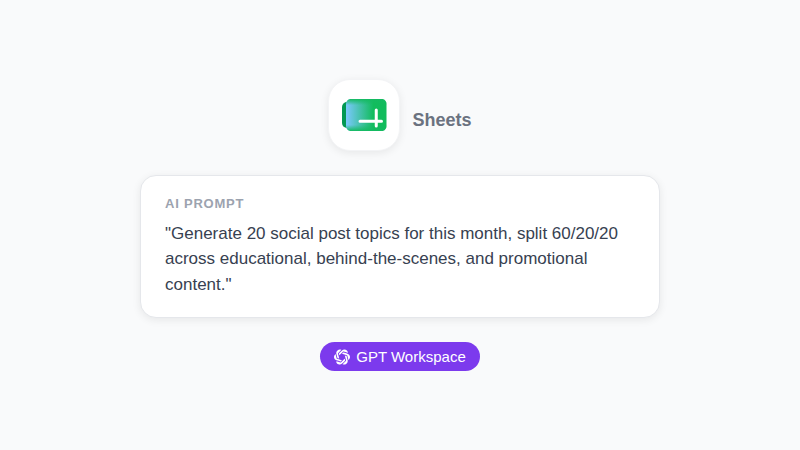
Open the GPT Workspace sidebar in Sheets and prompt: “Generate 20 social media post topics for [brand/niche] for the next 4 weeks, mixing educational, behind-the-scenes, and promotional content at roughly a 60/20/20 split. Output as a list I can paste into a spreadsheet.”
Paste the results into your topic column, then ask the sidebar to fill in suggested post types and platforms for each row based on what usually performs for that content category.
Step 3: Assign Platforms and Cadence
Not every topic belongs on every platform. Prompt: “For each topic in column D, suggest which platform it fits best (LinkedIn, Instagram, TikTok, X) and explain in one line why.” This turns a flat topic list into an actual publishing plan.
If you’re new to running AI formulas across a spreadsheet like this, our guide to using AI in Google Sheets covers the underlying formula syntax in more depth.
Writing Captions and Hashtags with ChatGPT
Captions are where most of the actual writing time goes, and they’re also the easiest thing to template. ChatGPT social media captions work best when you give the model a clear formula instead of a vague request.
The Caption Prompt Formula
Structure every caption prompt with four parts: the topic, the platform, the tone, and the call to action. Example: “Write 3 Instagram caption options for a post about our new product launch. Tone: confident but not salesy. End with a soft CTA to check the link in bio. Keep each under 150 characters.”
Asking for three variants instead of one gives you actual choices instead of a single draft you either accept or rewrite from zero.
Platform-Specific Caption Rules
LinkedIn captions want context and a professional angle. TikTok captions want to be short and punchy, almost an afterthought to the video. Prompt for each platform separately rather than writing one caption and manually shortening it, since the tone shift is bigger than a length cut:
“Rewrite this caption for TikTok: keep it under 100 characters, casual tone, no corporate language.”
Generating Hashtag Sets
Ask for hashtags in tiers rather than one flat list: “Suggest 15 hashtags for this post, split into 5 high-volume, 5 medium-volume, and 5 niche/branded tags.” This gives you a mix instead of a wall of oversaturated tags that do nothing for reach.
For more prompt structures across Workspace apps, our roundup of ChatGPT prompts for Google Workspace has additional formulas you can adapt for social copy.
Repurposing One Piece of Content Across Every Platform
The highest-leverage AI workflow for a social media manager isn’t writing from scratch. It’s taking one long-form piece, a blog post, a webinar recap, a customer story, and turning it into a week of platform-native posts.
Draft the source content in Google Docs, then prompt the sidebar directly in the document: “Turn this blog post into 5 LinkedIn post ideas, each focused on one key point, written in first person as if from our founder.” Then run it again for Twitter/X threads, then again for Instagram carousel slide text.
This is the difference between publishing one piece of content once and publishing it seven times across seven contexts, without seven separate writing sessions. A single 1,500-word article can realistically become a week of social content in about 30 minutes of prompting and editing.
Reporting Results to Clients and Stakeholders
The part of the job nobody enjoys is turning raw analytics numbers into a report someone outside the marketing team will actually read. AI handles the translation from data to narrative well, as long as you give it the numbers.
Paste your monthly metrics (impressions, engagement rate, follower growth, top posts) into a Google Doc and prompt: “Summarize these social media metrics into a 3-paragraph client update. Lead with the biggest win, note one area we’re improving, and end with what we’re focusing on next month.”
For visual reports, building a Slides deck with ChatGPT walks through generating slide outlines and speaker notes from the same data, so you’re not manually formatting a deck every reporting cycle.
Try GPT Workspace
Use ChatGPT, Claude, and Gemini directly inside Google Docs, Sheets, Slides, Gmail, and Drive. No tab switching.
Get Started FreeManaging Client Communication in Gmail
Between calendars and captions, a social media manager also spends real time on emails: pitching new content ideas, asking for asset approvals, chasing feedback that’s gone quiet. Drafting these inside Gmail with AI keeps the tone consistent without the ten-minute stare-at-a-blank-reply problem.
Prompt: “Draft a follow-up email to a client who hasn’t approved this month’s content calendar yet. Friendly but with a clear deadline, no guilt-tripping.” Our guide to AI email prompts for Gmail has 30 tested formulas for exactly this kind of client communication.
Frequently Asked Questions
Getting Started
The shift isn’t about handing your brand voice to an AI model. It’s about not spending Monday morning typing out a calendar structure you’ve built thirty times before, or staring at a blank caption field for a post that should take two minutes. AI for social media managers works best when it drafts the repeatable parts so your time goes into the judgment calls: what’s on-brand, what’s worth posting, what a client actually needs to hear.
Start with one workflow, the content calendar or the caption prompts, and build from there. GPT Workspace runs inside the Google apps you already use for this job, so there’s no new tool to learn before you see the time savings.