ChatGPT für Google Drive: Ordner und Dateinamen mit KI organisieren
Nutzen Sie ChatGPT für Google Drive in Docs mit GPT Workspace. Planen Sie Ordnerstrukturen, benennen Sie Dateien einheitlich um und schreiben Sie README-Dokumente für geteilte Ablagen.

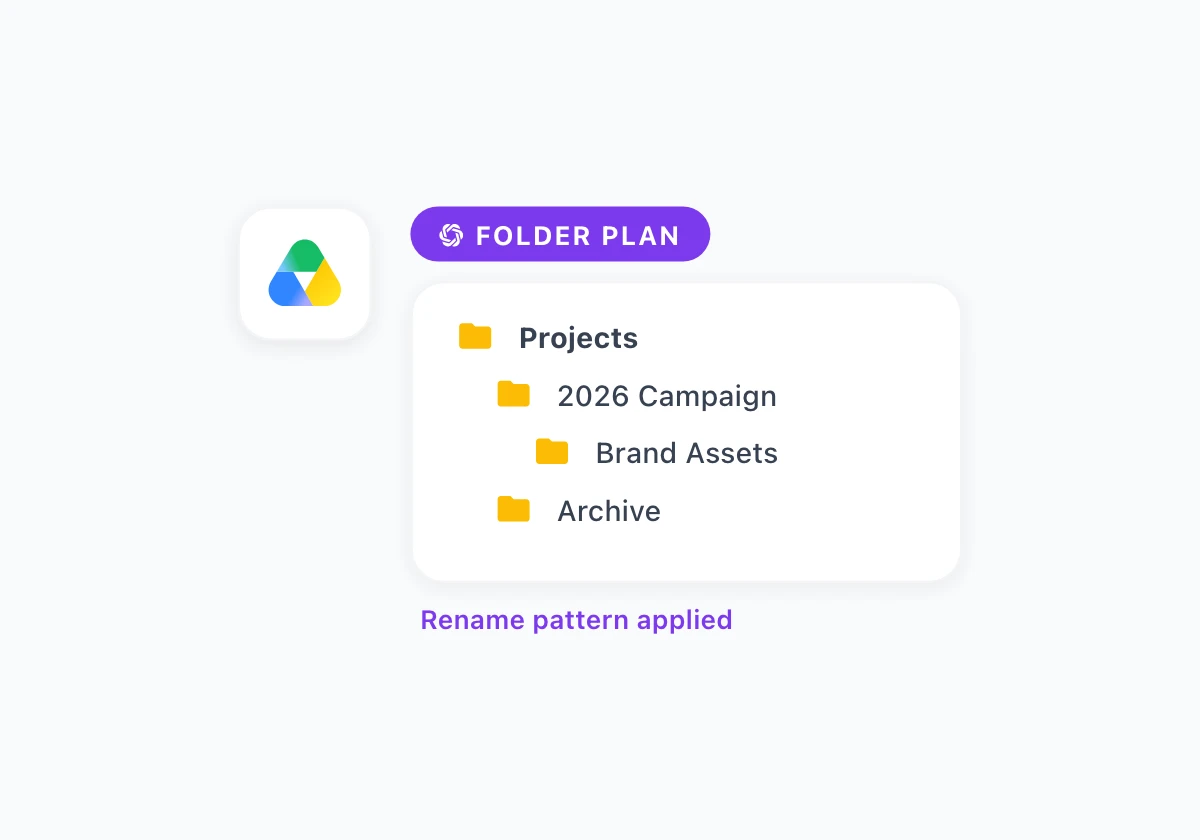
Geteilte Ablagen füllen sich schnell mit Final_v3, Kopie von Budget und Ordnern, die nach der Person benannt sind, die sie zuerst erstellt hat. Die Suche hilft für einen Moment. Die Einarbeitung eines neuen Teammitglieds bedeutet immer noch eine Tour durch drei Jahre chaotischer Struktur. ChatGPT für Google Drive hilft Ihnen, wenn Sie Benennungsregeln und Ordnerbäume in Google Docs planen, bevor Sie eine einzige Datei verschieben.
Dieser Leitfaden zeigt, wie Sie GPT Workspace verwenden, eine Chrome-Erweiterung und ein Google Workspace Add-on, das ChatGPT, Claude und Gemini direkt in Google Docs, Sheets, Slides und Gmail integriert. Sie entwerfen Ordnerhierarchien, Muster für die Stapelumbenennung und README-Dokumente für geteilte Ablagen in Docs und wenden den Plan dann manuell in Drive an. GPT Workspace verschiebt aktuell noch keine Dateien automatisch in Drive.
Wichtige Erkenntnisse
- Die Organisation von Drive beginnt mit einem schriftlichen Standard, nicht mit einem schlechten Gewissen beim Drag-and-Drop.
- Ein Prompt erstellt einen Ordnerbaum für ein Team, einen Kunden oder ein Projektarchiv.
- Benennungsmuster in Docs verhindern die nächste Welle mehrdeutiger Dateititel.
- Ein README für eine geteilte Ablage erspart wiederholte Fragen dazu, wo Dinge zu finden sind.
- Kombinieren Sie die Strukturplanung mit den besten Apps zum Aufräumen von Google Drive, wenn auch der Speicherplatz ein Problem darstellt.
Warum Google Drive ohne Plan chaotisch wird
Drive macht das Erstellen von Dateien mühelos. Diese Stärke wird zur Belastung, wenn sich niemand um das Ordner-Modell kümmert.
Drei Fehlermuster treten in fast jedem Unternehmens-Drive auf:
- Namen kodieren die Historie, nicht den Inhalt.
Präsentation FINAL wirklich finalsagt Ihnen sechs Monate später nichts mehr. - Ordner vermehren sich durch Zufall. Jedes Projekt erzeugt
Assets,AltundArchivmit sich überschneidenden Dateien. - Neue Mitarbeiter finden sich nicht zurecht. Die Suche findet ein Dokument, aber nicht das System dahinter.
Ein ai google drive Workflow erfordert keine Migration am Wochenende. Er erfordert einen einseitigen Standard in Docs und dann zwanzig Minuten Umbenennungsarbeit pro Woche, bis die schlimmsten Fälle behoben sind.
Wie ChatGPT in Ihren Google Drive Workflow passt



Die praktische chatgpt google drive organize Schleife sieht so aus:
- Listen Sie Ihr aktuelles Problem in einem Doc auf: Teamgröße, geteilte Ablagen, Dateitypen.
- Führen Sie GPT Workspace Prompts für Ordnerbäume, Benennungsregeln und README-Texte aus.
- Erstellen Sie leere Ordner und pinnen Sie das README an die Wurzel der geteilten Ablage.
- Benennen Sie Dateien in Zehnerblöcken während eines wöchentlichen Aufräum-Blocks um.
Installieren Sie es einmal mit dem GPT Workspace Installationsleitfaden. Für KI innerhalb von Drive-Dateivorschauen, siehe Einführung von GPT for Drive.
Schritt 1: Entwerfen Sie einen Ordnerbaum in Docs
Öffnen Sie ein Doc mit dem Titel Drive-Organisationsstandard. Fügen Sie oben den Kontext ein:
Team: Marketing (8 Personen)
Geteilte Ablagen: Marke, Kampagnen, Archiv
Dateitypen: Docs, Slides, Sheets, PNG-Exporte
Problem: doppelte Kampagnenordner, unklare Archivregeln
Führen Sie diesen Prompt aus:
“Schlagen Sie einen Google Drive Ordnerbaum für das oben beschriebene Team vor. Maximal drei Ebenen tief. Fügen Sie Ordner hinzu für: aktive Kampagnen, Vorlagen, Marken-Assets und Archiv. Fügen Sie für jeden Ordner einen Satz hinzu, der beschreibt, was dort hineingehört. Ausgabe als eingerückte Gliederung.”
Besprechen Sie dies mit Ihrem Teamleiter, bevor Sie Ordner erstellen. Passen Sie die Namen so an, wie die Leute bereits über Projekte sprechen.
Schritt 2: Erstellen Sie Benennungsregeln und Listen zur Stapelumbenennung
Fügen Sie eine Liste von zehn chaotischen Dateinamen aus Drive in Ihr Doc ein. Führen Sie aus:
“Schlagen Sie einen Dateibenennungsstandard für Google Drive mit Datum, Projektcode, Asset-Typ und Version vor. Schreiben Sie dann jeden Dateinamen in der unten stehenden Liste um, damit er dem Standard entspricht. Behalten Sie die Erweiterungen implizit bei (Docs/Sheets/Slides). Markieren Sie jede Datei, die menschliches Urteilsvermögen erfordert.”
Wenden Sie Umbenennungen in Drive in kleinen Chargen an, damit Links in E-Mails weiterhin funktionieren. Für Teams, die viel mit Tabellen arbeiten, passen Namenskonventionen gut zu wie man KI in Google Sheets verwendet, wenn Tabellennamen die gleiche Disziplin erfordern.
Schritt 3: Schreiben Sie ein README für die geteilte Ablage
Jede geteilte Ablage benötigt ein angepinntes Doc an der Wurzel. Prompt:
“Schreiben Sie ein einseitiges README für eine Google geteilte Ablage, die von [Team] verwendet wird. Abschnitte: Zweck, Ordnerkarte (Aufzählung), Benennungsregeln, was ins Archiv gehört, wen man um Zugriff bitten kann und Platzhalter für das Datum der letzten Aktualisierung. Einfache Sprache, scannbare Überschriften.”
Pinnen Sie das README in Drive und verlinken Sie es in Ihrem Team-Chat oder Ihrer Einarbeitungs-Checkliste.