AI for Project Managers: How to Run Projects Faster in Google Workspace
Learn how AI for project managers in Google Workspace cuts hours of writing work each week. Covers project plans, status reports, and stakeholder emails.

Project managers write a lot. Project charters, status reports, meeting agendas, risk registers, escalation emails, post-mortems. None of it is the actual project work, but all of it takes time, and it never stops. A typical PM on a mid-sized team can spend 40% of their week on documentation and communication rather than planning or problem-solving.
AI for project managers in Google Workspace changes that ratio significantly. The tools you already use every day (Docs, Sheets, Gmail) can produce a solid first draft in seconds, extract action items from meeting notes automatically, and turn your bullet points into a polished stakeholder update before you finish your coffee. This guide covers exactly how to do each of those things using GPT Workspace.
AI for Project Planning in Google Docs
The project charter is almost always the first bottleneck. Everyone knows what the project is supposed to do, but getting that into a structured document takes longer than it should. The same goes for SOPs, project briefs, and kick-off agendas.
GPT Workspace runs directly inside Google Docs. You open the sidebar via Extensions > GPT for Sheets, Docs, Slides, and you work from there without leaving the document.
The workflow for a project charter:
- Open a new Google Doc and type out your raw notes: the project goal, key stakeholders, timeline, budget, and success metrics in plain language.
- Open the GPT Workspace sidebar.
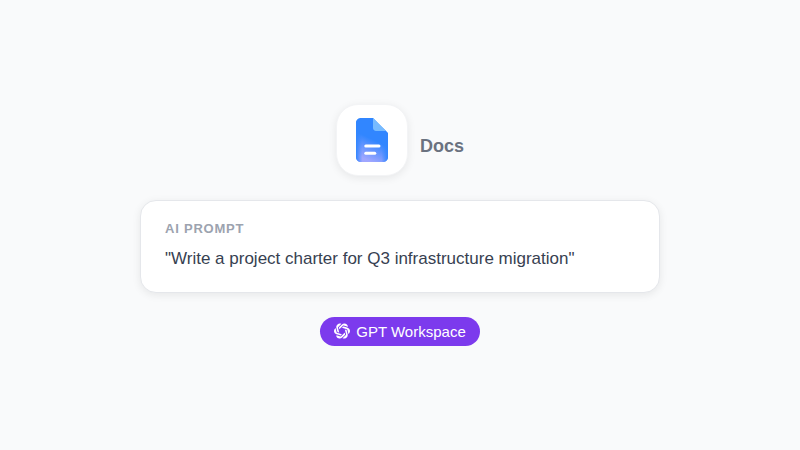
- Prompt: “Turn these notes into a structured project charter. Include sections for: Project Overview, Business Objectives, Scope (in-scope and out-of-scope), Key Milestones, Stakeholders, and Risks. Use a direct, professional tone.”
- Review the output and adjust as needed.
What previously took 90 minutes now takes 15. More importantly, the structure is consistent across every project, which makes it easier for your team to read and for you to maintain.
For recurring project types, save your best prompts as templates. The next time you kick off a similar initiative, you’re adapting a proven structure instead of starting from scratch.
You can also use ChatGPT in Google Docs to revise specific sections quickly by selecting the text and prompting directly on it.
 Try GPT Workspace
Use ChatGPT, Claude, and Gemini directly inside Google Docs, Sheets, Slides, Gmail, and Drive. No tab switching.
Get Started FreeUsing AI in Google Sheets to Track Projects
Most project managers track status, risks, and milestones in Sheets. The problem is that building useful tracking formulas from scratch takes time, and the formulas themselves are easy to mess up when your scope or columns change.
AI in Google Sheets handles the formula work so you can focus on the data. Useful prompts for project tracking:
- “Write a formula that shows ‘On Track’, ‘At Risk’, or ‘Delayed’ in column F based on whether the date in column D is before, within 3 days of, or after the date in column E.”
- “Create a formula that counts how many tasks in column C have status ‘Blocked’ and returns the count with the label ‘Blocked:’.”
- “Write an IFS formula that assigns a priority score of 1, 2, or 3 based on the impact value in column G and the effort value in column H. High impact + low effort = 1, everything else proportional.”
- “Generate a sparkline formula for the completion percentage trend across the last 6 weeks in columns B through G.”
You can also use GPT Workspace to generate the full structure of a project tracker. Prompt: “Create a Google Sheets project status template with columns for: Task Name, Owner, Status (dropdown: Not Started / In Progress / Blocked / Done), Start Date, Due Date, Priority, and Notes. Include a row for summary counts at the top.”
Copy the output into a blank sheet and adjust the columns to fit your project. Building this manually takes 30 minutes; with AI it takes 5.
Writing Stakeholder Emails Faster with AI in Gmail
Stakeholder communication is one of the highest-volume writing tasks for project managers. Weekly status updates, risk escalations, dependency requests, executive summaries. Each one needs to be accurate, clear, and calibrated to the audience.
GPT Workspace in Gmail lets you draft these emails from a short set of bullet points. Open a new compose window, click the GPT Workspace icon, and describe what you need.
Useful workflows:
Weekly status update: Prompt: “Write a weekly project status email to our executive sponsor. This week: completed UX review (3 days ahead of schedule), risk identified around API integration (mitigation plan being drafted), next milestone is beta launch on July 15. Keep it under 200 words, direct tone, lead with the positive.”
Risk escalation: Prompt: “Draft a risk escalation email to the VP of Engineering. The issue: our third-party data vendor confirmed a 3-week delay in delivering test data, which pushes our QA window into the release freeze. We need a decision on whether to push the release date or reduce scope. Tone: urgent but not alarming. Under 150 words.”
Dependency request: Prompt: “Write a dependency request email to the analytics team asking for access to the reporting dashboard by June 30. Our project gate is July 5 and we need time for validation. Include a specific ask with a deadline, and offer a 15-minute call if they have questions.”
You can also use AI for email writing with Gmail prompts to build a library of reusable prompt templates for your most common communication types.
Turning Meeting Notes into Action Items with AI
Meeting notes are one of the lowest-value documents to produce manually. Writing them takes 20 minutes, reading them takes 5, and half the action items still get missed anyway.
The better workflow: paste your raw notes into a Google Doc and let GPT Workspace structure them for you.
Prompt: “From these meeting notes, extract: a 3-sentence summary of what was decided, a list of action items with owner and due date (fill in ‘TBD’ where not mentioned), and any open questions that need follow-up.”
For recurring meetings (sprints, standups, steering committees), save this as a reusable prompt template. Paste in the notes at the end of each meeting and have a clean summary ready in 30 seconds.
The AI meeting notes workflow in Google Docs covers this in more detail, including how to build templates for different meeting types.
Try GPT Workspace
Use ChatGPT, Claude, and Gemini directly inside Google Docs, Sheets, Slides, Gmail, and Drive. No tab switching.
Get Started FreeChatGPT Prompts for Project Managers
The prompts below are designed for the most common PM writing tasks. Copy them, adapt the bracketed fields, and run them directly in GPT Workspace.
Project kickoff agenda: “Write a 60-minute kickoff meeting agenda for a [project name] project. Attendees: [roles]. Include: introductions (5 min), project overview and goals (15 min), roles and responsibilities (10 min), timeline walkthrough (15 min), risks and open questions (10 min), next steps (5 min). Add a facilitator note for each section.”
Risk register entry: “Write a detailed risk register entry for the following risk: [describe the risk]. Include: Risk Description, Probability (High/Medium/Low), Impact (High/Medium/Low), Risk Score, Mitigation Strategy, Contingency Plan, Owner.”
Post-mortem summary: “Write a project post-mortem summary based on these notes: [paste notes]. Structure: What went well (3-5 points), What didn’t go well (3-5 points), Root causes, Action items for next time. Be specific and direct. Avoid vague conclusions.”
Scope change request: “Draft a scope change request document for the following change: [describe change]. Include: Change Description, Business Justification, Impact on Timeline, Impact on Budget, Impact on Resources, Recommendation.”
Executive project summary: “Write a one-page executive summary for [project name]. Audience: C-suite. Include: project purpose, current status, key milestones achieved, risks, and what decision or support is needed from leadership. Under 300 words.”
For meeting prep specifically, AI for Google Calendar and meeting prep covers how to use AI before and after meetings to save time at both ends.
How to Set Up GPT Workspace for Project Management
Getting started takes about 5 minutes.
- Install GPT Workspace from the Chrome Web Store or the Google Workspace Marketplace.
- Connect your OpenAI API key (or use Claude / Gemini if you prefer).
- Open any Google Doc, Sheet, or Gmail compose window.
- Access the sidebar via Extensions > GPT for Sheets, Docs, Slides, or look for the GPT Workspace icon in Gmail.
Once installed, there’s no workflow disruption. You stay inside the tools your team already uses. No new platform, no separate app to check, no data export.
The most useful first step: build a prompt library. Create a Google Doc and save your 5-10 most frequently used prompts (project charter template, status email format, action item extractor). Paste them into GPT Workspace whenever you need them instead of retyping from scratch.
For a full walkthrough of capabilities, how to install GPT Workspace covers the setup process in detail.
Frequently Asked Questions
Wrapping Up
AI for project managers isn’t about replacing judgment. It’s about reducing the hours spent converting your judgment into documents, emails, and spreadsheet formulas. Those tasks are real work, but they’re not the work that moves projects forward.
GPT Workspace puts AI directly inside the Google Workspace tools project managers already use every day. Start with the workflow that costs you the most time (usually project documentation or weekly updates), build a prompt template for it, and expand from there.
Get started with GPT Workspace for free and cut your documentation time in half this week.