How to Use ChatGPT in Google Docs: A Complete 2026 Guide
Learn how to use ChatGPT directly inside Google Docs with GPT Workspace. Step-by-step guide covering installation, text generation, editing, summarizing, and translation — no tab switching needed.

If you’ve ever opened a new tab to ask ChatGPT something and then copied the result back into Google Docs, you already know the friction. The context switch breaks your focus, you lose your place in the document, and what should be a 10-second task takes two minutes. Learning how to use ChatGPT in Google Docs directly — without leaving the document — is one of the highest-leverage productivity changes you can make in 2026.
This guide walks you through exactly how to do that using GPT Workspace, a Chrome extension that puts AI directly inside your Google Workspace apps. By the end, you’ll be generating, editing, summarizing, and translating content without ever opening another tab.
What Is GPT Workspace and How Does It Work in Google Docs?
GPT Workspace is a Chrome extension and Google Workspace Add-on that embeds a ChatGPT-powered AI sidebar directly into Google Docs, Sheets, Slides, and Gmail. Instead of switching between tools, you get a persistent panel on the right side of your document where you can issue prompts, apply edits, and build content — all while your document stays open and in view.
Under the hood, GPT Workspace connects to the same language models that power ChatGPT (GPT-4o, GPT-4, and newer releases), plus Claude and Gemini if you prefer those. The difference is context: the AI can read the text you’ve selected in your document, use it as input, and write results directly back into the document. This bidirectional integration is what makes it genuinely useful rather than just a glorified clipboard tool.
You don’t need to write prompts from scratch each time. GPT Workspace includes a prompt library with templates for common writing tasks — first drafts, summaries, rewrites, translations, and more. You can also save your own custom prompts and share them across your team.
Step 1: Install the GPT Workspace Chrome Extension
The fastest way to get started is through the Chrome extension. Here’s how to install it:
- Open Google Chrome and navigate to the Chrome Web Store listing for GPT Workspace.
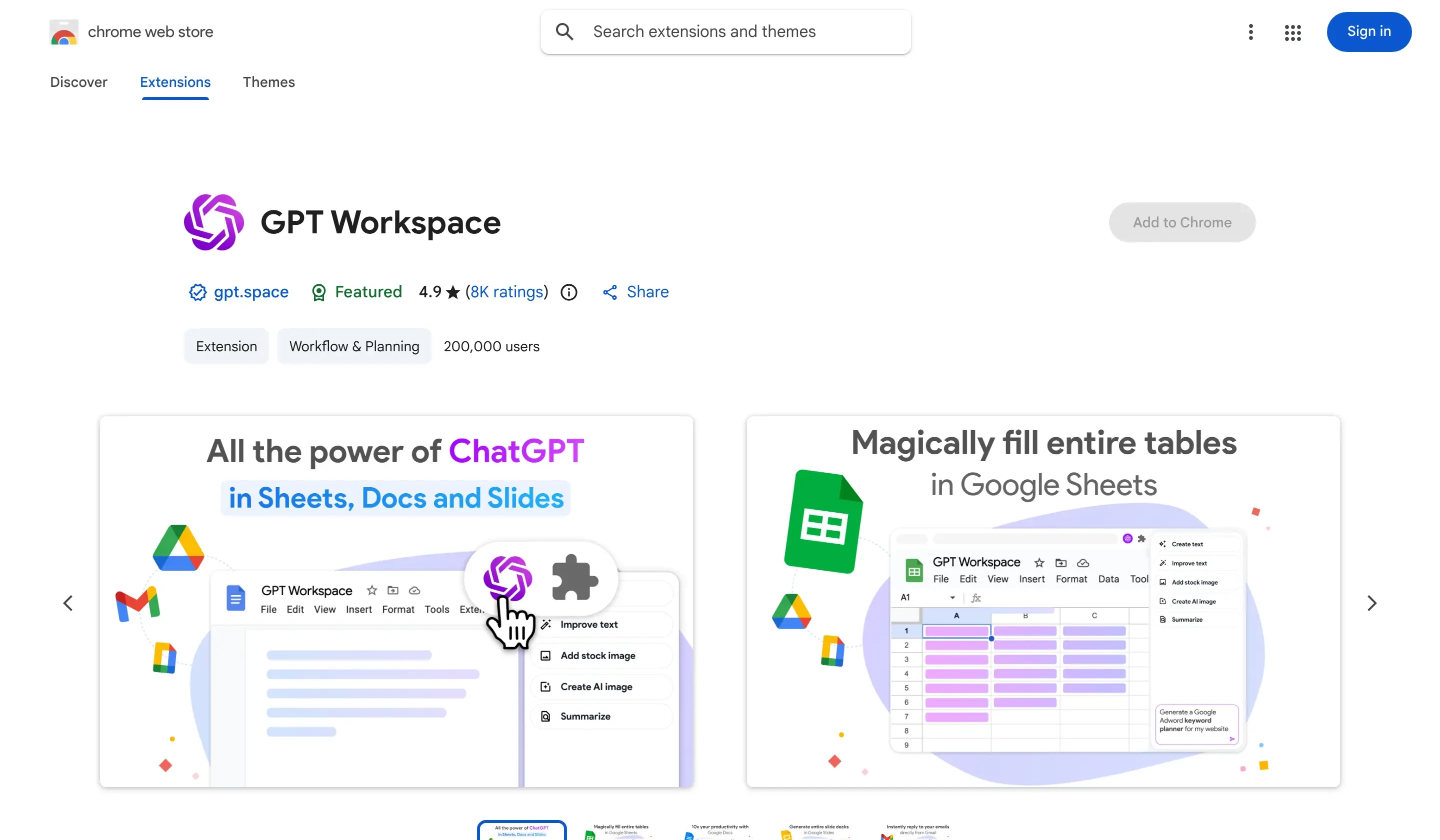
- Click Add to Chrome and confirm the permissions. The extension needs access to Google Docs, Sheets, Slides, and Gmail — this is how it reads and writes document content.
- Once installed, you’ll see the GPT Workspace icon appear in your Chrome toolbar.
- Click the icon and sign in with your Google account. You can start on the free plan immediately.
The extension activates automatically on any Google Docs, Sheets, Slides, or Gmail page you open. You don’t need to configure anything beyond signing in.
If you’re on a managed Google Workspace account (G Suite for business), your admin may need to allowlist the extension. In that case, the alternative is to install the add-on directly through Extensions > Add-ons > Get add-ons inside Google Docs. Both the extension and the add-on work the same way — the extension just provides broader coverage across the entire Google Workspace suite.
Step 2: Open Google Docs and Access the AI Sidebar
Once the extension is installed:
- Open any Google Doc (or create a new one).
- Look for the GPT Workspace panel on the right side of the screen. It opens automatically when you’re on a Google Docs page.
- If the panel isn’t visible, click the GPT Workspace icon in your Chrome toolbar to toggle it open.
The sidebar has a few main areas: a prompt input field at the bottom, your conversation history in the center, and a model selector at the top. For most writing tasks, the default GPT-4o model is the right choice — it’s fast, capable, and handles long documents well.
You can resize the sidebar by dragging its left edge. If you prefer working in a narrower document view, you can also collapse the sidebar and access the AI through the Extensions menu in the Google Docs toolbar.
How to Generate Text with ChatGPT Inside Google Docs
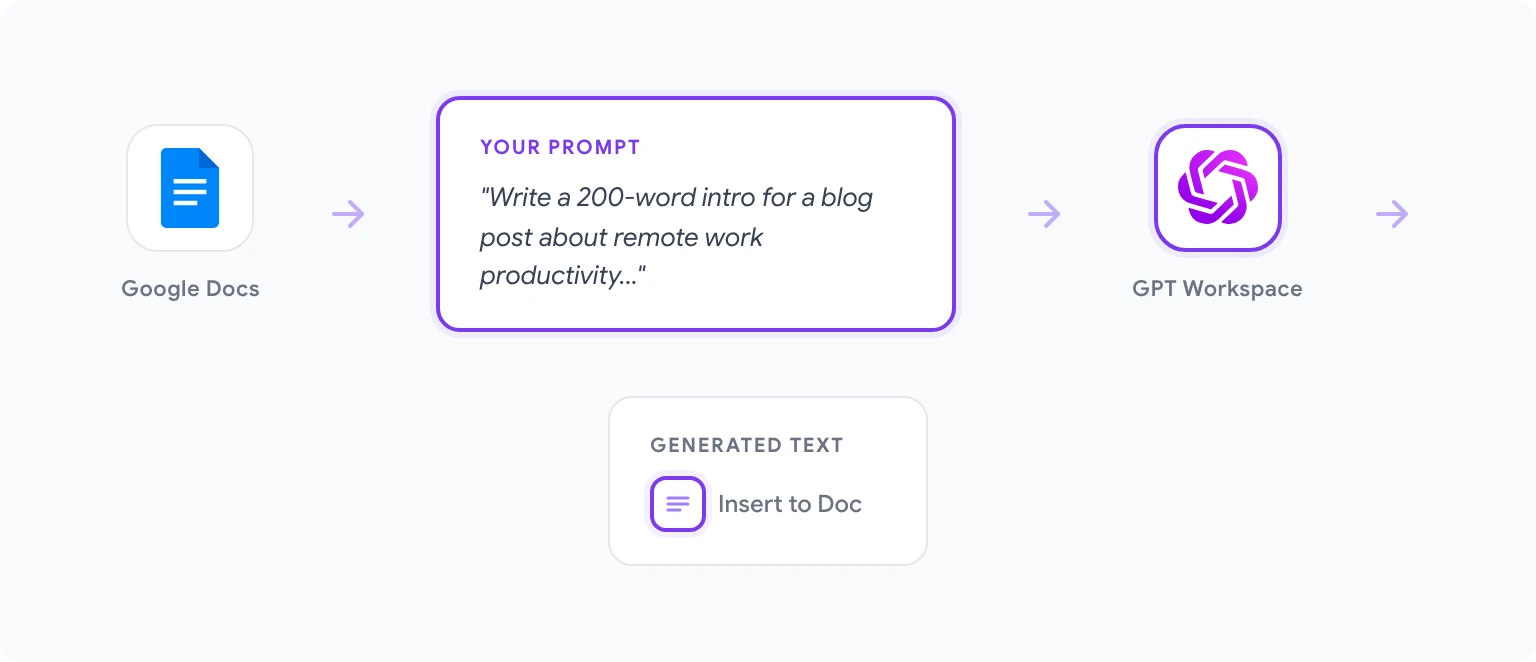
Generating new content from scratch is where most people start. The workflow is simple:
- Place your cursor where you want the generated text to appear in the document.
- In the GPT Workspace sidebar, type a prompt describing what you want. For example: “Write a 200-word introduction for a blog post about remote work productivity for software engineers.”
- Click Generate or press Enter.
- The AI will write the content in the sidebar. Review it, and if it looks right, click Insert to place it directly at your cursor position in the document.
If the first output isn’t quite right, you can ask for a revision right in the sidebar — “Make it more casual” or “Add a statistic about remote work” — without losing the context of your original request. The AI remembers your conversation within the session.
For longer pieces, the most effective approach is to outline the document first, then use GPT Workspace to generate each section individually. This keeps the AI focused and produces more coherent content than asking for a 2,000-word article in a single prompt.
How to Edit, Rewrite, and Improve Existing Text
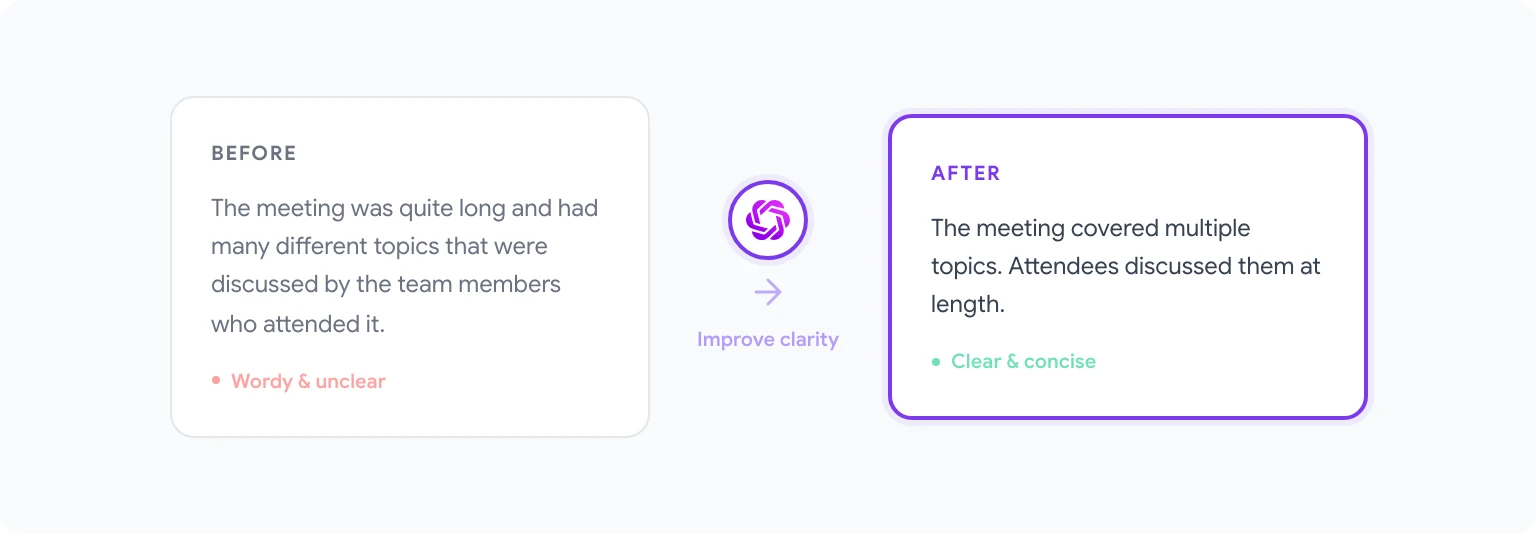
This is where GPT Workspace genuinely earns its keep. To edit or improve text you’ve already written:
- Select the text in your Google Doc that you want to change.
- In the GPT Workspace sidebar, the selected text will appear as context automatically — you’ll see a reference to “selected text” in the prompt area.
- Type your editing instruction: “Shorten this to one sentence,” “Make this more formal,” “Rewrite this to be clearer,” or “Fix grammar and style.”
- Review the result in the sidebar and click Replace selection to swap the original text with the improved version.
The replace-selection feature is fast enough that it changes how you draft. Many writers now use it as a real-time editing layer: write a rough sentence, select it, and hit “Improve clarity” — all without breaking flow. If you’d like to do the same for email drafts, the same pattern works with writing better emails with AI in Gmail.
One practical tip: be specific in your editing instructions. “Make this better” produces mediocre results. “Rewrite this paragraph at an 8th-grade reading level, keeping all factual claims intact” produces something you can actually use.
How to Summarize Long Documents with AI
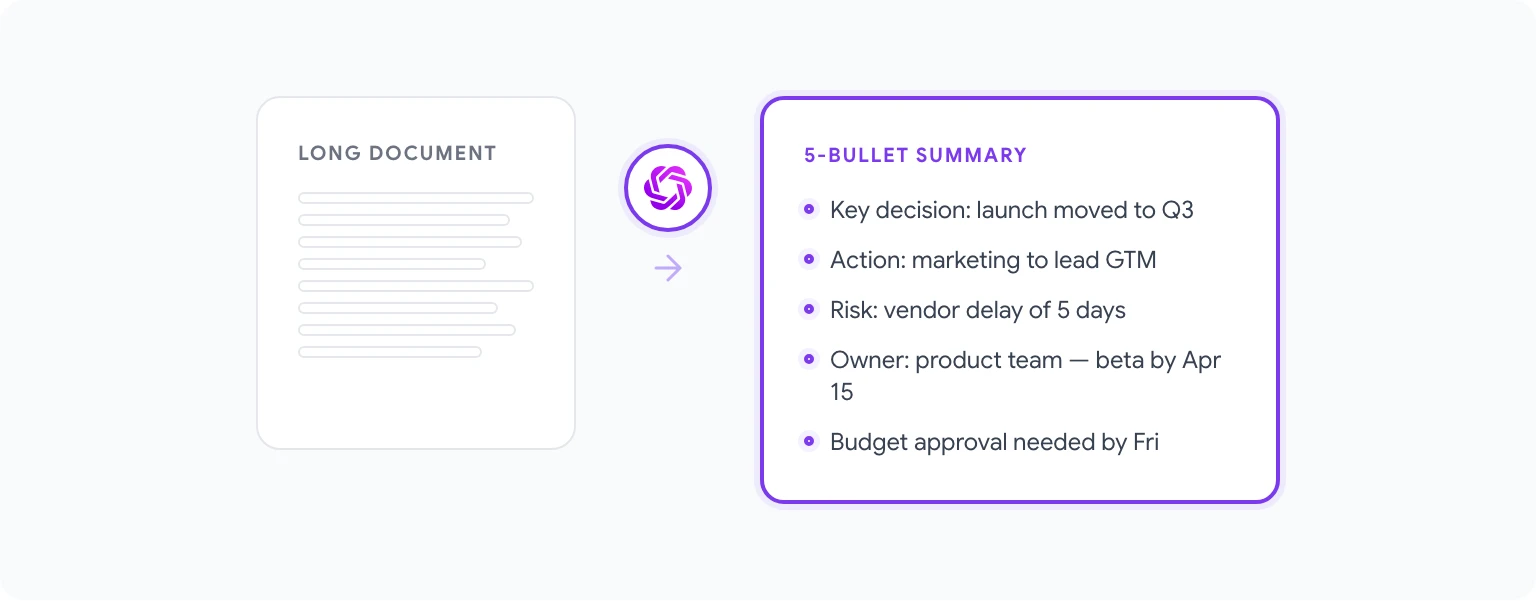
Summarization is one of the most practically useful features for knowledge workers who spend time reading lengthy reports, research papers, meeting notes, or legal documents.
To summarize a document:
- Open the document you want to summarize in Google Docs.
- In the GPT Workspace sidebar, use the prompt: “Summarize this document in 5 bullet points, focusing on key decisions and action items.”
- If the document is very long (more than ~10,000 words), GPT Workspace will work with what’s visible or selected. For best results with long documents, select the most important sections before prompting.
You can also ask for different kinds of summaries depending on your audience: an executive summary, a technical overview, a plain-language explanation for non-experts, or a list of open questions from a meeting transcript. The AI adapts to whatever format you specify.
For teams using Google Docs as a shared knowledge base, summarization prompts can become part of a standard workflow — every document gets a “TL;DR” section added at the top by running a quick AI prompt.
How to Translate Documents Using GPT Workspace

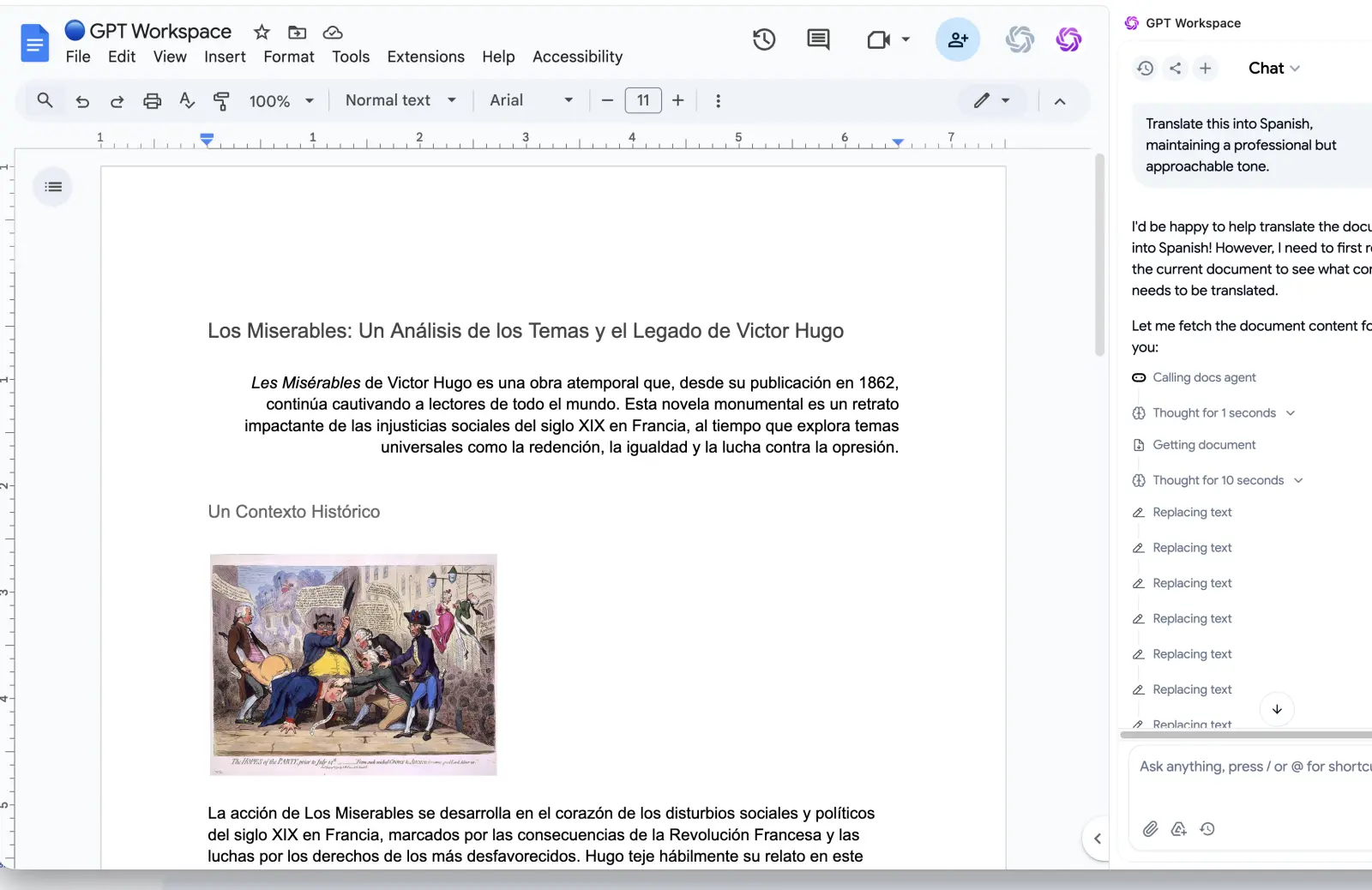
Translation via GPT Workspace works differently from Google Translate. Rather than a mechanical word-for-word swap, the AI understands context and tone, which produces more natural results — especially for marketing copy, customer-facing content, or nuanced professional writing.
To translate:
- Select the text you want to translate, or leave nothing selected to work with the full document visible in context.
- Type a prompt: “Translate this into Spanish, maintaining a professional but approachable tone.”
- The translated text appears in the sidebar. Click Insert or Replace selection to apply it to the document.
GPT Workspace handles all major languages well. For less common languages, results can vary, so it’s worth having a native speaker review the output for anything customer-facing.
One underused feature: after translating, you can ask follow-up questions like “Does this translation sound natural to a native speaker in Mexico?” to get a rough quality assessment. It won’t replace a professional translator for legal or medical documents, but for everyday business content it’s more than adequate.
5 Time-Saving Prompts for Google Docs Users
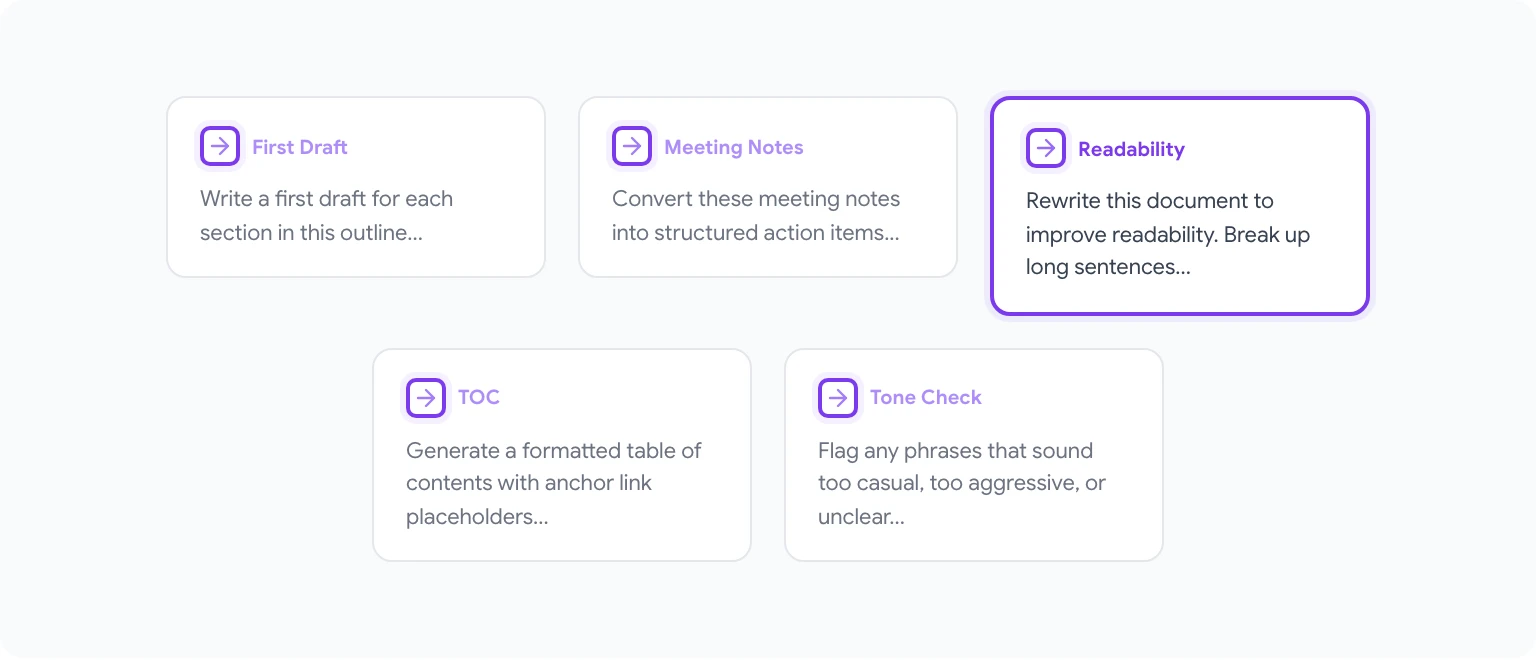
These are the prompts that deliver the most consistent ROI for regular Google Docs users:
1. First draft from an outline “Write a first draft for each section in this outline. Keep each section 100–150 words and maintain a professional tone throughout.”
2. Meeting notes to action items “Convert these meeting notes into a structured list of action items. For each item, include the owner, deadline if mentioned, and a one-line description.”
3. Improve readability “Rewrite this document to improve readability. Break up long sentences, replace jargon with plain English, and ensure each paragraph has one clear main idea.”
4. Generate a table of contents “Based on the H2 headings in this document, generate a formatted table of contents with anchor link placeholders.”
5. Professional tone adjustment “Review this document and flag any phrases that sound too casual, too aggressive, or potentially unclear to a non-native English speaker. Suggest replacements.”
For a much more comprehensive collection, see 50 best prompts for Google Workspace — that post covers prompts for every major Google app.
GPT Workspace vs Built-in Gemini: Which Should You Use?

Google has rolled out Gemini AI directly inside Google Docs as part of Google One AI Premium and Workspace Business plans. It’s a reasonable tool, but there are meaningful differences worth understanding before deciding which to rely on.
Gemini’s strengths: It’s deeply integrated into Google’s ecosystem, which means it can reference other files in your Drive, access your Gmail history for context, and work well with Google Meet transcripts. It also requires no separate installation — it’s just there.
GPT Workspace’s strengths: Access to multiple AI models (GPT-4o, Claude 3.5 Sonnet, and others), which lets you pick the best model for each task. More granular prompt control, a shareable prompt library for teams, and cross-app consistency across Docs, Sheets, Slides, and Gmail in a single interface.
For a deeper side-by-side comparison of features, pricing, and use cases, read GPT Workspace vs Gemini. The short version: if your team is already on Google Workspace Business Plus or Enterprise and you primarily work in Docs and Gmail, Gemini is worth trying first. If you need model flexibility, Sheets/Slides support, or team-wide prompt standardization, GPT Workspace is the better fit.
You can also explore the GPT Workspace for Docs overview page for a full breakdown of capabilities and pricing.
Frequently Asked Questions
Is GPT Workspace safe to use with sensitive documents? GPT Workspace does not store your document content. Prompts are processed via API calls to the underlying AI providers (OpenAI, Anthropic, etc.) under their standard data processing agreements. For highly sensitive documents, review the data handling policies of the specific model you’re using.
Does GPT Workspace work offline? No. The extension requires an internet connection to send prompts to the AI models and receive responses.
Does it work in Google Docs on mobile? The Chrome extension works on desktop Chrome only. There is no native mobile app, though the Google Workspace Add-on version is accessible through the Google Docs mobile app via Extensions.
What happens when I hit the free plan limit? You’ll see a prompt to upgrade. Free plan users get a set number of AI interactions per month; paid plans remove that cap. You can continue using the extension on the free tier for lighter usage.
Can I use my own OpenAI API key? Yes. GPT Workspace supports connecting your own OpenAI API key, which can be more cost-effective for heavy users and gives you direct control over your API spend.
Does it support Google Sheets formulas too? Yes — and that’s genuinely useful. You can use AI in Google Sheets with the same extension to generate formulas, clean data, and automate analysis, all without switching tools.