Explore GPTs: A Complete Guide to OpenAI's Custom ChatGPTs in 2026
Explore GPTs in 2026: how to find them in the GPT Store, how to build your own, and how custom GPTs compare to GPT Workspace agents for Google Workspace.
OpenAI’s GPTs (sometimes called Custom GPTs or simply “GPTs”) let anyone build a tailored version of ChatGPT for a specific job. Two and a half years after they launched, the ecosystem has matured. The GPT Store hosts hundreds of thousands of public GPTs, custom instructions and Actions are stable, and most teams now use a mix of public GPTs and private ones built for their workflows.
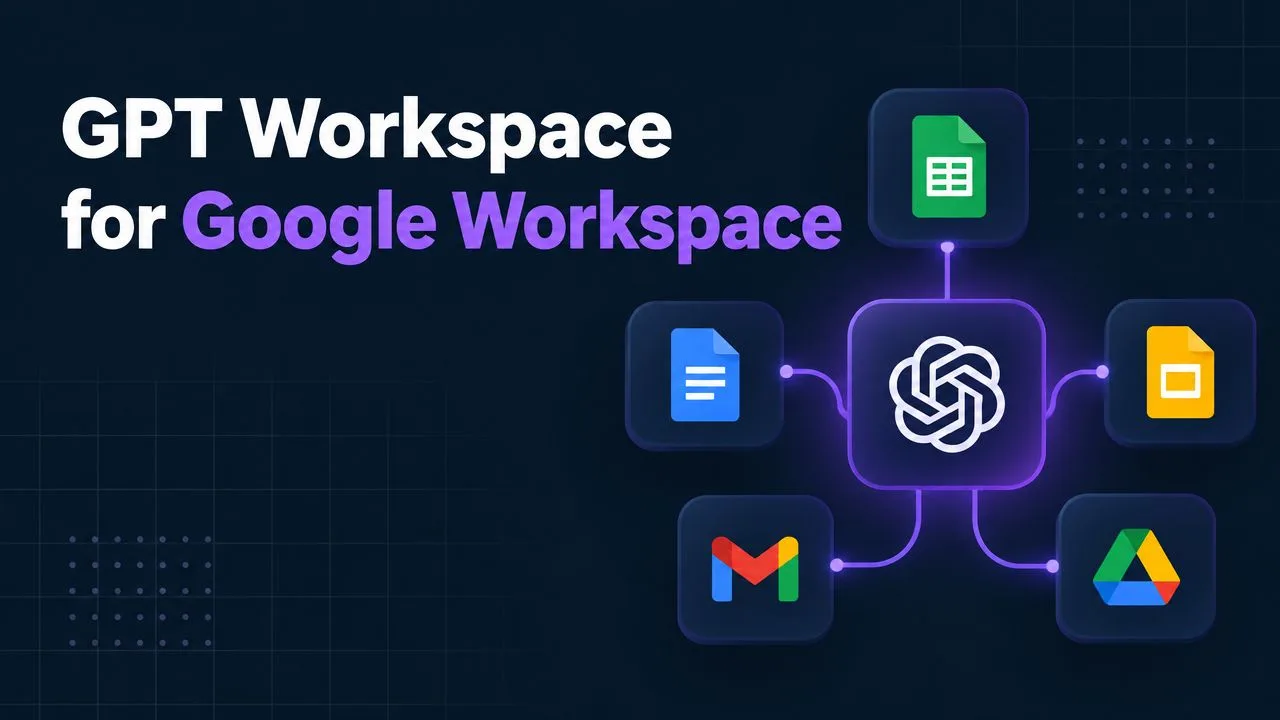
This guide explains how to explore GPTs in 2026. We cover where to find good ones, how to build one yourself, and how OpenAI’s GPTs compare to alternative custom-AI tools like the GPT Workspace custom GPT builder that runs natively inside Google Docs, Sheets, Slides, Gmail, and Drive.
What exactly are GPTs?
A GPT is a packaged version of ChatGPT pre-loaded with:
- Custom instructions: a system prompt that defines tone, persona, and behavior
- Knowledge: uploaded files (PDFs, docs, spreadsheets) the GPT can reference
- Capabilities: switches for web browsing, image generation, code interpreter, and Canvas
- Actions: optional API calls to external services (Notion, Zapier, Slack, your own backend)
When you “use a GPT”, you’re chatting with ChatGPT but with all of those switches pre-set so it acts like a specialist instead of a generalist. Building one takes minutes, not engineering hours.
How to explore GPTs in the GPT Store
The official place to explore GPTs is the GPT Store, launched in early 2024 and refreshed several times since. Anyone with a ChatGPT account (free or paid) can browse it.
The store is organized into a few discovery surfaces:
- Trending: what’s getting traction this week. A good gauge for emerging use cases.
- Featured: OpenAI-curated GPTs across writing, productivity, education, programming, lifestyle, and research.
- By category: sections like Writing, Productivity, Research & Analysis, Programming, Lifestyle, Education.
- Search: keyword-driven retrieval. Helpful when you have a specific task in mind (“invoice parser”, “lesson plan generator”).
A few things to know when you explore the store:
- Most GPTs are free, but some are gated behind ChatGPT Plus, Pro, or Team plans.
- Quality varies wildly. Look at the conversation count and the user rating before committing to a long workflow.
- Look at the “About” section. It usually lists what data the GPT can access and which Actions are wired up. That’s important for sensitive workflows.
- Trust signals matter. Verified builders (organizations with confirmed domains) tend to ship more reliable GPTs than anonymous accounts.
What kinds of GPTs are most useful?
Across the categories the patterns we see most often working well are:
| Category | Strongest GPT use cases |
|---|---|
| Writing | Long-form drafting, rewriting in a brand voice, email and DM polishing |
| Productivity | Meeting summarizers, weekly review coaches, task triagers |
| Research | Literature reviews, source-grounded Q&A, comparative analysis |
| Programming | Code review, regex generators, language-specific tutors |
| Education | Subject tutors with custom curricula, exam preppers, language partners |
| Lifestyle | Recipe planners, fitness coaches, travel itineraries |
For workflows that touch real documents (contracts, spreadsheets, presentations), public GPTs hit a wall. You have to copy-paste content out of your tool, into ChatGPT, and back. That’s where GPT Workspace and similar embedded tools become more practical, because the AI runs inside Google Workspace.
How to build your own GPT
OpenAI made building a GPT deliberately approachable. Inside ChatGPT (Plus/Pro/Team plans), open the Explore GPTs screen and click Create. The builder has two modes:
- Create: you describe what you want in natural language and the builder turns it into instructions, conversation starters, and a name. Best for first-time builders.
- Configure: manual fields for Name, Description, Instructions, Conversation Starters, Knowledge files, Capabilities, and Actions. Use this to fine-tune.
Recommended workflow:
- Start with the use case, not the prompt. Write down one specific job (“draft polite follow-up emails to overdue invoices”). Vague GPTs (“AI assistant”) rarely get used.
- Upload 2–5 reference files. Past good outputs, style guides, or domain documents. The GPT will retrieve from them at run time.
- Set the personality explicitly. “Always respond in three short paragraphs. Use British English. Never use exclamation marks.” Constraints are what make GPTs feel sharp.
- Add 4–6 conversation starters. They double as in-product onboarding.
- Test with edge cases. Ask the GPT to do something outside its scope. A good GPT politely declines or redirects.
- Decide on visibility. Only me for private workflows, Anyone with link for team sharing, Everyone to publish to the GPT Store.
Most teams iterate over a week or two before settling on a final version. Treat the GPT like a small product, not a one-shot prompt.
OpenAI GPTs vs. GPT Workspace custom GPTs
OpenAI GPTs run inside the chatgpt.com surface. That’s powerful for chat-first work but adds friction when your “real work” lives in Google Docs, Sheets, Slides, Gmail, or Drive. Here’s how the two approaches compare:
| OpenAI Custom GPTs | GPT Workspace Custom GPTs | |
|---|---|---|
| Where they run | chatgpt.com | Inside Google Docs, Sheets, Slides, Gmail, Drive |
| Access to your files | Files you upload to the GPT | Live access to the document you’re in |
| Model | GPT-4o, o-series | GPT-5.2 reasoning, configurable |
| Setup time | 5–10 min | 5–10 min |
| Sharing | GPT Store, link, workspace | Workspace, role-based |
| Best for | Chat-driven, standalone tasks | Document-driven, in-context tasks |
If your team mostly talks to ChatGPT, OpenAI’s GPTs are the right home. If your team mostly writes in Google Workspace, build the same GPT inside GPT Workspace’s custom GPT builder and let the AI sit next to the actual work.
Five practical GPTs worth exploring this quarter
Rather than naming specific public GPTs (rankings change weekly), here are five recurring patterns that consistently rank in the GPT Store and are worth bookmarking:
- A “rewrite in brand voice” GPT loaded with your published writing. It replaces five generic prompts with one trained one.
- A “PR / changelog generator” GPT that takes a list of merged PRs and writes the customer-facing release note.
- A “lesson explainer” GPT for tutoring, preloaded with a syllabus, age-appropriate and pedagogy-aware.
- A “research synthesizer” GPT that ingests 10–20 PDFs and answers grounded questions with citations.
- A “data-room Q&A” GPT for due diligence, pointed at a private knowledge file with strict source-grounding.
If any of these match a recurring task on your team, building one yourself is usually a better investment than searching for a public GPT. You keep your data in your account and you can iterate on the instructions.
Frequently asked questions
Are GPTs free to use? Most public GPTs are free to chat with on ChatGPT’s free tier, but heavy use (or premium GPTs) requires Plus, Pro, or Team. Building GPTs requires a paid plan.
Can I make money from a GPT? OpenAI has piloted revenue sharing for top US-based builders. It’s not a reliable income source for most builders, but the store visibility is real.
Do GPTs see my files? A GPT only sees files you explicitly upload to it (during build) or share with it (during chat). Custom Actions can call APIs, but you control the auth.
What’s the difference between a GPT and a Project? Projects are personal folders for your own chats and files. GPTs are shareable assistants. You can use both together.
How does this compare to AI tools inside Google Workspace? OpenAI GPTs live in chat. Tools like GPT Workspace embed AI directly inside Google Docs, Sheets, Slides, Gmail, and Drive. They work better when your work lives in those documents rather than in chat threads.
Want a custom GPT that runs inside Google Workspace? Build one with GPT Workspace. Same idea as OpenAI’s GPTs, but the assistant works directly inside Docs, Sheets, Slides, Gmail, and Drive. Install GPT Workspace from the Google Workspace Marketplace.