




ChatGPT for Executive Assistants: AI Tools to Work Smarter in Google Workspace
How executive assistants use ChatGPT inside Gmail, Google Docs, and Sheets to handle email volume, draft reports, and track tasks faster with GPT Workspace.

Executive assistants send somewhere between 80 and 150 emails on a busy day. That’s before you count the briefing documents, meeting minutes, expense reports, and calendar updates that fill the hours in between.
The job is fundamentally a writing and coordination job. Most of the work isn’t judgment calls: it’s translating decisions into polished text, formatting information for other people, and tracking details across a dozen open threads. That’s exactly where ChatGPT for executive assistants makes a real difference. And when you run it inside Google Workspace, you don’t need to change how you work at all.
GPT Workspace puts AI directly inside Gmail, Google Docs, and Google Sheets. You stay in the tools you already use. The AI handles the drafting, summarizing, and formatting, so you can focus on the work that actually needs your judgment.
 Try GPT Workspace
Use ChatGPT, Claude, and Gemini directly inside Google Docs, Sheets, Slides, Gmail, and Drive. No tab switching.
Get Started FreeWhy AI Tools for Executive Assistants Belong in Google Workspace
Most EA workflows live inside Google Workspace already. Gmail handles communication. Google Docs holds meeting notes, briefings, and reports. Google Sheets tracks tasks, budgets, and travel itineraries. That’s the environment.
The problem with switching to a separate AI chat tool is that you end up copying text in and out, reformatting the output, and managing another browser tab on top of everything else. AI tools for executive assistants work best when they’re embedded directly in the tools where the work happens.
GPT Workspace installs as a Chrome extension and Google Workspace add-on. Open Gmail, and there’s an AI panel on the right. Open a Google Doc, and you can highlight any paragraph and ask GPT Workspace to rewrite, expand, or summarize it. Open a spreadsheet, and you can generate formulas or clean up messy data with a prompt. No tab switching. No copy-pasting.
The learning curve is about 10 minutes. After that, it’s faster than doing the same work manually.
ChatGPT Prompts for Executive Assistants in Gmail
Email is where most executive assistants spend the largest share of their time. A busy executive’s inbox is a constant stream of meeting requests, vendor proposals, stakeholder updates, and follow-ups, and every one of them needs a response that sounds considered and professional.
GPT Workspace adds an AI panel to Gmail that can read an open email thread and generate a reply with a single prompt.
Drafting Replies to Complex Emails
Complex emails are the ones that take 10-15 minutes to write: a reply to a vendor pushing back on contract terms, an update to a board member who asked a pointed question, or a follow-up to a delayed project where the tone has to land right.
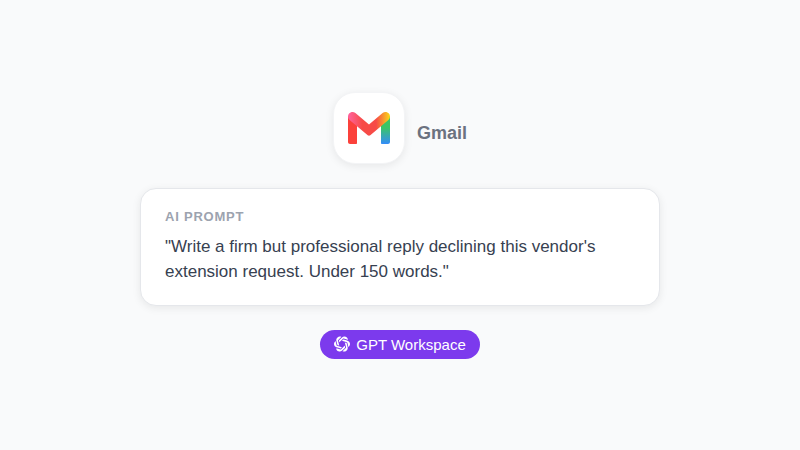
Open the thread in Gmail. In the GPT Workspace panel, type: “Write a firm but professional reply declining this vendor’s extension request. Keep it under 150 words.” The draft comes back in about 5 seconds. Read it, adjust any detail, and send.
That specific task takes most EAs 12-15 minutes from scratch. With GPT Workspace, it takes under 2. Over 8 such emails a day, that’s close to 90 minutes recovered.
Drafting and Sending Meeting Invites
Meeting invites sound simple until you’re writing the third one with specific agenda points, relevant pre-read links, and dial-in details formatted for three time zones. GPT Workspace handles this well.
Prompt: “Write a meeting invite for a 45-minute strategy review. Attendees are the CMO and two regional directors. Include an agenda with three items: Q2 performance, budget reallocation, and Q3 priorities. Professional tone.”
You get a full invite with subject line, body text, and agenda structure ready to paste into Google Calendar or Gmail.
Using AI for Administrative Assistants in Google Docs
Google Docs is where most of the document work happens: meeting minutes, briefing papers, executive summaries, and one-pagers for leadership. These documents often need to be clean, structured, and formatted under a deadline.
Meeting Minutes and Action Items
After a long meeting, the meeting notes are usually a messy list of bullet points. The expectation is a clean set of minutes with clear action items and owners, ready to send within an hour.
With GPT Workspace in Google Docs, paste your rough notes into the document. Highlight everything. In the AI panel, prompt: “Convert these into structured meeting minutes. Include a summary paragraph, then a list of action items with owner names and due dates. Formal tone.”
The formatted output comes back in one pass. You review, adjust any misattributed action item, and the minutes are done. What used to take 30-40 minutes of reformatting takes about 5 minutes.
For recurring meetings, you can build a custom template prompt. Something like: “Format these notes as weekly leadership sync minutes. Header: date, attendees, facilitator. Body: decisions made, blockers, action items by owner.” Save that as a GPT Workspace Skill and you apply it with one click every week.
Briefing Documents for Executives
Executives regularly walk into meetings needing to know the context of a situation in under 3 minutes. Preparing that briefing is part of an EA’s job.
With GPT Workspace, paste in the relevant emails, reports, or background data and prompt: “Write a one-page executive briefing summarizing the current state of [project name], the key decisions needed, and the risks. Keep it scannable with clear headers.”
The AI pulls together the relevant context into a document that reads like someone senior wrote it. You review for accuracy, adjust any factual detail, and the briefing is ready. This works for preparing a leader before a board meeting, a client call, or an internal review.
For related techniques, see our guide on AI report writing in Google Docs.
ChatGPT in Google Sheets for Executive Assistants
Spreadsheets come up constantly in EA work: travel expense reports, project tracking logs, budget summaries, and vendor comparison tables. Most of the time-consuming work is formatting and formula-writing, not analysis.
Building a Task Tracker
A typical executive has 10-15 active projects at any given time. Tracking status, owners, and due dates in a way that’s easy to read takes real setup time. GPT Workspace can build the skeleton for you.
Open a new Google Sheet. In the GPT Workspace panel, prompt: “Create a project status tracker for an executive with columns for project name, owner, status (using a dropdown: On Track, At Risk, Delayed), due date, last updated, and notes. Add 5 placeholder rows.”
The formula and structure comes back as a draft. Paste it in and adjust the columns to match your actual projects. You’re up and running in under 5 minutes instead of 30.
Summarizing Expense Data for Reports
Monthly expense reports are often handed off to EAs as raw receipts or credit card statement exports. The job is to categorize, total, and format them into something the finance team can process.
Open the spreadsheet with the raw data. Prompt GPT Workspace: “Write a SUMIF formula to total all rows where column B contains ‘Travel’. Then write a summary row for each of these categories: Travel, Meals, Software, Office Supplies.”
Instead of spending 40 minutes on formula logic, you get the structure in one pass. Run it, verify the totals, and the report is done.
Try GPT Workspace
Use ChatGPT, Claude, and Gemini directly inside Google Docs, Sheets, Slides, Gmail, and Drive. No tab switching.
Get Started FreeBest AI Tools for Executive Assistants: What Actually Works
The market for AI tools is crowded. A lot of them require you to leave your existing workflow, learn a new interface, and manage another subscription. Most EAs don’t have time for that.
The three things that matter most for an EA’s AI tool:
It must work inside Google Workspace. EAs don’t have time to copy-paste between apps. If the tool requires you to leave Gmail or Google Docs, most of the time savings disappear in the friction of switching.
It must handle tone well. Executive communication has a specific register. The AI needs to draft emails that sound polished and professional without being stiff, and meeting notes that are clear without being bureaucratic. GPT Workspace gives you control over this through explicit tone instructions in your prompts.
It must be fast. An EA under deadline doesn’t have 30 seconds to wait for a response. GPT Workspace typically returns a draft in 3-6 seconds, which fits naturally into a working rhythm.
GPT Workspace also supports multiple models: GPT-4o, Claude, and Gemini. You can switch between them depending on the task. Claude tends to produce cleaner long-form prose (good for briefings). GPT-4o handles structure and formatting well (good for meeting minutes and spreadsheets). Gemini integrates tightly with Google’s own products.
For more on choosing between AI models for different tasks, see when to use Claude vs ChatGPT.
Practical ChatGPT Prompts for Executive Assistants
Here are the prompts that produce good results consistently. Adjust the specifics to match your executive’s context.
For Gmail:
- “Write a polite but firm follow-up email for an invoice that’s 14 days overdue. Keep it under 100 words.”
- “Summarize this email thread in 3 bullet points with the key decisions and open questions.”
- “Draft a reply accepting this meeting request. Confirm the time, ask if there’s a dial-in link, and mention I’ll send the agenda by Thursday.”
For Google Docs:
- “Convert these rough notes into a structured one-page briefing document for a leadership review.”
- “Write a thank-you note from [Executive Name] to the team after the product launch. Warm but professional, 150 words.”
- “Edit this paragraph for clarity and conciseness. Keep the formal tone.”
For Google Sheets:
- “Write a formula to flag any row where the due date in column D is more than 3 days in the past.”
- “Create a weekly status report template with columns for project, owner, priority, status, blockers, and next steps.”
For a broader set of prompts across all Google Workspace apps, see best ChatGPT prompts for Google Workspace.
Frequently Asked Questions
Conclusion
Executive assistant work is high-stakes, high-volume, and almost entirely built on writing and coordination. The judgment calls belong to the EA and the executive. But the drafting, formatting, and organizing work doesn’t have to happen at human speed.
ChatGPT for executive assistants inside Google Workspace puts that acceleration where it matters. Less time drafting, more time on the work that genuinely requires your expertise. Get started with GPT Workspace and see how much of your day shifts in the first week.