




ChatGPT for Event Planners: AI Tools to Work Smarter in Google Workspace
How event planners use ChatGPT inside Gmail, Google Docs, Sheets, and Slides to draft proposals, manage vendors, and coordinate events faster.

Event planning is one of those jobs where everything looks organized on the schedule and chaotic everywhere else. You’re tracking 40 vendors, managing a client who changes the guest count three days out, writing run-of-show documents while answering vendor emails, and preparing a budget revision for a meeting that starts in two hours.
Most of that work is writing. Vendor emails. Client updates. Proposals. Budget sheets. Briefing documents. ChatGPT for event planners cuts through the writing backlog and lets you focus on the judgment calls only you can make.
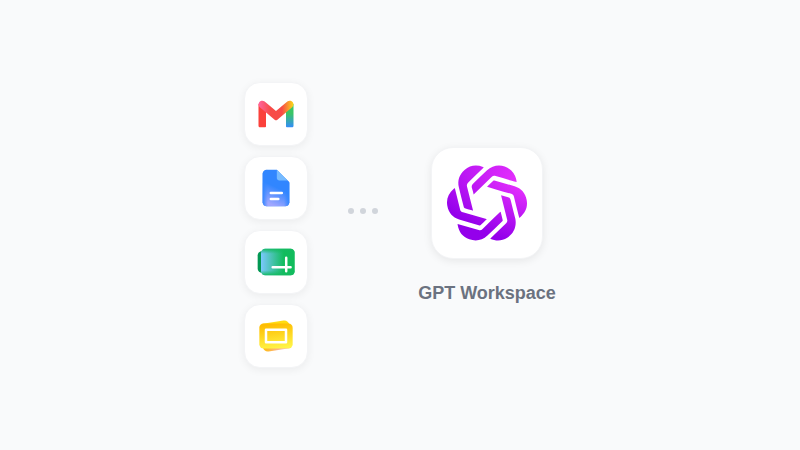
The catch is that most event planners already live inside Google Workspace. Switching to a separate AI tab breaks the flow. GPT Workspace solves this by putting AI directly inside Gmail, Google Docs, Google Sheets, and Google Slides. The AI is there when you need it, inside the tool you’re already using.
Why AI Tools for Event Planners Work Best Inside Google Workspace
Event planning workflows already run through Google Workspace. Proposals live in Docs. Vendor lists and budgets live in Sheets. Client presentations live in Slides. Vendor and client emails flow through Gmail.
The problem with external AI tools is friction: you copy text from Gmail, paste it into a chatbot, copy the response back, then edit it for formatting. For a single email that’s annoying. For 30 vendor emails in one morning, that’s 45 minutes of copy-pasting.
AI tools for event planners work best when they’re embedded in the environment where the work happens. GPT Workspace installs as a Chrome extension and Google Workspace add-on. There’s an AI panel inside Gmail, inline editing in Google Docs, formula generation in Sheets, and slide content generation in Slides. No switching. No pasting.
Most event planners get up to speed in about 10 minutes.
ChatGPT Prompts for Event Planning in Gmail
Email volume is one of the biggest pain points in event planning. A corporate event coordinator typically sends 60-100 emails per day during the six-week run-up to a major event. Vendor confirmations, client approvals, follow-ups on missing contracts, catering adjustments, AV specs.
GPT Workspace adds an AI panel to Gmail. It can read your open thread and generate a contextual reply based on your prompt.
Vendor Outreach and Follow-Up Emails
Vendor emails often need a tone that’s professional but direct. You’re chasing missing documents, pushing back on pricing, or confirming logistics details where the margin for error is zero.
Open the vendor email thread. In the GPT Workspace panel, type: “Write a follow-up to this vendor asking for their signed contract and catering confirmation by Friday. Professional tone, direct. Under 100 words.”
The draft comes back immediately. For a task that normally takes 5-8 minutes per email, you’re at under 60 seconds. Across 20 vendor follow-ups in a single morning, that’s more than 2 hours recovered.
You can also write outreach emails to vendors you haven’t worked with before. Prompt: “Write an initial outreach to a catering company asking for pricing for a 200-person corporate dinner. Include: dietary requirements (vegan and gluten-free options needed), service style (plated dinner), event date (September 12). Request a proposal within 5 business days.”
Client Update Emails
Client update emails need a different tone: reassuring, clear, not buried in logistics. Clients want to know things are under control, not read a status report.
Provide GPT Workspace with the key update points and let it write the client-facing version. Prompt: “Write a client update email summarizing these three things: (1) venue confirmed and deposit paid, (2) catering vendor shortlisted to two options, (3) AV walkthrough scheduled for next Tuesday. Keep it confident and brief. Client is a VP of Marketing who doesn’t want long emails.”
The result needs minor personalization but the structure and tone are there. You send it in under 3 minutes instead of 12.
For more Gmail-specific prompts and techniques, see AI email writing in Gmail.
 Try GPT Workspace
Use ChatGPT, Claude, and Gemini directly inside Google Docs, Sheets, Slides, Gmail, and Drive. No tab switching.
Get Started Free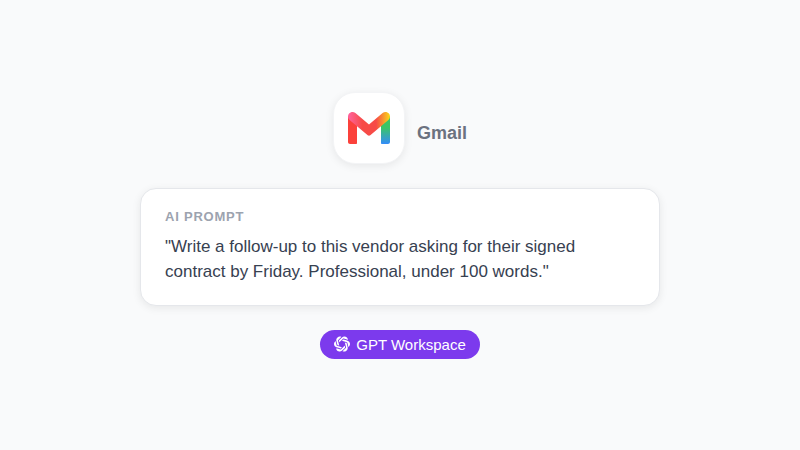
Using ChatGPT for Event Planning Documents in Google Docs
Event planners write a lot of documents. Proposals. Run-of-show timelines. Briefing sheets for day-of staff. Post-event reports. These documents need to be polished and client-ready, often with a fast turnaround.
GPT Workspace integrates directly into Google Docs. Highlight existing text and ask it to rewrite or expand. Open the sidebar and generate a new section from a prompt. You work in the document the whole time.
Event Proposals
Writing a strong event proposal from scratch takes 2-3 hours. With GPT Workspace, you can cut that to under 45 minutes by generating the structural scaffolding and filling in the specifics.
Start with a prompt in the Docs sidebar: “Write an event proposal outline for a 300-person corporate anniversary dinner for a financial services company. Include sections for: executive summary, event concept, venue recommendations, catering approach, entertainment, timeline, and budget range. The client values quality over cost.”
You get a complete outline with section headers and placeholder content. From there, you replace the placeholders with your actual vendor picks, dates, and pricing. The judgment calls are yours. The writing structure is handled.
Run-of-Show Documents
Run-of-show documents are detailed minute-by-minute schedules for event staff. They need to be precise, easy to scan under pressure, and comprehensive enough that anyone can pick one up and know exactly what happens next.
Prompt GPT Workspace: “Write a run-of-show for a 4-hour awards ceremony. Timeline: 6:00 PM doors open, 6:30 PM cocktail hour, 7:30 PM dinner service, 8:15 PM first award category (5 awards), 9:00 PM entertainment break, 9:30 PM second award category (5 awards), 10:00 PM event close. Include staff cues for AV, catering, and MC.”
This produces a full draft you refine with venue-specific logistics and staff names. What normally takes 90 minutes to write from a template takes about 20.
For step-by-step Google Docs AI workflows, see how to use ChatGPT in Google Docs.
AI Tools for Event Management in Google Sheets
Google Sheets is the control center for most event planners. Budget tracking, vendor lists, guest management, task checklists, payment schedules. These spreadsheets get complicated fast, and maintaining them manually takes real time.
GPT Workspace in Google Sheets generates formulas, creates structured tables, and helps clean up messy imported data.
Budget Tracking Formulas
Event budgets have a lot of conditional logic. Calculate remaining budget by category. Flag any line item that exceeds the approved amount. Sum vendor payments by status (paid, pending, overdue).
In the GPT Workspace Sheets panel, prompt: “Write a formula that sums all values in column C where the corresponding cell in column D says ‘Paid’.” You get =SUMIF(D:D,\"Paid\",C:C) ready to paste.
For something more complex: “Write a formula to show the percentage of the total budget used, where total budget is in cell B2 and spent-to-date is in cell B3. Round to one decimal place.” That kind of conditional formula writing takes 5-10 minutes of trial and error manually. With GPT Workspace, it’s under 30 seconds.
Vendor and Guest Tracking Tables
Setting up a well-structured vendor tracking sheet from scratch is tedious. Prompt GPT Workspace: “Create a vendor tracking table header row with these columns: Vendor Name, Category, Contact Name, Email, Phone, Contract Signed (Yes/No), Deposit Paid (Yes/No), Final Payment Due Date, Notes.”
You get a clean header row ready to paste, with columns in a logical order. For a guest management sheet: “Create a guest management header row: Name, Company, Email, RSVP Status, Dietary Requirements, Table Assignment, Plus-One (Yes/No), Confirmation Sent (Yes/No).”
These take about 30 seconds to generate and save 15-20 minutes of formatting work per event. For more on Google Sheets AI workflows, see how to use AI in Google Sheets.
ChatGPT for Event Presentations in Google Slides
Client presentations are a constant deliverable in event planning. Concept decks, post-event reports, sponsorship proposals. These need to be visually clear and professionally written, and clients expect them fast.
GPT Workspace in Slides generates slide content based on your prompts. You control the design and visuals, but the copy, structure, and talking points come from AI.
Prompt: “Write talking points for a 5-slide event concept presentation for a product launch. The event is 500 attendees at a rooftop venue in Austin. Slides: (1) Event Vision, (2) Venue and Atmosphere, (3) Guest Experience Flow, (4) Brand Activation Opportunities, (5) Budget Overview. Keep each slide to 3-4 bullet points.”
That generates a complete slide framework in about 30 seconds. Drop the content into your slide template, add the brand name and specific details, and you have a professional draft in under 20 minutes instead of 90.
For AI-powered presentation workflows, see the guide to AI for Google Slides presentations.
Try GPT Workspace
Use ChatGPT, Claude, and Gemini directly inside Google Docs, Sheets, Slides, Gmail, and Drive. No tab switching.
Get Started FreeFrequently Asked Questions
The Time You Get Back
The biggest benefit of ChatGPT for event planners isn’t any single prompt. It’s the cumulative effect across a full event cycle.
Vendor emails that took 8 minutes each now take 90 seconds. A proposal that took half a day now takes a focused morning. A run-of-show that took 90 minutes to format takes 20. Budget formulas that needed 10 minutes of Sheets troubleshooting take 30 seconds.
Across a six-week corporate event preparation cycle, experienced event planners report recovering 6-10 hours per week. That time goes back into vendor negotiations, client relationships, and the on-the-ground details that make an event actually work.
GPT Workspace is available as a Chrome extension and Google Workspace add-on. Install it once and it’s available in every Google app where you already work. See also the AI for project managers guide if you’re coordinating large multi-team events.