How to Use AI to Write a Google Docs Report in Half the Time
A step-by-step process for creating professional reports, briefs, and business documents in Google Docs with AI — from structuring to formatting and final editing.

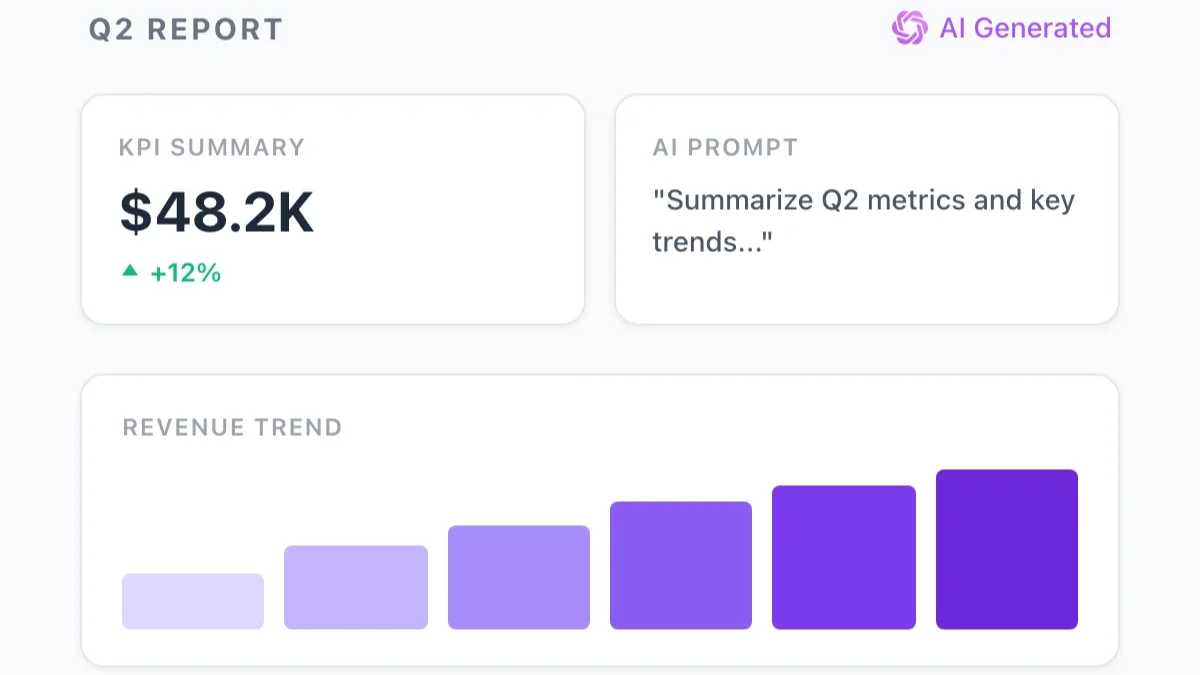
Writing a report takes time in ways that compound badly. You spend time gathering information, more time deciding how to structure it, more time drafting each section, and then more time still editing the draft into something that reads coherently. A ten-page business report that should take two hours routinely takes five, and the extra time rarely improves the outcome — it mostly goes toward writing that gets cut anyway.
AI report writing in Google Docs is one of the most practical applications of AI assistance available to knowledge workers right now, because reports are high-stakes and time-consuming, but they also follow repeatable patterns that AI handles extremely well. This guide walks through the exact five-step process for using GPT Workspace inside Google Docs to produce professional reports, briefs, and business documents — faster and with better structure than most people achieve manually.
Why AI Report Writing Is Different from ChatGPT
There is a meaningful difference between using ChatGPT in a separate tab to generate text and using AI directly inside Google Docs. The distinction matters more for reports than for almost any other writing task.
Reports are iterative documents. You draft a section, look at what came before it, adjust the framing, add a data point, move a paragraph. That process requires constant back-and-forth between your content and your writing tool. When your AI tool lives in a different tab, every iteration involves copying text, switching contexts, pasting results, and re-orienting yourself in the document. Over a two-hour session, that friction adds up to lost time and lost focus.
GPT Workspace embeds the AI sidebar directly into Google Docs. The document stays open and visible while you prompt the AI, review its output, and insert or replace content — all in the same window. The AI can also read the text you’ve selected, which means you can ask it to “summarize the previous section before drafting the next one” without any copy-paste at all. This contextual continuity is what makes AI genuinely useful for long-form document work rather than just individual snippets.
If you haven’t set up GPT Workspace yet, how to use ChatGPT in Google Docs covers the full setup and basic workflow. The present guide assumes you have it running and focuses specifically on the report-writing process.
Step 1: Define Your Report Structure with AI
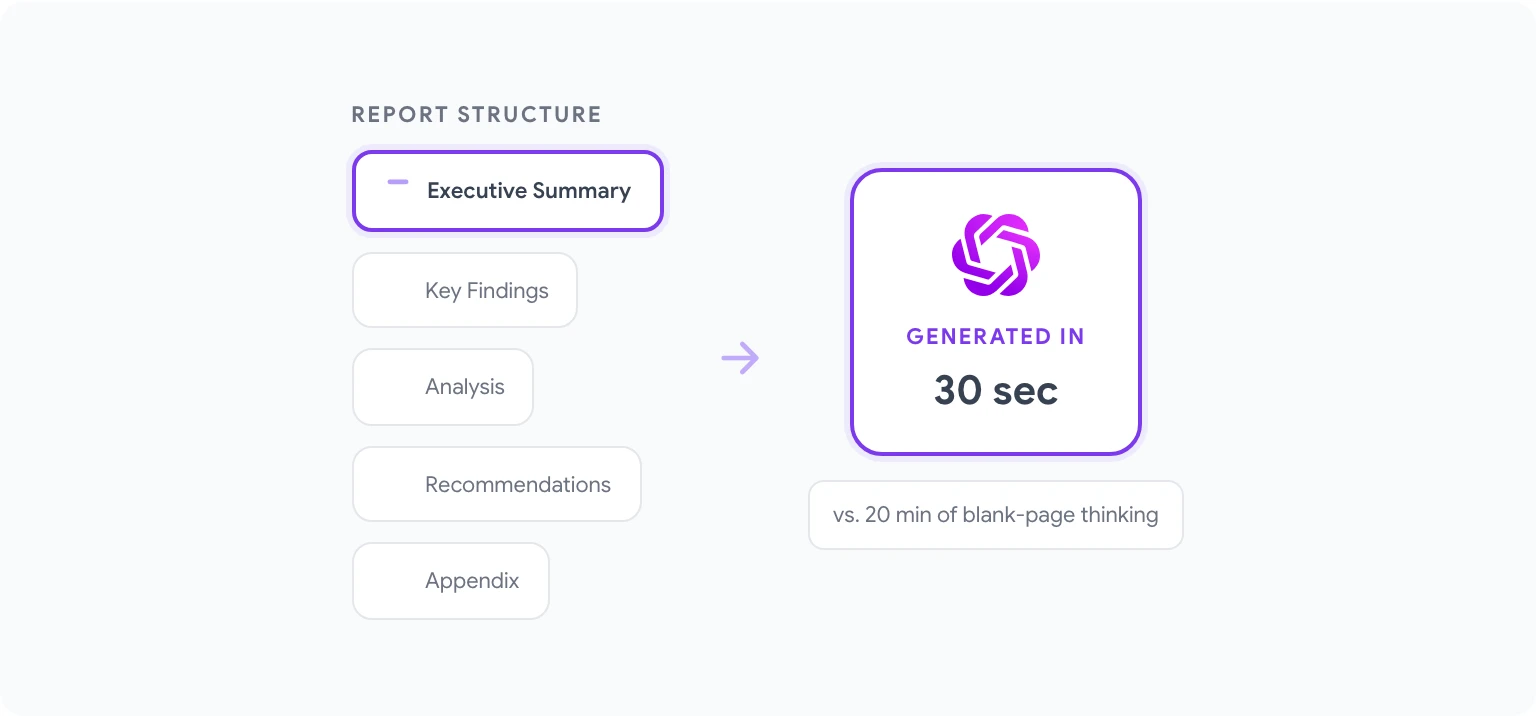
The most common mistake in AI-assisted report writing is jumping straight to drafting. Reports with weak structure don’t get better through better writing — they need to be reorganized, which is twice the work. Starting with structure prevents this entirely.
Open a new Google Doc. In the GPT Workspace sidebar, use a prompt like this:
“I’m writing a [report type] for [audience]. The main purpose is [goal: to inform, to recommend, to document, to persuade]. Key topics to cover: [list 3–5 topics]. Generate a recommended report structure with section titles and a one-sentence description of what each section should contain.”
For example, for a competitive analysis report to be presented to a product team:
“I’m writing a competitive analysis for our product leadership team. The goal is to inform a positioning decision about a new feature launch. Key areas: market overview, three direct competitors, feature comparison, pricing benchmark, gaps and opportunities. Generate a report structure with section titles and one-line descriptions.”
The AI will return a structured outline. Review it critically — adjust, add, or remove sections based on what you actually know needs to be in the report. Paste the agreed structure directly into the document as your working outline. This becomes your scaffold for everything that follows.
Why this works: Structure decisions are cognitively expensive. By making them upfront with AI assistance, you preserve your mental energy for the actual analysis and content, where your judgment is irreplaceable.
Step 2: Generate Research Summaries
Most reports synthesize existing information — market data, internal metrics, stakeholder input, research papers, prior reports. Before drafting any section, you need that information in a usable form.
AI in Google Docs is most valuable here as a synthesis and compression tool, not a research tool. You bring the raw material; the AI processes it into structured summaries.
For each major section:
- Paste the relevant raw content into the Google Doc — notes from research, data tables, quotes from interviews, excerpts from source documents.
- Select the pasted content.
- In the GPT Workspace sidebar, prompt: “Summarize this content into 3–5 key findings relevant to [the section topic]. Use plain language. Note any gaps or contradictions in the source material.”
- Review the summary, verify accuracy against your sources, and keep it in the document as a section working draft or reference block.
This step has two payoffs. First, you compress raw material into something actually writable — a research dump is not a report section, but a structured summary is. Second, summarizing forces you to identify what’s missing before you start drafting, rather than discovering gaps halfway through a section.
For reports that pull data from Google Sheets — dashboards, KPI reports, financial summaries — the AI in Google Sheets guide covers how to use AI to extract and format that data before it comes into Docs.
Step 3: Draft Each Section with AI
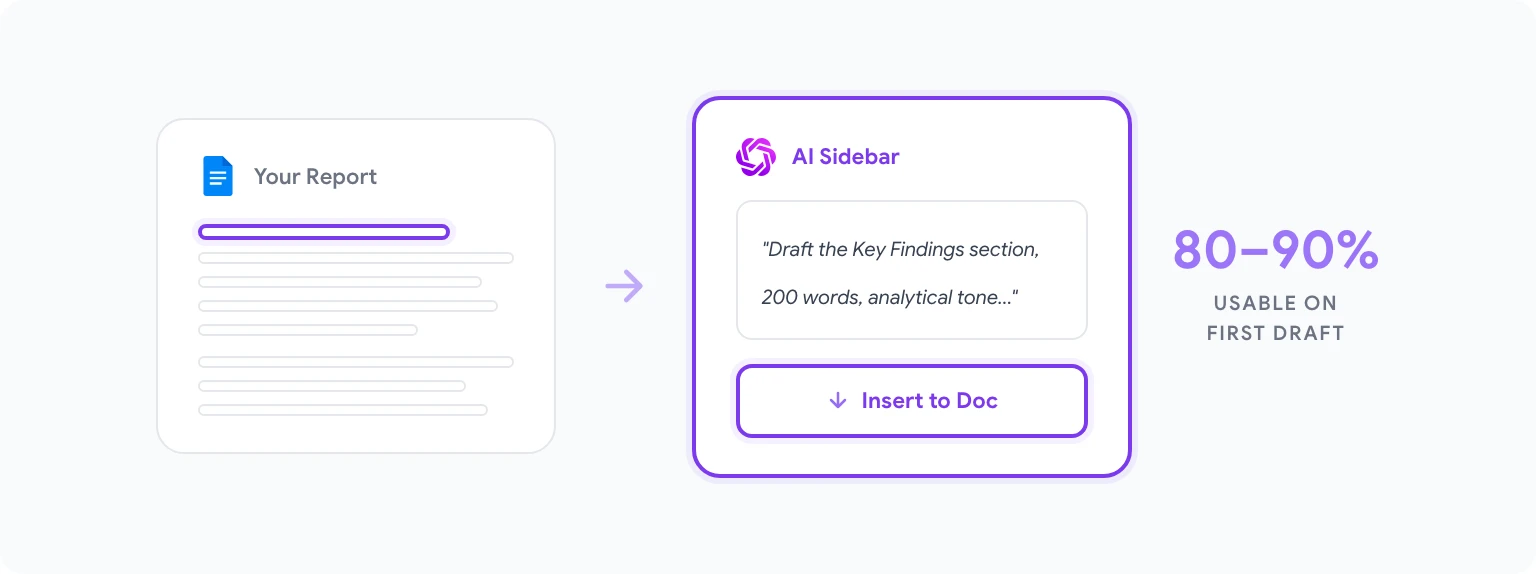
With structure defined and research summarized, drafting becomes a section-by-section process rather than a monolithic writing task. This is where GPT Workspace delivers its most obvious time savings.
For each section:
- Place your cursor at the beginning of the section in the document.
- Prompt the AI with specific content and constraints: “Using the summary above, draft the [section name] section of this report. Target length: [X words]. Audience: [who they are and their knowledge level]. Tone: [formal/analytical/direct]. Include: [any specific elements, e.g., a summary sentence at the start, supporting data points from the notes, a brief recommendation].”
- Review the draft in the sidebar. It will often be 80–90% usable on the first pass with a well-constructed prompt.
- Click Insert to place it in the document, then make targeted edits inline.
A few principles that consistently improve first-pass quality:
Specify the opening sentence style. Reports read best when each section begins with a clear statement of the main point, not with background context. Prompt: “Start with a direct statement of the key finding, then provide supporting detail.”
Control paragraph length. Long paragraphs kill readability in business documents. Prompt: “Keep each paragraph to 3–5 sentences maximum.”
Tell the AI what to leave out. If you’ve identified material in your research summaries that’s interesting but tangential, say so: “Do not include [topic X] in this draft — it will be addressed in the appendix.”
For complex sections with multiple data points, generating in two passes often works better than one long prompt: generate the structure and key claims first, then prompt for supporting detail paragraph by paragraph.
Step 4: Edit and Refine with AI Feedback
First drafts from AI — like first drafts from humans — need editing. The editing process with GPT Workspace is where the tool earns its keep a second time, because it allows you to give specific, targeted instructions rather than doing every edit manually.
Clarity editing: Select a paragraph you feel is unclear or too dense. Prompt: “Rewrite this paragraph for clarity. Shorten sentences, remove passive constructions, and make the main point unambiguous. Keep all factual claims.”
Consistency check: Paste two sections written at different times into the sidebar. Prompt: “These two sections should have the same register and formality level. Identify any tone inconsistencies and suggest rewrites for the inconsistent passages.”
Executive summary generation: Once all sections are drafted, select the full document or the key sections and prompt: “Based on this document, write a 150-word executive summary. Lead with the most important recommendation or finding. Cover the key supporting points in order of importance. Use plain language appropriate for a senior executive audience.”
Logic and flow check: Prompt: “Read the following two consecutive sections and identify any logical gaps or places where the transition is abrupt. Suggest bridging language.”
What you’re doing in this step is using AI as a skilled editor rather than a drafter. The document is yours — you own the content, the analysis, the conclusions. The AI is helping you express them more clearly and consistently, which is exactly where AI adds value without replacing judgment.
For a broader view of how AI supports the full document lifecycle — not just reports — best ChatGPT prompts for Google Workspace has a prompt library organized by task type.
Step 5: Format and Finalize
Formatting is where many reports lose quality in the final stretch. Inconsistent heading sizes, bullet points mixed with prose, tables that don’t align, headers that don’t match the table of contents — these details signal carelessness even when the content is strong.
AI helps here in a specific, limited way: it can generate formatting-ready content (structured tables, formatted lists, table of contents text) that you apply in Docs rather than generating in it.
Generating a table of contents: Prompt: “Based on the following heading structure, generate a table of contents with page number placeholders. Format it as [numbered list / two-column format].”
Converting prose to structured tables: Select a section with comparative information. Prompt: “Convert the information in this section into a structured comparison table with columns for [attributes]. Include all key data points.”
Formatting consistency instructions: Prompt: “Review this document for formatting consistency issues: heading hierarchy, bullet point style, number formatting, and capitalization conventions. List specific inconsistencies.”
For final formatting, Google Docs’ own tools — styles, named heading formats, table templates — should be applied directly rather than through AI. AI generates the content; Docs applies the formatting. Keeping those two jobs separate prevents formatting errors that occur when AI tries to embed HTML or markdown in a plain-text document context.
The final pass before delivery should be human. AI catches many errors, but it misses the high-stakes specifics that matter most in business documents: a wrong figure, a colleague’s name misspelled, a recommendation that contradicts a commitment made in an earlier meeting. That final review is your responsibility, not the AI’s.
5 Report Templates You Can Generate
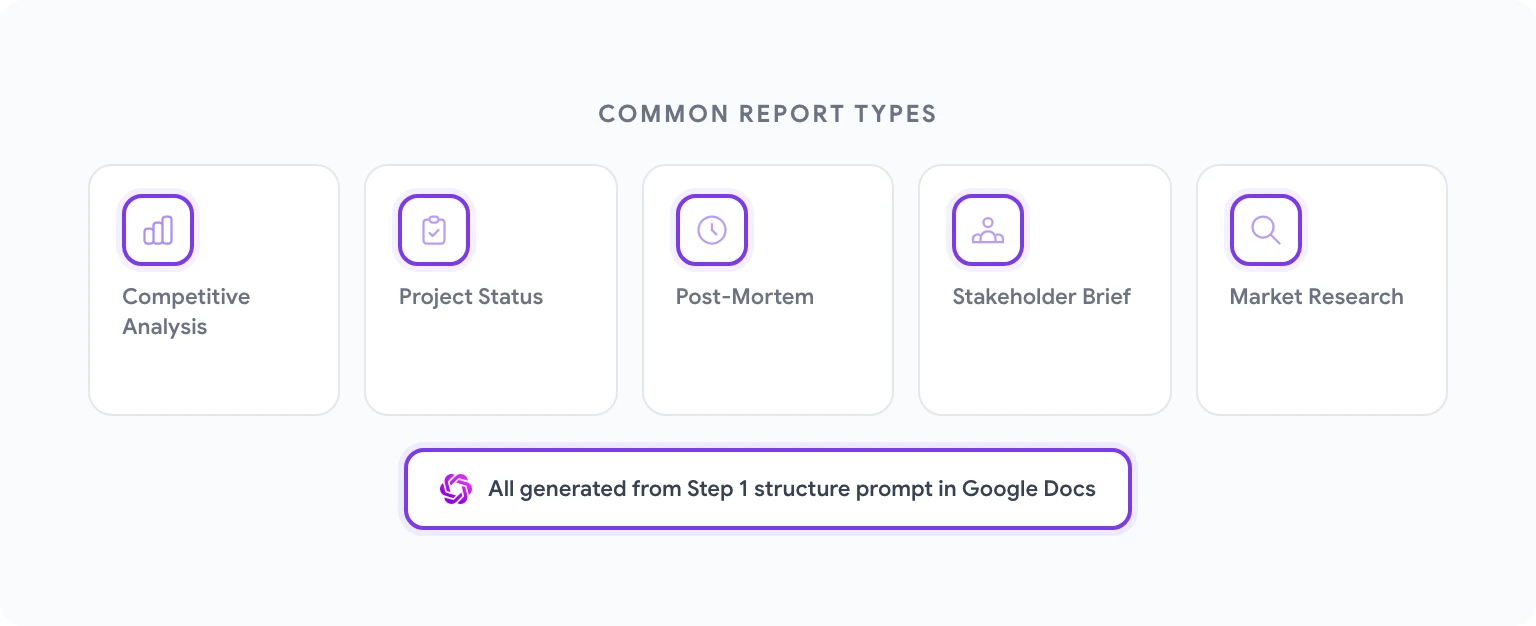
Each of these can be generated from scratch using the structure-first approach in Step 1. They represent the most common business document types that knowledge workers produce repeatedly.
Competitive Analysis Report — Market overview, competitor profiles, feature comparison matrix, pricing benchmark, strategic gaps, recommended positioning. Typical length: 8–12 pages.
Project Status Report — Executive summary, progress against milestones, budget and resource update, risks and mitigations, decisions required, next period objectives. Typical length: 2–4 pages. Best produced weekly using a consistent template.
Post-Mortem / Retrospective Report — Project overview, what went well, what didn’t, root cause analysis for key failures, lessons learned, action items with owners and dates. Typical length: 3–6 pages.
Stakeholder Briefing — Situation overview, key findings, implications for the stakeholder’s area, recommended actions, open questions. Typical length: 1–2 pages. Designed for rapid reading by a busy executive.
Market Research Summary — Methodology, key findings by theme, data highlights, limitations and caveats, implications for the business, appendix with raw data. Typical length: 6–10 pages.
Prompts for Different Report Formats
The same five-step process applies across formats, but the prompts need calibration for different output styles.
For an analytical report (evidence-driven, formal): “Write this section in an analytical register: evidence first, interpretation second, recommendation last. Use precise language. Avoid hedging unless the evidence genuinely warrants it.”
For an executive brief (concise, decision-focused): “Rewrite this section for an executive audience with 2 minutes to read it. Lead with the decision or recommendation. Cut all background that a senior leader would already know. Maximum 150 words.”
For a technical report (detailed, structured): “Draft this section with technical precision. Include methodology notes, data sources, and assumptions. Use numbered subsections. Assume the reader is a subject matter expert.”
For a client-facing report (professional, accessible): “Write this section in a client-facing tone: professional but not jargon-heavy, explanation-oriented, emphasis on value and outcomes rather than process. Avoid internal terminology.”
Maintaining Your Voice in AI-Written Documents
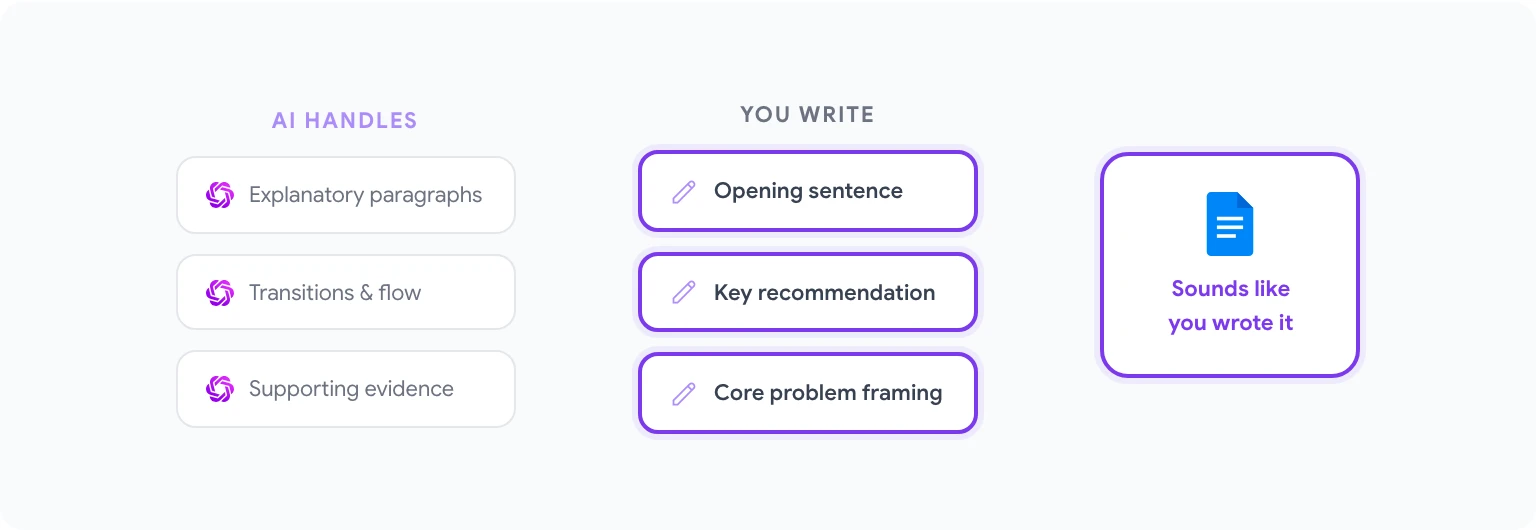
A report that reads like it was assembled from AI parts — slightly too smooth, a little generic in its transitions, consistently avoiding the kind of specific organizational language that marks a document as coming from a real team — is a report that doesn’t fully land.
The most effective technique for maintaining voice in AI-assisted documents is to write the most important sentences yourself and let AI handle the supporting material. The opening sentence of the executive summary. The key recommendation. The framing of the central problem. These are the sentences readers remember, and they should sound like you — because they carry your judgment, not just your words.
Use AI for the sentences that exist to support those key moments: the explanatory paragraph, the transition, the list of supporting evidence. AI is very good at those. It is less good at the moments that require genuine conviction or institutional knowledge that only you hold.
You can also prompt the AI to adapt to your voice explicitly. Give it three examples of your previous writing — emails, memos, earlier reports — and ask it to “match the tone and style of these examples” before generating each section. For teams producing reports regularly, building a shared style guide prompt that lives in the GPT Workspace prompt library means every team member generates output that sounds like one consistent voice.
To automate other recurring document workflows beyond reports — monthly updates, meeting summaries, data-driven briefs — automating Google Workspace tasks with AI covers how to build those processes systematically. And for the full documentation of what GPT Workspace can do inside Google Docs, visit gpt.space/docs.