ChatGPT Press Release Writing in Google Docs: Write Newsworthy Releases Faster
Learn how to write a press release with ChatGPT in Google Docs. Proven prompts, the right structure, and mistakes to avoid so your release actually gets read.

A press release has one job: get a journalist or editor to keep reading past the headline. Most people spend an hour staring at a blank Google Doc before they even get to the second paragraph.
ChatGPT changes the math on that hour. Paired with GPT Workspace inside Google Docs, you can turn a rough set of facts into a properly structured press release in about 20 minutes, then spend the rest of your time tightening the quotes and checking the numbers.
This guide covers how to write a press release with ChatGPT step by step: the setup inside Google Docs, prompts that produce something an editor would actually forward, the structure ChatGPT tends to get wrong, and how it compares to a dedicated AI press release generator.
How to Write a Press Release with ChatGPT in Google Docs
You don’t need to draft in ChatGPT and paste the result into Docs. GPT Workspace puts the AI directly inside your document, so the release takes shape where you’ll actually edit it.
Step 1: Install GPT Workspace
Go to gpt.space and add GPT Workspace to Chrome, or install it as a Google Workspace add-on. It takes about two minutes.
Open a new Google Doc afterward and you’ll see the GPT Workspace sidebar on the right side of the screen. That’s where you’ll type your prompts.
Step 2: Set Up Your Press Release Doc
Name the doc clearly: “Press Release - [Company] - [Announcement] - [Date].” Before prompting, paste in the raw facts at the top of the doc:
- What’s being announced (product launch, funding round, partnership, hire)
- The one number or detail that makes it newsworthy
- Quote source and their exact title
- Release date and embargo status, if any
This becomes the context block your prompts pull from. Skip it and ChatGPT fills the gaps with generic filler.
Step 3: Draft the Release Section by Section
Click into the sidebar and prompt for one section at a time rather than the whole release in one shot. You’ll get more usable output, and you can adjust tone before it compounds across the whole document.
For a broader look at this workflow, see how to use ChatGPT in Google Docs.
ChatGPT Press Release Prompts That Get Results
Generic prompts produce generic releases. Editors skim past those in about four seconds. Here’s what to type instead.
For the headline:
“Write 3 press release headlines for [Company]‘s launch of [Product]. Lead with the specific outcome, not the company name. Under 12 words each. No hype adjectives like ‘revolutionary’ or ‘game-changing.’”
For the lead paragraph:
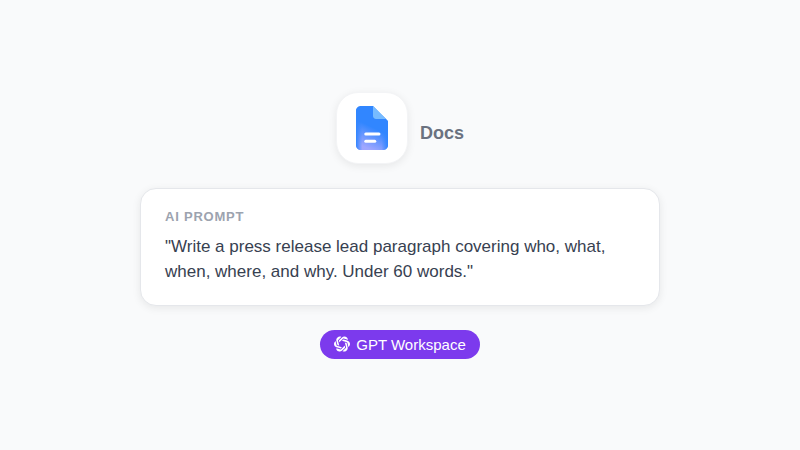
“Write a press release lead paragraph covering who, what, when, where, and why for [Company]‘s announcement that [specific news]. One paragraph, under 60 words. State the news plainly in the first sentence.”
For the body and context:
“Write 2 body paragraphs expanding on this announcement: [paste your facts]. Include one supporting statistic and explain why this matters to [target audience]. Plain language, no marketing buzzwords.”
For the executive quote:
“Write a quote from [Name], [Title] at [Company], reacting to this announcement: [paste facts]. Sound like a real executive talking, not a tagline. One to two sentences, conversational.”
For the boilerplate:
“Write a 3-sentence company boilerplate for [Company]. We do [core business]. Founded in [year]. Based in [location]. End with our website.”
These prompts work because they hand ChatGPT the specific facts instead of asking it to invent a story. For more prompt patterns across Google Workspace, see best ChatGPT prompts for Google Workspace.
 Try GPT Workspace
Use ChatGPT, Claude, and Gemini directly inside Google Docs, Sheets, Slides, Gmail, and Drive. No tab switching.
Get Started FreePress Release Structure: What ChatGPT Gets Right and Wrong
ChatGPT knows the standard press release format well. It gets the skeleton right almost every time: headline, dateline, lead, body, quote, boilerplate, contact info. Where it struggles is substance.
What it gets right. Structure, formatting, and inverted-pyramid order (most important information first). Ask for a press release and you’ll get all the standard sections in the standard order without needing to explain the format.
What it gets wrong. Specificity and restraint. Left alone, ChatGPT reaches for words like “excited to announce” and “cutting-edge” in almost every draft. It will also invent plausible-sounding statistics if you don’t give it real ones, so check every number before sending.
The fix that works: prompt it to write plainly, then do one editing pass focused only on removing hype words. Search the draft for “excited,” “thrilled,” “revolutionary,” and “game-changing.” Cut them or replace with the actual reason the news matters.
The AI report writing guide for Google Docs covers a similar editing pass for cutting filler language, and it transfers directly to press releases.
AI Press Release Generator vs. ChatGPT in Google Docs
A quick search turns up dozens of dedicated AI press release generator tools. Most of them are a thin wrapper around a language model with a fixed template. Here’s how they actually compare to writing in ChatGPT through GPT Workspace.
Standalone generators are fast for a first draft and require no prompt-writing skill. But you’re locked into their template, your facts and quotes live inside a third-party tool instead of your document system, and most charge per release or per month.
ChatGPT inside Google Docs takes a few more minutes to set up the first time, but the release lands directly in your existing Docs workflow. Your team can comment and edit in real time, the doc lives in the same Drive folder as your press kit assets, and you control the exact structure instead of fitting your news into someone else’s template.
For a one-off release, a generator might be faster. For a company that sends releases monthly, keeping the process inside Google Docs saves the repeated export-and-reformat step every time.
Mistakes to Avoid When Using ChatGPT for Press Releases
These four mistakes show up constantly in AI-drafted releases, and each one is easy to catch before you hit send.
Mistake 1: Skipping the fact-check pass. ChatGPT will confidently write a statistic that sounds right but isn’t one you gave it. Verify every number, date, and title before the release goes anywhere near a journalist.
Mistake 2: Letting the quote sound like a tagline. A quote that reads like marketing copy gets cut by editors immediately. Ask ChatGPT for a conversational quote, then read it aloud. If it sounds like something a person would actually say in an interview, keep it.
Mistake 3: Burying the news in paragraph three. ChatGPT sometimes opens with company background instead of the announcement. Check that the first sentence states the actual news, not the company’s history.
Mistake 4: Sending the first draft. Treat the AI output as a structural starting point. A generic first draft with real facts swapped in is still a generic release. The editing pass, not the drafting, is where a release becomes something a reporter wants to cover.
Why Google Docs Is the Right Place to Draft a Press Release
Press releases rarely get written by one person in isolation. Google Docs handles the parts of that process a standalone AI tool can’t.
Real-time review with your comms team. Legal, marketing, and the executive being quoted can all comment on the same draft at once. No emailing a Word doc back and forth for approval.
Version history for approval trails. If a quote or number changes between drafts, Google Docs keeps every version. That matters when someone asks who approved which number, weeks after the release goes out.
One place for the whole press kit. Keep the release, boilerplate, and supporting images in the same Drive folder. Journalists asking for more detail get a single link instead of three separate files.
GPT Workspace stays in the sidebar. You draft, prompt again, and edit without leaving the tab. That matters most under a deadline, when a release needs to go out within the hour instead of by end of day.
For companies that pair press releases with other public-facing writing, ChatGPT proposal writing in Google Docs covers a closely related workflow for client-facing documents.
Try GPT Workspace
Use ChatGPT, Claude, and Gemini directly inside Google Docs, Sheets, Slides, Gmail, and Drive. No tab switching.
Get Started FreeFrequently Asked Questions
Send a Release That Actually Gets Read
ChatGPT doesn’t replace the news judgment behind a good press release. It removes the part that eats the most time: getting from a blank Google Doc to a properly structured draft with the right sections in the right order.
The releases that get picked up are the ones with a real number in the lead and a quote that sounds like a person said it. AI gets you a structured draft in 20 minutes. The next 15 minutes, cutting hype words and checking every fact, is what makes an editor keep reading.
Start with GPT Workspace inside your next Google Doc. Draft one section with AI assistance, read it against a release you’re proud of, and adjust your prompts from there.
For teams that pair press releases with regular client or investor updates, AI email writing with Gmail prompts covers the same specificity principles for outbound communication.