ChatGPT para Professores: Planos de Aula, Feedback e Avaliação no Google Workspace
Como professores usam o ChatGPT para planos de aula, criação de testes, feedback aos alunos e avaliação dentro do Google Docs, Sheets e Slides com o GPT Workspace.

Os professores dedicam cerca de 50% das suas horas de trabalho a tarefas que nada têm a ver com o ensino propriamente dito: escrever planos de aula, conceber avaliações, deixar feedback em 30 rascunhos idênticos, criar rubricas, redigir e-mails para os pais. Esse número provém de inquéritos realizados a docentes do ensino básico, secundário e superior. Não é um problema novo. Mas o ChatGPT para professores torna-o um problema solucionável.
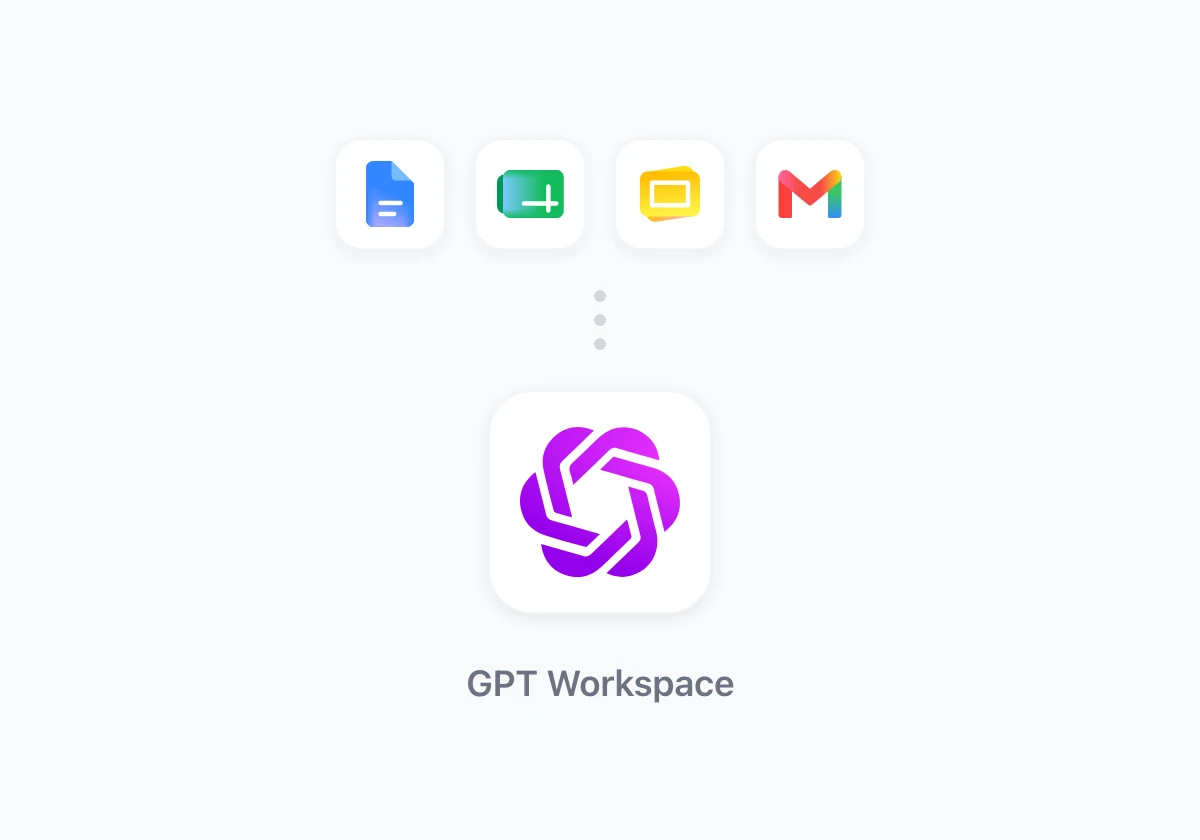
O GPT Workspace traz a IA diretamente para as ferramentas Google que os educadores já utilizam. Sem aplicações separadas, sem copiar e colar entre separadores, sem novas plataformas para aprender. Está no Google Docs a trabalhar num plano de aula e a IA está ali mesmo na barra lateral.
Este guia aborda os fluxos de trabalho específicos onde a IA poupa mais tempo aos professores: planeamento de aulas, criação de testes e avaliações, feedback aos alunos, rubricas de avaliação e comunicação com os pais.
 Experimente o GPT Workspace
Use o ChatGPT, Claude e Gemini diretamente no Google Docs, Sheets, Slides, Gmail e Drive. Sem alternar entre separadores.
Comece Gratuitamente →Como usar o ChatGPT para Planos de Aula
Um plano de aula é, na sua maioria, uma tarefa de escrita estruturada. Conhece o objetivo de aprendizagem, o nível de escolaridade e o tempo disponível. Transformar esses dados num plano completo e formatado é onde o tempo é gasto.
Criar um Plano de Aula Completo em 3 Minutos
Abra o Google Docs, insira as suas notas brutas e use o GPT Workspace para estruturar:
- Abra qualquer Google Doc e escreva a sua intenção em linguagem simples: tópico, nível de escolaridade, duração, objetivos de aprendizagem, quaisquer normas relevantes.
- Abra o GPT Workspace através de Extensões > GPT for Sheets, Docs, Slides.
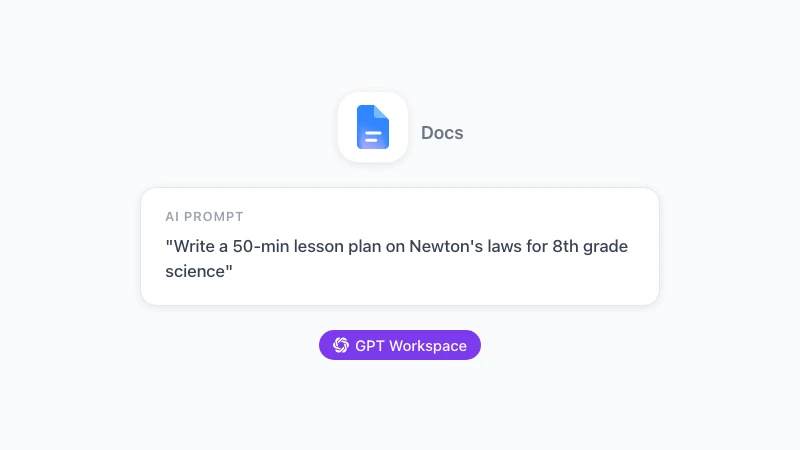
- Prompt: “Escreva um plano de aula completo para uma aula de ciências de 50 minutos para o 8º ano sobre as três leis de Newton. Objetivo de aprendizagem: os alunos conseguem identificar e explicar cada lei com um exemplo do mundo real. Inclua: atividade de aquecimento (5 min), instrução direta (15 min), prática guiada (15 min), prática independente (10 min) e um bilhete de saída de 5 minutos. Use a taxonomia de Bloom para o design da atividade.”
O resultado é um plano estruturado e pronto para o professor. Não é perfeito à primeira, mas está 80% concluído. Ajusta o tempo, troca uma atividade e está feito. O que costumava demorar 40 minutos demora 8.
Diferenciação para Múltiplos Níveis
A versão mais difícil do planeamento de aulas é a diferenciação: a mesma aula adaptada para alunos ao nível, avançados e com dificuldades. Escrever três versões manualmente é genuinamente exaustivo.
Prompt após o seu plano base estar pronto: “Agora crie duas versões diferenciadas desta aula. A Versão 1 é para alunos com desempenho 1-2 níveis abaixo do padrão: simplifique o vocabulário, adicione mais andaimes e reduza a complexidade da tarefa de prática independente. A Versão 2 é para alunos avançados: adicione questões de extensão, aumente a complexidade da análise e inclua uma pequena tarefa de pesquisa para quem terminar mais cedo.”
São três planos de aula a partir de uma cadeia de prompts, demorando cerca de 15 minutos no total.
Gerador de Planos de Aula ChatGPT: Construir um Sistema Reutilizável
Planos de aula individuais são úteis. Um sistema reutilizável é mais útil.
Use o GPT Workspace no Google Docs para criar um modelo mestre que preenche com diferentes tópicos. A estrutura permanece consistente: as secções exigidas pela sua escola, o seu formato de rubrica de avaliação, os seus níveis de diferenciação. Não está a reconstruir a estrutura de cada vez. Está apenas a mudar o conteúdo.
Para o planeamento de unidades (ciclos de 4-6 semanas), o fluxo de trabalho escala:
“Crie um plano de unidade de 4 semanas sobre a Guerra Civil Americana para o 11º ano de História dos EUA. Cada semana deve ter 3-4 temas de aula, vocabulário chave, sugestões de fontes primárias e um ponto de controlo de avaliação ou projeto importante. Alinhe com as normas de literacia Common Core para história.”
Isto dá-lhe um esqueleto de unidade completo em menos de 2 minutos. A partir daí, cada aula individual é um prompt separado que referencia o contexto da unidade.
A verdadeira poupança de tempo surge após o primeiro semestre. Nessa altura, tem uma biblioteca de aulas base que está a adaptar em vez de recriar. A IA torna a adaptação rápida o suficiente para que a faça realmente, em vez de reutilizar materiais obsoletos porque criar novos demora demasiado tempo.
Criar Testes e Avaliações com IA
A criação de testes consome surpreendentemente muito tempo quando bem feita. Escrever perguntas ao nível de dificuldade certo, evitar ambiguidades, criar distratores plausíveis para escolha múltipla. A IA é genuinamente boa nisto.
Criar Testes no Google Docs
“Escreva um teste de 10 perguntas de escolha múltipla sobre fotossíntese para o 9º ano de biologia. Cada pergunta deve ter 4 opções (A-D). Inclua uma mistura de perguntas de recordação (4), perguntas de compreensão (4) e uma pergunta de aplicação que exija que os alunos interpretem a descrição de um diagrama simples. Após as perguntas, inclua uma chave de respostas.”
Um teste de 10 perguntas bem formado, pronto a formatar no Google Docs, em cerca de 20 segundos. Ajuste a dificuldade, troque tópicos, altere o número de perguntas.
Para ensaios e perguntas de resposta curta: “Escreva 5 perguntas de resposta curta para um teste de unidade sobre a Revolução Francesa. As perguntas devem exigir respostas de 3-4 frases. Foque-se no raciocínio de causa e efeito e na avaliação de evidências históricas. Inclua uma resposta modelo para cada uma ao nível de ‘cumpre o padrão’.”
Essas respostas modelo são a parte mais útil. Permitem-lhe avaliar mais rapidamente e dar aos alunos exemplos concretos de como é uma boa resposta.
Construir Rubricas no Sheets
A criação de rubricas é onde a IA no Google Sheets se torna prática. Pode pedir ao GPT Workspace dentro do Sheets para gerar o texto para cada célula:
“Crie uma rubrica de avaliação de 4 colunas (4 = Supera, 3 = Cumpre, 2 = Aproxima-se, 1 = Abaixo) para um ensaio persuasivo do 10º ano. Categorias: Reivindicação e Evidência, Contra-argumento, Organização, Voz e Estilo, Mecânica. Escreva o descritor para cada célula na matriz.”
Copie o resultado para o seu modelo de rubrica. Tem uma rubrica completa e referenciada por normas para uma tarefa específica em 2 minutos. Construir essa mesma rubrica de raiz demora à maioria dos professores 20-30 minutos, e muitas vezes saltam-na quando têm pouco tempo.
Escrever Feedback aos Alunos Mais Rapidamente
O feedback é onde o tempo do professor desaparece mais rapidamente. Uma turma de 30 alunos a submeter um rascunho de ensaio significa 30 conjuntos individuais de comentários. Um feedback significativo e personalizado demora 8-12 minutos por aluno. São 4-6 horas para uma tarefa.
A IA não escreve o feedback por si. Escreve a primeira versão que edita.
O fluxo de trabalho prático: leia o trabalho do aluno, anote 2-3 observações chave (pontos fortes e áreas de crescimento), depois peça ao GPT Workspace no Docs para transformar essas notas num feedback escrito polido:
“Escreva um feedback construtivo para um ensaio de um aluno sobre alterações climáticas. Observações chave: tese forte que declara claramente uma posição; evidências presentes, mas as fontes não estão citadas corretamente; a conclusão repete a introdução em vez de sintetizar o argumento. O tom deve ser encorajador, mas específico sobre o que melhorar. 3-4 frases.”
Está a ler cada trabalho e a fazer o julgamento pedagógico. A IA está a transformar a sua escrita abreviada num feedback escrito profissional que é consistente em tom e extensão em todos os 30 alunos. O tempo desce de 8 minutos por aluno para 3.
Para feedback positivo, aplica-se o mesmo padrão: “Escreva um comentário breve (2-3 frases) de encorajamento para um aluno que mostrou uma melhoria significativa na estrutura do parágrafo em comparação com o seu último rascunho. Seja específico e motivador sem ser genérico.”
Experimente o GPT Workspace
Use o ChatGPT, Claude e Gemini diretamente no Google Docs, Sheets, Slides, Gmail e Drive. Sem alternar entre separadores.
Comece Gratuitamente →IA para Comunicação com os Pais no Gmail
Os e-mails para os pais demoram mais do que deveriam. Tenta ser preciso sobre uma situação sensível, manter o tom correto e não criar um rasto de papel que cause problemas. A IA trata do rascunho para que se possa concentrar na decisão.
Abra o Gmail, comece a escrever e use o GPT Workspace para redigir:
“Escreva um e-mail para um pai sobre a participação decrescente do seu filho na aula nas últimas 3 semanas. O aluno estava anteriormente empenhado, mas tornou-se retraído. Enquadre isto como um check-in em vez de uma notificação de problema. Convide o pai a agendar uma breve chamada. Tom profissional e caloroso. Menos de 150 palavras.”
Para boletins informativos e atualizações da turma: “Escreva um boletim informativo semanal para os pais do 6º ano. Cubra: esta semana estudámos frações e começámos os nossos projetos de feira de ciências; na próxima semana começamos a escrita persuasiva; lembrete de que a feira de ciências é a 15 de junho; pedido de pais voluntários para a feira. Tom amigável e informativo.”
Veja prompts de escrita de e-mail com IA para o Gmail para mais modelos adaptáveis à comunicação escolar.
Construir Materiais de Apresentação no Slides
Os materiais de aula precisam frequentemente de uma componente visual: diapositivos para instrução direta, organizadores gráficos, estruturas de apresentação. O GPT Workspace para Google Slides gera o conteúdo que vai em cada diapositivo.
“Crie notas do orador e texto em tópicos para uma apresentação de 12 diapositivos sobre o ciclo da água para o 5º ano. Títulos dos diapositivos: Introdução, O que é o Ciclo da Água?, Evaporação, Condensação, Precipitação, Coleção, Quanto tempo demora?, Porque é que importa?, O Ciclo da Água e o Tempo, Impacto Humano, Teste de Revisão, Resumo. Cada diapositivo recebe 2-3 tópicos e 3-4 frases de notas do orador.”
Isto dá-lhe a estrutura de conteúdo. Formata os diapositivos, adiciona visuais e ajusta a linguagem para a sua turma. Os 45 minutos de escrita tornam-se 10 minutos de edição.
10 Prompts Práticos para Professores
Copie e adapte estes para a sua sala de aula:
- “Escreva um plano de aula de 45 minutos para [ano] [disciplina] sobre [tópico]. Objetivo: [objetivo de aprendizagem]. Inclua aquecimento, instrução, prática e bilhete de saída.”
- “Crie um teste de 10 perguntas sobre [tópico] com uma mistura de escolha múltipla, verdadeiro/falso e uma pergunta de resposta curta. Inclua uma chave de respostas.”
- “Escreva uma rubrica de 4 níveis para [tipo de tarefa]. Categorias: [lista]. 1-2 frases por célula descrevendo cada nível de desempenho.”
- “Diferencie esta aula para alunos que leem 2 anos abaixo do nível de escolaridade: [cole a aula]. Reduza a complexidade do vocabulário e adicione mais pistas visuais.”
- “Escreva um feedback para um ensaio de um aluno sobre [tópico]. Pontos fortes: [nota]. Áreas a melhorar: [nota]. Tom: encorajador, mas específico.”
- “Escreva um e-mail para os pais sobre [situação]. Mantenha-o abaixo de 150 palavras, profissional mas caloroso, e termine com um próximo passo claro.”
- “Crie 5 perguntas de discussão para [texto ou tópico]. As perguntas devem mover-se da recordação para a análise e para a avaliação.”
- “Escreva um horário de trabalhos de casa de 3 semanas para [unidade]. Inclua 2-3 tarefas por semana, tempo estimado por tarefa e as competências que cada tarefa reforça.”
- “Gere um glossário de 15 termos chave para [tópico]. Cada definição deve estar numa linguagem amigável para o aluno, apropriada para [nível de escolaridade].”
- “Escreva um plano de professor substituto para uma turma de [ano] [disciplina]. Duração: 50 minutos. Os alunos estão atualmente a trabalhar em [tópico]. Inclua instruções claras, uma atividade independente e o que fazer se os alunos terminarem mais cedo.”
Para mais prompts organizados por aplicação Google, veja melhores prompts do ChatGPT para o Google Workspace.
Começar
O melhor ponto de partida é o fluxo de trabalho que lhe custa mais tempo neste momento. Para a maioria dos professores, isso é o planeamento de aulas ou o feedback aos alunos. Escolha um e experimente durante uma semana.
Instale o GPT Workspace a partir da Chrome Web Store, abra um Google Doc que normalmente preencheria manualmente e use a barra lateral. A primeira sessão demora 10 minutos a habituar-se. Ao terceiro dia, o padrão é automático.
Para escolas que implementam ferramentas de IA num departamento ou equipa de ano, o Add-on do Google Workspace pode ser enviado pelo seu administrador para a conta de cada professor. Sem instalação individual, sem dependência de navegador.
A IA não substituirá a sua experiência sobre o que os alunos precisam de aprender ou como responder quando um aluno está com dificuldades. O que substitui são as horas gastas no trabalho de rascunho que rodeia o ensino propriamente dito. Recuperar essas horas é importante.