AI smart replies in Gmail: faster responses with GPT Workspace
How to use AI to write, suggest, and refine Gmail replies in seconds. Practical prompt patterns for professional email, follow-ups, and customer responses with GPT Workspace.

The average knowledge worker spends two to three hours a day on email. Most of that time is not reading, it is figuring out how to respond. What tone fits this sender? How long should this reply be? Is this the right moment to push back, or just confirm and move on?
AI smart replies in Gmail cut that decision loop down significantly. Not by sending emails you did not review, but by generating a solid draft in a few seconds so you spend your time editing rather than writing from a blank cursor.
GPT Workspace adds an AI sidebar directly inside Gmail. Open a thread, describe what you want to say, and a draft appears without copy-pasting into a separate chat window or switching tabs. This guide shows the patterns that work best.
Why Gmail’s built-in smart replies fall short
Gmail already offers suggested replies. They are fine for “Sounds good, thanks!” but they fall apart on anything requiring judgment, nuance, or length. A client asking three questions about a contract deserves a reply that addresses each point, not a one-sentence acknowledgment.
The gap is not effort, it is range. The built-in suggestions only cover short, unambiguous confirmations. Anything requiring explanation, professional pushback, or a personal tone needs a prompt-based approach with a capable model behind it.
GPT Workspace fills that gap by letting you describe your intent in natural language and generate a full, editable draft. You stay in Gmail. The draft lands in a compose window with one click.
Setting up GPT Workspace in Gmail
Install the GPT Workspace extension from the Chrome Web Store. After install, the AI sidebar appears inside Gmail. Click any thread to open it, then use the sidebar to draft replies, summarize long threads, or rewrite a draft you already started.
The installation guide covers the setup in full. Once it is running, the patterns below apply directly.
Core pattern: describe the reply you want
The fastest way to draft a reply is to describe it in plain language. Open a thread you need to respond to and type a one-sentence brief in the sidebar.
Example prompts:
- “Reply confirming the meeting time and asking if there is an agenda.”
- “Acknowledge the feedback, thank them, and say the report will be updated by Friday.”
- “Politely decline the request and suggest rescheduling for next month.”
- “Reply to all three questions in order. Professional tone, keep it under 150 words.”
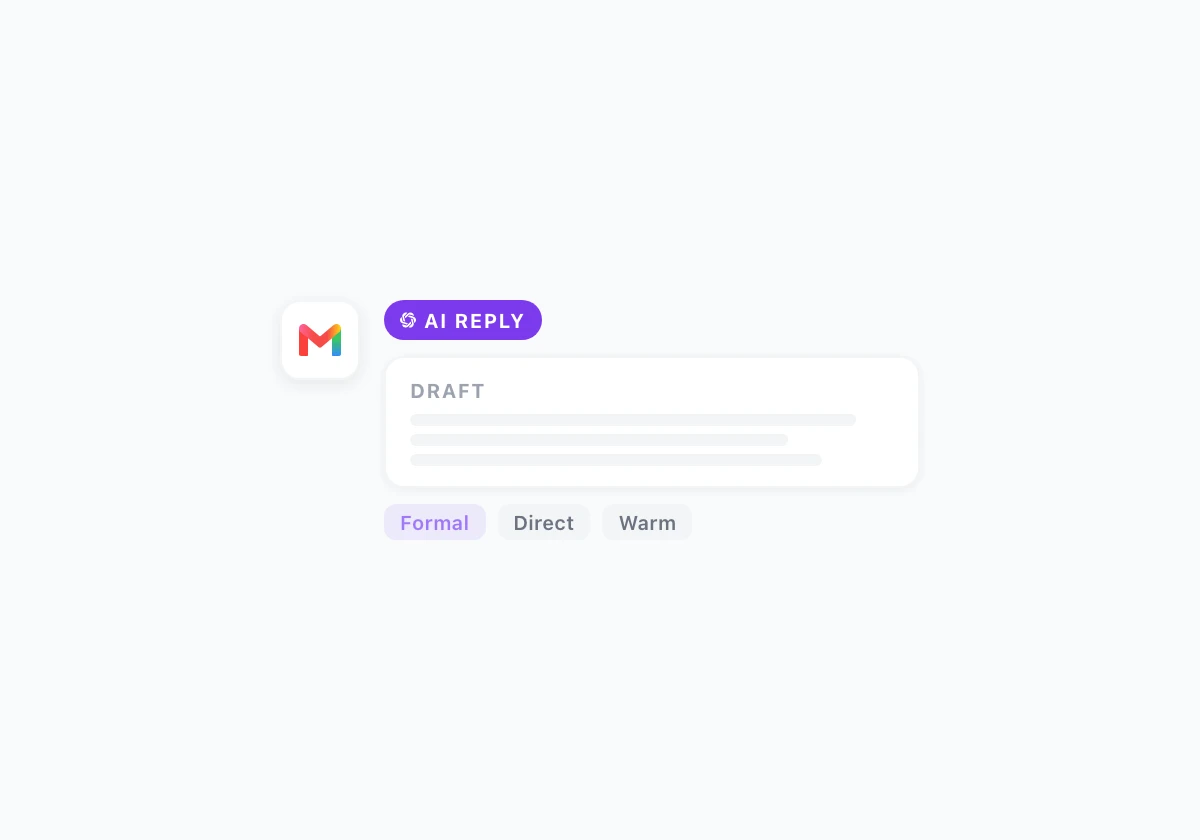
The output is a complete draft. Review it, make any edits, and insert with one click. For emails where the tone matters (a sensitive HR message, a client complaint, a negotiation), you can run the prompt again with a different instruction before inserting.
Handling tone in professional replies

Tone is where AI replies go wrong most often without guidance. “Professional” covers a wide range, from bureaucratic and distant to warm and direct. Specifying tone in the prompt narrows the output to what you actually want.
Useful tone instructions to add to any brief:
- “Match the sender’s casual tone.”
- “Keep it formal, third-person sign-off.”
- “Be direct. No pleasantries at the start.”
- “Warm but brief. No more than 80 words.”
- “Acknowledge the frustration first before addressing the content.”
If the first draft is close but not right, add a tone correction in a follow-up prompt: “Rewrite this shorter and less apologetic.” GPT Workspace keeps the thread context so the correction applies to the existing draft rather than starting over.
Summarizing long threads before replying
Before drafting a reply to a thread with ten messages, run a summary prompt. It takes five seconds and prevents the common mistake of responding to the last message while missing something important buried earlier.
Prompt: “Summarize this thread in three bullets: what was decided, what is still open, and what was asked of me.”
After the summary, the reply prompt has better context. You can reference the summary directly: “Reply addressing the two open questions from the summary above.”
This pattern is especially useful when returning to a thread after a few days. The summary brings you current faster than rereading the whole thread.
Follow-up and reminder emails
Follow-ups are the emails people delay the most. They feel awkward to write because the implicit message is “you did not reply and I am checking.” That awkwardness disappears when you can draft the follow-up in ten seconds rather than choosing every word manually.
Effective follow-up prompts:
- “Write a polite follow-up to someone who did not reply to my email from last week. Reference the original question without repeating the full email.”
- “Write a second follow-up. Keep it short, assume good faith, and include a clear ask.”
- “Write a gentle reminder that the deadline is tomorrow. Professional tone, no pressure.”
The AI email writing prompts for Gmail guide has a full library of follow-up patterns organized by scenario.
Saved prompts for recurring replies
If you answer the same types of emails regularly, save your best prompts in GPT Workspace. Customer support responses, interview confirmations, vendor follow-ups, and internal status updates all follow predictable patterns.
Saving a prompt means: next time a similar email arrives, open the sidebar, click the saved prompt, and edit the draft for the specific context. Three minutes of setup saves fifteen minutes across a week of email.
To save a prompt in GPT Workspace: type the prompt, run it, then save it to your library with a descriptive name like “Support reply, request acknowledged” or “Interview invite confirmation.”
Drafting new emails, not just replies
GPT Workspace works in the compose window, not just reply. Start a new email, open the sidebar, and describe what you want to write.
Useful new-email prompts:
- “Write a cold outreach email to a potential partner. Two paragraphs, specific ask at the end, no pressure language.”
- “Write an internal announcement about the new process. Bullet format, include a date, sign off from the team.”
- “Draft an apology email for a delayed delivery. Acknowledge the issue, give a specific resolution timeline, offer a clear next step.”
For bulk outreach where each email needs personalization, the how to use ChatGPT for Gmail guide covers the workflow that scales across a full contact list.
What to review before sending
AI drafts save time but require a review pass before sending. The main things to check:
Names and specifics: AI sometimes uses placeholders or generic references when the context is ambiguous. Confirm the recipient name, company name, and any dates or numbers mentioned in the draft are correct.
Unintended commitments: Phrases like “I will have this ready by…” or “we can confirm…” are sometimes added when the prompt implied agreement. Read the draft for any commitment you did not intend to make.
Tone against the relationship: A prompt for a “professional reply” may produce something slightly more formal than the existing thread. Adjust for the relationship in a quick edit.
Subject line: If the subject was inherited from the original thread, it is usually fine. For new emails, check that the subject is specific. “Following up” is weaker than “Re: contract question from May 30.”
Most AI drafts need a 30-second edit, not a rewrite. That is the time savings: from ten minutes composing to thirty seconds reviewing.
Frequently Asked Questions
Start with the next email you would have delayed
The fastest way to build this habit is to use GPT Workspace on an email you would normally put off. Find the reply you have been avoiding (the one that needs a careful tone or addresses something uncomfortable) and draft it with a clear prompt in the sidebar.
That first successful draft tends to change how you approach email. Instead of staring at a blank reply box, you describe what you want and edit from a starting point that is already 80 percent there.
Install GPT Workspace in Gmail, save two or three prompts for the types of email you write most, and you will spend less time on email without sending anything you did not intend. More patterns for working with AI across all Google apps are in AI productivity hacks for Google Workspace.