How to Convert a PDF to Markdown for ChatGPT or Claude
Convert a PDF to Markdown before pasting it into ChatGPT or Claude: fewer tokens, clean headings and tables, no running headers. Free tool or Chrome viewer.

You drop a 60-page PDF into ChatGPT and the summary quotes the page footer as if it were a finding. Or Claude tells you the file is too long, even though half of it is whitespace, page numbers and the same running header repeated sixty times.
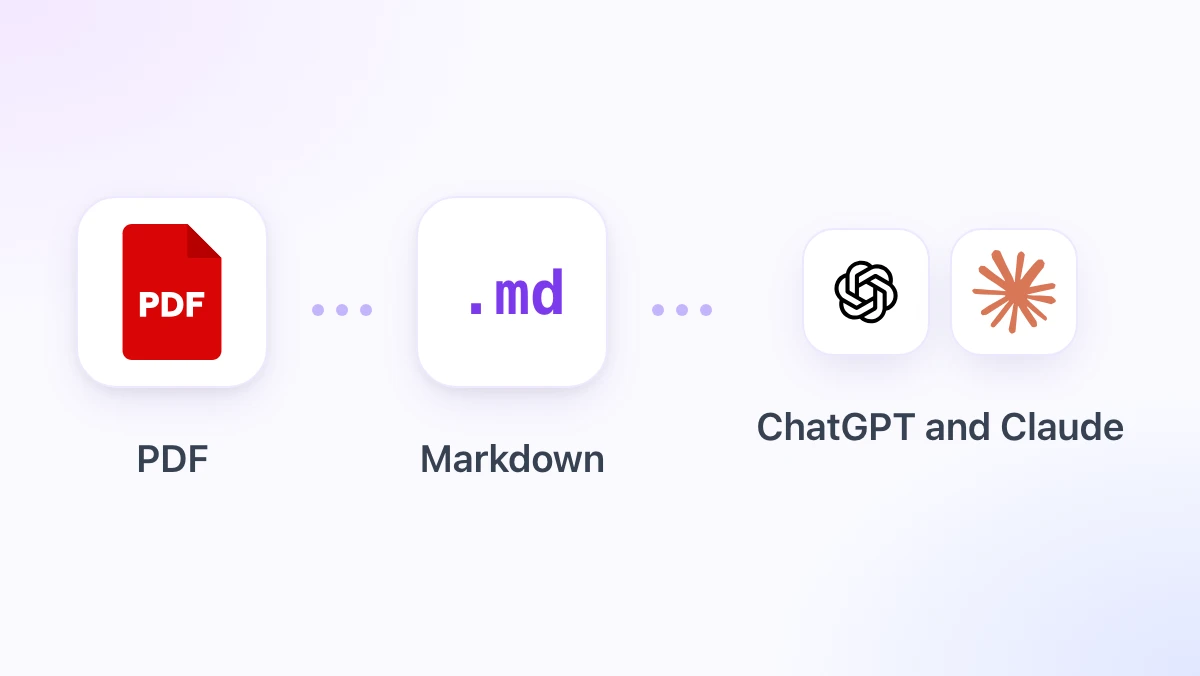
Converting the PDF to Markdown first fixes both problems. Markdown keeps the headings, lists and tables the model needs, drops the layout noise it does not, and it is plain text, so you can see exactly what the model sees before you send it.
This guide covers why the conversion helps, the free browser tool on gpt.space, the converter built into the GPT Workspace Chrome extension with its LLM-ready mode, and the developer libraries for a thousand files. GPT Workspace also puts ChatGPT, Claude and Gemini inside Google Docs, Sheets, Slides, Gmail and Drive, which is where many of these PDFs end up anyway.
Why Markdown Beats PDF as Input for an LLM
A PDF is a set of drawing instructions: put this glyph at this coordinate. There is no concept of a heading or a table inside the file, so whoever extracts the text has to guess the reading order and the structure.
That guess goes wrong in predictable places. Two-column papers interleave lines from both columns, and tables come out as one long run of numbers with no idea which column each belonged to.
Then there is the volume. A running header, a footer and a page number on every page of a 60-page report add 180 lines that say nothing, and each one costs tokens, as our guide to how GPT tokens work explains.
Markdown fixes the structure problem because headings are explicit. You can ask “summarise section 3” and the model knows where section 3 starts, and a pipe table keeps its columns aligned.
It also fixes the inspection problem. A .md file opens in any editor, so you can delete the appendix, check that a table survived, and only then paste it into the context window.
Three Kinds of PDF, Three Different Results
Before picking a tool, look at what kind of PDF you have. The conversion quality depends on it far more than on the tool.
Text PDFs exported from Word, Google Docs, LaTeX or a web page convert well. The text is real text, fonts carry size information that reveals headings, and tables usually keep their cells.
Scanned PDFs are pictures of pages. A browser converter finds no text at all, so you need OCR first: upload the file to Google Drive, right-click it, choose Open with Google Docs, and Drive runs OCR and gives you editable text to export.
Complex layouts sit in between. Multi-column articles, forms, and tables with merged cells convert, but expect to tidy a few lines by hand.
Method 1: The Free PDF to Markdown Converter (No Upload)
For one file, open the PDF to Markdown tool on gpt.space. It runs entirely in your browser, so the PDF never leaves your device and there is no account to create.
Drop the file onto the page. Within a few seconds you get the Markdown with headings, paragraphs, lists and tables, rendered on the right so you can check it.
Click Copy to put the Markdown on the clipboard, or Download .md to keep a file. From there it goes straight into ChatGPT, Claude or a Google Doc.
The same page family has a Word to Markdown tool for .docx files, which is the other format people most often need to feed to a model. Word files convert more reliably than PDFs because the structure is stored in the file.
Method 2: Convert PDFs Inside the Chrome Markdown Viewer
If you do this every week, the GPT Workspace extension removes the trip to a web page. Version 4.25 ships a Markdown viewer that accepts PDF and Word files directly.
Step 1: Install the extension
Install GPT Workspace from the Chrome Web Store. It runs in Chrome and Chromium browsers such as Edge, Brave and Arc.
Step 2: Drop the PDF, or right-click a PDF tab
Right-click the GPT Workspace icon in the toolbar, choose Markdown tools, and drop a .pdf or .docx onto the viewer that opens. Alternatively, when a PDF is already open in a Chrome tab, right-click the page and choose Convert to Markdown.
The result renders in the viewer with a table of contents built from the headings, so you can scan a long report in a few seconds.
Step 3: Tick LLM-ready
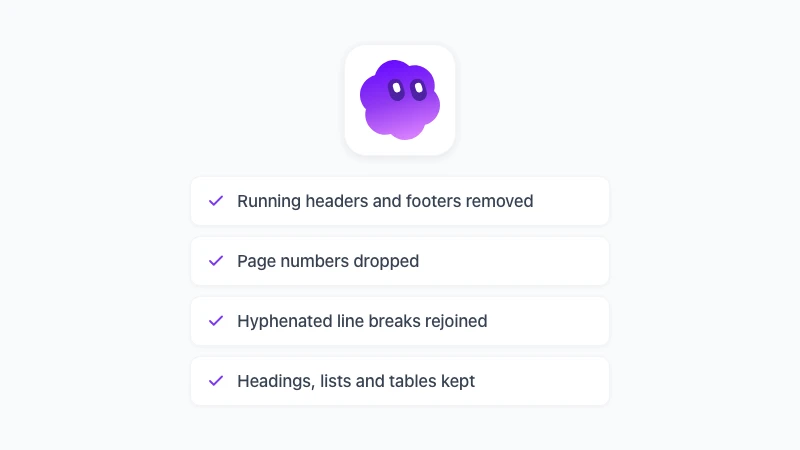
The LLM-ready option is the reason to use the viewer rather than a generic extractor. It strips running headers and footers, removes page numbers, and rejoins words that were hyphenated across line breaks.
What remains is the content: headings, paragraphs, lists and tables. Copy it, download the .md, or click Open in Google Docs to turn it into a document.
Everything stays local
The conversion runs in the browser, the same way the paste conversion and the Docs export in the extension do. No PDF is uploaded, which matters when the file is a contract, a medical report or an unreleased financial statement.
 Try GPT Workspace
Use ChatGPT, Claude, and Gemini directly inside Google Docs, Sheets, Slides, Gmail, and Drive. No tab switching.
Get Started FreeWhat the LLM-ready option actually removes
It helps to know what “clean” means here, so you can predict the output. Four things change compared with a raw extraction.
Running headers and footers go. These are the lines that repeat at the top or bottom of nearly every page, such as the report title, the company name or a confidentiality notice.
Page numbers go, whether they stand alone or sit inside a “Page 12 of 60” line. A model does not need them, and they break sentences that continue across pages.
Hyphenation is repaired. A word split as “infor-” at the end of one line and “mation” at the start of the next becomes “information” again, which also fixes search inside the text.
Everything else stays. Headings keep their levels, bullet and numbered lists keep their nesting, and tables remain pipe tables with a header row.
Method 3: Command-Line Tools for Batches
When you have a folder of PDFs to process every night, a library is the right tool. Three come up in every comparison, and they fit different files.
Microsoft’s markitdown is the common starting point: pip install "markitdown[pdf]" and a few lines of Python give you Markdown from PDF, Word, PowerPoint and more. It is fast and simple, with no OCR built in.
pymupdf4llm is the lightweight choice for text PDFs and produces Markdown written for LLM pipelines. Marker is the heavy one, with its own OCR and layout models, and it is what people reach for with scanned academic papers full of tables and equations.
One tool to skip for this job is Pandoc. It writes PDFs well but has no PDF reader at all, so it cannot convert in this direction.
Pasting the Result Into ChatGPT or Claude
Once you have the Markdown, a little care in the prompt goes a long way. These three habits come from using converted documents daily.
Put your instructions first and the document last, separated by a line such as “Document begins below”. Models follow instructions placed before a long block more reliably than after it.
For anything over a few pages, upload the .md file instead of pasting. Both ChatGPT and Claude accept Markdown files, and a file keeps the chat readable.
Pick the model for the task. Our comparison of when to use Claude vs ChatGPT covers long-document work in detail.
If the PDF came from Google Drive, you can skip the chat window entirely. GPT Workspace runs ChatGPT, Claude and Gemini inside Docs and Drive, and if the Markdown needs to become a document, our guide to Markdown in Google Docs shows the options.
Frequently Asked Questions
Conclusion
Converting a PDF to Markdown takes a few seconds and changes what the model receives: real headings instead of guessed ones, tables that keep their columns, and no sixty copies of the page header. For one file, use the free converter; for every week, let the GPT Workspace viewer do it with the LLM-ready option on.
When the answer needs to go back into a document or a PDF, the reverse direction is covered in Markdown to PDF: the 4 easiest ways.