Markdown to PDF: The 4 Easiest Ways (2026)
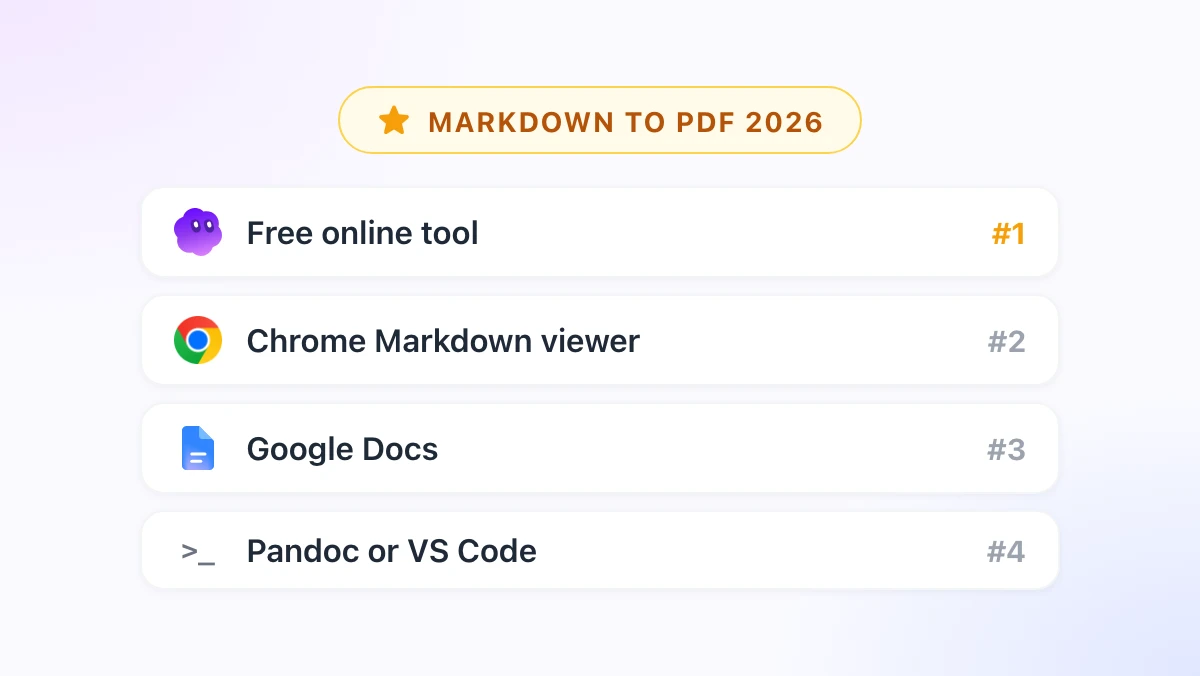
Markdown to PDF compared: a free browser tool with no sign-up, a Chrome Markdown viewer with Export to PDF, the Google Docs route, and Pandoc for batch jobs.

You wrote the report in Markdown because that is what your notes app, your AI assistant or your repository uses. Now a client wants it as a PDF, and the .md file opens as plain text on their machine.
Markdown to PDF sounds like a one-click job, and it is, once you pick the right tool for the file in front of you. This guide compares the four easiest ways in 2026, from a free browser tool to a command-line pipeline, and explains what each one does with tables, code, images and page breaks.
Two of the four come from GPT Workspace, a Chrome extension that puts ChatGPT, Claude and Gemini inside Google Docs, Sheets, Slides, Gmail and Drive. Since version 4.25 it also ships a Markdown viewer and a set of free conversion tools.
How to Choose a Markdown to PDF Method
| Method | Best for | Install | File stays on your device | Mermaid and math |
|---|---|---|---|---|
| 1. Free online tool | One file, any computer | None | Yes | Yes |
| 2. Chrome Markdown viewer | Local files, GitHub READMEs, weekly use | Extension | Yes | Yes |
| 3. Google Docs | Documents you want to edit or share first | None | Stored in Drive | No |
| 4. Pandoc or VS Code | Batch jobs, custom typography | Command line | Yes | Partly |
Methods 1 to 3 share one mechanism. They render the Markdown as a styled page, and then the browser’s print dialog does the PDF part through its “Save as PDF” destination.
Chrome opens that dialog with Ctrl+P on Windows or Cmd+P on a Mac (Chrome help). Edge, Brave and Safari have the same option under a slightly different name.
1. Convert Markdown to PDF Online With a Free Tool
The quickest route for a single file is the Markdown to PDF tool on gpt.space. There is no sign-up, no file size form and no upload: the conversion runs in your browser.
How it works
Open the page and paste your Markdown, or drop a .md file onto it. The preview renders headings, lists, pipe tables, syntax-highlighted code, Mermaid diagrams and LaTeX math.
Click the PDF button and the browser’s print dialog opens. Choose “Save as PDF” as the destination, pick the paper size and margins, and save.
Why it ranks first
Nothing to install, nothing to create an account for, and the file never leaves your device. It works on a work laptop where you cannot add software and on a Chromebook.
The trade-off is control. Page breaks fall where the browser puts them, so a long table can split across two pages, and you cannot add a running footer beyond what the print dialog offers.
2. Export to PDF From the Chrome Markdown Viewer
If you convert a Markdown file to PDF more than once a month, a viewer in the browser saves the paste step. The GPT Workspace extension includes a Markdown viewer that you open from a right-click menu.
Setting it up
Install GPT Workspace, right-click the extension icon and choose Markdown tools. Drag a .md file from your disk onto the viewer and it renders, no extra permission needed.
For a file on the web, right-click the .md link and choose Open in Markdown viewer. Raw GitHub and Gist URLs work the same way, so a README you are reviewing turns into a document without cloning anything.
The Open file button inside the viewer is the one case that needs “Allow access to file URLs” under chrome://extensions, Details. Chrome requires that step for any extension that reads local files through a picker.
Exporting
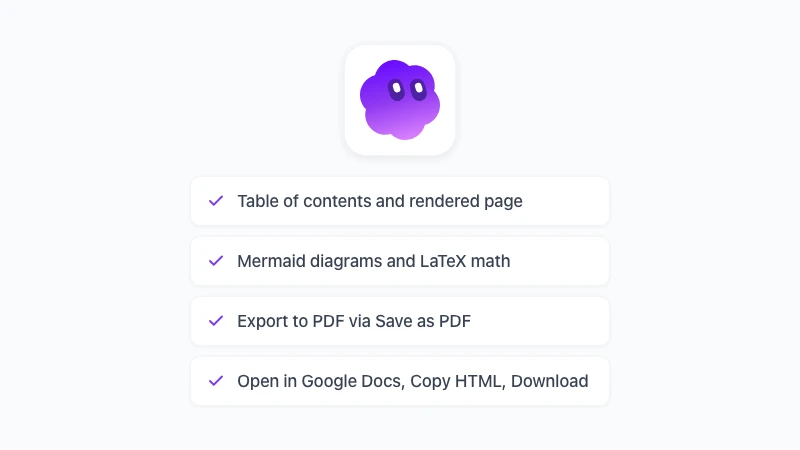
The viewer shows a table of contents, Mermaid diagrams, LaTeX math and highlighted code in a light or dark theme. Click Export to PDF and the print dialog opens with the rendered page; choose “Save as PDF” and you are done.
Switch to the light theme before exporting unless you want a dark PDF. The same toolbar has Open in Google Docs, Copy HTML and Download .md or .html for the days when a PDF is not what the recipient wants.
 Try GPT Workspace
Use ChatGPT, Claude, and Gemini directly inside Google Docs, Sheets, Slides, Gmail, and Drive. No tab switching.
Get Started Free3. Markdown to PDF Through Google Docs
Go through Docs when the PDF is not the last step. If someone needs to comment, co-edit, add a cover page or apply the company template, the Markdown has to become a document first.
Getting the Markdown into a Doc
Paste it. With GPT Workspace installed, Ctrl+V in a Doc converts headings, lists, tables and code blocks automatically, while Google’s own right-click “Paste from Markdown” option handles simpler text.
Our guide on pasting Markdown into Google Docs compares the two routes in detail.
For a file, use File, Open, Upload and pick the .md file. Docs converts it into a regular document, and since October 2026 it can also keep .md files in a native Markdown mode, as explained in Markdown in Google Docs.
Downloading the PDF
Go to File, Download, PDF Document. Headers, footers, page numbers and fonts come from the Doc, which is more control than any browser print dialog gives you.
The limits are the ones Docs has. Mermaid diagrams and LaTeX math stay as text, and Google’s converter is the weak link for code blocks unless the extension handled the paste.
4. Pandoc and VS Code for Developers
When you have fifty files or a style guide to follow, a command-line tool wins. Pandoc is the standard, and VS Code has an extension for people who already live in the editor.
Pandoc
The basic command is pandoc report.md -o report.pdf. By default Pandoc builds the PDF through LaTeX, which has to be installed separately and is a large download, according to the Pandoc manual.
You can avoid LaTeX with --pdf-engine=weasyprint or --pdf-engine=typst, which the manual lists alongside wkhtmltopdf and others. Either way you get repeatable output, templates and scriptable batch runs.
VS Code
VS Code’s built-in preview (Ctrl+Shift+V, or Shift+Cmd+V on a Mac) shows the rendered file but has no PDF export of its own. The community “Markdown PDF” extension adds a “Markdown PDF: Export (pdf)” command that renders through a bundled headless browser.
It is convenient for one project and uneven across machines, since fonts and styles differ. For anything you distribute, test the output on a second computer.
What Breaks When You Convert Markdown to PDF
The same five problems come up with every tool. Knowing them ahead saves a second export.
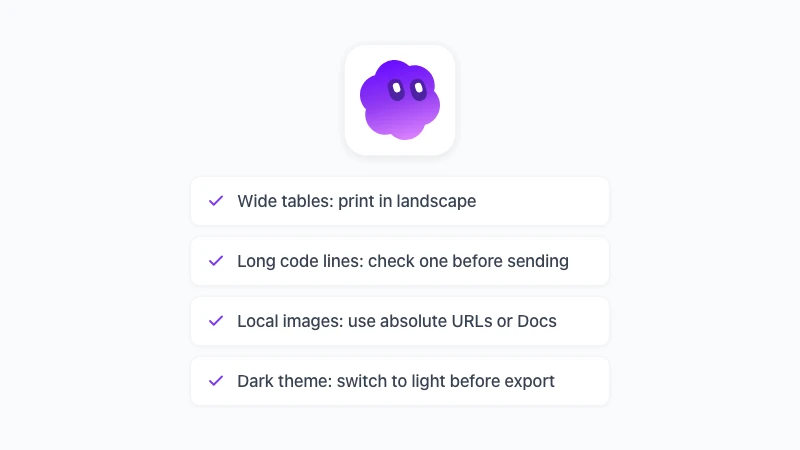
Wide tables overflow the page. Switch the print dialog to landscape or reduce the scale, and in Pandoc use a smaller font for that section.
Long code lines either wrap or run off the edge. Check one before sending, and prefer tools that wrap code, which the browser-based options do.
Images with relative paths only work when the tool can see the image. A browser tool cannot read ./images/chart.png from your disk, so use absolute URLs, or go through Google Docs and insert the images there.
Dark themes print dark. Switch to light before exporting from a viewer.
Mermaid and math only come out as diagrams and equations in tools that render them, which here means methods 1 and 2. Everywhere else they stay as source text.
Frequently Asked Questions
Conclusion
For one file, open the free Markdown to PDF tool, paste, and save from the print dialog. For files you handle every week, let the GPT Workspace viewer render them in Chrome and click Export to PDF.
Go through Google Docs when people need to edit first, and reach for Pandoc when you need the same output fifty times. Whichever you pick, the Markdown to PDF step stops being the thing that holds up the report, and the reverse trip is covered in how to convert a PDF to Markdown.