Google Docs Live: Voice Drafting on Mobile and Where It Stops
Google Docs Live reached paid Workspace plans on October 21, 2026. See how voice drafting works, who gets it, admin controls, and where GPT Workspace still helps.

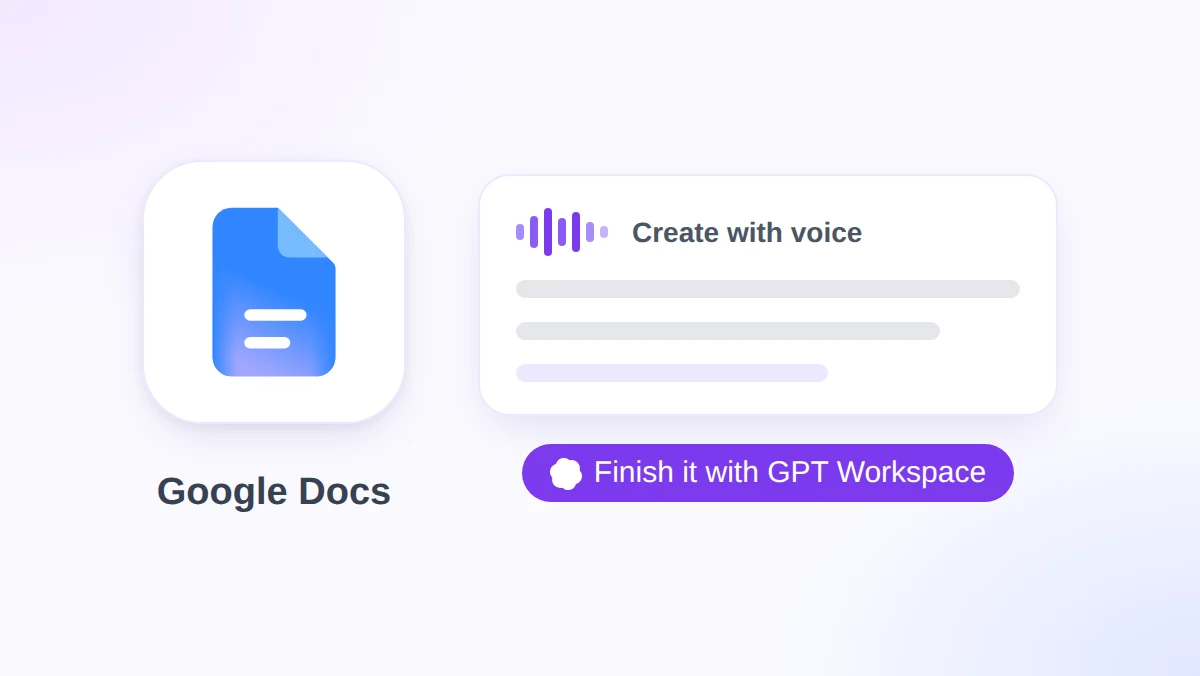
You are on the train with a project update due at noon and nothing written. Google Docs Live is Google’s answer to that moment: you talk through the update on your phone, and Gemini turns the rambling into a structured draft.
Google began rolling it out to paid Workspace plans on October 21, 2026. It lives in the Google Docs mobile app on Android and iOS, works in English, and is on by default wherever Gemini in Docs is enabled.
This guide covers what Docs Live does, the exact steps to use it, which plans get it, what admins control, and where it stops. We also show how GPT Workspace, a Chrome extension and Google Workspace Add-on that puts AI directly inside Docs, Sheets, Slides, and Gmail, picks up the desktop editing once the voice draft exists. If you read our Gmail Live guide, this is the Docs half of the same story.
What Google Docs Live Does
Docs Live is not dictation. Google’s Workspace Updates post describes it as a hands-free co-writer that builds structured, context-aware documents from natural conversation.
You explain what you need, including the messy parts. Gemini organizes the ideas, proposes a structure, and writes the first draft into a new document.
With your permission, it can also pull details from your Gmail, Drive, Chat, and the web. Ask for a summary of the vendor thread and the plan can reference the actual thread, not your memory of it.
Yulie Kwon Kim, VP of Product for Google Workspace, framed it in the September Keyword post as a “thought partner and co-writer.” That is the right expectation: a draft to react to, not a finished document.
How to Use Docs Live in the Google Docs App
Google’s help article lists the steps for Android. The iOS flow follows the same shape, with the same button names.
Step 1: Open Create with voice
Update the Google Docs app, then open it. Tap the Insert button at the bottom right and choose Create with voice.
Step 2: Describe the document out loud
Say what you need and who it is for. Google’s own example is “create a draft for Q3 social media campaign based on my chat with Rebecca.”
Name the document type if you can. A proposal, a project update, and a meeting summary each get a different structure.
Step 3: Add sources
Tap source settings at the bottom to add files from Drive, Gmail, Chat, or the web. You can also just ask Gemini to use a specific file, such as last week’s meeting notes.
Step 4: Review the plan
Gemini shows an initial plan before it writes anything. Ask it to drop a section, add one, or change the order until the outline matches what you had in mind.
When it looks right, tap Next or say “Show me the draft.”
Step 5: Edit by voice, then tap Done
The draft appears and you keep talking. Google’s example is “Bold all the headings,” and restructuring requests, such as moving one section above another, work the same way.
Tap Done to finish. The result is a normal Google Doc, ready to open on any device.
Who Gets Docs Live (Plans, Platforms, Language)
Per Google’s October 21 post, Docs Live is available to Business Standard and Plus, Enterprise Standard and Plus, Google AI Pro and Ultra for personal accounts, Google AI Pro for Education, and the AI Expanded Access add-on.
Two gaps stand out. Business Starter is not on the list, and neither is Google AI Plus, even though Gmail Live includes both.
It is mobile only. Google’s post covers the Android and iOS Docs apps and says nothing about desktop or the web editor.
Language is English only, according to Google’s help article. The rollout is live now for both Rapid Release and Scheduled Release domains, so there is no staggered wait by domain type this time.
Docs Live Admin Controls
Google turns Docs Live on by default for every user who already has Gemini in Docs enabled. There is no separate Docs Live switch in the announcement.
Admins who want it off use the existing Gemini feature access controls in the Admin console. Google’s post points to its guide on managing access to Gemini features in Workspace services, and Docs Live follows the Gemini in Docs setting.
If you run a team, think about where people will use it. Talking through a client proposal in a coffee shop puts the content in the air, which is a different exposure than typing it.
 Try GPT Workspace
Use ChatGPT, Claude, and Gemini directly inside Google Docs, Sheets, Slides, Gmail, and Drive. No tab switching.
Get Started FreeWhat Docs Live Does Not Do
Docs Live gets you from nothing to a first draft. It does not get you from a first draft to a finished one at your desk.
There is no desktop version, so the voice session ends when you sit down at a laptop. From there you are back in the regular Docs editor, plus the Gemini side panel if your plan includes it.
It also runs on one model: Gemini. If a section needs Claude’s careful reasoning or a GPT model’s tone, there is no way to switch.
And it is English only on a paid plan. A Business Starter team, or anyone drafting in French or Japanese, does not have it yet.
Why Voice Drafting Changes the Blank Page Problem
The hardest part of most documents is the first paragraph. Everything after that is editing, and editing is easier than inventing.
Voice removes the blank page because talking has no backspace key. You say the point badly, then say it better, and the model keeps the better version.
The context pull matters more than the voice. A project update that cites the real Drive file and the actual email thread saves the 15 minutes you would spend hunting for both.
There is a trade-off. A draft built from your spoken ramble inherits your blind spots, and a plan that looks complete on a phone screen can still miss a section. Read the plan slowly before you tap Next.
Docs Live vs GPT Workspace in Google Docs
These two tools cover different ends of the same document. Docs Live starts the draft on your phone. GPT Workspace finishes it on your laptop, with the model you choose.
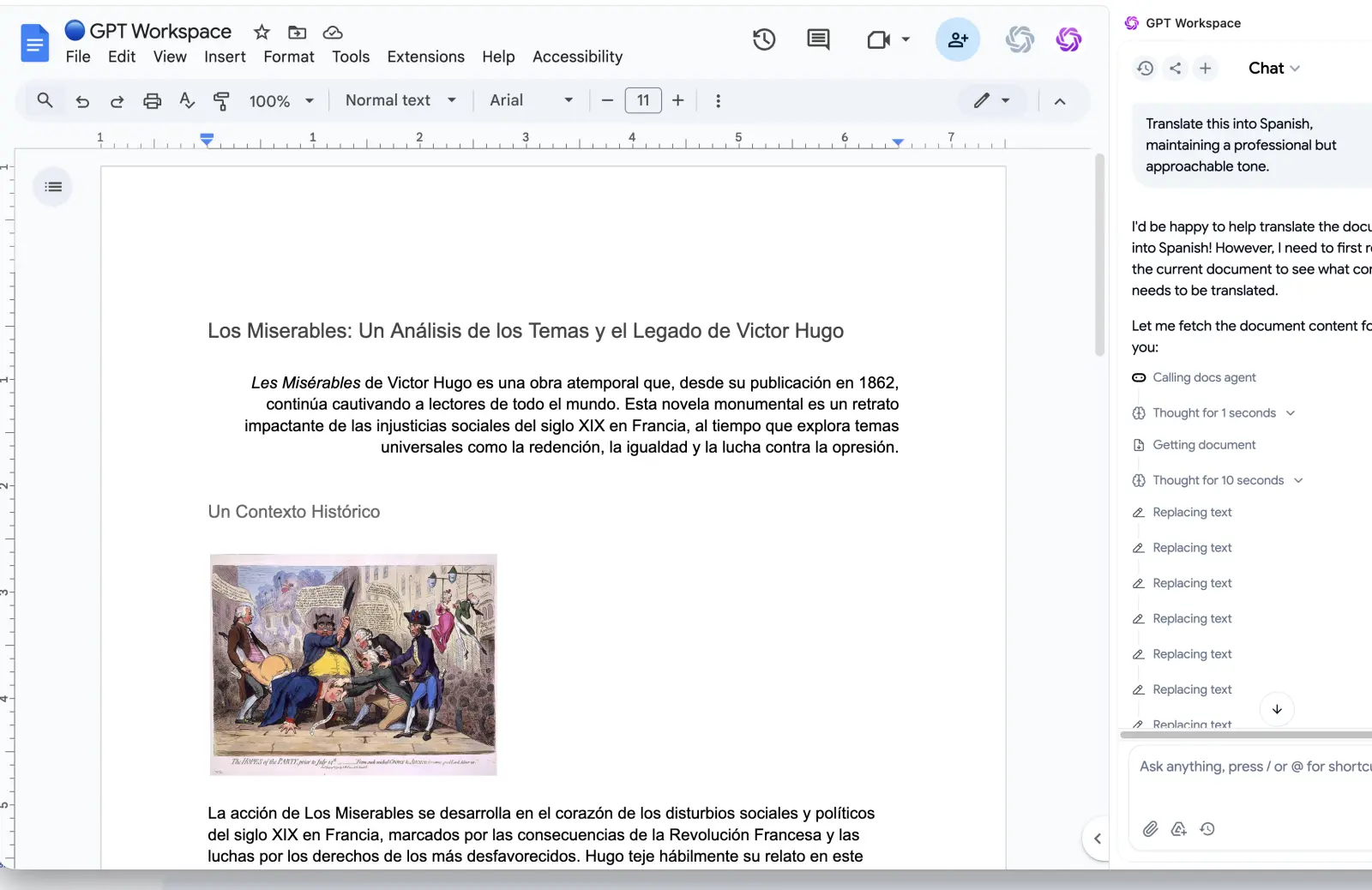
In practice the handoff looks like this. On the commute, talk the update into Docs Live and tap Done. At your desk, open the same doc in Chrome, select a weak section, and ask GPT Workspace to tighten it, change the tone, or translate it for the Paris office.
GPT Workspace lets you pick ChatGPT, Claude, or Gemini per prompt, and it reads the text you select. Our guide to how to use ChatGPT in Google Docs walks through the sidebar, and AI meeting notes in Google Docs shows the kind of cleanup that follows a rough draft.
A fair test: take the last five documents you wrote. If most began as a voice memo or a rushed outline, Docs Live earns its place. If most of your time went into rewriting, a desktop editor with several models saves more.
Many people will use both. One captures the idea while it is fresh, the other makes it presentable.
What to Do If You Do Not Have Docs Live Yet
If you are on Business Starter, draft in another language, or work mostly on a laptop, waiting on Google’s timeline is a guess. The October post gives no date for desktop, other languages, or more plans.
The habit you want is the same either way: capture rough thoughts fast, then structure them with a model. Record a voice memo, paste the transcript into a doc, and ask GPT Workspace to turn it into a project update with headings, owners, and next steps.
Save that prompt once and reuse it. The transcript is messy, but the model’s job is to find the structure, which is the same job Docs Live does on the phone.
Google Docs Live FAQ
Conclusion
Google Docs Live is a smart fix for the blank page: talk on your phone, review the plan, tap Done. It is limited today to mobile, English, and the higher paid tiers.
Treat Docs Live as the capture half and GPT Workspace as the finishing half. Try GPT Workspace in Google Docs and let your phone handle the first draft on the way in.