How to Paste Markdown Into Google Docs and Keep the Formatting
Paste Markdown into Google Docs without stray asterisks: Google's Paste from Markdown option, its limits with tables and code, and a free fix on Ctrl+V.

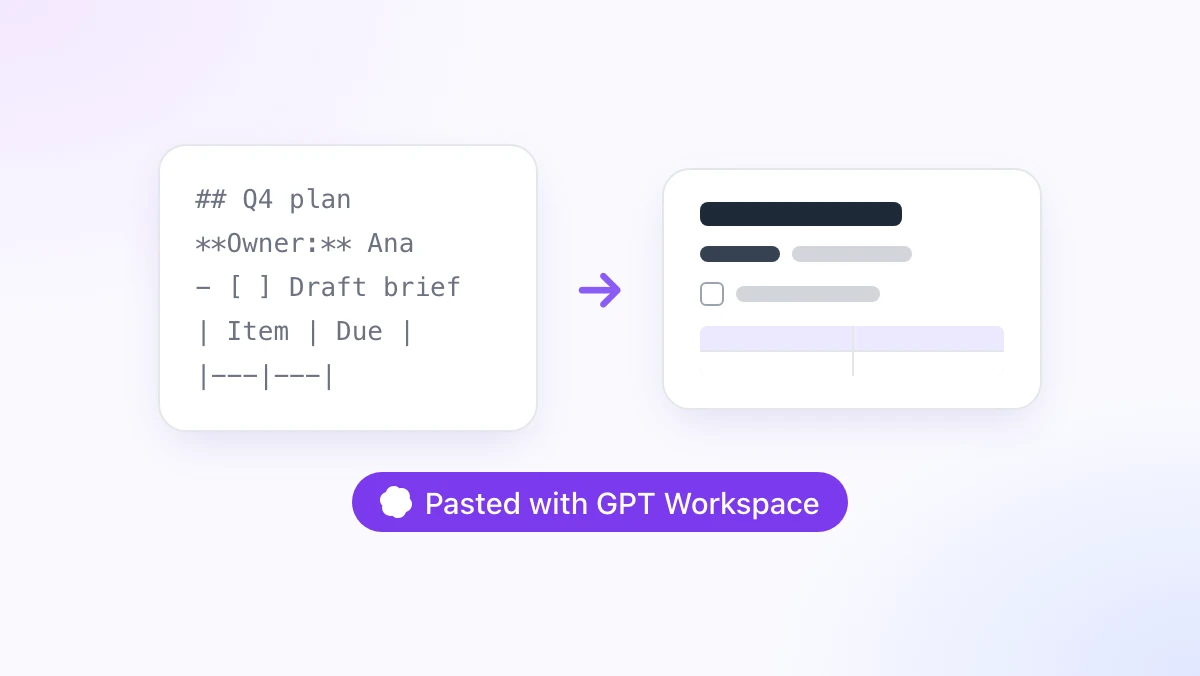
You ask ChatGPT for a project plan, copy the answer, paste it into a Google Doc, and get a wall of pound signs, asterisks and pipe characters. The headings are gone, the table is a row of dashes, and the checklist is a column of hyphens.
This guide shows you how to paste Markdown into Google Docs and keep headings, lists, tables and code intact. It covers Google’s own Paste from Markdown option, the cases where it quietly fails, and the paste conversion built into the GPT Workspace Chrome extension, which also puts ChatGPT, Claude and Gemini inside Docs, Sheets, Slides, Gmail and Drive.
If you have a whole file to convert rather than a clipboard full of text, skip ahead to the section on converting files. Everything else here takes under a minute to set up.
Why Pasted Markdown Shows Asterisks in Google Docs
Markdown is plain text with punctuation that stands in for formatting. Two asterisks mean bold, a pound sign means a heading, and pipes separate table columns.
ChatGPT, Claude and Gemini all answer in Markdown because it is compact and models handle it well. The chat window renders it, so you see bold text and a tidy table on screen.
Your clipboard is a different story. When you copy from most chat interfaces you get the raw text, and Google Docs pastes raw text exactly as it is, punctuation included.
Docs can convert it, but only if you tell it the clipboard holds Markdown. That is what the next section does.
How to Paste Markdown Into Google Docs With Google’s Built-In Option
Google added Markdown import, export, copy and paste to Docs in July 2024. Import and export are on for everyone, but the copy and paste options stay off until you switch them on.
Step 1: Turn on Markdown in Preferences
Open any Google Doc and go to Tools, then Preferences. Tick “Enable Markdown” and click OK.
The setting follows your account, so you do it once and it applies to every document you open. Google documents the option on its Markdown in Google Docs help page.
Step 2: Copy the Markdown text
Copy the answer from ChatGPT, Claude or Gemini, or the contents of a .md file open in a text editor. Plain Ctrl+C (Cmd+C on a Mac) is fine.
Step 3: Right-click and choose Paste from Markdown
Click where the text should go, right-click, and pick “Paste from Markdown” from the context menu. Docs converts the syntax into real formatting as it pastes.
The normal Ctrl+V shortcut does not trigger the conversion. You have to use the right-click menu every single time, which is the first thing people trip over.
What the built-in option converts
Google’s help page lists bold, italic, strikethrough, links and headings one to six. Headings need a space after the pound signs, and links need no space between the closing bracket and the URL.
For a short answer with a few headings and some bold phrases, this is all you need. The gaps show up as soon as the answer gets structured.
Where Paste from Markdown Falls Short
Three things that AI assistants produce constantly are where the native route gets unreliable. You will find the same complaints on every Docs forum thread about Markdown.
Tables are the big one. A pipe table often pastes as literal pipes and dashes instead of a Docs table, especially when the model added alignment colons or uneven column widths.
Fenced code blocks come through as plain paragraphs with three backticks above and below. Inline code loses its backticks but gets no monospace styling, so a shell command and a sentence look identical.
Nested lists and task lists are hit and miss. A sub-bullet indented by two spaces may flatten to the top level, and a - [ ] checkbox turns into a hyphen followed by square brackets.
None of this is something you can fix from your side. It is a limited converter, and it only runs when you remember the right-click menu.
 Try GPT Workspace
Use ChatGPT, Claude, and Gemini directly inside Google Docs, Sheets, Slides, Gmail, and Drive. No tab switching.
Get Started FreePaste Markdown Into Google Docs Automatically With GPT Workspace
GPT Workspace 4.25 adds paste conversion to the Docs editor. You paste with Ctrl+V as usual, the extension recognises Markdown in the clipboard, and the document receives formatted content.
Step 1: Install the extension
Install GPT Workspace from the Chrome Web Store. It runs in Chrome and in Chromium browsers that accept Chrome extensions, such as Edge, Brave and Arc.
Open a Google Doc. A GPT Workspace bar appears at the bottom of the editor, which is also where the AI sidebar and the Markdown export menu live.
Step 2: Paste
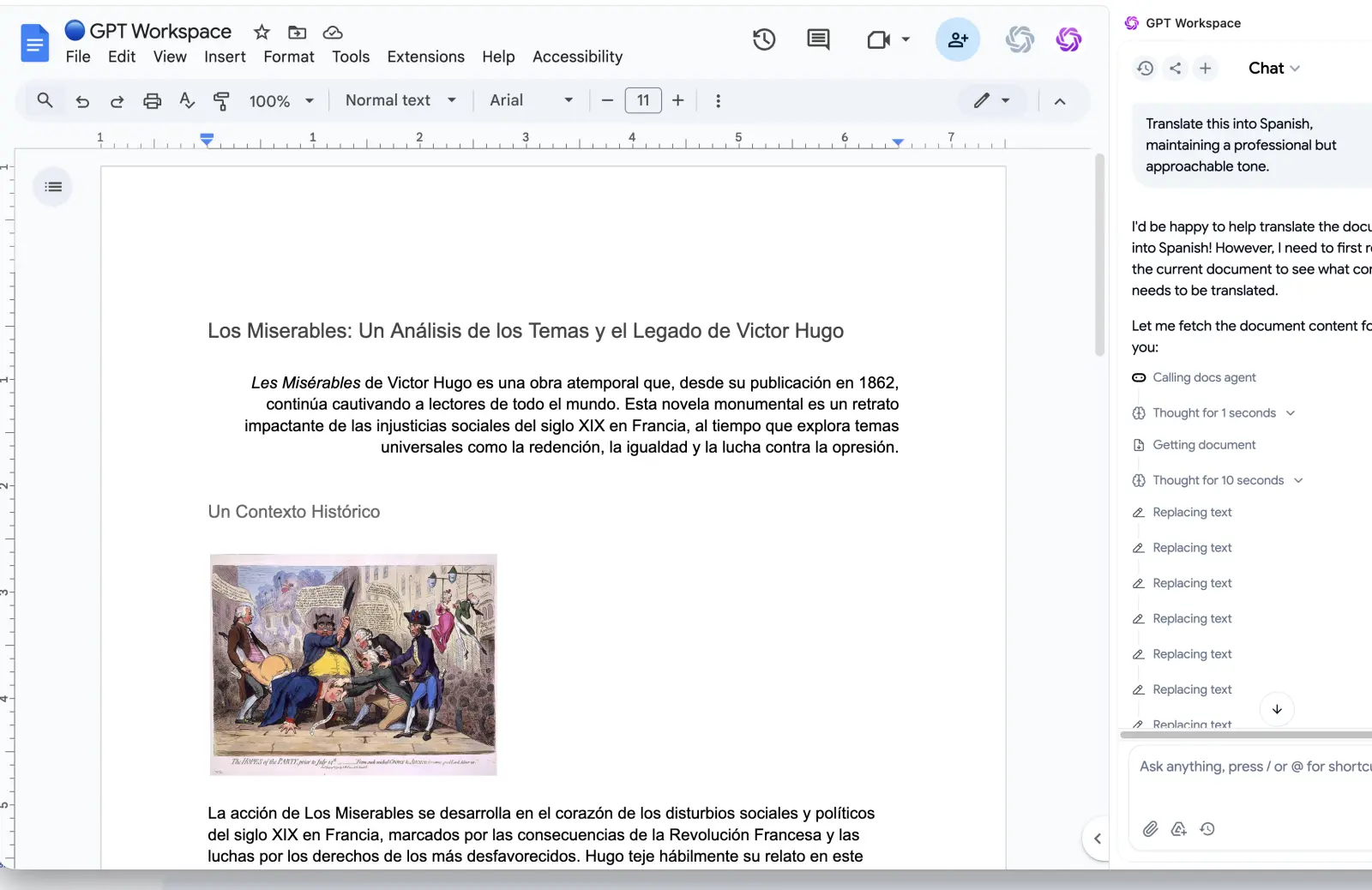
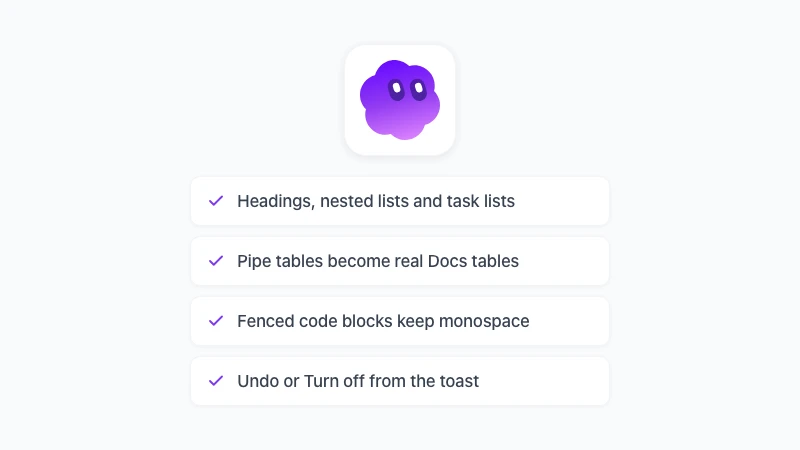
Copy an answer from ChatGPT or Claude and press Ctrl+V in the document. Headings become Docs headings, bullet and numbered lists keep their nesting, pipe tables become real tables, and fenced code blocks come in as monospace blocks.
Links, bold, italic and task lists convert too. A small toast appears for a few seconds with two options: Undo and Turn off.
Step 3: Undo or switch it off when you do not want it
Click Undo and the raw text is restored, which matters when you are quoting Markdown syntax on purpose or pasting into a file that Docs already treats as Markdown. Click Turn off and the feature stays off until you re-enable it in the GPT Workspace settings.
Detection is deliberately conservative. A sentence with a single asterisk or a URL full of underscores is left alone, so ordinary text pastes exactly as before.
What happens to your text
The conversion runs inside your browser. The clipboard content is parsed locally and inserted through the editor, and nothing is sent to a server.
That also means the source does not matter. ChatGPT, Claude, Gemini, Perplexity, Obsidian, a GitHub README or a Slack message written in Markdown all come in formatted.
Converting a Whole Markdown File Instead of a Paste
A clipboard paste is the right tool for a chat answer. For a README or a 40-page spec saved as .md, use a file route instead.
Open the .md file in Docs
Since the 2024 update, File, Open, Upload accepts .md files and converts them into a regular Doc. Since October 2026, Google also opens .md files natively, where the file stays Markdown and you edit it in Markdown mode, as covered in our guide to Markdown in Google Docs.
Both routes rely on Google’s converter, so tables and code blocks deserve a check after the file opens.
Use the free Markdown to Google Docs tool
The Markdown to Google Docs tool on gpt.space takes pasted Markdown or a dropped .md file and renders it in your browser. Click Open in Google Docs and a temporary Doc opens with the formatting applied.
That Doc lives in a demo account, so keep it with File, Make a copy. No sign-up is needed, and the file never leaves your device until you choose to open it in Docs.
Open it from the Markdown viewer
With the extension installed, right-click any .md link and choose Open in Markdown viewer, or open Markdown tools from the extension icon and drop the file in. The same Open in Google Docs button sits at the top, next to Export to PDF.
Getting Cleaner Markdown From ChatGPT, Claude and Gemini
A converter can only work with what it gets. Two habits make every paste cleaner, whichever route you use.
Ask for standard syntax. “Use a Markdown table with a header row” and “put commands in fenced code blocks” produce output that any converter, Google’s included, handles correctly.
Avoid HTML inside Markdown. Models sometimes emit <br> tags inside table cells for line breaks, and those survive as literal text in Docs.
The other option is to skip the clipboard entirely. GPT Workspace runs ChatGPT, Claude and Gemini inside the document, so the answer lands as formatted text in the first place, as shown in how to use ChatGPT in Google Docs.
Frequently Asked Questions
Conclusion
To paste Markdown into Google Docs without the clean-up, you have two choices. Google’s Paste from Markdown is built in and fine for simple text, as long as you remember the preference and the right-click menu.
For anything with tables, code or nested lists, install GPT Workspace, press Ctrl+V, and let the document format itself. If you need the opposite direction, our guide to exporting a Google Doc as Markdown covers that too.