How to Export a Google Doc as Markdown (3 Ways)
Export a Google Doc as Markdown three ways: File > Download > Markdown, Copy as Markdown for a selection, and the GPT Workspace menu that copies clean .md.

Your team writes in Google Docs, but the destination is GitHub, Notion, Obsidian, a static site or a prompt in Claude. All of those want Markdown, and copying a Doc into them gives you either formatting junk or no formatting at all.
Since July 2024 you can export a Google Doc as Markdown without an add-on, and since October 2026 Docs can even keep files as .md. This guide walks through the three ways that work today: Google’s download option, the copy option for a selection, and the Markdown menu in the GPT Workspace Chrome extension, which also puts ChatGPT, Claude and Gemini inside Docs, Sheets, Slides, Gmail and Drive.
Each way has a different sweet spot. The download is for whole documents, the copy option is for a paragraph, and the extension is for people who do this several times a day and want clean output.
Way 1: File > Download > Markdown (.md)
This is the built-in route, and it is on for every account with no setting to change. Google announced it in July 2024 alongside Markdown import.
Steps
Open the document and click File, then Download, then Markdown (.md). The browser saves a file named after the document.
That is the whole procedure. There is no admin control and no plan requirement, so it works on a personal Gmail account as well as on Workspace.
What you get
Headings become pound-sign headings, bold and italic get their asterisks, links become bracket links, and bullet and numbered lists keep their nesting. Tables come out as pipe tables with a header row.
Images are the weak spot. Google embeds them as base64 data strings inside the file, which can turn a 3 KB document into a multi-megabyte .md and confuses tools such as GitHub and Obsidian that expect image paths.
Comments and suggestions are not exported, and font colours, highlights and alignment have no Markdown equivalent, so they disappear. Smart chips turn into plain text or links.
Way 2: Copy as Markdown for Part of a Document
When you only need one section in a GitHub issue or a Slack message, downloading the whole file is a detour. Docs has a copy option, but it is off until you enable it.
Step 1: Enable Markdown in Preferences
Go to Tools, then Preferences, tick “Enable Markdown” and click OK. Google’s Markdown help page covers the setting, and it also switches on the matching Paste from Markdown option.
Step 2: Select and right-click
Select the text, right-click, and choose “Copy as Markdown”. Paste wherever Markdown is expected.
Ctrl+C still copies rich text, so the right-click menu is mandatory. That is the main complaint about this route, together with the fact that it covers the same subset of syntax as the paste option.
Way 3: The GPT Workspace Markdown Menu
GPT Workspace 4.25 adds a Markdown menu to the bar it shows at the bottom of every Google Doc. It is the option for people who export Docs to Markdown daily, because it is one click and the output is cleaned up.
Step 1: Install the extension
Install GPT Workspace from the Chrome Web Store, in Chrome or a Chromium browser such as Edge, Brave or Arc. Open a document and look for the GPT Workspace bar at the bottom of the editor.
Step 2: Open the Markdown menu
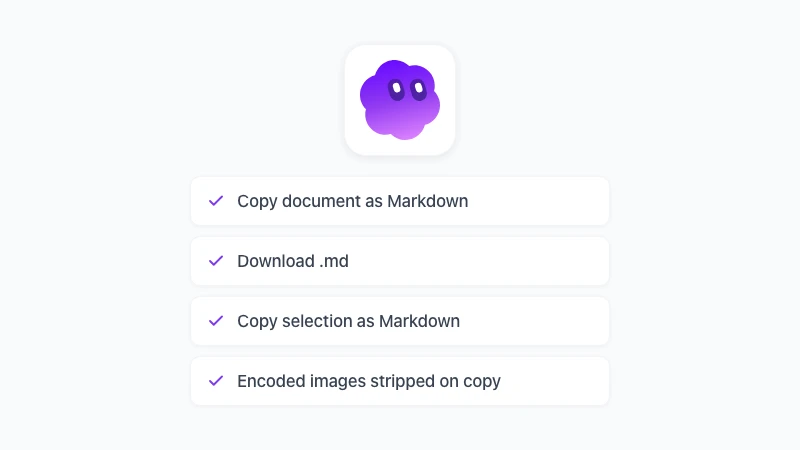
Click Markdown in that bar. You get three actions: Copy document as Markdown, Download .md, and Copy selection as Markdown.
Copy document as Markdown puts the whole document on the clipboard, ready for a chat window, a wiki or an editor. Download .md saves a file, and Copy selection as Markdown does what Google’s right-click option does, without the preference.
Step 3: Paste or save
The output is cleaned before it reaches you. On copy, the embedded base64 images are stripped, so the clipboard holds readable text instead of megabytes of encoded pixels, and the download keeps the file intact for cases where you want the images.
Everything happens in your browser, with your own session, and the document itself is not changed. There is no account to create and no AI credits involved in exporting.
 Try GPT Workspace
Use ChatGPT, Claude, and Gemini directly inside Google Docs, Sheets, Slides, Gmail, and Drive. No tab switching.
Get Started FreeWhat Survives a Google Docs to Markdown Export
Whichever way you choose, the same rules apply, because Markdown itself is the limit. It pays to know them before you promise someone a faithful copy.
Structure survives: heading levels, paragraphs, nested lists, tables, links, bold, italic and strikethrough. If the document was written with real heading styles rather than bold 18-point text, the Markdown reflects that.
Presentation does not. Fonts, colours, highlights, alignment, page breaks, headers and footers have no Markdown form and are dropped.
Collaboration data is left behind. Comments, suggestions and version history belong to the Doc, not to the export.
Images depend on the route. The native download embeds them as data strings, Copy as Markdown handles only text, and GPT Workspace strips the data strings on copy and keeps them in the download.
Keeping Files as Markdown From the Start
If a document is going to live as Markdown, you may not need an export at all. Since October 2026, Google Docs opens .md files from Drive in a native Markdown mode, where the file stays a .md file and several people can edit it.
For READMEs, documentation and anything that ends up in a repository, that is often the better arrangement. Our guide to Markdown in Google Docs covers the rollout, what the mode supports, and what it drops.
Files that start as a regular Doc still need one of the three exports above. A quick check in the free Markdown viewer shows whether the result looks right before you commit it.
Where to Send the Markdown Next
The export is rarely the goal. These are the destinations we see most, and what to watch for in each.
GitHub, Notion and Obsidian accept the file directly. If images matter, upload them separately and replace the references, because none of those tools reads base64 strings well.
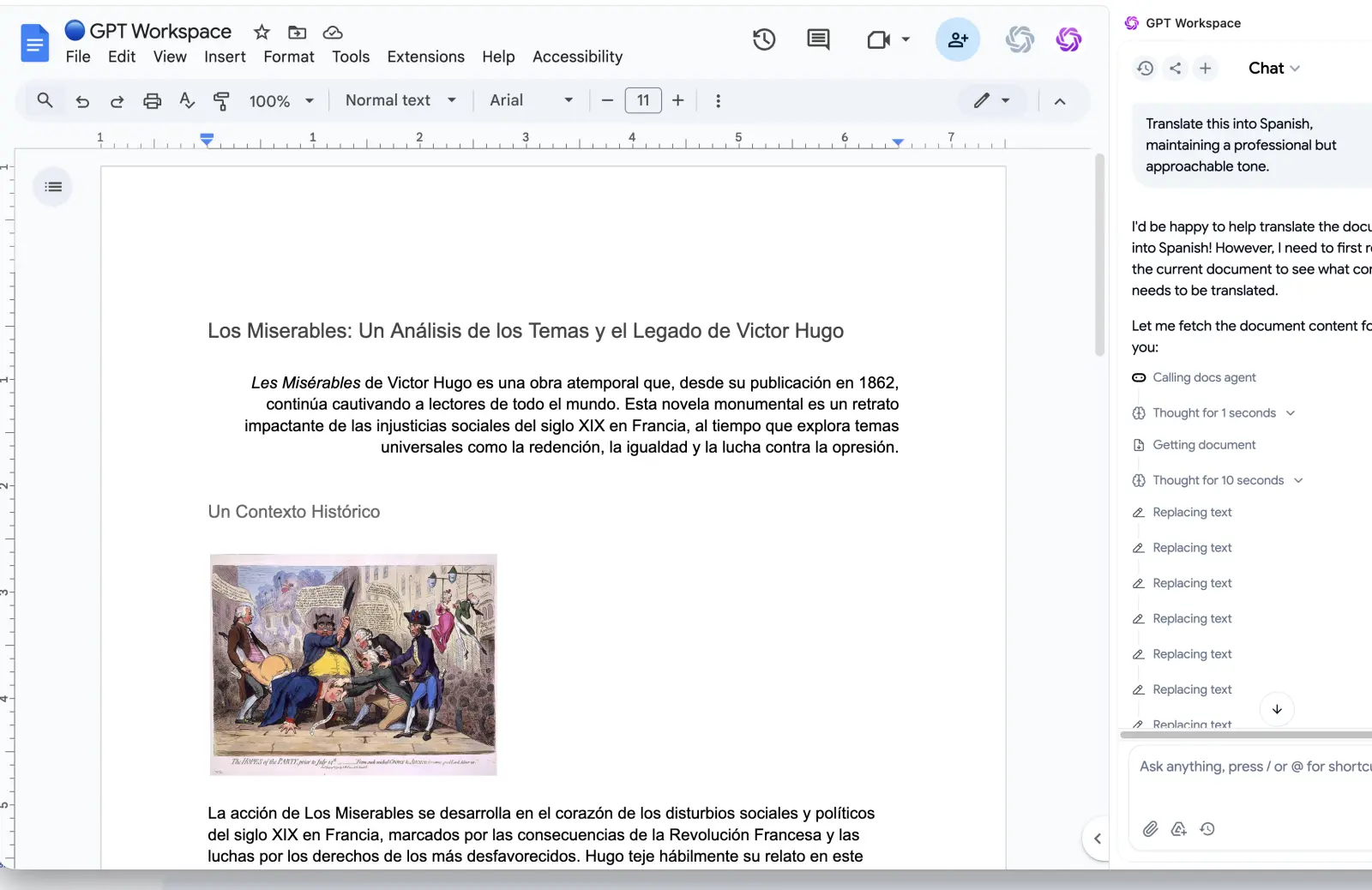
For ChatGPT, Claude or Gemini, paste the copied Markdown into the prompt, or skip the step and use GPT Workspace inside the document, as shown in how to use ChatGPT in Google Docs. The model reads the document from where it already is.
For a Word file or a PDF, run the .md through the free Markdown to Word or Markdown to PDF tools. Both convert in your browser without an upload.
And when the Markdown needs to come back into Docs, the round trip is covered in how to paste Markdown into Google Docs.
Frequently Asked Questions
Conclusion
To export a Google Doc as Markdown, use File, Download, Markdown for a whole file, Copy as Markdown for a paragraph, and the GPT Workspace menu when you want clean output in one click. All three keep structure and drop presentation, so write with real heading styles and plan for images separately.
Install GPT Workspace, open any document, and the Markdown menu is waiting at the bottom of the page, next to ChatGPT, Claude and Gemini.