How to Make Gmail Fully Dark (Including Email Bodies)
Gmail dark mode done properly: turn on Gmail's dark theme, see why email bodies stay white, and darken the emails too with a free extension. Sent mail never changes.

You switched Gmail to its dark theme, opened the first email of the day, and got a white rectangle anyway. Every newsletter, every receipt, every reply is still a light box inside a dark frame.
That is how Gmail works: its dark theme darkens the interface and leaves email bodies exactly as the sender designed them. This guide shows how to turn the native theme on, why the emails stay white, and how to make Gmail dark mode reach the emails too with the free dark mode in the GPT Workspace Chrome extension, which also puts ChatGPT, Claude and Gemini inside Gmail, Docs, Sheets and Slides.
Nothing here changes what you send. It is all about how your own screen renders your inbox.
How to Turn On Dark Mode in Gmail (the Built-In Theme)
Gmail has had a dark theme on the web for years, and Google documents it on the Change your Gmail background help page. It takes four clicks.
On a computer
Open Gmail and click the Settings gear at the top right. In the Quick settings panel, find the Theme section and click View all.
Pick Dark in the theme window and click Save. The menus, the message list and the side panels turn dark immediately.
On Android and iPhone
Open the Gmail app, tap Menu at the top left, then Settings, General settings, and Theme. Choose Light, Dark or System default.
Dark theme on Android needs Android 10 or later, and on iOS the app follows the system setting unless you pick a theme yourself (Google Workspace Updates). The phone and the computer do not share the setting, so turning the theme on at your desk does nothing to the app in your pocket.
Why Email Bodies Stay White in Gmail’s Dark Theme
Open any message after switching to Dark and the body is still white. That is not a mistake in your settings.
An email is a small HTML page written by the sender, often with a fixed white background and dark text baked in. Gmail’s web dark theme restyles Gmail’s own interface and does not recolour message content, so a newsletter designed for a light screen arrives as a light screen.
Senders could ship a dark variant of their emails, and a few do. Most do not, which is why the inbox is dark and the thing you actually read is not.
The usual workarounds are blunt. Chrome’s force-dark flag inverts every website you visit and mangles images. Generic dark mode extensions restyle all of Gmail without knowing which emails are already dark, so dark newsletters get flipped to white.
How to Make Gmail Dark Mode Reach the Emails
The dark mode in GPT Workspace is built for Gmail specifically. It is a free, local setting of the extension: no account, no sign-in and no AI credits are needed for it.
Step 1: Install the extension
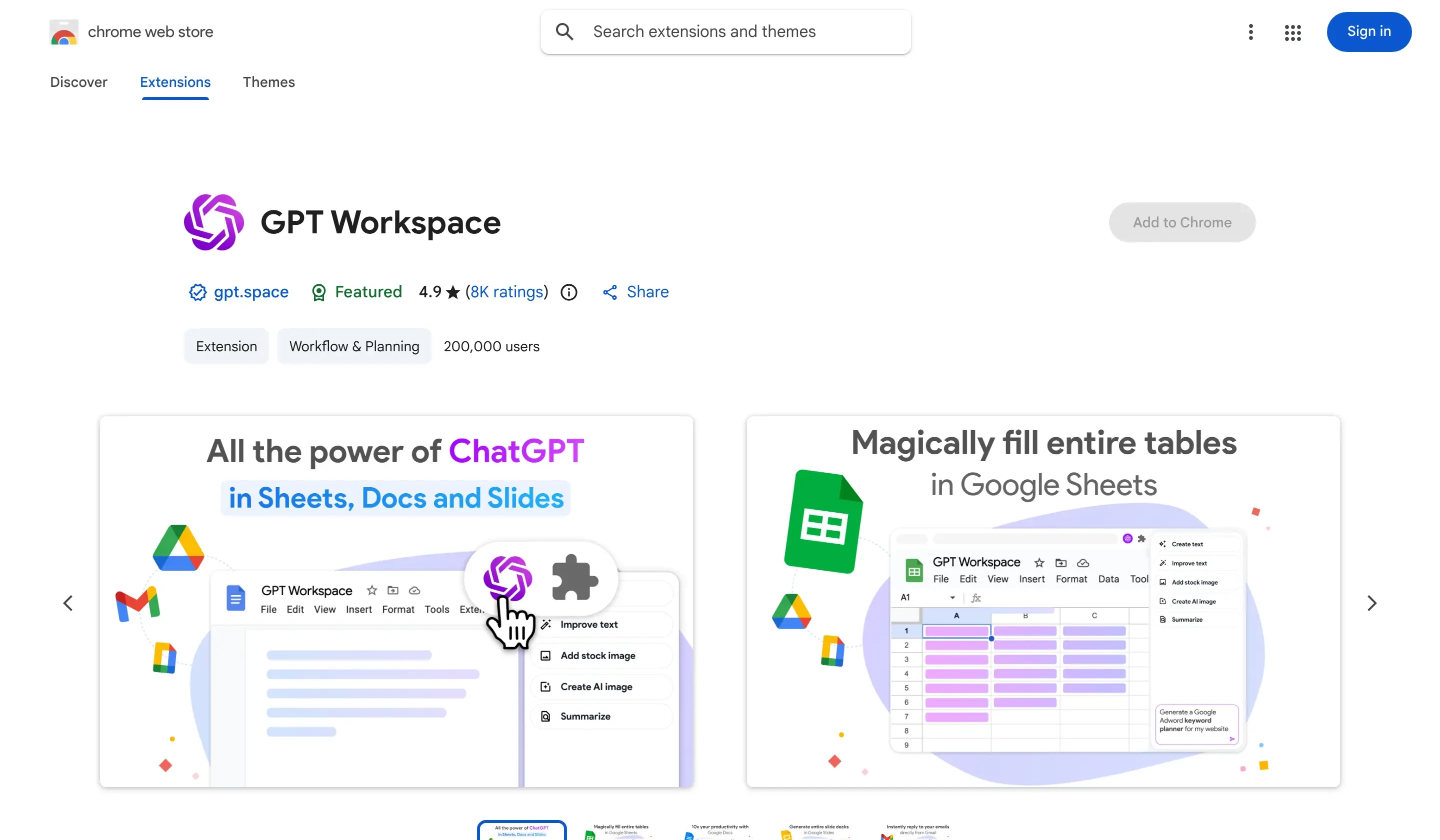
Add GPT Workspace from the Chrome Web Store and open Gmail. It works in desktop Chrome and in Chromium browsers such as Edge, Brave and Arc.
Step 2: Click the moon button
In the toolbar above your message list, next to the Clean up button, there is a moon icon. Click it and choose a mode.
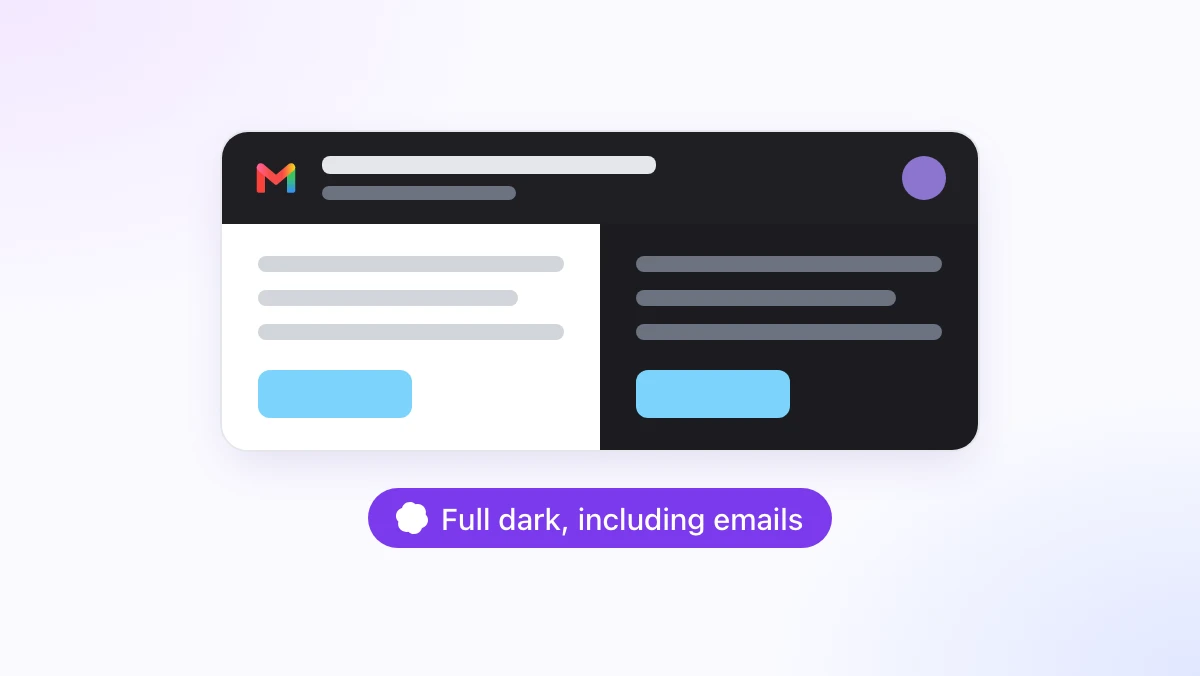
“Dark Gmail, original emails” darkens Gmail’s interface and leaves every email as the sender designed it. “Full dark, including emails” darkens the email bodies and the compose editor too, and it is the default when you simply toggle dark mode on.
Step 3: Toggle with the keyboard
Alt+Shift+D switches between off and the mode you last used, with a small toast confirming it. The shortcut can be changed at chrome://extensions/shortcuts.
The setting is remembered for Gmail separately from Docs, Sheets, Slides and Drive, and it syncs instantly across all your open Gmail tabs. It loads before the page paints, so there is no white flash when you open Gmail.
 Try GPT Workspace
Use ChatGPT, Claude, and Gemini directly inside Google Docs, Sheets, Slides, Gmail, and Drive. No tab switching.
Get Started FreeWhat Happens to Each Kind of Email
A dark Gmail that turns your emails into negatives would be worse than a white one. Four details make this one usable all day.
It works with Gmail’s own theme
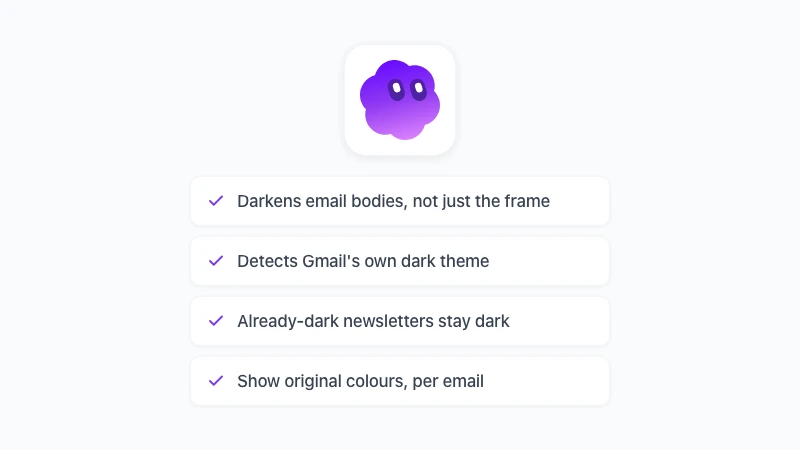
The extension detects whether Gmail’s native dark theme is on. If you kept the light theme, it darkens the whole interface plus the emails.
If you already use Gmail’s Dark theme, it leaves the interface alone and only darkens the still-white email bodies. Either way you end up with one consistent dark inbox.
Already-dark emails stay dark
Dark newsletters are recognised and kept as they are rather than flipped to white. Images, photos, logos and avatars inside any email are inverted back, so they keep their real colours.
Show original colours, per message
Above each darkened email there is a Show original colours button. Click it to see the message exactly as the sender designed it, and Show dark to go back.
The choice lasts while the thread is open. It is the right tool for a brand email where the exact colours matter.
Compose is only dark on your screen
The compose editor is darkened while you write, but the email that goes out is unchanged. Sent, forwarded and printed mail is never touched, and Gmail’s own printable view is left alone.
That last point matters if you also use ChatGPT for Gmail to draft replies: the draft looks dark to you and perfectly normal to the recipient.
Dark Mode and the Rest of Your Inbox
Dark mode shares the Gmail toolbar with the Clean up panel, which is where people usually go next once the inbox is readable at night.
Clean up lists the senders that fill your inbox and lets you mass delete emails in Gmail by sender, category or age, with a count before each action and Trash as the destination. Dark mode makes that list easier on the eyes, and the two features need no AI credits.
The limits are the same as for the rest of the extension. It is desktop Chrome only: the Gmail mobile apps, Safari and Firefox are not supported, and the Google Workspace add-on cannot restyle Gmail.
Frequently Asked Questions
A Dark Frame Is Half the Job
Gmail dark mode out of the box is a dark frame around white emails. Turn on Google’s theme first, because it is the right base, then let the GPT Workspace extension darken the emails that Gmail leaves bright.
Install the extension, click the moon button in Gmail and pick Full dark. Your inbox goes dark end to end, dark newsletters stay as they were, and nobody you write to will ever notice. The Gmail dark mode page lists everything it does and does not touch.