AI Meeting Notes in Google Docs: From Raw Notes to Action Items
Turn messy meeting notes into clear summaries and action items in Google Docs with AI. Step-by-step prompts, templates, and a GPT Workspace workflow.

Most meetings produce two artifacts: a calendar event that disappears and a pile of notes nobody reads again. You scribble during the call, promise to clean them up later, and by Friday the doc is still a wall of fragments with no owners, no deadlines, and no clear record of what was actually decided. AI meeting notes in Google Docs fix that gap when you pair a simple capture habit with the right prompts inside the app where your team already works.
This guide shows how to turn raw notes or transcripts into structured summaries, action items, and follow-up emails using GPT Workspace, the Chrome extension and Google Workspace Add-on that puts ChatGPT, Claude, and Gemini directly inside Docs, Sheets, Slides, and Gmail. No copy-pasting into a separate chat window. No reformatting by hand.
Why Meeting Notes Fail Without Structure
Unstructured notes look complete at first glance. You wrote down names, topics, and a few phrases that felt important in the moment. A week later, nobody can answer basic questions: What did we decide? Who owns the next step? What is still open?
The failure mode is almost always format, not effort. Notes captured in real time are chronological by nature. Decisions, tasks, and open questions get mixed together. Action items hide inside narrative paragraphs. Deadlines get mentioned verbally but never written down.
Structured meeting notes solve three problems at once:
- Accountability: Every task has an owner and a due date when possible.
- Continuity: The next meeting starts from a clear record, not memory.
- Speed: Stakeholders who missed the call can scan a one-page summary in two minutes.
AI does not replace the person who was in the room. It replaces the twenty minutes of cleanup that usually never happens. If you already use Docs for reports, the same sidebar workflow applies to longer documents in AI report writing in Google Docs.
How GPT Workspace Handles Meeting Notes in Docs


GPT Workspace adds an AI sidebar to Google Docs. Paste your raw notes at the top of a doc, open the sidebar, and prompt against the text you selected or the full document. The output lands back in the same file with one click.
Three features matter most for meeting notes:
- Selection-aware prompts: Highlight a messy section and ask for a summary without touching the rest of the doc.
- Model choice: Claude Sonnet often produces cleaner bullet structure for internal notes. GPT-4o handles fast first passes well. Switch models in the sidebar without leaving Docs.
- Saved prompts: Store your team’s standard meeting format in the prompt library so every standup, client call, or board review uses the same sections.
Install the extension once via the GPT Workspace installation guide. After that, every new meeting doc follows the same three-step pattern below.
Google’s Gemini can summarize Meet recordings for Workspace subscribers, which is useful when you have a transcript and an Enterprise license. GPT Workspace works on any Google account, inside Docs itself, with any notes you already captured by hand or from a third-party recorder. For a broader comparison of built-in Gemini vs third-party models, see GPT Workspace vs Gemini.
Step 1: Capture Raw Notes Without Perfection
Speed beats polish during the meeting. Your job in the room is to listen and capture signals, not to write publishable prose.
Use a simple Google Doc with a header block at the top:
Meeting: [Title]
Date: [YYYY-MM-DD]
Attendees: [Names]
Below that, write in fragments. Timestamps optional. Abbreviations fine. If someone states a decision or deadline, tag it inline with [DECISION] or [ACTION] so the AI pass has hooks to find later.
If you use a transcription tool, paste the transcript below your manual notes in the same doc. Duplication is fine. The cleanup prompt can merge both sources.
Do not stop the meeting to format. The entire point of AI meeting notes in Google Docs is that cleanup happens after the call in five minutes, not during it.
Step 2: Generate a Structured Summary
Convert these notes into Key Decisions, Action Items, Open Questions...
Weekly sync notes
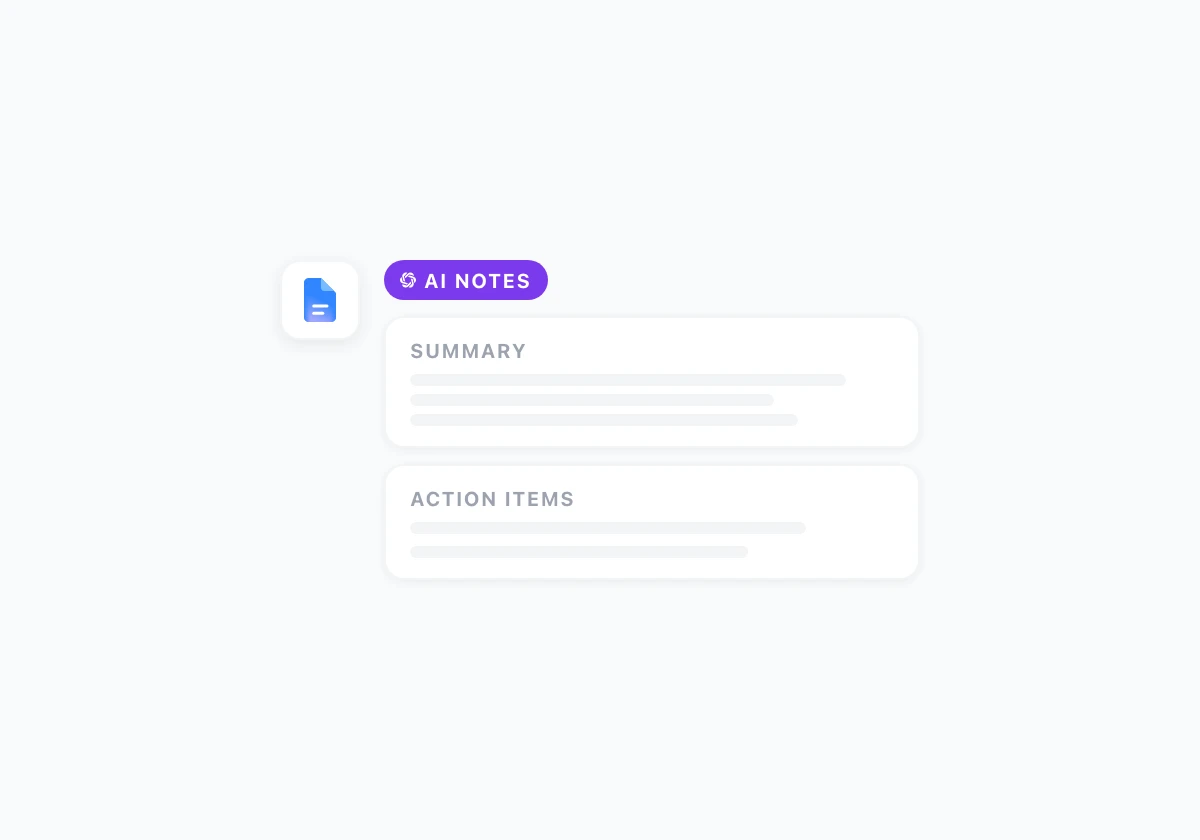
Select all raw content. Open the GPT Workspace sidebar. Run a structure prompt like this:
“Convert these meeting notes into a structured summary with these sections: Meeting Overview (2 sentences), Key Decisions (bullets), Action Items (table with columns Task, Owner, Due Date), Open Questions, and Next Steps. Use only information present in the notes. Mark unclear owners as TBD.”
Review the output before inserting it. AI will occasionally infer an owner or date that was implied but not stated. Fix those in thirty seconds rather than sending a doc with wrong assignments.
For recurring meetings, save the prompt to your library with a name like Weekly Standup Cleanup. Next week you paste notes, click the saved prompt, and insert. That single habit is one of the highest-return items in AI productivity hacks for Google Workspace.
Step 3: Extract and Track Action Items
Action items are where most meeting notes die. They sit in bullet lists without owners, or they live in one person’s notebook while the team assumes someone else will follow up.
After the structured summary is in the doc, run a second focused prompt on the Action Items section:
“Review the Action Items above. Rewrite each item as a single clear task starting with a verb. Confirm owner and due date for each row. Flag any item missing an owner or deadline with [NEEDS CLARIFICATION].”
Many teams paste the final table into a shared tracker in Google Sheets. GPT Workspace can generate a QUERY or filter formula if you copy the table over. The Sheets workflow is covered in how to use AI in Google Sheets.
If your team uses Gmail for accountability, draft follow-up messages from the same action list. Open Gmail, use the sidebar, and prompt: “Write a short follow-up email to all attendees summarizing the action items from this meeting. Bullet format, professional tone, under 150 words.” More email patterns live in AI email writing prompts for Gmail.
Prompt Templates for Common Meeting Types
"Blockers, shipped, next..."
"Decisions, risks, follow-ups..."
"Topics, feedback, actions..."
Different meetings need different sections. Copy these into your prompt library and adjust placeholders.
Daily standup
“Format these standup notes: Done since last sync, In progress, Blockers (with who can unblock), and Parking lot items. Keep each bullet under 15 words.”
Client or sales call
“Structure these client meeting notes: Attendees, Client goals discussed, Our commitments, Client commitments, Risks or objections raised, and Follow-up email draft (3 bullets). Tone: professional, no internal jargon.”
1:1 with a direct report
“Organize these 1:1 notes into: Topics discussed, Feedback given, Feedback received, Career or growth topics, and Action items for both manager and report. Separate action items by person.”
Project kickoff
“Turn these kickoff notes into: Project scope summary, Success metrics, Roles and responsibilities, Milestones with target dates, and Communication plan. Flag any scope item that lacks an owner.”
Board or leadership review
“Summarize for an executive audience: Strategic decisions, Financial or metric highlights mentioned, Risks requiring escalation, and Approved next steps. Maximum 400 words. No operational detail unless it affects a decision.”
Each template should instruct the model to stay faithful to the source. That reduces hallucinated decisions, which is the main risk when automating meeting notes.
Before and After: What Good Output Looks Like
sarah said launch maybe june?? need budget ok from finance. tom will look at api. follow up w/ legal
Target launch window: June (pending finance approval)
Tom: API review by Friday
Owner TBD: Legal follow-up
Good AI output is scannable in under a minute. Headers match your team’s standard. Action items use verbs. Dates appear only when the source supported them.
Bad output reads like a generic recap with no tasks, or it invents commitments nobody made. That is why the review step is non-negotiable. Treat the AI draft like a junior teammate: fast and useful, but not trusted blindly for names, numbers, or deadlines.
Share the finished doc in Drive with comment access if decisions need confirmation. The doc becomes the single source of truth for what the meeting produced.
Tips for Teams Rolling This Out
Start with one meeting type, usually the weekly team sync. Run the workflow for four weeks until the format sticks. Then add client calls or 1:1s.
Agree on one section order across the team. When every meeting doc looks the same, people know where to find action items without scrolling.
Name docs consistently: YYYY-MM-DD - [Meeting name]. Link the doc in the calendar event description so attendees know where notes live.
If you record calls, paste transcripts into the same doc as raw material. Run the structure prompt on the full content. You do not need a separate tool for the cleanup step.
For sales and account teams that live in Gmail as much as Docs, the same GPT Workspace account covers both. See GPT Workspace for sales teams for call prep and follow-up patterns that pair with meeting notes.
Frequently Asked Questions
Start Your Next Meeting Doc With AI Built In
AI meeting notes in Google Docs work when capture stays messy and cleanup stays structured. Paste raw notes, run one library prompt, review action items, share the doc. Five minutes after the call ends, your team has a record people actually use.
Install GPT Workspace in Docs and Gmail, save your team’s standard meeting prompt, and use it on the very next call. The notes you would have abandoned become the baseline for the meeting after that.