How to Turn On Dark Mode in Google Docs (Desktop and Mobile)
Google Docs dark mode on desktop and mobile: the app's theme setting, the Chrome flag and its downsides, and a free extension that darkens the page itself.

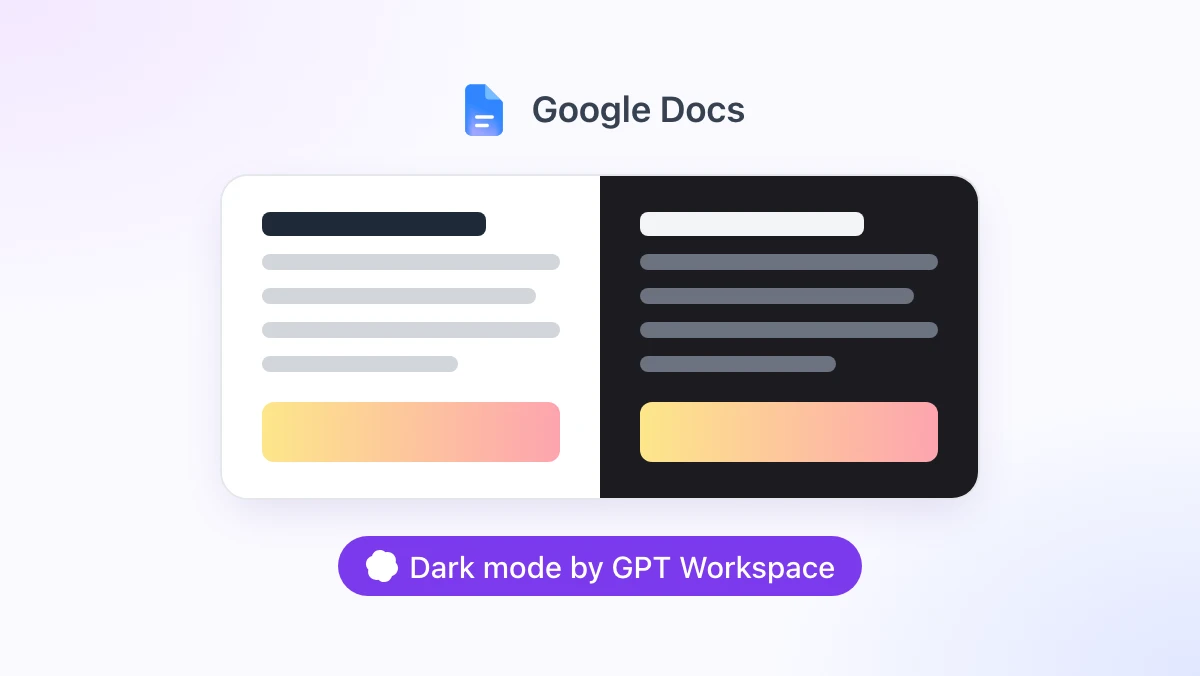
It is 11 pm, the room is dark, and the Google Docs page is a white rectangle the size of a sheet of paper shining at you. Every other app on your screen went dark years ago.
This guide covers every way to get Google Docs dark mode in October 2026: the theme setting in the Android and iOS apps, the Chrome flag most tutorials recommend and why it disappoints, and the free dark mode built into the GPT Workspace Chrome extension, which also puts ChatGPT, Claude and Gemini inside Docs, Sheets, Slides, Gmail and Drive.
The short version: on a phone, use Google’s own setting. On a computer, use an extension that darkens the page without wrecking your images.
Does Google Docs Have a Dark Mode?
On the web, no. As of October 2026, Google Docs, Sheets and Slides in a desktop browser have no theme setting, and the document page is white no matter what your operating system or Chrome theme says.
On mobile, yes. Google added a dark theme to the Docs, Sheets and Slides apps on Android in 2020 and brought it to iOS a few months later, where it follows the system setting (Google Workspace Updates).
That split is why a search for a dark theme for Google Docs lands on so many conflicting tutorials. Half of them describe the phone app, and the steps simply do not exist on a PC or Mac.
Dark Mode in the Google Docs App (Android and iOS)
The mobile setting is per app, so you repeat it in Sheets and Slides if you want those dark too. Google’s own instructions are on the Docs Editors Help page.
Android
Open the Google Docs app and tap Menu at the top left. Tap Settings, then Choose theme, and pick Dark, Light or System default.
iPhone and iPad
Open the Google Docs app and tap Menu at the top left. Tap Settings, then Theme, and choose Dark, Light or System default.
Checking how a document looks in light theme
Dark theme only changes your view. Collaborators cannot see the theme you choose, and the document file is unchanged.
If you want to check how the page reads for someone on a light screen, open the document, tap More at the top right and tap View in light theme.
Google Docs Dark Mode on PC and Mac: the Chrome Flag
The most repeated desktop tip is Chrome’s experimental flag. It works, in the sense that the page turns dark, but most people switch it off within a week.
How to enable it
Type chrome://flags/#enable-force-dark into the address bar and press Enter. Set “Auto Dark Mode for Web Contents” to Enabled and click Relaunch.
Why it disappoints
The flag applies to every website you open, with no way to limit it to Docs. Sites that already have a dark theme get darkened twice, and light sites get colours nobody designed.
Images suffer most. Photos and logos in your document come out washed out or inverted depending on the variant you picked, and because the flag is experimental, a Chrome update can change its behaviour or remove it.
If you only want Docs dark, you want something that knows what a Docs page is.
Google Docs Dark Mode Extensions: What to Look For
The Chrome Web Store has several dark mode extensions for Docs. Generic ones such as Dark Reader restyle every site and are heavier than a Docs-only tool. Docs-only ones such as DocsAfterDark handle the editor well but stop at the document, so Sheets, Slides, Drive and Gmail stay bright.
Three things separate a good one from a frustrating one. Images must keep their real colours, printing must not come out as white text on black, and switching off must be instant.
GPT Workspace covers all three, and dark mode is a free, local setting of the extension. You do not need an account, a sign-in or any AI credits to use it.
 Try GPT Workspace
Use ChatGPT, Claude, and Gemini directly inside Google Docs, Sheets, Slides, Gmail, and Drive. No tab switching.
Get Started FreeHow to Turn On Dark Mode in Google Docs With GPT Workspace
Step 1: Install the extension
Add GPT Workspace from the Chrome Web Store. It installs in Chrome and in Chromium browsers that accept Chrome extensions, such as Edge, Brave and Arc.
Open any Google Doc. A GPT Workspace bar appears at the bottom of the document.
Step 2: Pick a mode
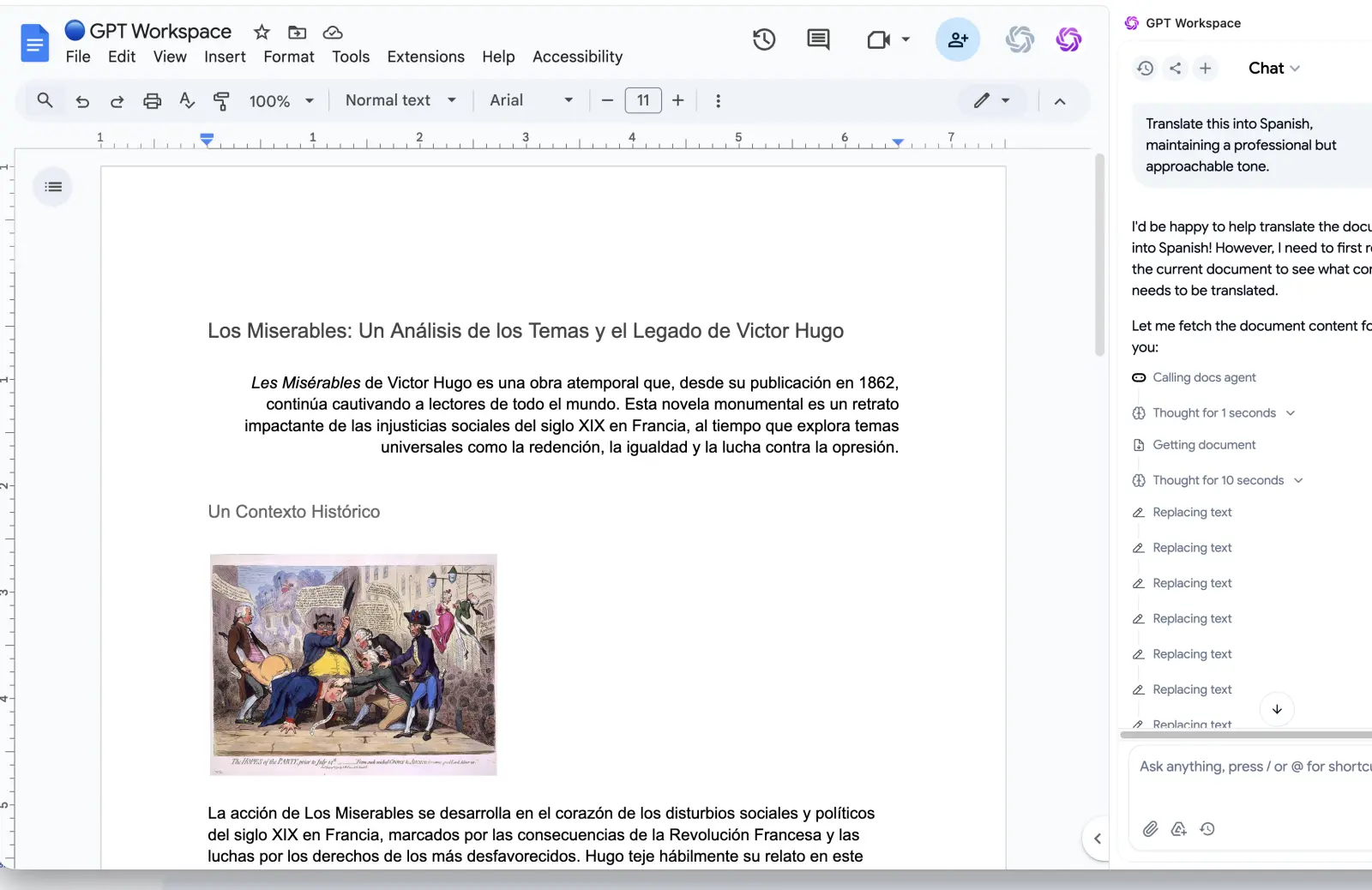
Click the ⋮ menu in that bar and choose Dark mode. You get three options: Off, Dark toolbars and Full dark.
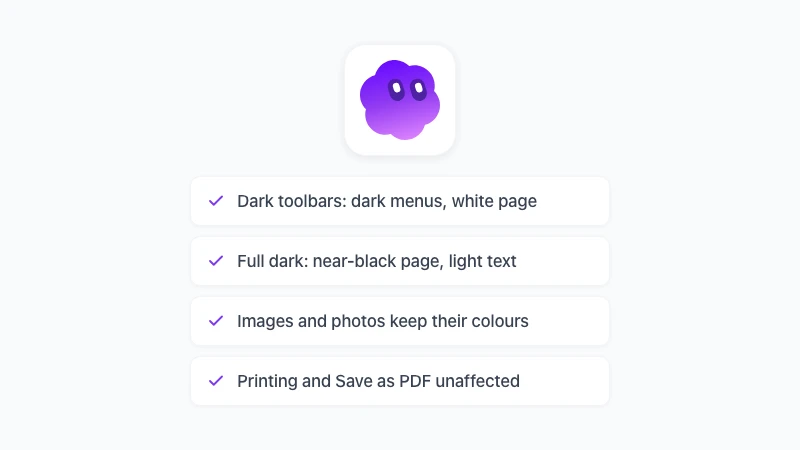
Dark toolbars darkens the menus, the toolbar, the side panels and the grey work area, and leaves the page white. It is the mode for people who want less glare but a paper-like page.
Full dark darkens the page too. White becomes near-black, black text becomes light, and highlights and table shading invert with it. It is the default when you simply toggle dark mode on in Docs.
Step 3: Use the shortcut
Press Alt+Shift+D to toggle between off and the mode you last used. A small toast such as “Dark mode: Full dark” confirms the change, and you can rebind the key at chrome://extensions/shortcuts.
The choice is remembered per app and applied to every open Docs tab at once. It is also applied before the page paints, so a dark document opens dark instead of flashing white first.
What stays the same
Nothing in the file changes. The darkening is a colour inversion with hue preserved, applied in your browser through a stylesheet, and nothing is sent anywhere.
Images, photos, videos, embedded content, avatars and logos are inverted back, so a photo in your report looks like the photo. Docs draws the page as vector tiles, which is why text, tables and highlights invert cleanly rather than blurring.
Printing and Save as PDF are unaffected because a print rule removes the filter. PDF export, Download as DOCX, sharing and what collaborators see are all untouched.
If you write with Markdown in Google Docs or use the ChatGPT sidebar in Docs, both work exactly the same in dark mode, since it is one extension.
The Same Dark Mode in Sheets, Slides and Drive
One install covers the rest of Google Workspace, with the mode chosen and remembered per app.
In Google Sheets, the ⋮ menu in the GPT Workspace bar offers the same three modes. Full dark inverts cell background colours on screen, so when a colour-coded sheet matters, Dark toolbars keeps the grid as the author coloured it. Charts keep their colours either way, as the Google Sheets dark mode page explains.
In Google Slides the default is Dark toolbars, because slide designs keep their colours that way, and presentation mode is never darkened. Turn it on with Alt+Shift+D or from the GPT Workspace settings. See Google Slides dark mode for the details.
Google Drive has no page, so it offers Off and Full dark. Gmail gets a mode that darkens email bodies too, covered on the Gmail dark mode page.
All of it is desktop Chrome only. The Google Workspace add-on cannot restyle the editor, and the extension does not run in Safari, Firefox or on mobile, where Google’s own theme is the answer.
Frequently Asked Questions
Dark Where You Are
Google Docs dark mode comes down to where you are. On Android and iOS, flip the theme in the app’s settings and you are done. On a computer, skip the Chrome flag and use an extension that keeps your images and your printouts intact.
Install GPT Workspace, open a document, and press Alt+Shift+D. The page goes dark, the file stays exactly as it was, and the Google Docs dark mode page lists everything that is and is not affected.