Google Meet Post-Meeting Next Steps: Setup, Limits, and Alternatives
Google Meet post-meeting next steps now draft Gmail follow-ups and Tasks. See requirements, rollout dates, limits, and when GPT Workspace fits better.

Google Meet post-meeting next steps try to fix the recap you keep promising to send after lunch. By Thursday nobody remembers who owned what.
Here is the change. On October 12, 2026, Google announced routines on the post-meeting screen that draft a follow-up email and send action items to Google Tasks with one tap.
This guide covers what the feature does, the requirements that stop it from showing up, and where GPT Workspace, a Chrome extension and Google Workspace Add-on that puts AI directly inside Docs, Sheets, Slides, and Gmail, fills the gaps.
What Google Meet Post-Meeting Next Steps Do
After a meeting ends, the post-meeting screen shows a section called “Routines for this meeting.” Each routine is a suggested step you can switch on with one tap.
Google says it is powered by Gemini and Workspace Studio, its no-code automation tool. Two routines ship at launch: drafting a follow-up email in Gmail, and adding action items to Google Tasks. Google says more are coming.
You can also turn a step on for every future meeting. For a recurring series, switching it on applies to the whole series.
Don’t confuse this with the notes feature from 2025. “Take notes for me” already added a suggested next steps section to the notes document. The new routines go one step further and act on those items instead of listing them.
Requirements: Why Next Steps May Not Show Up
This is where most people get stuck. The routines only appear when several conditions are true at once.
According to Google’s help article, you need a work or school Google Account, smart features turned on, and both “Take notes for me” and “Ask Gemini” enabled during the meeting. The meeting must be tied to a Google Calendar event, and you must be on a computer.
The follow-up email routine has stricter rules. You must be the host, the meeting cannot be part of a repeating series, and at least one participant has to be outside your organization.
That last rule rules out most internal standups. It fits client calls, sales demos, and vendor meetings.
Plans and rollout dates
Google lists Business Standard and Plus, Enterprise Standard and Plus, and the Google AI Pro for Education add-on. Business Starter is not on the list.
The extended rollout started October 5, 2026 for Rapid Release and Scheduled Release domains. Visibility can take longer than 15 days, so a missing section this week does not mean your plan is wrong.
How to Turn On Post-Meeting Next Steps in Google Meet
The setup is short once the requirements are met. Here is the sequence I would follow.
Step 1: Turn on notes before the call
Open the meeting from your Calendar event and switch on “Take notes for me” and “Ask Gemini” in the Meet controls. If notes are off, the post-meeting section does not appear at all.
Step 2: Open the post-meeting screen
When the call ends on a computer, look for “Routines for this meeting.” Suggestions vary, and Google notes they may not appear every time.
Step 3: Switch on a routine
Tap the step you want. The first time, Workspace Studio sends you an email, and some steps such as email drafts also send a Google Chat notification when they finish.
Step 4: Check the result
Open Gmail drafts or Google Tasks and read what Gemini produced. Treat the first few runs as drafts you correct, not messages you send blind.
Managing and Turning Off Routines
Routines live in Workspace Studio. Go to studio.workspace.google.com, open Flows, and find the flow labeled “system.”
From there, “Manage flow” lets you turn it off or open the Activity tab to see whether steps completed. That tab is the first place to look when a draft never arrived.
Admins have one switch. The feature is on by default, and an admin can disable it for a domain, an organizational unit, or a group through the Workspace Studio settings or the Take Notes for Me setting.
One limit matters here. Google says next steps cannot be edited, only turned on or off. If the draft format does not suit you, you cannot change the template from the Meet screen.
What Changed in Workspace Studio the Same Week
Three days before the Meet post, Google also expanded Workspace Studio with new logic and search steps. The gradual rollout began October 13, 2026.
The additions that matter for meeting follow-up are a Meet step that returns the full invitee list and supports a follow-up email template, nested conditionals, a Gmail option to skip replies, and a Drive step that searches for a document.
So if the built-in routines are too rigid, you can build your own flow. We compared that tool in Google Workspace Studio vs GPT Workspace.
 Try GPT Workspace
Use ChatGPT, Claude, and Gemini directly inside Google Docs, Sheets, Slides, Gmail, and Drive. No tab switching.
Get Started FreeWhere Meet Next Steps Fall Short
The feature is useful, but it is narrow. These are the gaps I would plan around.
The email routine only works for external, one-off meetings you host. Internal syncs, weekly series, and meetings someone else organizes get no email draft.
You also cannot change the tone, length, or structure of what Gemini writes. A draft for a CFO and a draft for a friendly vendor come out in the same shape.
Finally, it only exists on a computer and only for meetings with notes on. If you forgot to start notes, there is nothing to act on.
AI Meeting Follow-Up Gmail Workflow With GPT Workspace
When the routine does not apply, a short manual workflow covers the same ground in about two minutes. It also works on plans without Gemini.
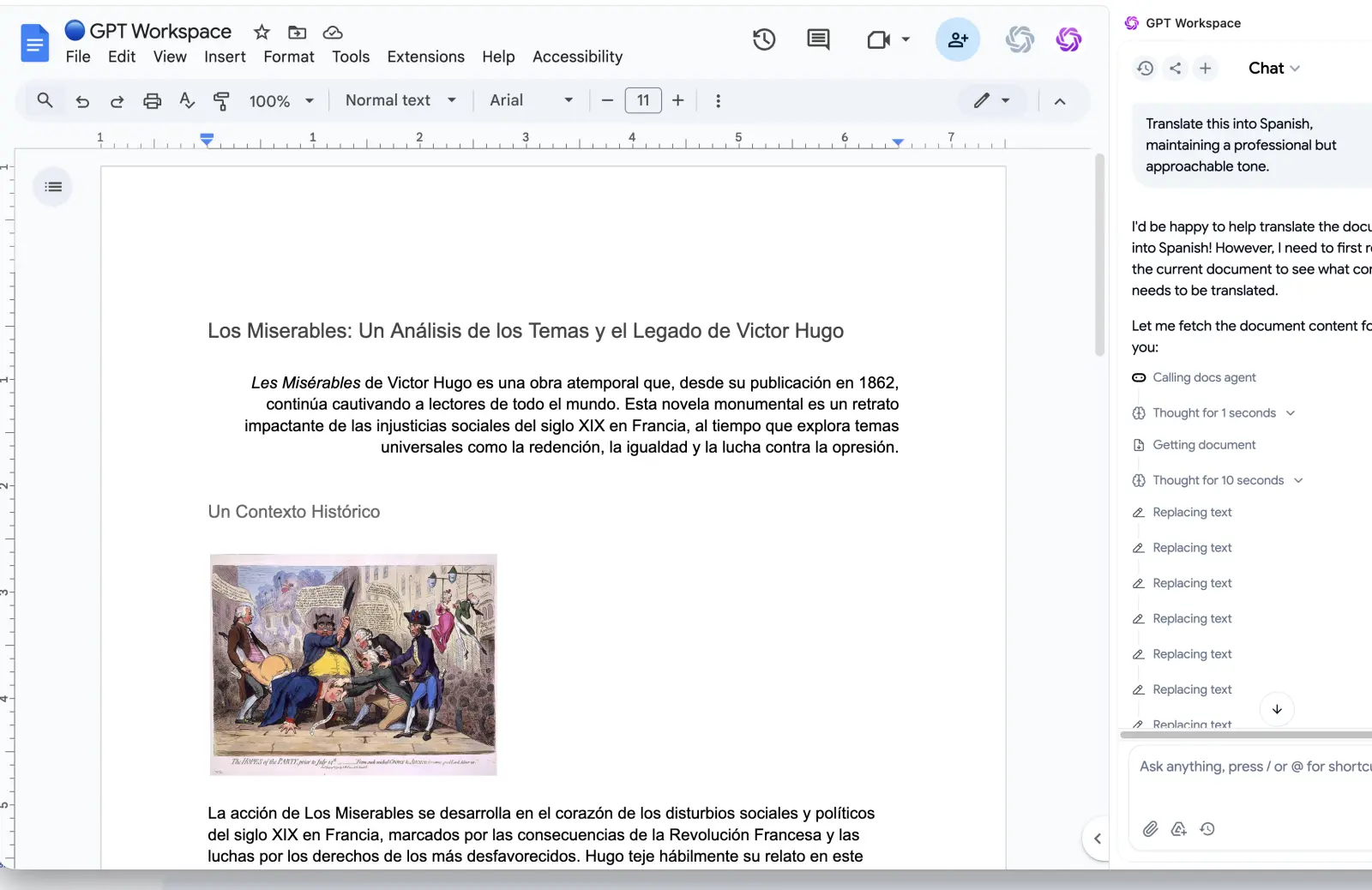
Open the notes document Meet created, or paste your own notes into a Google Doc. Then run a saved prompt from the GPT Workspace sidebar.
A prompt that works
“Turn these notes into a follow-up email under 150 words. List decisions as three bullets, then one line per action item with owner and date. Tone: friendly and direct.”
Because you control the prompt, you can keep one version for clients and another for your team. You can also pick the model, so Claude can handle the longer, careful emails while Gemini handles quick ones.
For more templates, see AI meeting notes in Google Docs and our library of email prompts for Gmail.
Meet Next Steps vs GPT Workspace: Which to Use
They are not rivals so much as two layers. Meet routines handle the default case with zero effort, and GPT Workspace handles everything the default skips.
Use Meet next steps when you host an external one-off call, notes are already on, and a plain draft is enough. Switch it on for all meetings and review the draft.
Use GPT Workspace when you need a specific tone, an internal or recurring meeting recap, a different language, or a plan without Gemini. You write the prompt once and reuse it.
If you want the model comparison behind that choice, read GPT Workspace vs Gemini.
Privacy and Admin Checklist
Meeting transcripts hold sensitive material, so confirm a few things before you roll this out to a team.
Check whether your admin has left the feature on, since it is on by default. Decide who may host external calls with notes enabled, and tell participants when Gemini is taking notes.
Then test with one low-stakes meeting. Compare the Gmail draft against what was actually decided, and keep the Activity tab handy for troubleshooting.
Frequently Asked Questions
Conclusion
Google Meet post-meeting next steps turn a recap you tend to skip into a one-tap routine. The catch is the fine print: notes on, a Calendar event, a computer, and for email drafts, an external one-off meeting you host.
Turn it on for your client calls this week and review each draft. For everything the routine skips, GPT Workspace gives you the same follow-up inside Docs and Gmail with the model and tone you choose.