ChatGPT for Google Chat: Summarize Threads and Turn Messages into Action
Use ChatGPT for Google Chat inside Docs with GPT Workspace. Summarize threads, extract decisions, and draft replies without leaving Google Workspace.

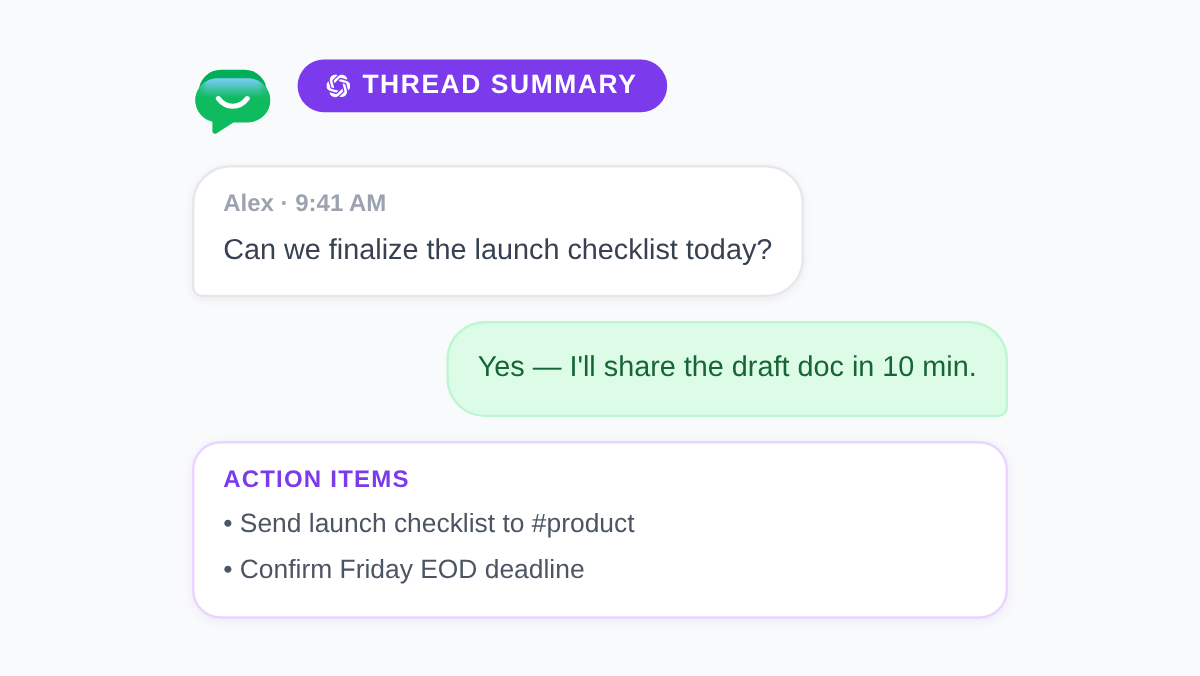
Important decisions hide inside Google Chat threads every day. Someone asks for a deadline in message forty-seven. Three people agree on scope in a side conversation you missed. By Friday the room is quiet and nobody wrote down what changed. ChatGPT for Google Chat closes that gap when you pair thread capture with AI cleanup in the Google apps where finished work already lives.
This guide shows how to use GPT Workspace, a Chrome extension and Google Workspace Add-on that puts ChatGPT, Claude, and Gemini directly inside Google Docs, Sheets, Slides, and Gmail. You will paste Chat transcripts into Docs, summarize long rooms, extract action items, and draft replies before you post back. No tab switching. No copy-pasting into a separate chat window.
Key takeaways
- Google Chat is fast for coordination. Docs plus GPT Workspace is where threads become records people can search later.
- A five-minute summarize prompt turns fifty messages into decisions, owners, and open questions.
- Draft replies in Docs first when tone, legal review, or async clarity matters.
- Gemini inside Chat helps on qualifying Workspace plans. GPT Workspace adds model choice and deeper editing in Docs and Gmail.
- Save your best Chat cleanup prompts in the GPT Workspace library so every project room uses the same format.
Why Google Chat Threads Need an AI Layer
Google Chat excels at real-time coordination. Spaces stay open. Threads branch. Reactions replace full sentences. That speed is exactly why context disappears: the record of what was decided lives inside scrollback, not in a doc your team can link from Calendar or Drive.
Three friction points show up in almost every team:
- Scrollback is not a summary. New members join a room and read two hundred messages to learn what the team already agreed on.
- Action items stay implicit. Someone says “I’ll handle the vendor call” in a thread. Nobody adds it to Tasks or a project doc.
- Tone is harder async. A quick reply in Chat can read sharper than you intended. Editing in place is limited compared to Docs.
An ai google chat workflow does not replace Chat. It makes the processing step fast enough that you actually do it. Capture the thread in Docs, run GPT Workspace prompts, then post a short summary back to the room or file the doc in Drive. If you already clean up meeting notes the same way, see AI meeting notes in Google Docs for a parallel pattern.
How ChatGPT Fits Your Google Chat Workflow



GPT Workspace does not render inside the Google Chat UI today. That distinction matters. Google’s Gemini can answer questions and summarize some Chat context on qualifying Workspace plans. GPT Workspace wins on model choice, saved prompt libraries, and depth inside Docs and Gmail where you turn threads into shareable output.
The practical chatgpt google chat pattern looks like this:
- Copy the relevant thread or space excerpt from Google Chat.
- Paste it into a Google Doc with a header: room name, date range, and attendees if known.
- Run GPT Workspace prompts to produce a summary, decision log, or reply draft.
- Post a short summary back to Chat or link the doc in the space description.
Install once using the GPT Workspace installation guide. For turning extracted tasks into your task list, pair this loop with ChatGPT for Google Tasks.
Step 1: Capture and Summarize a Google Chat Thread
Speed beats polish when you export a thread. Select the messages that matter, copy them into a Doc, and add a one-line context note at the top (#launch-room, Sprint 14 scope discussion). You do not need every reaction emoji. You need the sentences where someone committed to a date or changed a requirement.
Open GPT Workspace in Docs and run a google chat ai assistant style prompt:
“Read the Chat transcript below. Produce a one-page summary with these sections: (1) Decisions made, (2) Open questions, (3) Action items with owner and due date if mentioned, (4) Links or doc names referenced. Use bullet points. Do not invent facts not present in the transcript.”
Review the output for two minutes. Fix names the model guessed wrong. Merge duplicate action items. Save the prompt as Chat Thread Summary in your GPT Workspace library so every project room gets the same structure.
For rooms with daily activity, run this prompt once per week instead of after every message. The goal is a searchable record, not a transcript archive.
Step 2: Extract Decisions and Action Items
Summaries are useful. Accountability requires a second pass focused on tasks. Highlight the summary section or paste the raw thread again, then run:
“From this Chat transcript, list only action items. For each row output: Owner (name or role), Task title starting with a verb, Due date if stated, and one sentence of context. Flag any item where ownership is unclear with [NEEDS OWNER]. Format as a table.”
Copy finished rows into Google Tasks or your project tracker. The same table format works in automating Google Workspace tasks with AI when you batch several rooms on Monday morning.
For leadership updates, add a third prompt that compresses the decision log into three bullets suitable for email or a space announcement. That keeps Chat lightweight while stakeholders who missed the thread still get the gist.
Step 3: Draft Replies Before You Post in Chat
Some replies should not be typed in real time. Vendor negotiations, HR-sensitive answers, and cross-team scope changes benefit from a draft you can read twice before sending.
Paste the message you are replying to at the top of a Doc. Below it, write one sentence about your intent (Confirm timeline but push back on scope creep). Open GPT Workspace and run:
“Draft a reply to the message above for Google Chat. Tone: professional and direct. Max 4 sentences. Confirm what we can deliver by [date]. Ask one clarifying question about [topic]. Do not apologize unless I made an error.”
Edit the draft in Docs. Copy the final version into Chat. For customer-facing rooms, add: “Avoid internal jargon and do not mention competitor names.”
When you handle many similar threads, save tone variants in your prompt library: Chat Reply Direct, Chat Reply Supportive, Chat Reply Executive Brief. More prompt patterns live in 50 best ChatGPT prompts for Google Workspace.
Gemini in Google Chat vs GPT Workspace

Google ships Gemini features inside Chat and other Workspace apps on eligible plans. Those tools help when you want a quick summary without leaving the room. GPT Workspace fits a different job: building durable records, choosing between ChatGPT, Claude, and Gemini, and editing longer output in Docs before anyone else sees it.
Many teams use both. Gemini for a fast “what did I miss?” nudge in Chat. GPT Workspace for weekly decision logs, client-safe reply drafts, and task tables you file in Drive. For a full feature comparison, read GPT Workspace vs Gemini.
Prompt Templates for Common Google Chat Scenarios
Project room weekly recap
“Summarize this week’s messages in #[room name]. Output: wins, blockers, decisions, and next week’s focus. Max 250 words. Write in past tense suitable for a Friday update post.”
Incident or outage thread
“Extract timeline events from this Chat log with timestamps if present. Separate facts from speculation. List: what broke, what was tried, current status, customer impact, and open follow-ups.”
Onboarding a new teammate
“From this thread history, write a newcomer brief: project goal, key people and roles, current milestone, and where to find linked docs. Assume the reader has never seen this room before.”
Async standup replacement
“Convert these Chat updates into a standup table: Name, Yesterday, Today, Blockers. Merge duplicate updates from the same person.”
Save each template in GPT Workspace so operators, support leads, and PMs pull the same structure without rewriting instructions.
What Changes When You Process Chat in Docs
Teams that adopt this loop report three shifts:
- Fewer repeated questions. Decisions live in a linked doc instead of buried scrollback.
- Clearer ownership. Action items reach Tasks the same day instead of fading when the thread moves on.
- Safer async tone. Drafts get a second read before they hit a customer-facing space.
The goal is not to document every emoji reaction. It is to make the ten percent of Chat messages that change plans visible to people who were not online when they happened.
FAQ
Conclusion
ChatGPT for Google Chat works best as a processing layer, not a replacement for real-time rooms. Chat stays fast for coordination. Docs plus GPT Workspace turns the messages that matter into summaries, task lists, and reply drafts your team can find next month.
Install GPT Workspace once, save your thread summary and action-item prompts, and post a one-paragraph recap back to your busiest space this week. Your Chat history should hold the conversation. Your Docs should hold what you actually decided.