ChatGPT in Google Sheets Formulas: Write and Fix Formulas with AI
Learn how to use ChatGPT in Google Sheets formulas with GPT Workspace. Generate SUMIF, VLOOKUP, and QUERY formulas from plain English, debug errors, and compare AI options.

You know the outcome you want from a spreadsheet. You do not always know the syntax to get there. ChatGPT in Google Sheets formulas closes that gap: you describe the calculation in plain English, and AI returns a working formula you can paste into a cell, test, and reuse.
This guide focuses on formula work specifically. Not pivot tables, not chart styling, not mail merge. If you live in Sheets and spend time on SUMIF chains, lookup tables, or QUERY strings, the workflows below will save you hours. Everything runs through GPT Workspace, a Chrome extension and Google Workspace Add-on that puts ChatGPT, Claude, and Gemini directly inside Google Sheets, Docs, Slides, and Gmail.
For broader Sheets AI tasks like data cleaning and report summaries, see our guide to using AI in Google Sheets. This post goes deeper on the formula layer.
Can You Use Formulas in Google Sheets?
Yes. Google Sheets has supported cell formulas since launch. Every formula starts with an equal sign (=), followed by a function name and arguments in parentheses. Google’s official function list documents hundreds of functions from SUM and AVERAGE to QUERY, ARRAYFORMULA, and LAMBDA.
The hard part is not whether formulas exist. It is knowing which function fits your data layout, how to reference the right columns, and what to do when the cell shows #REF! or #N/A.
That is where AI helps. Instead of searching syntax docs, you describe the logic:
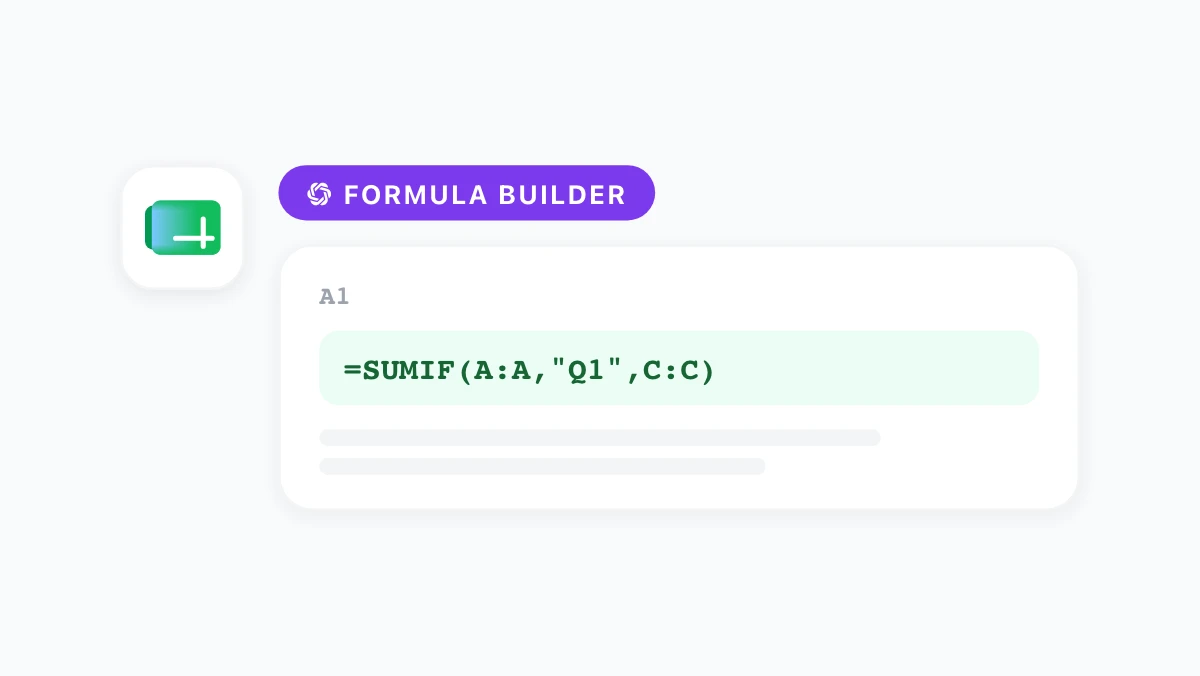
- “Sum column C where column A equals Q1 and column B is not empty.”
- “Look up the price in column D using the product ID in A2 against the table on Sheet2.”
- “Count how many rows in B2:B500 contain the word pending, case-insensitive.”
Modern AI assistants inside Sheets (Gemini, OpenAI’s ChatGPT add-on, and GPT Workspace) can translate those descriptions into valid formula strings. You still review the output before trusting it on production data. The speed gain comes from skipping the syntax hunt.
Three Ways to Get AI Help with Google Sheets Formulas
You have three practical options in 2026. Each has trade-offs.
1. Gemini in Google Sheets (built-in)
If your organization has Gemini for Workspace enabled, open the Ask Gemini sidebar in Sheets. Google documents formula generation in its Gemini for Sheets help page: describe what you need, review the suggestion, click Insert to place it in your selected cell.
Gemini is convenient because it is already there. It handles standard formulas well. For complex multi-tab logic or nested conditionals, results can be hit-or-miss depending on your data layout.
2. OpenAI’s ChatGPT add-on for Google Sheets
OpenAI released a native ChatGPT add-on for Google Sheets in 2026. Install it from the Google Workspace Marketplace, open the sidebar via Extensions → ChatGPT, and sign in with your OpenAI account. The sidebar reads your sheet context and can generate, explain, and fix formulas from natural language prompts.
OpenAI recommends reviewing all formula output and duplicating important files before letting AI edit cells. Some advanced spreadsheet features are still rolling out.
3. GPT Workspace (recommended for model choice)
GPT Workspace runs as a Chrome extension and Google Workspace Add-on across Docs, Sheets, Slides, and Gmail. In Sheets, open the sidebar via Extensions → GPT for Sheets, Docs, Slides, Forms and pick your model (GPT-4o, Claude, Gemini, and others).
The advantage over a single-vendor sidebar is flexibility. Need fast formula generation? Use GPT-4o. Need careful reasoning on a nested INDEX/MATCH? Switch to a reasoning model. Save your best formula prompts in the library and reuse them across spreadsheets.
How to Write ChatGPT Google Sheets Formulas with GPT Workspace


Follow this workflow every time you need a new formula:
- Click the target cell where the formula should live.
- Open GPT Workspace from Extensions or the Chrome toolbar.
- Describe the calculation with column letters, sheet names, and edge cases. Vague prompts produce vague formulas.
- Review the output in the sidebar. Ask the AI to explain any function you do not recognize.
- Click Insert to place the formula in the selected cell.
- Test on 3–5 rows before dragging the fill handle down a large range.
Install once using the GPT Workspace installation guide. No API key is required to start on the free tier.
What to include in a formula prompt
Strong prompts share four details:
- Column references: “Sum values in column C where column A is East.”
- Sheet references: “Look up against the table in Sheet2! A:B.”
- Edge cases: “Return blank if the lookup value is missing, not an error.”
- Output format: “Return a percentage with two decimal places.”
Weak prompt: “Make a sum formula.” Strong prompt: “Write a SUMIFS formula in D2 that adds column C where column A equals the value in F2 and column B is not blank. Return 0 if no rows match.”
ChatGPT for Google Sheets Formula Examples That Work
SUMIF
"Sum C where A = Q1..."
VLOOKUP
"Find price by product ID..."
QUERY
"Top 10 rows by revenue..."
ARRAY
"Apply 15% discount to col E..."
Copy these prompt templates into GPT Workspace and adjust column letters to match your sheet.
Conditional sums (SUMIF / SUMIFS)
“Write a SUMIFS formula that adds column D where column A equals the value in G2, column B is between the dates in H2 and I2, and column C is not ‘Cancelled’.”
Lookups (VLOOKUP, XLOOKUP, INDEX/MATCH)
“Create an INDEX/MATCH formula in E2 that looks up A2 in Sheet2 column B and returns the matching value from column D. Wrap in IFERROR to show ‘Not found’ instead of an error.”
Filtering and ranking (QUERY, FILTER, SORT)
“Write a QUERY formula over A1:F that returns the top 10 rows sorted by column F descending, including headers.”
Array formulas (ARRAYFORMULA)
“Generate an ARRAYFORMULA for column G that applies a 15% discount to every value in E2:E, leaving G1 as the header row.”
Text and date logic
“Write a formula that extracts the domain from an email address in A2 (everything after the @ sign).”
“Calculate business days between the dates in B2 and C2, excluding weekends.”
For more cross-app prompt ideas, browse 50 best ChatGPT prompts for Google Workspace.
How to Fix Broken Formulas with ChatGPT
#REF!
=VLOOKUP(A2, Sheet2! A:C, 4)
42.50
=VLOOKUP(A2, Sheet2! A:C, 3)
Debugging is often faster than writing from scratch. When a cell shows an error:
- Select the cell with the broken formula.
- Open GPT Workspace and paste: “This formula returns #REF!. Here is the formula: [paste]. My data is in columns A through F on Sheet1, and the lookup table is on Sheet2. Fix the formula and explain what was wrong.”
- Apply the corrected version and re-test.
Common fixes AI catches quickly:
- Wrong column index in VLOOKUP (counting from 1 in the range, not the sheet).
- Missing $ anchors in ranges that should stay fixed when copied down.
- Text vs number mismatches in lookup keys (extra spaces, different date formats).
- ARRAYFORMULA applied to a range that already has data in the spill area.
If the AI fix still fails, describe what you expected vs what you got. One follow-up prompt usually resolves edge cases.
ChatGPT vs Gemini for Spreadsheet Formulas
Both tools generate formulas from plain English. The differences show up on harder logic.
Gemini ships inside Google Sheets and understands Google’s native functions (QUERY, IMPORTRANGE, ARRAYFORMULA) with strong context from your open spreadsheet. For standard tasks and quick formula help, it is the zero-setup option.
GPT Workspace gives you access to multiple models and tends to handle nested multi-condition logic more reliably in our testing. If you already use AI in Docs for writing, the same sidebar and prompt library work in Sheets without learning a new interface.
For a full comparison across Docs, Gmail, and Sheets, read GPT Workspace vs Gemini. Many teams use Gemini for quick in-app help and GPT Workspace when formula accuracy matters.
When to Write Formulas Manually
AI is not always the fastest path. Write formulas yourself when:
- The logic is a simple
=SUM(A1:A10)or=A2*B2. - You need a formula audited for compliance and want full control over every character.
- You are building a template others will maintain for years (documented manual formulas age better than AI-generated ones nobody understands).
Use AI when the logic is clear in your head but the syntax is not, when you inherited a broken spreadsheet, or when you need a QUERY or ARRAYFORMULA string you would otherwise spend 20 minutes assembling from Stack Overflow threads.
FAQ
Start Using ChatGPT in Google Sheets Formulas Today
You do not need to memorize every function in Google’s documentation. You need a clear description of what the spreadsheet should calculate and a tool that turns that description into syntax.
ChatGPT in Google Sheets formulas works best when you name your columns, state your edge cases, and verify the output on real data. GPT Workspace puts that workflow inside the spreadsheet you already use, with model choice and saved prompts that generic copy-paste workflows cannot match.
Install GPT Workspace from the Chrome Web Store, open any Google Sheet, and try one formula prompt from this guide. For Docs workflows on the same extension, see how to use ChatGPT in Google Docs. Full product details live at gpt.space/docs.