Gemini in Google Slides Now Edits Entire Decks: Limits and Setup
Gemini in Google Slides now edits an entire deck from one prompt. See the steps, eligible plans, the English-only limit, and where GPT Workspace still fits in.

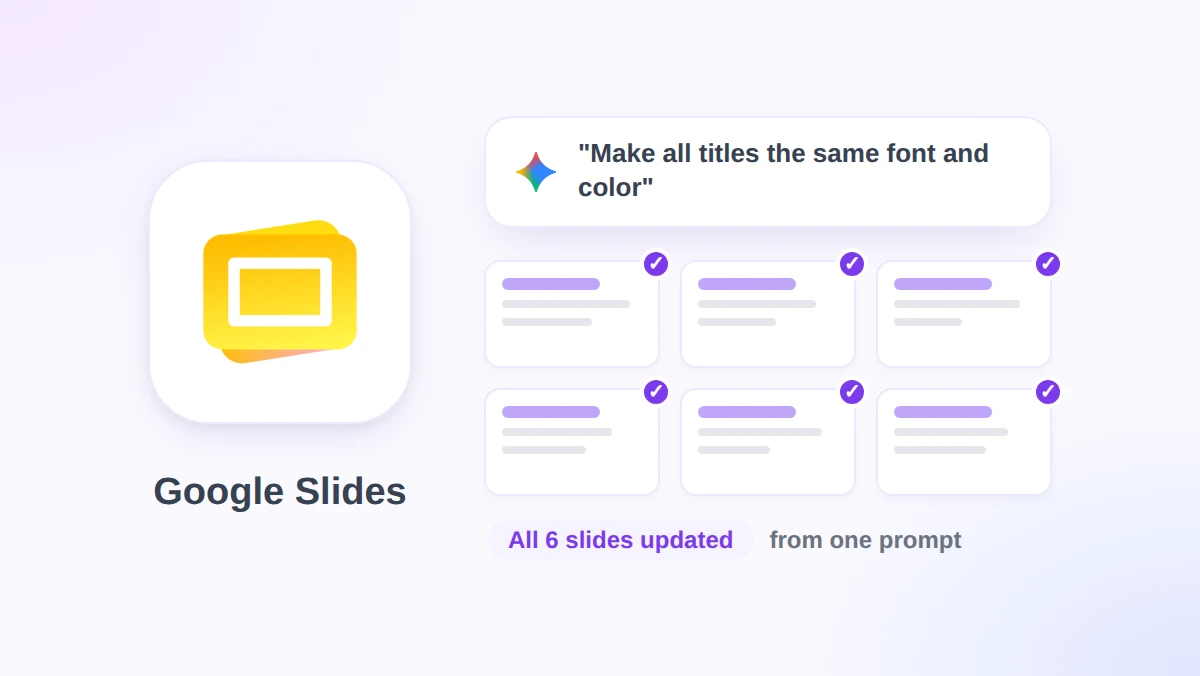
You inherit a 40-slide deck with three fonts, two shades of blue, and page numbers on half the slides. Until last week, Gemini in Google Slides could only fix that one slide at a time.
On October 30, 2026, Google announced that Gemini in the Slides side panel can now edit multiple slides or an entire presentation from a single prompt. Restyle the whole deck, condense slides 5 to 7 into one, or make every title the same size, and Gemini decides which slides to touch.
This guide covers what the feature does, the exact steps to run a whole-deck edit, who gets it and when, and the limits Google lists in the announcement. We also look at where GPT Workspace, a Chrome extension and Google Workspace Add-on that brings ChatGPT, Claude, and Gemini into Slides, Docs, Sheets, and Gmail, handles the cases Gemini’s new editor leaves out.
What Gemini in Google Slides Can Now Do Across a Whole Deck
Before this update, the side panel generated one slide at a time, or built a brand new deck from scratch. Editing an existing presentation meant repeating the same prompt on each slide.
Google’s Workspace Updates announcement describes four kinds of bulk edit. The wording below follows Google’s own examples.
Refresh visual styles. Update fonts, backgrounds, and color schemes across the entire deck. Google’s example prompt is “Update this whole deck to match the style of this [reference file].”
Update content throughout the deck. Simplify, expand, or change the focus of the presentation, grounded in files from your Google Drive. The example is “Update this presentation to include more details based on [reference file].”
Combine or expand slides. Condense several slides into one or add new slides to an existing deck, as in “Summarize slides 5 to 7 into a single slide.”
Make styling consistent. Align title styles or remove page numbers everywhere, for example “Make the titles on all slides the same font size and color.”
Two details matter more than the examples. Gemini “determines which slides need to change,” so you do not select slides first, and the edits land on native, editable slides rather than on a locked image or a copy of the file.
When it finishes, a summary of the changes appears in the side panel. Google says the edits are applied “as if you made them,” which means undo and version history both work on the result.
How to Edit an Entire Presentation From the Slides Side Panel
The steps come from Google’s Help Center page for the beta, which covers both multi-slide generation and multi-slide editing. The whole thing takes four clicks and one sentence.
Step 1: Open the deck on a computer
Open the presentation in Google Slides in a desktop browser. The help page states the feature is “currently available on desktop and in English only,” so the mobile apps are out for now.
Step 2: Click Ask Gemini
At the top right of the Slides toolbar, click Ask Gemini. The side panel opens on the right, in the same place you would normally generate a single slide or ask for a summary.
Step 3: Describe the edit, then click Submit
Type the change you want across specific slides or the whole deck, then click Submit. Google’s help page gives three examples: “Change bullet points across slides 2 and 4 into concise summaries,” “Adjust the tone of all slides to be more formal,” and “Make all the titles font size 30.”
Name the slide numbers when you can. A prompt that says “slides 2 and 4” gives Gemini less room to guess than “the early slides.”
Step 4: Read the summary and check the slides
Scroll through the deck after the summary appears. Gemini chooses the slides to change, so a tone rewrite can reach a slide you considered finished.
If something went too far, press Ctrl+Z (Cmd+Z on a Mac) or open File, Version history, and restore the version from before the prompt. Both work because the edits are recorded as normal edits.
Who Gets Whole-Deck Editing: Plans, Rollout Dates, and Limits
The announcement lists four groups. On the Workspace side, Business Standard and Plus and Enterprise Standard and Plus are included, along with the Google AI Pro for Education add-on.
Consumers need Google AI Pro or Ultra. Business Starter, Enterprise Starter, and free personal accounts are not on the list, although the help page notes that personal accounts can try it through Google Workspace Experiments, a trusted tester program.
Rollout is slow by Google standards. An extended rollout, which Google says may take longer than 15 days for feature visibility, started on October 29, 2026 for both Rapid Release and Scheduled Release domains.
There is also a usage limit coming. Through at least December 1, 2026, Workspace customers get promotional access to higher limits for multi-slide work with Gemini in Slides, and a notification tells users they are inside this promotional window.
After that date, per-user usage limits apply. Google has not published the numbers yet and says it will update the Help Center before they take effect, so schedule your heaviest deck cleanups for November.
Admins get nothing to switch. Google’s wording is direct: “There is no admin control for this feature,” so it follows your existing Gemini settings rather than a new toggle.
The English-Only Catch and Other Gaps
The biggest limit is language. The announcement states that “at launch, this feature will be supported in English only,” and the help page repeats it.
That is a step back from the rest of the side panel. Google’s supported languages page lists Gemini in the Slides side panel in 29 languages, but the moment you ask it to restyle a French or German deck, the request falls outside the supported set.
Desktop only is the second gap. Reviewing a deck on a phone is common, and fixing it with Gemini on a phone is not possible yet.
The feature is also labeled a beta. Google’s help page adds that Gemini “may not be able to support every request,” which in practice means a polite refusal on layout changes it cannot map to a style rule.
Whole-deck editing builds on the full-deck generation Google introduced earlier in 2026, which was also English only at launch and also came with a promotional limit period. Expect this one to follow the same path: wider limits first, firm per-user caps later.
The edit is only as good as the review. Gemini picks the slides, so a consistent title style can arrive with a rewritten subtitle you did not ask for, and version history is your safety net.
 Try GPT Workspace
Use ChatGPT, Claude, and Gemini directly inside Google Docs, Sheets, Slides, Gmail, and Drive. No tab switching.
Get Started FreeGemini vs GPT Workspace for Deck Edits in Slides
Both tools sit in a sidebar inside Slides, and both can change many slides at once. The differences are about who can use them, in which language, and with which model.
Plan requirement. Gemini’s whole-deck edits need Business Standard or higher, or a Google AI Pro or Ultra subscription. GPT Workspace installs from the Chrome Web Store on any Google account, including Business Starter and free Gmail accounts, with a free tier and paid plans for heavier use.
Language. Gemini’s bulk editor is English only at launch. GPT Workspace takes prompts and rewrites slide text in more than 30 languages, so a Spanish sales deck gets the same treatment as an English one.
Model choice. Gemini runs Gemini. GPT Workspace lets you pick ChatGPT, Claude, or Gemini per prompt, and our Claude vs GPT-4o vs Gemini comparison shows where each one is strongest for slide copy.
Scope of edits. GPT Workspace’s Slides agent generates layouts, updates slide styles, builds decks, and edits presentation content. A prompt such as “increase font sizes across all slides and add speaker notes to each slide” runs as one job, and speaker notes are something Gemini’s announcement does not mention.
Where Gemini wins. It is already there with no install, it grounds edits in Drive files by reference, and it can match the style of another deck in your Drive with one line. If your whole company is on Business Standard and works in English, that is hard to beat.
The honest setup is both. Use Gemini for the style sweep on an English deck, then open GPT Workspace for the slides that need better words, notes for the presenter, or a translated version.
Our longer GPT Workspace vs Gemini guide covers the same trade-off across Docs, Sheets, and Gmail.
Six Whole-Deck Prompts Worth Saving
Good bulk prompts name the slides, the change, and the limit of the change. These six cover the cleanups we see most often, and they work in either sidebar unless noted.
- “Make the titles on all slides the same font size and color, and remove page numbers.” A pure styling pass, straight from Google’s examples.
- “Summarize slides 5 to 7 into a single slide with three bullet points.” Condense a section without losing the point.
- “Adjust the tone of all slides to be more formal, but keep every number unchanged.” The second clause stops the model from rounding your data.
- “Update this presentation to include more details based on the Q3 report in Drive.” Reference grounding, which Gemini handles with an attached file.
- “Add speaker notes to each slide with two talking points and a timing cue.” A GPT Workspace prompt, since notes are outside Gemini’s listed edits.
- “Translate the text on every slide into Spanish and keep the layout.” Also GPT Workspace, until Gemini’s bulk editor moves past English only.
For a full walkthrough of building a deck from an outline, our guide on AI-powered Google Slides presentations covers structure, content, and notes step by step.
Frequently Asked Questions
Conclusion
Gemini in Google Slides finally does the tedious part of deck maintenance: one prompt, every slide, and a summary of what changed. It is English only, desktop only, limited to Standard plans and above, and capped by usage limits after December 1, 2026, but inside those lines it saves real time.
For everything outside those lines, from Spanish decks to speaker notes to a second opinion from Claude, GPT Workspace works in the same Slides tab on any Google account. Install it, open a deck, and run the two tools side by side on your next cleanup.