Gmail AI Inbox for Workspace: Setup, Limits, and What It Skips
Gmail AI Inbox reached paid Workspace plans on October 15, 2026. See what it surfaces, how to turn it on or off, who gets it, and where GPT Workspace fits in.

Monday morning, 140 unread emails, and three of them contain a deadline you have not seen yet. Gmail AI Inbox is Google’s attempt to find those three for you before you start scrolling.
Google began rolling it out to paid Workspace plans on October 15, 2026. It adds a new view to the left panel of Gmail with two sections: suggested to-dos and topics to catch up on. It is US and English only for now, and there is no admin switch.
This guide covers what AI Inbox shows, the exact clicks to turn it on or off, which plans get it and when, and where it stops. We also show how GPT Workspace, a Chrome extension and Google Workspace Add-on that puts ChatGPT, Claude, and Gemini inside Gmail, Docs, Sheets, and Slides, handles the replies that AI Inbox leaves on your plate. If you read our Gmail Live guide, this is the desktop half of the same push.
What Gmail AI Inbox Shows You
AI Inbox is not a new sorting of your mail. It is a separate page that reads your Primary tab and writes a short briefing from it.
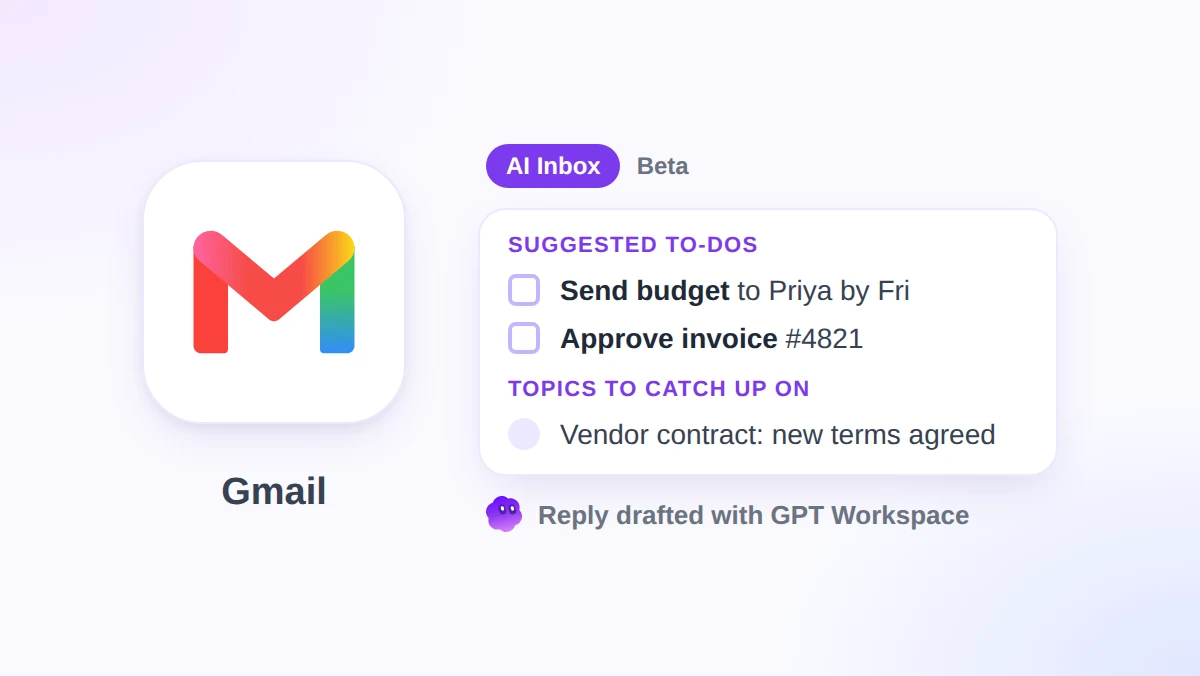
Google’s Workspace Updates post names two core capabilities. Suggested to-dos “automatically extracts action items, deliverables, and deadlines embedded within email conversations.” Topics to catch up on “delivers clear, context-rich summaries of your most important topics, across multi-message threads and rapid back-and-forth discussions.”
In practice, a to-do looks like one line with the action in bold, such as a payment due date or a document someone is waiting on. Each item links back to the email it came from, with View or Reply buttons next to it.
Topics are longer. They stitch together a vendor thread, a planning discussion, or a travel booking into a few sentences, so you can catch the latest decision without opening twelve messages.
Google’s help page labels the feature as “currently in beta and may change over time.” Treat the layout and the wording as moving targets.
How to Turn Gmail AI Inbox On or Off
There is no install. If your account is eligible, the only setup is two checkboxes and a little patience. The steps below follow Google’s AI Inbox help article.
Step 1: Switch on smart features
Open Gmail on a computer, click the gear icon, and choose See all settings. On the General tab, turn on both “Smart features in Google Workspace” and “Smart features in other Google products.”
Both are required. If either is off, AI Inbox never appears, no matter what your plan is.
Step 2: Show AI Inbox
Still in settings, click the Inbox tab at the top. Check the box next to “Show AI Inbox” and save your changes.
Step 3: Open it and wait
Back in your mailbox, click AI Inbox in the left panel. Click Refresh at the top to pull the latest items.
Do not panic if it is empty. Google says it can take a few hours after smart features go on, and your first to-dos and topics “may take up to 7 days to appear.” It also stays empty if you have not sent or received much mail recently.
To hide it again
Go back to Settings, See all settings, Inbox, and uncheck “Show AI Inbox.” That removes the view from the left panel.
Hiding is a display setting. If you want Gmail to stop generating smart suggestions altogether, the lever is the smart features toggles on the General tab, which also turns off other features that depend on them.
Who Gets AI Inbox (Editions, Region, Rollout Dates)
Per the Workspace Updates post, the rollout covers Business Starter, Standard, and Plus, Enterprise Starter, Standard, and Plus, AI Pro for Education, and Frontline Plus. Personal accounts on Google AI Plus, Pro, or Ultra already had it.
The regional limit is strict. Google writes that the feature “is currently only available to users in the US with EN-US as their language.” Switch your account language to English (UK) and it disappears.
Timing depends on your release track. Rapid Release domains started a gradual rollout on October 12, 2026. Scheduled Release domains start on October 26, 2026, and both tracks allow up to 15 days for visibility.
One line deserves a second read. The same post says AI Inbox “will rollout later to Starter and Education editions in the coming months,” even though Starter appears in the availability list. If you are on a Starter plan and see nothing by mid-November, that sentence is probably why.
AI Inbox Admin Controls (There Are None)
Most Gemini features in Workspace come with an Admin console switch. This one does not.
Google’s wording is short: “Admins: There is no admin control for this feature.” Eligible users can open AI Inbox from the Gmail desktop client or the mobile app menu on their own.
That matters for regulated teams. The only levers are per user: the “Show AI Inbox” checkbox, and the two smart features toggles that AI Inbox depends on. Turning those off is a blunt tool, because it also disables other smart features your staff may rely on.
If your organization reviews AI features before staff use them, write a one-paragraph internal note now. Explain what AI Inbox reads, that it stays inside Gmail, and how to hide it.
 Try GPT Workspace
Use ChatGPT, Claude, and Gemini directly inside Google Docs, Sheets, Slides, Gmail, and Drive. No tab switching.
Get Started FreeWhat AI Inbox Does Not Do
The exclusions are longer than the feature list, and they explain most “it missed my email” complaints.
AI Inbox only reads the Primary tab. Anything Gmail files under Social, Promotions, Updates, or Forums is invisible to it, which is a problem if your tracking numbers and invoices land in Updates.
It also filters out spam and any message you archive, delete, mute, or snooze. Snoozing a thread to deal with it on Friday means AI Inbox forgets it exists.
Three categories are not supported at all: attachments, delegated inboxes, and encrypted emails. A deadline buried in a PDF will not surface, and a shared support mailbox you access by delegation gets no briefing.
The biggest gap is the one Google does not list. AI Inbox tells you what to do. It does not do it. There is a Reply button, but nothing in the feature drafts the reply for you.
How AI Inbox Fits With Other Gemini Features in Gmail
Google now ships a stack of Gemini features in Gmail, and they overlap in confusing ways. Google’s Gemini features in Gmail table is the clearest map.
AI Inbox is proactive. It runs without a prompt and gives you a daily briefing on web, Android, and iOS, in English, in the US.
AI Overview conversation summaries are reactive. You open a long thread and get key points at the top. These work in eight languages, including French, German, Japanese, and Spanish, and are available globally.
Help me write, Suggested Replies, and Proofread cover composing. Proofread and Help me schedule are web only, and Help me schedule is limited to Workspace plans in English in the US.
Ask Gemini in Gmail, the side panel, is the only one that takes a free-form request, and Google lists it for eligible Workspace plans in 29 languages. So if you want to summarize, draft, and suggest responses in one place, that panel is the Google option, not AI Inbox.
The pattern is clear. The more a feature does for you, the more it is limited to US English. The further you are from that, the more you need a tool that works everywhere.
Gmail AI Inbox vs GPT Workspace: Triage vs Writing
These two tools sit at opposite ends of the same email. AI Inbox decides which messages deserve your attention. GPT Workspace helps you deal with them once you click.
Open a to-do, hit Reply, and you are in a blank compose box. That is where GPT Workspace starts. Open the sidebar, pick a model, and ask for a reply that confirms the Friday deadline and asks for the updated budget. It reads the thread for context and drafts in your tone.
Model choice is the second difference. AI Inbox runs on Gemini, full stop. GPT Workspace lets you pick ChatGPT, Claude, or Gemini per prompt, and our Claude vs GPT vs Gemini guide covers which one suits careful replies versus quick summaries.
Language is the third. AI Inbox needs EN-US. GPT Workspace drafts and translates in more than 30 languages, so a team in Madrid or Montreal gets the same help as one in Denver.
There is one thing AI Inbox does that GPT Workspace does not try to do. It watches your whole Primary tab every day without being asked. GPT Workspace waits for you to open a message and ask, which is the right model for writing and the wrong one for triage.
So the honest answer is not either-or. Let AI Inbox find the three emails that matter, then let GPT Workspace write the three replies. How to use ChatGPT for Gmail walks through the setup in five minutes.
Practical Tips for the First Week
Clean your Primary tab before you judge the feature. If newsletters and receipts live there, AI Inbox will summarize newsletters and receipts. Move them to Updates or Promotions and the to-dos get sharper.
Use Mark done aggressively. Completed to-dos clutter the view, and the feedback buttons (positive, negative, remove) teach the system what you consider a real task.
Check View all at the bottom of the page in a browser. Google notes that some to-dos and topics are generated but not shown on the main screen, and the hidden ones are often the quieter follow-ups.
Be careful with Mark all as read on topics. It also marks the underlying emails as read in your inbox, which can hide a message you still needed to open.
Pair each to-do with a saved prompt. A one-line prompt like “reply confirming receipt and ask for the revised date” turns a to-do into a sent email in under a minute. Our AI email prompts for Gmail collection has 30 you can copy.
Verify anything with money or dates against the source email. AI Inbox links to the original for a reason, and a summary that says “due Friday” is not the same as the invoice that says it.
Gmail AI Inbox FAQ
Conclusion
Gmail AI Inbox is a useful morning briefing for people whose real work hides in Primary tab threads. It is also narrow: US English, Primary tab only, no attachments, no admin switch, and a beta label on top.
Use it for the triage, then open the thread and let GPT Workspace write the reply. AI Inbox tells you what needs an answer. GPT Workspace gives you one in your voice, in your language, with the model you prefer.