Copy Worksheet in Excel
Copy worksheet in excel. Learn how to copy a worksheet in Excel fast, with formatting, formulas, and links intact. Step-by-step guide for Windows, Mac, and VBA.


You’re staring at a workbook with one good tab, three broken ones, and a deadline that doesn’t care how careful you are. You need a clean duplicate of a sheet, maybe in the same file, maybe in another workbook, and you don’t want to spend the next hour untangling formulas, charts, or a copy that accidentally turned into a move. That’s the core problem with a copy worksheet in Excel task: the click is easy, the consequences are what catch people.
Excel treats a worksheet as more than a grid of cells. Copy the tab and you’re also dealing with formulas, names, tables, chart sources, validation rules, formatting, and sometimes VBA behavior. Microsoft’s own docs make it clear that worksheet duplication is a core Excel workflow, both through the UI and through VBA automation, so the key skill is knowing what carries over and what you still need to check afterward. Microsoft’s worksheet move and copy guidance and the VBA copy reference are the baseline here.
Table of Contents
- Why Copying a Worksheet Is More Than a Click
- Copy a Worksheet Inside the Same Workbook
- Copy a Worksheet to Another Workbook or New File
- What Carries Over When You Copy
- Copying Worksheets With VBA
- When Copying Goes Wrong on Large Workbooks
- Quick Reference for Picking the Right Method
Why Copying a Worksheet Is More Than a Click
A worksheet copy looks simple until the new tab behaves differently from the original. That is the part people miss. Formulas may still point back to the source, chart ranges can stay tied to old data, and a sheet that seems identical can still break once you move it into a different workbook. A copy worksheet in Excel task is about more than duplicating cells, it is about copying the sheet’s structure without missing the dependencies around it.
Start with the structure, not the cells
Excel copies the sheet as a unit. Formulas carry their relative references, and formatting, named ranges, conditional formatting, data validation, print settings, and table formatting come along too. Microsoft’s official guidance on move or copy operations and the VBA Sheets.Copy method reference both point to the same behavior, Excel preserves the worksheet, not just the visible values.
That is where people get burned. Chart series, external links, pivot sources, and sheet-scoped names can still point to the original source or shift in ways you did not expect. If the worksheet feeds a report, inspect the formulas and every object tied to that tab before you trust the copy.
Practical rule: if the sheet drives a report, check the copy before you send it out.
Copy a Worksheet Inside the Same Workbook
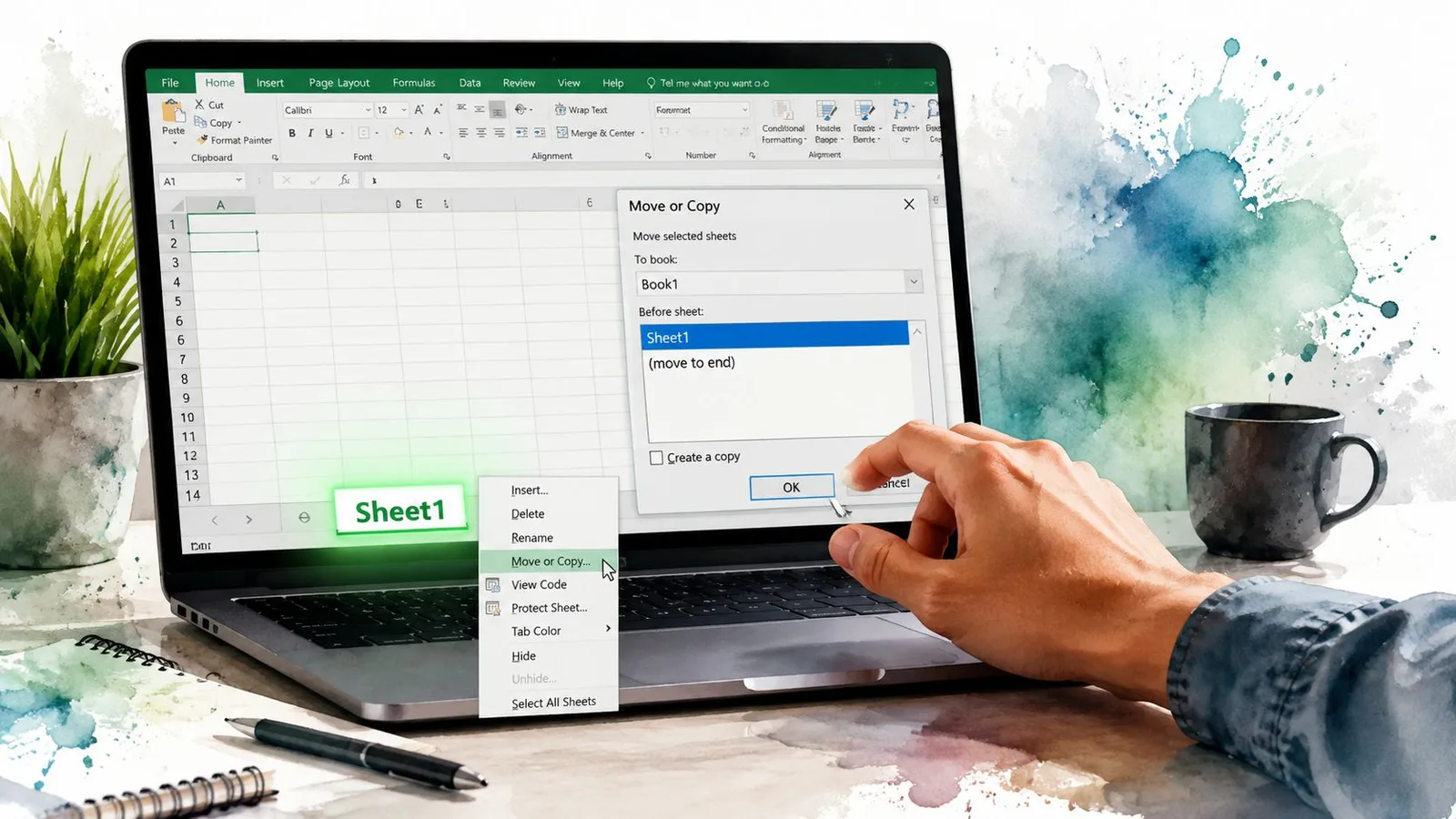
The safest way is still the boring way, because boring gives you control. Right-click the sheet tab, choose Move or Copy, check Create a copy, choose where it should sit, and confirm. That dialog matters because it makes the copy explicit instead of relying on a drag gesture that can become a move if you slip.
Use drag copying only when speed matters
Hold Ctrl and drag the sheet tab to duplicate it in place. On Mac, hold Option while dragging. That’s fast, but it’s also easy to get wrong if you release in the wrong order, so don’t use it when the sheet has to land in a precise spot or when you care about avoiding mistakes.
A simple habit keeps this clean. Drop the tab where you want it, then release the mouse button before you let go of Ctrl. If you need to rename right away, press F2 or double-click the tab name. If you just want a fresh blank sheet instead of a copy, Alt+Shift+F1 creates one immediately.
Use the dialog when placement matters
The dialog is better when the copy has to land next to a specific tab. You can choose the exact position with Before sheet, which is the part people skip and later regret. Microsoft documents both the Ctrl-drag path and the Move or Copy dialog, and the dialog is the one that gives you the confirmation step you want in a real workbook. Microsoft’s Excel support page is the authoritative reference.
If you do this often, stop treating drag-copy as the default. Use the dialog for anything that matters, because it’s the copy method that makes you pause and verify the destination before you commit. For broader spreadsheet workflows, GPT Workspace also sits inside Sheets for formula and data tasks, but Excel sheet duplication itself still comes down to this same control point.
Copy a Worksheet to Another Workbook or New File
Copying into another workbook is the same idea with one extra condition. The destination workbook has to be open first, or Excel won’t list it in the To book dropdown. That’s the bit people miss when they think the copy feature is broken.
Open the target workbook, then right-click the source tab and choose Move or Copy. In To book, pick the destination file, check Create a copy, then choose the placement. If you want a standalone file, choose (new book) and save it right away with Ctrl+S.
Make sure both files are in the same Excel instance
People get stuck. If the two workbooks are open in separate Excel processes, the dialog may not see the destination file. That happens more often than it should, especially when add-ins or different versions are involved. The practical fix is simple, open both files from the same Excel window, not from two disconnected instances.
Expect the destination workbook to influence the result
The copied sheet brings its own structure, but the destination workbook still has its own formatting defaults. That means theme colors and column widths can shift enough to make the result look slightly off. If visual consistency matters, do a quick cleanup after the copy instead of assuming the duplicate will match perfectly.
Open the destination first, or Excel will make the process harder than it needs to be.
What Carries Over When You Copy
A sheet copy is not a generic paste, and that’s the point. You want the worksheet as a unit, not a flattened block of values, so Excel preserves a lot of structure for you. The job is knowing what survives cleanly and what needs a manual check.
Use this checklist before you trust the duplicate
| Element | Same workbook | To another workbook | Notes |
|---|---|---|---|
| Formulas | Yes | Yes | Relative references usually stay aligned, so verify any formulas that point to other sheets. |
| Named ranges | Mostly | Mostly | Workbook-scoped names move more reliably than sheet-scoped names. |
| Conditional formatting | Yes | Yes | Usually carries over with the sheet structure. |
| Data validation | Yes | Yes | Check lists that point to other sheets or names. |
| Tables | Yes | Yes | Table structure stays, but linked references still need review. |
| Charts | Usually | Usually | Recheck the source range after copying. |
| Pivot tables | Usually | Usually | Refresh expectations can be off after a duplicate. |
| VBA worksheet code | No | No | Worksheet module code does not copy with the sheet. |
| External links | Not guaranteed | Not guaranteed | Verify formulas and workbook links manually. |
Don’t assume the copy is self-contained
The sheet can look complete and still point somewhere else. Formulas are the first thing to check, especially if they reach across sheets or into other workbooks. Sheet-scoped names are easy to miss for the same reason, they stay hidden until a copied formula starts returning the wrong result.
Objects and controls deserve the same review. Some come across intact, others need testing, and anything tied to VBA needs a separate pass. That includes chart sources, which can stay linked to the old range even after the sheet itself is copied.
If you build worksheets with merged layouts, review the structure before you reuse it. A quick check like this Google Sheets merge-cells guide is a reminder that copied structure is never identical across spreadsheet tools. For VBA-driven work, follow the Sheets.Copy method documentation on Microsoft Learn, then verify the sheet code and linked objects yourself.
Copying Worksheets With VBA
If you need to duplicate the same sheet over and over, stop clicking around and use VBA. Excel exposes the action directly through Worksheet.Copy and Sheets.Copy, and that matters because it preserves the worksheet itself instead of flattening it into pasted values. Microsoft also documents the behavior where omitting the destination creates a new workbook that contains the copied sheet. Worksheet.Copy is the reference to keep handy.
Use a simple pattern and name the result immediately
A basic approach looks like this:
Worksheets("Template").Copy After:=Worksheets(Worksheets.Count)
Then rename the new sheet right away. If you loop without renaming, you’ll trip over temporary names like Sheet1 (2) and create a mess you don’t need. For cross-workbook copies, open the destination file first with Workbooks.Open, then copy into that workbook’s Sheets collection.
Keep automation from firing unwanted events
If the workbook has Worksheet_Change code or other event handlers, they can run when the copy lands. That can make a simple duplication behave like a workflow change. Turn events off while the copy runs, then turn them back on afterward, and do the same with screen updating if you want the process to feel less jumpy.
A small, readable snippet is usually enough:
Dim ws As Worksheet
Set ws = Worksheets("Template").Copy(After:=Worksheets(Worksheets.Count))
ws.Name = "Report_" & Format(Now, "yyyymmdd")
That’s the right move when the task repeats, the workbook count grows, or the tab copy needs to be part of a larger automation chain.
When Copying Goes Wrong on Large Workbooks
Big sheets change the game. A copy that feels instant on a small tab can drag badly, freeze Excel, or recover into a damaged-looking file when the workbook is full of formulas, pivot tables, and dense formatting. Microsoft’s troubleshooting guidance makes the memory side of this problem plain, especially in older 32-bit environments, where Excel is limited by process memory and large formula copies can hit those limits quickly. Microsoft’s large-area formula copying guidance is the warning sign people ignore too often.
Watch for the obvious warning signs
If the status bar sits on Calculating for too long, you’re not in a normal copy anymore. Out-of-memory messages, slow network shares, and silent crashes that reopen into recovery mode are all signs that the workbook is too heavy for a casual duplicate. The bigger the formula density and the more dependent objects the sheet carries, the worse the experience gets.
Use the workaround that actually reduces risk
Set calculation to Manual before the copy, then switch it back after the duplicate is done. Save and close the workbook first if the file is already bloated with undo history, and don’t try to copy monster sheets during peak network use if the file lives on a share. If the sheet is huge, split it into smaller workbooks or export what you need and rebuild from there.
If the copy feels wrong, stop waiting and check the workbook state.
For teams cleaning up repeated workbook baggage before a copy, GPT Workspace offers spreadsheet-oriented help inside Google Sheets, but Excel’s hard limit is still the same, if the workbook is too heavy, the copy will suffer.
Quick Reference for Picking the Right Method
A worksheet copy looks simple until you care about what breaks. For a quick duplicate inside one workbook, use the right-click Move or Copy dialog. It forces you to confirm the copy and place it correctly. Use Ctrl+drag only when speed matters more than precision.
Pick based on the job, not the habit
- Inside one workbook: use Move or Copy when the tab has formulas, pivots, or reporting links that need to land in the right spot.
- Different workbook: open the destination first, then use Move or Copy with Create a copy checked.
- Many files or repeated runs: use VBA, because clicking through the same copy path is wasted time.
- Huge or fragile sheets: pause and rethink the workflow before you copy the whole thing.
Copying also changes references, chart sources, and code behavior in ways people miss. If the workbook is already heavy, full of formulas, or tied to pivots and model links, a copy can slow down badly or fail outright. Split the file, archive the old version, or rebuild the output in a smaller workbook instead of forcing Excel to carry more than it should.
If you’re cleaning up workbook templates, duplicating reporting tabs, or automating repetitive sheet copies, explore GPT Workspace for spreadsheet tasks alongside your day-to-day work in Google Sheets and related files.
Refined using the Outrank tool