How to Turn Off Gemini in Gmail (Now On by Default for Workspace)
Gemini in Gmail is now on by default for adult Workspace users. Learn how to turn off Gemini in Gmail on web and mobile, what you lose, and the admin switch.

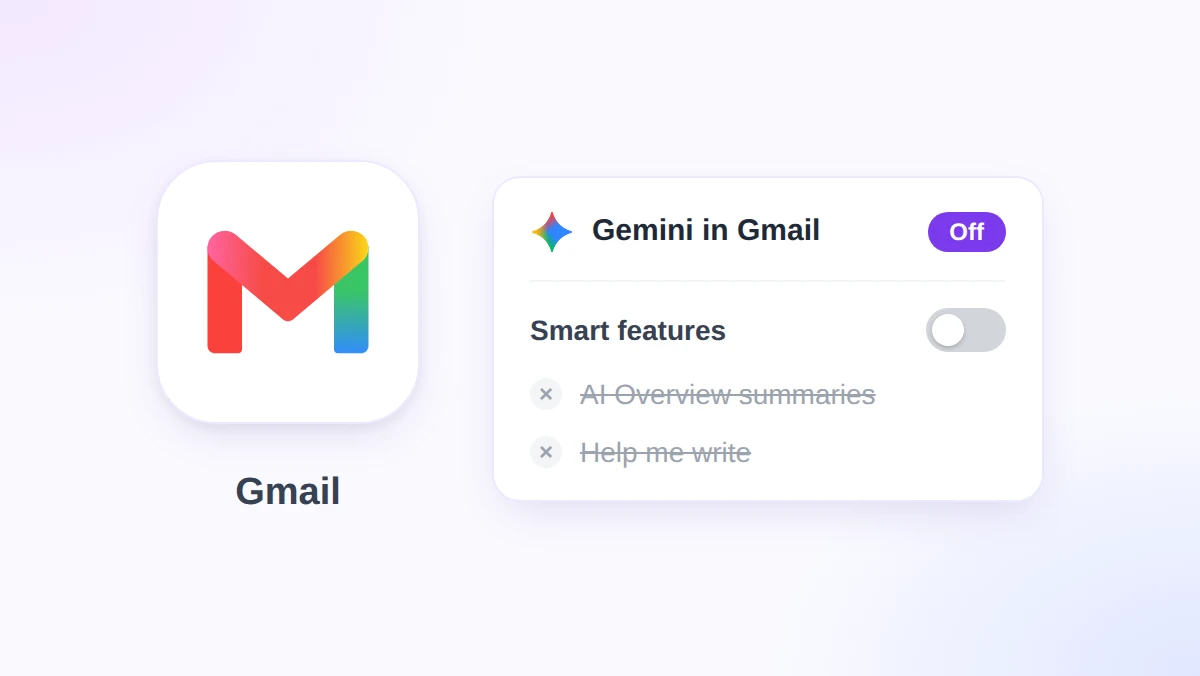
Long email threads in Gmail now open with an AI summary on top, and the compose window offers to write your reply for you. If you would rather turn off Gemini in Gmail, you can, but the switch sits a few clicks deep in settings and it is bundled with other features.
The short version: open Settings, click See all settings, stay on the General tab, click Manage Workspace smart feature settings, switch off Smart features in Google Workspace, and save. Google began switching these features on by default for every Workspace user aged 18 and older on November 10, 2026.
This guide covers the steps on a computer, Android, and iPhone, what each switch costs you, and the admin controls. It also shows where GPT Workspace, a Chrome extension and Google Workspace Add-on that puts ChatGPT, Claude, and Gemini inside Gmail, Docs, Sheets, and Slides, fits if you still want AI help on your own terms.
What Changed on November 10: Gemini in Gmail Is On by Default
Until this month, Gemini’s summary and drafting tools in Gmail were limited to consumer accounts and specific Workspace editions. Google’s Workspace Updates post of November 10, 2026 removes that line by “expanding availability to all Workspace users 18 years and older.”
Two features are in the rollout.
| Feature | What it does | Where you see it |
|---|---|---|
| AI Overview conversation summaries | Pulls the key points and replies of a long thread into a short summary | A card at the top of the thread |
| Help me write (non-personalized) | Drafts a new email or refines your text from a short prompt | The prompt bar at the bottom of the compose window |
Google also writes that “These features will be ON by default and can be disabled by the user.”
The rest of the announcement comes down to five facts:
- Accounts: all Google Workspace customers, Workspace Individual subscribers, and personal Google accounts.
- Age: users must be 18 or older.
- Condition: smart features in Gmail have to be enabled, which is also where the off switch lives.
- Timing: a gradual rollout on Rapid Release and Scheduled Release domains from November 10, 2026, with up to 15 days for the features to appear.
- Admins: they “can choose to disable Gemini features in Gmail.”
The label “non-personalized” matters. Google’s Help me write page describes a personalized mode that “proactively takes details from your other emails and Drive files,” while the version in this rollout works from the prompt you type.
Language coverage is narrow. Google’s Gemini features in Gmail table lists both features in eight languages (English, French, German, Italian, Japanese, Korean, Portuguese, and Spanish) and still shows Help me write as US only for personal accounts.
AI Inbox is a separate feature with its own checkbox. Our Gmail AI Inbox guide covers how to show or hide that one.
How to Turn Off Gemini in Gmail on a Computer
There is no button named Gemini in Gmail settings. Google files its AI under smart features, so that is where you switch it off.
The steps below follow Google’s smart features help page.
- Open settings. In Gmail, click the gear icon at the top right, then click See all settings.
- Stay on the General tab. Scroll down to two rows that sit together: “Smart features” and “Google Workspace smart features.”
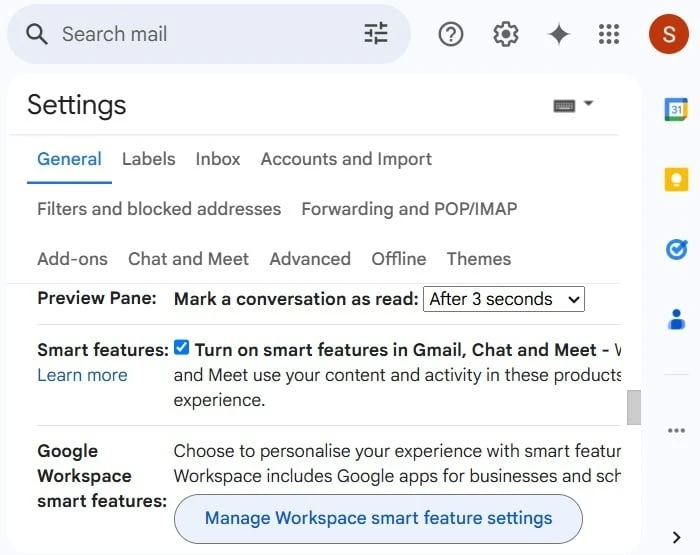
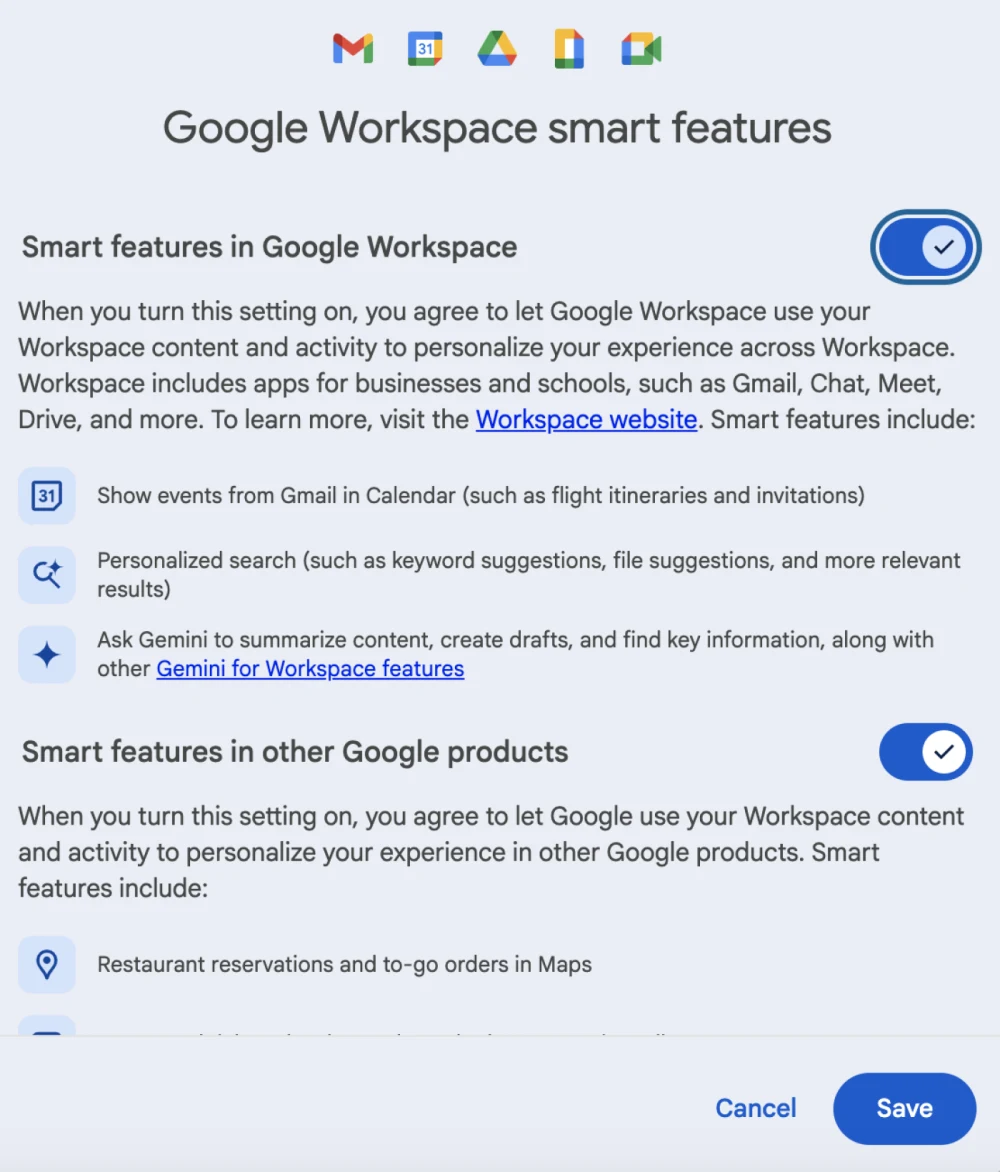
- Click Manage Workspace smart feature settings. A dialog opens with two switches.
- Switch off Smart features in Google Workspace. This is the switch that carries Gemini: Google’s own description of it includes “Ask Gemini to summarize content, create drafts, and find key information.”
- Click Save at the bottom right of the dialog.
- Optional: uncheck the Smart features box. Back on the General tab, clear “Turn on smart features in Gmail, Chat, and Meet” only if you also want Smart Compose, Smart Reply, and inbox categories gone.
Which Switch Does What
Gmail has three smart features switches, and they work independently of each other.
| Switch | Where it is | What it controls |
|---|---|---|
| Smart features in Gmail, Chat, and Meet | Checkbox on the General tab | Inbox categories, Smart Compose, Smart Reply, summary cards |
| Smart features in Google Workspace | Manage Workspace smart feature settings dialog | Gemini features across Workspace, Gmail events in Calendar, personalized search in Drive |
| Smart features in other Google products | Same dialog | Maps reservations, Wallet passes, and Personal Intelligence in the Gemini app and Search (personal accounts only) |
AI Overview summaries are the one place where two switches meet. Google’s AI Overview help page says they need the first two switches on at the same time, so turning off either one removes the summary card.
Outside the US, check before you start. Google says smart features are off by default in the European Economic Area, Japan, Switzerland, and the United Kingdom.
How to Turn Off Gemini in the Gmail App on Android and iPhone
Smart feature settings belong to your account, not to one device. Google states that changes “apply across all devices and apps where you’re signed in,” but it also warns that “Some changes made on your computer don’t reflect in the mobile app.”
If the summary card still shows on your phone, update the Gmail app and repeat the steps there.
Android
- Open Gmail settings. Tap Menu at the top left, then Settings.
- Select the account you want to change.
- Tap Google Workspace smart features under General.
- Uncheck Smart features in Google Workspace. Uncheck “Smart features in other Google products” too if you want that off.
- Optional: uncheck Smart features in the General section to drop Smart Compose and Smart Reply as well.
iPhone and iPad
- Open Gmail settings. Tap Menu at the top left, then Settings.
- Tap Data privacy under General.
- Tap Google Workspace smart features.
- Turn off Smart features in Google Workspace, then tap Done at the top right.
- Optional: turn off Smart features on the Data privacy screen.
What You Lose When You Turn Smart Features Off
Google does not offer a Gemini-only switch for individual users. Its AI Overview page says that turning off smart features “also disables other tools, such as AI-assisted writing and proofreading, across Gmail and other Workspace apps.”
The table in the computer section doubles as your loss list: whatever a switch controls stops working once it is off.
For most people, switching off only Smart features in Google Workspace is the right trade. It removes Gemini and leaves the older conveniences alone, because Google states that changes to that switch “don’t affect your existing control over the smart features in Gmail, Chat, and Meet setting.”
Do not expect every trace to vanish. In Mashable’s July 2026 walkthrough, a sparkle icon stayed visible after the switch, and clicking it only opened a prompt to turn smart features back on.
There is a data angle too. Switching off stops your content from being used for these features going forward, but Google notes that what it already learned “may persist even after you turn off a smart feature setting.”
The real cost for most people is losing thread summaries and first drafts. You can have both back without Google’s switches by asking for them only when you want them.
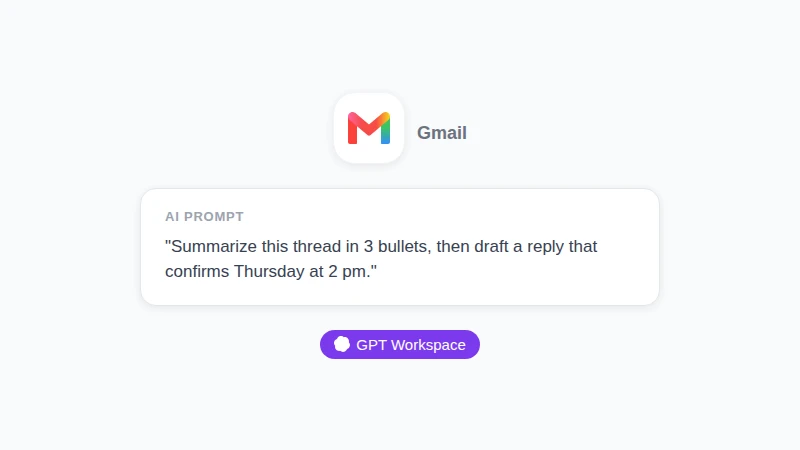
Illustration, not a screenshot: a request you could type in the GPT Workspace sidebar with a thread open. One prompt covers what AI Overview summaries and Help me write did as two separate features.
 Try GPT Workspace
Use ChatGPT, Claude, and Gemini directly inside Google Docs, Sheets, Slides, Gmail, and Drive. No tab switching.
Get Started FreeWhat Admins Can Do for a Whole Domain
Where the admin control lives depends on your edition. Google documents two levers, and only one of them is a hard switch.
The Per-Service Switch
Google’s admin article on managing access to Gemini features in Workspace services describes an on and off setting for each service, Gmail included.
- Open the Admin console. Go to Menu, Generative AI, Gemini for Workspace.
- Click the Feature access panel.
- Pick a scope. Optionally select an organizational unit or a configuration group. Group settings override organizational units.
- Click Edit next to Gmail, choose Off, and click Save.
You need the Gemini Settings administrator privilege, and the default for every service is on.
Two caveats sit on that page. It lists the supported editions as Enterprise Standard and Plus, Education Plus, the Teaching and Learning add-on, and Google AI Pro for Education, with no Business edition named as of November 12, 2026.
It also warns that switching Gemini off in one app does not wall off that app’s data. In Google’s example, “a user in Gmail can ask Gemini about a Drive file when Gemini is turned off for Drive.”
The Smart Features Default
If the Feature access panel is missing from your console, the remaining lever is the default for smart features. Google’s page on managing smart features for your users puts it under Account, Account settings, Smart features for Google Workspace, and it requires a super administrator.
Treat it as a default, not a lock. Google states that “users can override the default in their individual settings,” and that changes can take up to 24 hours.
Gemini Off, AI on Your Terms: Where GPT Workspace Fits
Plenty of people who switch Gemini off are not against AI. They object to a default they did not choose and to a switch that takes other features down with it.
GPT Workspace works the other way around. You install it from the Chrome Web Store or the Google Workspace Marketplace, it waits until you open it, and Gmail’s smart features switches do not control it because it is not a Google smart feature.
| Gemini in Gmail (this rollout) | GPT Workspace | |
|---|---|---|
| How it arrives | On by default for eligible accounts | You install it yourself |
| How you switch it off | Smart features switches shared with other features | Close the sidebar or remove the add-on |
| Model | Gemini | ChatGPT, Claude, or Gemini |
| Languages | Eight for summaries and Help me write | More than 30 for drafting and translation |
| Drafting | Prompt bar in the compose window | Sidebar that reads the open thread, with tone options and rewrite |
| Cost | No extra cost | Free plan, with paid plans for higher limits and advanced models |
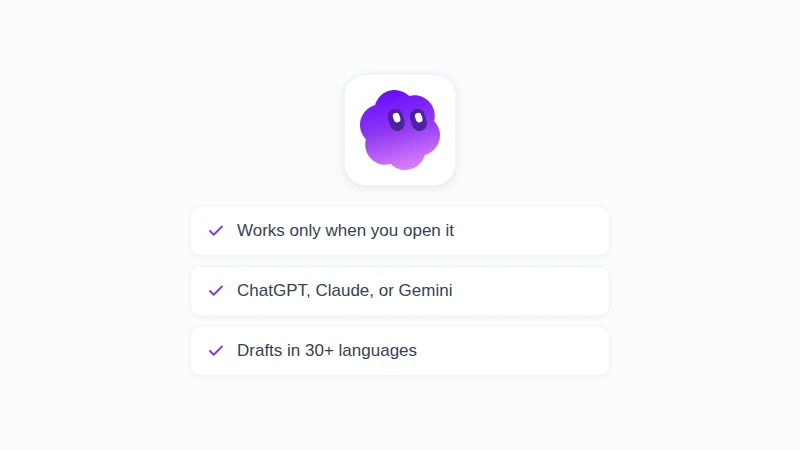
Illustration, not a screenshot: the three rows of the table that matter most once Gemini is off. GPT Workspace waits for you, lets you choose the model, and drafts in more than 30 languages.
Where Gemini wins: it is already in your inbox, it costs nothing extra, and a summary on a 40-message thread saves real time. If the default does not bother you, there is no reason to switch it off.
On privacy, GPT Workspace states that your emails are never stored and never used to train AI models.
Setup takes a few minutes, and our guide on how to use ChatGPT for Gmail walks through the add-on. For replies you send often, keep a few email prompts saved so a draft is one click away.
Not sure which model to pick for a delicate reply? Our guide on when to use Claude and when to use ChatGPT compares them on real Workspace tasks.
Frequently Asked Questions
Conclusion
To turn off Gemini in Gmail, open Settings, stay on the General tab, click Manage Workspace smart feature settings, and switch off Smart features in Google Workspace. Keep the Gmail, Chat, and Meet box checked if you want Smart Compose and inbox categories to stay, and ask your admin about the per-service switch if your edition supports it.
Switching off a default is not the same as giving up AI help. GPT Workspace gives you summaries and drafts only when you ask, with the model you choose, so install it and try it on your next long thread.