Google Forms AI: Gemini's New Actionable Insights and Their Limits
Google Forms AI now has Gemini actionable insights that analyze responses with Python. See the steps, plan and response limits, and where GPT Workspace fits.

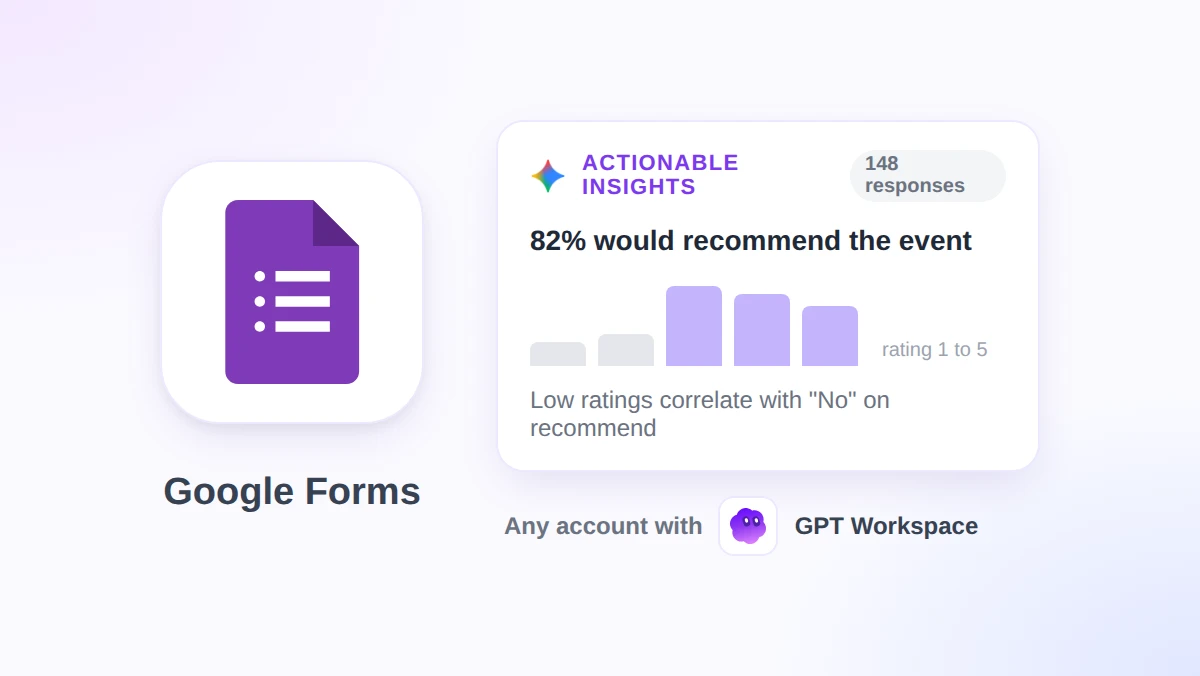
Your post-event survey closed with 148 responses, and someone wants three takeaways before the Monday meeting. As of November 5, 2026, Google Forms AI can write that report itself: Gemini reads every response, runs the numbers in Python, and lists recommended next steps right on the Responses tab.
This guide covers what the new actionable insights feature does, the exact clicks to generate a report, the plans and response counts it requires, and the forms it refuses to touch. It also shows where GPT Workspace, a Chrome extension and Google Workspace Add-on that brings ChatGPT, Claude, and Gemini into Forms, Docs, Sheets, and Gmail, picks up the cases Gemini leaves out.
The short version: Gemini’s report comes with eligible Business, Enterprise, Education, and Google AI plans, needs at least 12 responses and 3 questions, and skips quizzes entirely. GPT Workspace answers free-form questions about any form on any Google account, including quizzes and forms with a handful of replies.
What Google Forms AI Can Do Now: Four Gemini Features in One Form
Google has added Gemini to Forms in pieces since 2025. The November 2026 launch brings the count to four distinct features, each with its own requirements.
| Feature | Where it lives | What it needs | Main limit |
|---|---|---|---|
| Help me create a form | A new blank form, toolbar button | Eligible plan, a computer | Replaces an existing form instead of editing it; no multi-section forms |
| Suggest questions | Questions tab while editing | Eligible plan | Wording help only |
| Response summaries and themes | Responses tab, under each text question | 3 to 200 responses; themes work best with 8 to 200 | Not for quizzes or direct questions such as names |
| Actionable insights (Beta) | Responses tab, Summary view | At least 12 responses and 3 questions | Not for quizzes; English only |
The form builder is the oldest of the four and the most limited. Google’s Help Center page on creating a form with Gemini warns that it cannot edit a form you already have: “It will replace the existing form with the generated form,” and multi-section forms are not supported.
Language coverage is uneven. Google’s supported languages page lists form creation and question suggestions in 29 languages, gives automated text summaries a much shorter list, and states that for other Gemini features in Workspace, which includes actionable insights, English is the only supported language.
How Actionable Insights Analyze Your Responses
The other three features work on one text question at a time. Actionable insights read every question in the form at once, which is the real change.
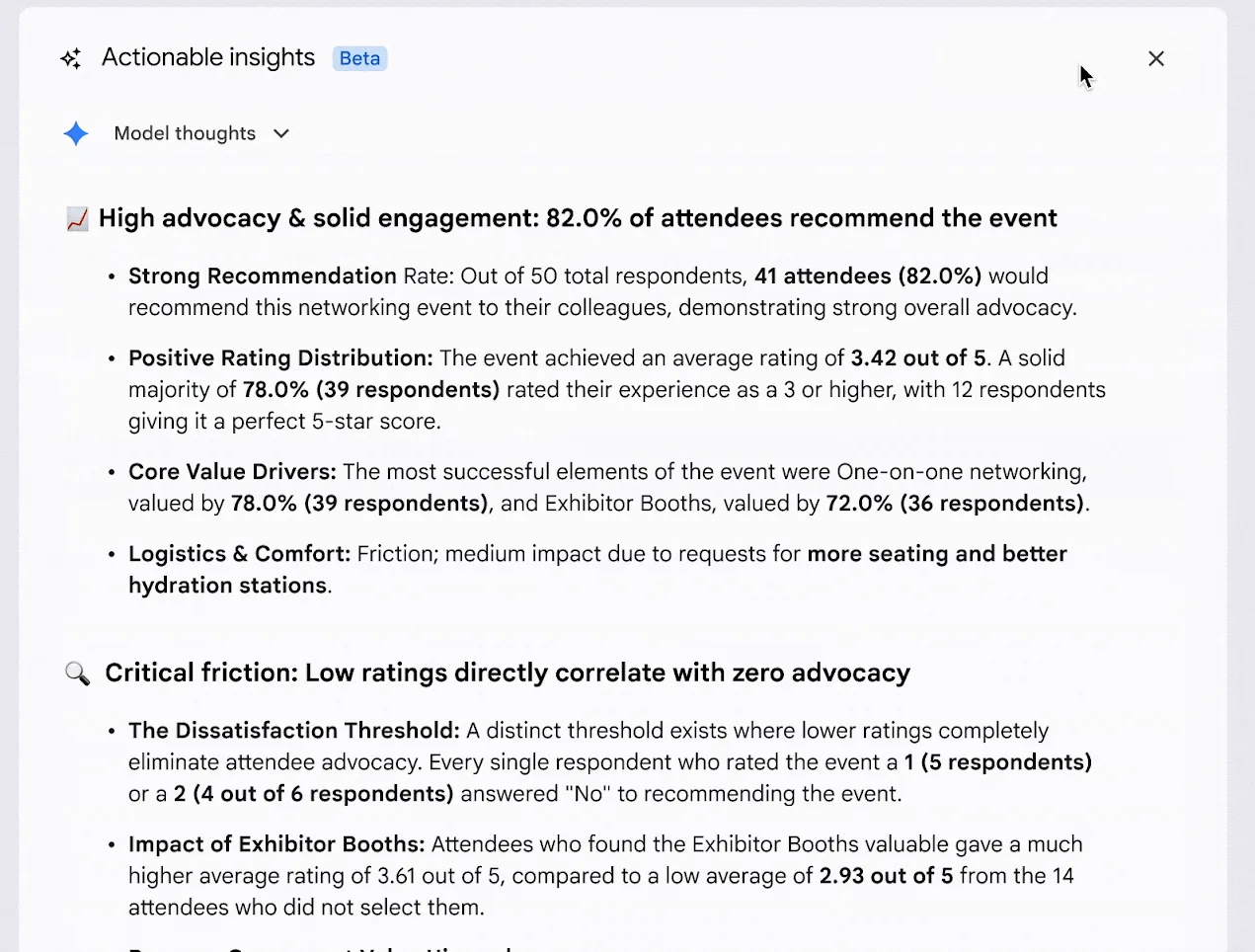
According to Google’s Workspace Updates announcement, Gemini “analyzes your responses by writing and running Python code, so findings like counts, percentages, and comparisons are grounded in your actual response data.” That is a different approach from asking a chat model to eyeball a table, and it is why the report quotes an exact count next to each percentage.
Gemini then looks for cross-question correlations, for example whether the people who rated an event 1 or 2 are the same people who would not recommend it. The report closes with the most important takeaways and a list of recommended next steps.
Google’s Help Center page on summarizing and analyzing responses names three sections in the output: Executive Synthesis, Advanced Analysis & Correlations, and Recommended Next Steps. Each finding is a bold headline followed by bullets with the numbers behind it.
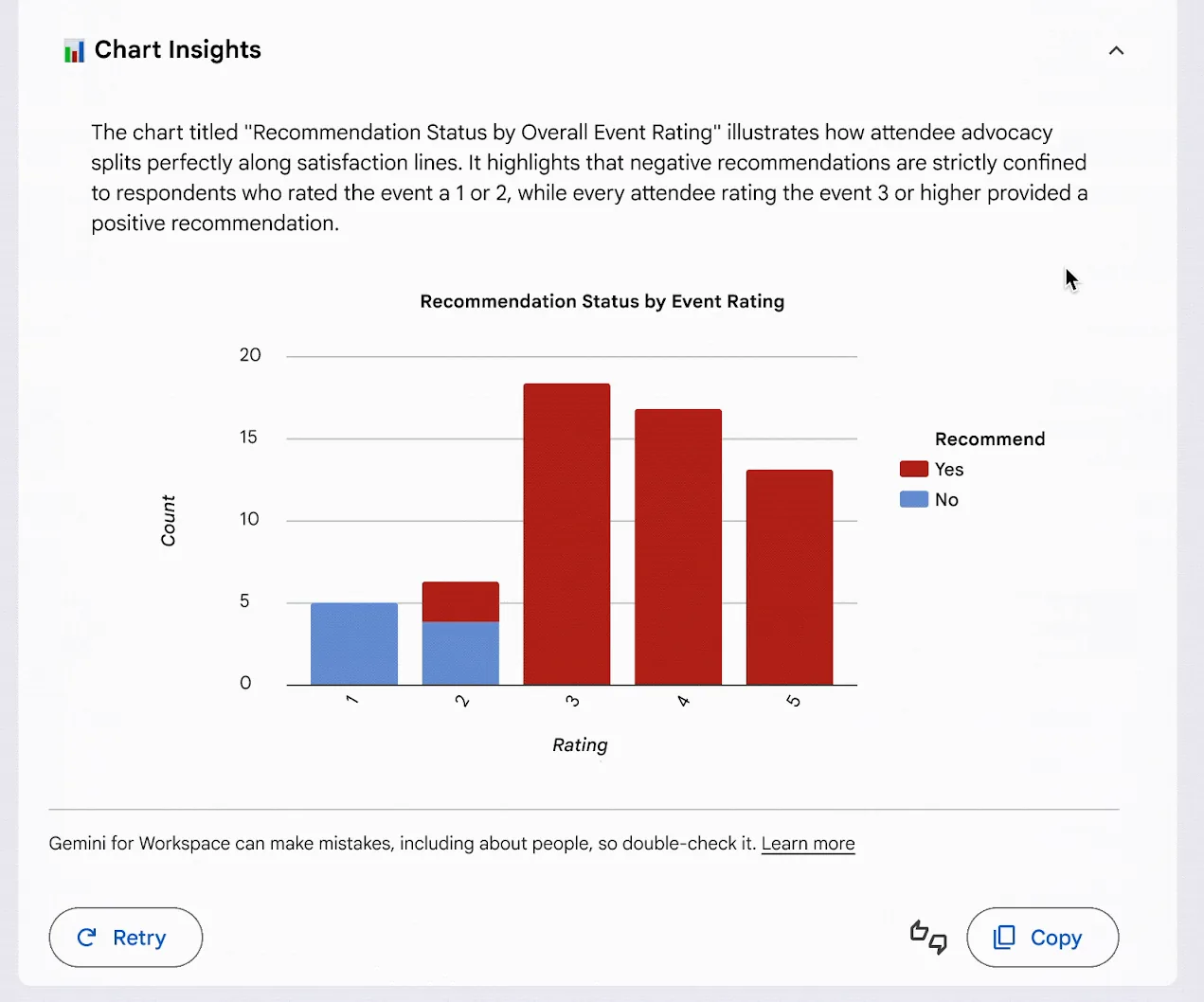
Google’s demo also shows a Chart Insights section at the bottom, with a bar chart built from the response data and a sentence explaining what the chart shows. Retry and Copy buttons sit under it, next to the standard reminder that Gemini can make mistakes.
Google names three kinds of forms where this pays off: event and product feedback, research surveys, and registration or application forms. The common thread is a mix of rating questions and choice questions, which gives the correlation step something to compare.
How to Generate Insights From the Responses Tab
The steps below follow the Help Center. Everything happens on a computer, inside a form you own or can edit.
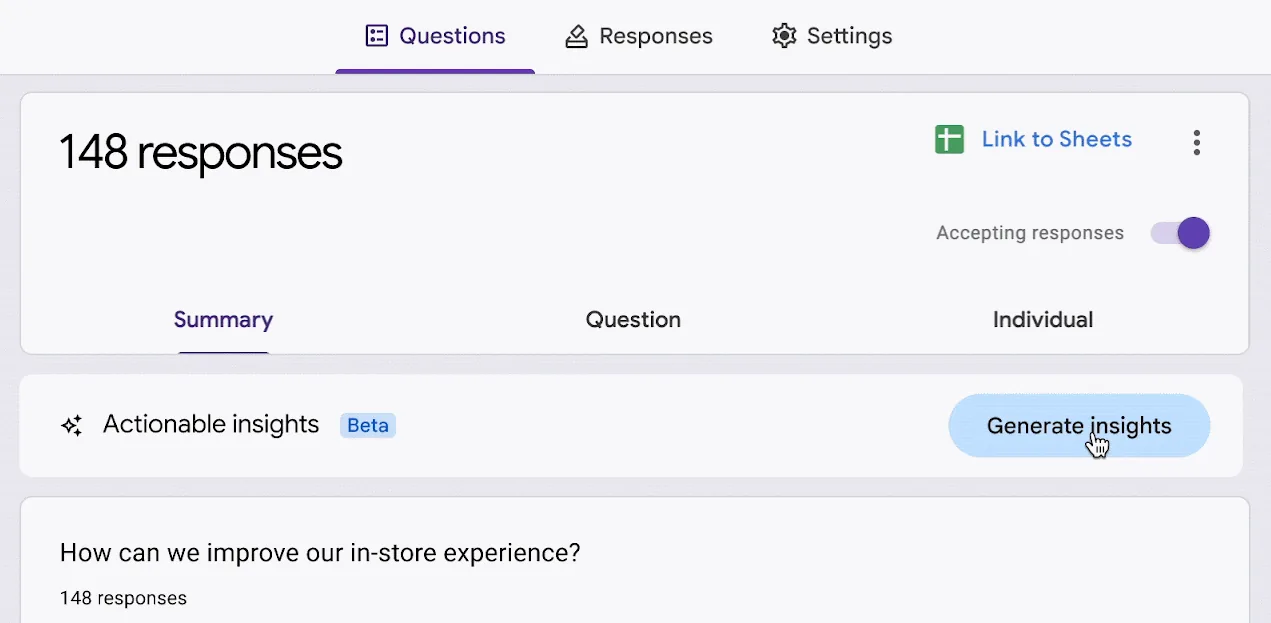
- Open the form and click Responses. The Summary view loads first, with the response count at the top left and a Link to Sheets button on the right.
- Find the Actionable insights bar. It sits directly under the Summary, Question, and Individual tabs, with a Beta label next to its name. Click Generate insights.
- Wait for the report, then open the reasoning. The Help Center calls the expander Analysis steps, and in Google’s demo it is labeled Model thoughts. Either way, it shows how Gemini arrived at each number.
- Rate it, retry it, or copy it. Good suggestion and Bad suggestion send feedback, Retry generates a fresh report, and Copy puts the text on your clipboard for a doc or an email.
Copy anything you plan to quote. Google notes that the text summaries are not saved and have to be copied or regenerated, and the insights panel offers Copy and Retry rather than a save option.
Who Gets Google Forms Insights, and Why the Button May Be Missing
The announcement lists the eligible plans. Business Starter, Enterprise Starter, and free personal accounts are not on it.
| Account type | Included in the launch |
|---|---|
| Google Workspace | Business Standard and Plus, Enterprise Standard and Plus, Education Plus |
| Education add-ons | Google AI Pro for Education, Teaching and Learning |
| Personal Google account | Google AI plans, including Google AI Pro and Ultra |
| Not listed | Business Starter, Enterprise Starter, free personal accounts |
Rollout is gradual. Rapid Release domains started on November 2, 2026, Scheduled Release domains start on November 19, 2026, and Google says each wave can take up to 15 days to reach everyone.
Admins have one setting that matters. Users need smart features and personalization turned on to use Gemini in Workspace apps, and the announcement points admins to the default personalization setting in the Admin console.
The form itself has to qualify too. The Help Center lists these conditions for actionable insights:
- At least 12 responses and 3 questions.
- Quiz settings turned off.
- Access to the linked sheet, if the form has one.
- A computer, since every step starts with “On your computer, open a form in Google Forms.”
 Try GPT Workspace
Use ChatGPT, Claude, and Gemini directly inside Google Docs, Sheets, Slides, Gmail, and Drive. No tab switching.
Get Started FreeGemini in Forms vs GPT Workspace for Analyzing Form Responses
Both read your responses and both write in plain language. The differences are about who can use them, which forms qualify, and whether you get a fixed report or a conversation.
| Gemini actionable insights | GPT Workspace | |
|---|---|---|
| Account | Business Standard and above, Education Plus, Google AI plans | Any Google account, including Business Starter and free Gmail, with a free tier |
| Minimum data | 12 responses and 3 questions | No minimum listed; it reads whatever responses the form has |
| Quiz forms | Not supported | Supported: which questions were missed most and the most common wrong answers |
| Output | One report: synthesis, correlations, next steps, charts | Answers to your questions: averages, splits by group, themes with quotes, single responses |
| Follow-up | Retry regenerates the whole report | Ask the next question in the same chat |
| Model | Gemini | ChatGPT, Claude, or Gemini |
| Where it runs | Responses tab in Google Forms | GPT Workspace chat, or the GPT for Forms side panel inside the editor |
| Language | English only | Prompts and answers in your language |
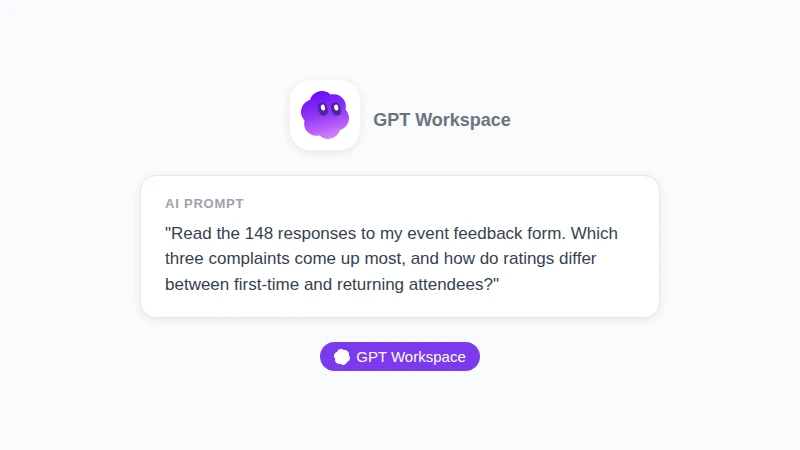
Illustration, not a screenshot: the kind of free-form question GPT Workspace answers about a form. It names the form, asks for a ranked list of complaints, and requests a comparison between two groups in one prompt.
The prompt above is the kind of question Gemini’s report cannot take. Insights decide what to analyze; GPT Workspace waits for you to ask, then reads every response and replies with counts, group splits, and representative quotes.
Name the form in chat and you can analyze Google Forms responses without exporting a thing.
Where Gemini wins: it is already in the Responses tab, it needs no install, and the Python-backed counts are a strong default for a first read. If your team is on Business Standard, works in English, and never runs quizzes, start there.
Our wider GPT Workspace vs Gemini guide covers the same trade-off in Docs, Sheets, and Gmail.
A Workflow That Uses Both, From First Read to Follow-Up Email
The two tools fit together better than they compete. Here is the order that saves the most time on a feedback form.
- Generate insights first. Let Gemini do the counting. Copy the Executive Synthesis and the Recommended Next Steps into a doc as your draft.
- Open Analysis steps and check one number by hand. Pick one percentage, switch to the Question view, and confirm the count. Google’s own notice says Gemini can make mistakes, and one spot check costs a minute.
- Ask GPT Workspace the questions the report skipped. Which segment drove the low ratings, which three quotes best represent the top complaint, and what the follow-up email should say to the people who answered “No.”
- Send Gemini’s leftovers to GPT Workspace. Quizzes, forms under 12 responses, and surveys in other languages all qualify. In the editor, the free GPT for Forms add-on opens from the Extensions menu and can summarize answers in a side panel.
- Move big datasets to Sheets. Click Link to Sheets, then run the analysis in the spreadsheet. Our guide on how to use AI in Google Sheets covers the functions, and the earlier article on ChatGPT for Google Forms shows how to draft the next survey from what you learned.
Illustration, not a screenshot: Gemini's built-in insights and GPT Workspace side by side. The comparison table above lists what each one covers.
Frequently Asked Questions
Conclusion
Google Forms AI finally does more than suggest questions. Actionable insights turn a pile of responses into counted findings, correlations, and next steps, as long as you are on an eligible plan, the form has at least 12 responses and 3 questions, and it is not a quiz.
For every form outside those lines, and for the follow-up questions a fixed report cannot answer, GPT Workspace reads the same responses on any Google account and lets you pick the model. Install it, open your next survey, and run the two side by side.