How to Use Google Apps Script Now That Gemini Writes the Code
Learn how to use Google Apps Script without coding. Gemini in Apps Script is now generally available: plans, setup, a first script, limits, and alternatives.

Every Google Sheet, Doc, Slides deck, and Form has a code editor tucked under the Extensions menu, and most people open it once and close it again. If you never learned how to use Google Apps Script because it meant writing JavaScript, that barrier came down this week.
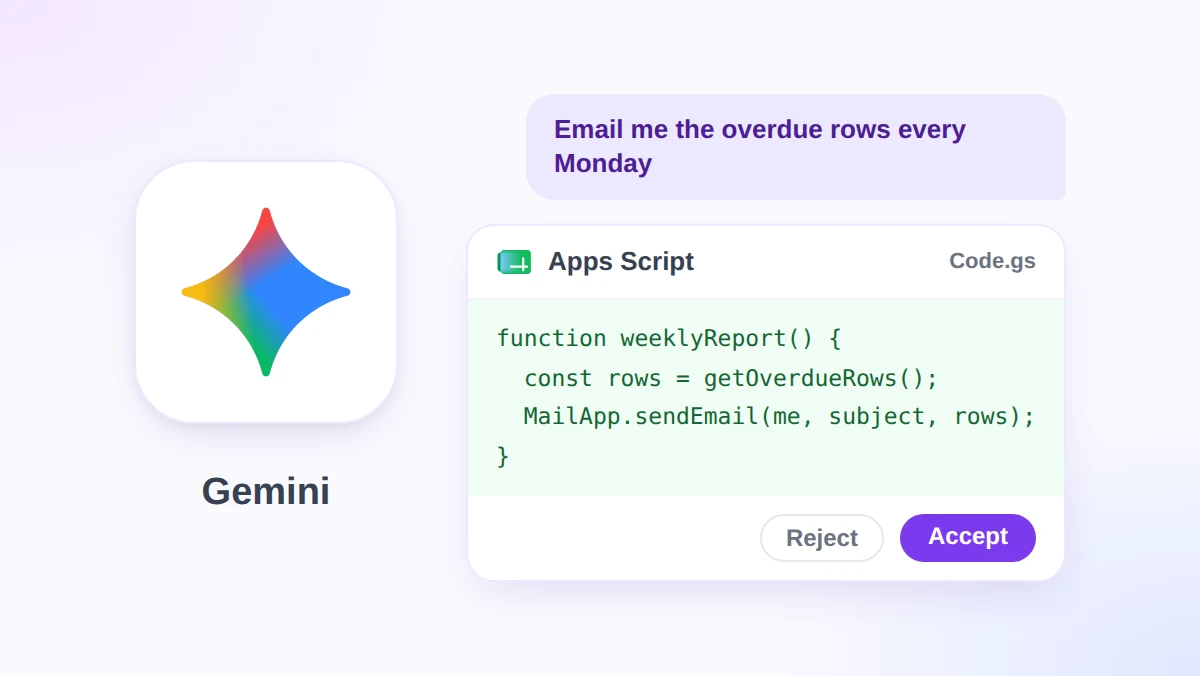
The short version: click Extensions, then Apps Script, describe the task in the Gemini side panel, review the code it proposes, then save and run. Google announced general availability of that side panel on November 16, 2026, for Business Standard and higher plans and for Google AI Pro and Ultra.
This guide walks through a first script, prompts to start from, the limits Google enforces, and what to do on a plan without the panel. That last part is where GPT Workspace fits: a Chrome extension and Google Workspace Add-on that puts ChatGPT, Claude, and Gemini inside Sheets, Docs, Slides, and Gmail.
What Changed: Gemini in Apps Script Is Now Generally Available
Apps Script is the automation layer built into Workspace. Per Google’s Apps Script overview, you write JavaScript in a browser editor with nothing to install, and your scripts are saved to Drive and run on Google’s servers.
The JavaScript was always the catch. Google’s Workspace Updates post of November 16, 2026 removes it: with the side panel generally available, anyone can “create, customize, and troubleshoot scripts using plain language with no coding experience required.”
The panel does three jobs.
| Job | What Gemini does | Where it happens |
|---|---|---|
| Write | Turns a plain-language request into a script and adds extras such as time-based triggers on request | Gemini side panel |
| Review | Shows each proposed change as a block you can accept or reject before saving | Code editor |
| Fix | Explains a runtime error in plain language and suggests a ready-to-apply update | Execution log |
Who Gets It
- Plans: Business Standard and Plus, Enterprise Standard and Plus, the AI Expanded Access add-on, Google AI Pro for Education, and consumer Google AI Pro and Ultra.
- Not on the list: Business Starter and free personal accounts.
- Timing: a gradual rollout on Rapid Release and Scheduled Release domains that started on November 12, 2026, with up to 15 days for the panel to appear.
- Permissions: scripts run “with a user’s existing permissions and standard OAuth consent,” so a script can only touch what your account already can.
- Admins: Google says the panel “respects your existing Apps Script service settings” and the generative AI access controls in the Admin console.
The Developer Guide Has Not Caught Up
Google’s developer guide for the Gemini side panel was last updated on September 3, 2026, and on November 16 it still carried a beta notice. It says you must accept or reject a proposal as a whole and that Gemini works on the active file.
The launch post describes block-by-block review and a Gemini that “understands the files across your open Apps Script project.” If your editor only offers Accept all and Reject all, you may still be on the earlier version, since the rollout can take 15 days.
How to Use Google Apps Script With Gemini: Your First Script
The example below comes from Google’s launch demo: a custom function that calculates sales commission in a sheet.
- Open the editor. In Google Sheets, click Extensions, then Apps Script. For a script that is not tied to one file, go to script.new instead.
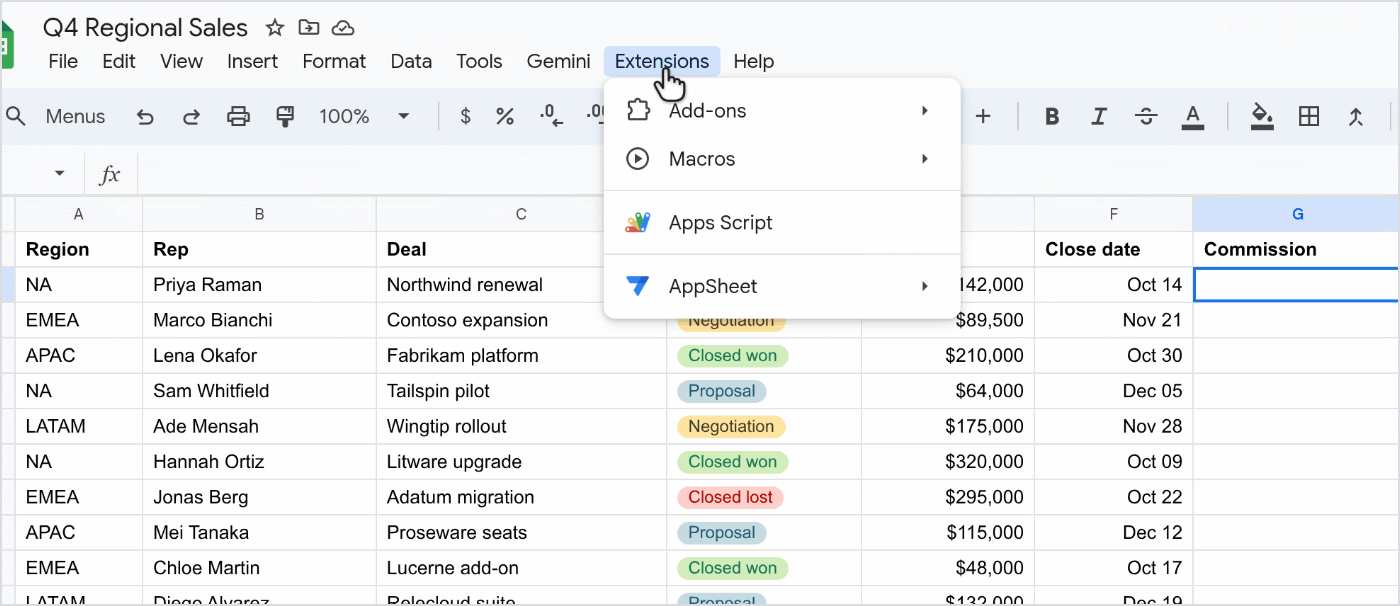
- Open the Gemini panel. Google says it “opens automatically on new scripts.” In an existing project, click the Ask Gemini spark icon at the top right of the editor.
- Describe the task. Name the input, the rule, and the output. Google’s demo prompt reads: “Create a custom function COMMISSION(amount, region). Rates: NA 8%, EMEA 7%, APAC 7.5%, LATAM 9%. Add 1% for deals of $100K or more.”
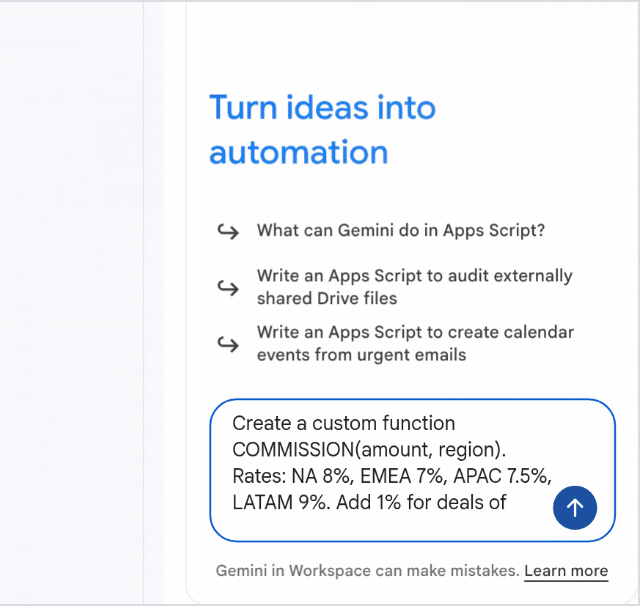
- Review the proposal. The new code lands in the editor with additions in green and removals in red. Click Accept or Reject on a block, or use Accept all and Reject all in the side panel.
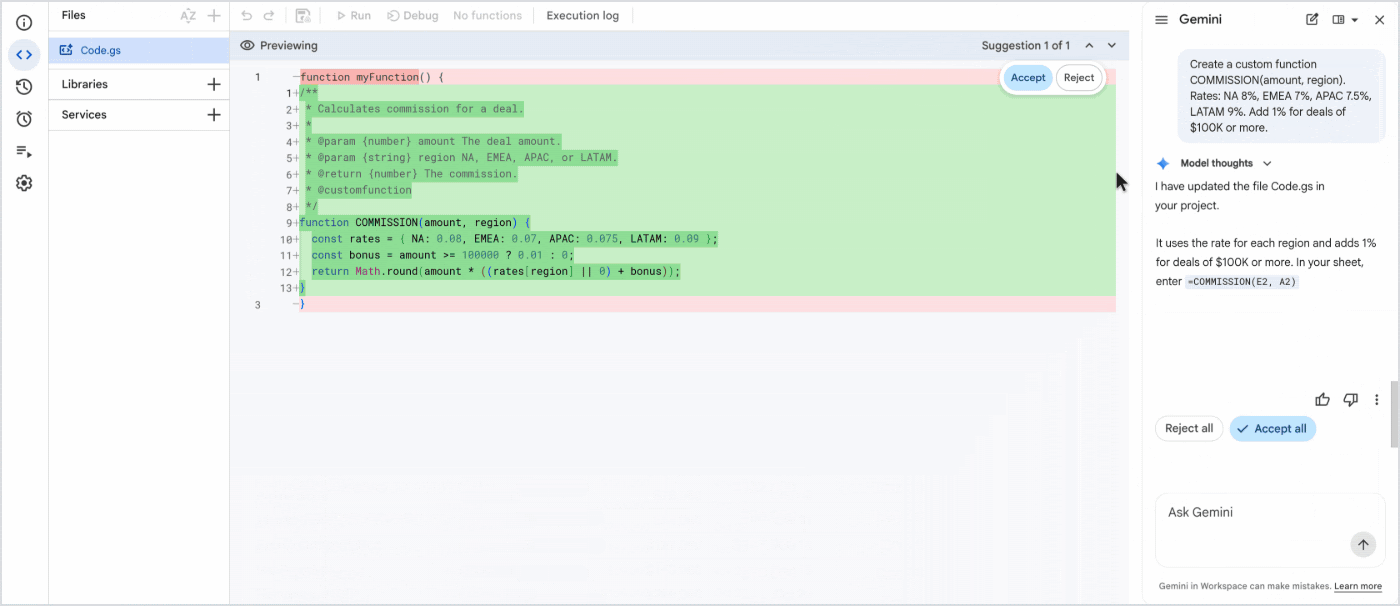
- Save the project. Click the Save project to Drive icon in the editor toolbar.
- Use it. Back in the sheet, type
=COMMISSION(E2, A2)like any built-in function. Sheets shows the description Gemini wrote as help text while you type.
Custom functions are the gentlest first project. Google’s custom functions guide says they “never ask users to authorize access to personal data.”
A script that reads Gmail or sends email is different. The first run opens a Google permission prompt, and the developer guide tells you to “review the requested permissions before clicking Allow.”
Google Apps Script Examples: Prompts to Start From
A prompt works when it names three things: when the script should run, which data it reads, and where the result goes. These examples do that.
| Task | Prompt | Source |
|---|---|---|
| Custom function | “Create a custom function CONSOLIDATE_DATA that groups columns by ID, calculates the maximum amount, and lists unique statuses.” | Google’s developer guide |
| Gmail to Tasks | “Write a script that searches my Gmail inbox for unread emails with ‘URGENT’ in the subject from the last 30 days and adds these in my Google Tasks.” | Google’s developer guide |
| Sheets to Docs | “Create a custom menu in Google Sheets called ‘Export to Docs’ that exports table contents into a new Google Doc and messages the user the path.” | Google’s developer guide |
| Weekly report | “Every Monday at 8 am, email me the rows in the Sales tab where Status is Overdue.” | Our own example |
Put a Script on a Schedule
You do not have to know what a trigger is. The launch post says you can “keep chatting to add capabilities like automatic time-based triggers.”
Google’s installable triggers guide says a time-driven trigger can run “as frequently as every minute or as infrequently as once per month.”
Two details surprise people. A recurring 9 AM trigger fires at a time Apps Script picks between 9 and 10 AM, and a trigger always runs under the account of the person who created it.
Change a Script You Already Have
For edits, point at the code by name. The developer guide puts it this way: “Explicitly refer to existing functions or variables in your working file.”
When a Script Breaks: Fix Errors and the Limits to Know
Scripts fail, including the ones Gemini writes. When a run stops with an error, the Execution log shows a Fix errors button.
- Run the function and wait for the red error line in the Execution log.
- Click Fix errors. Gemini reads the error and the code around it.
- Read the explanation, then accept or reject the proposed change.
- Save and run again to confirm the error is gone.
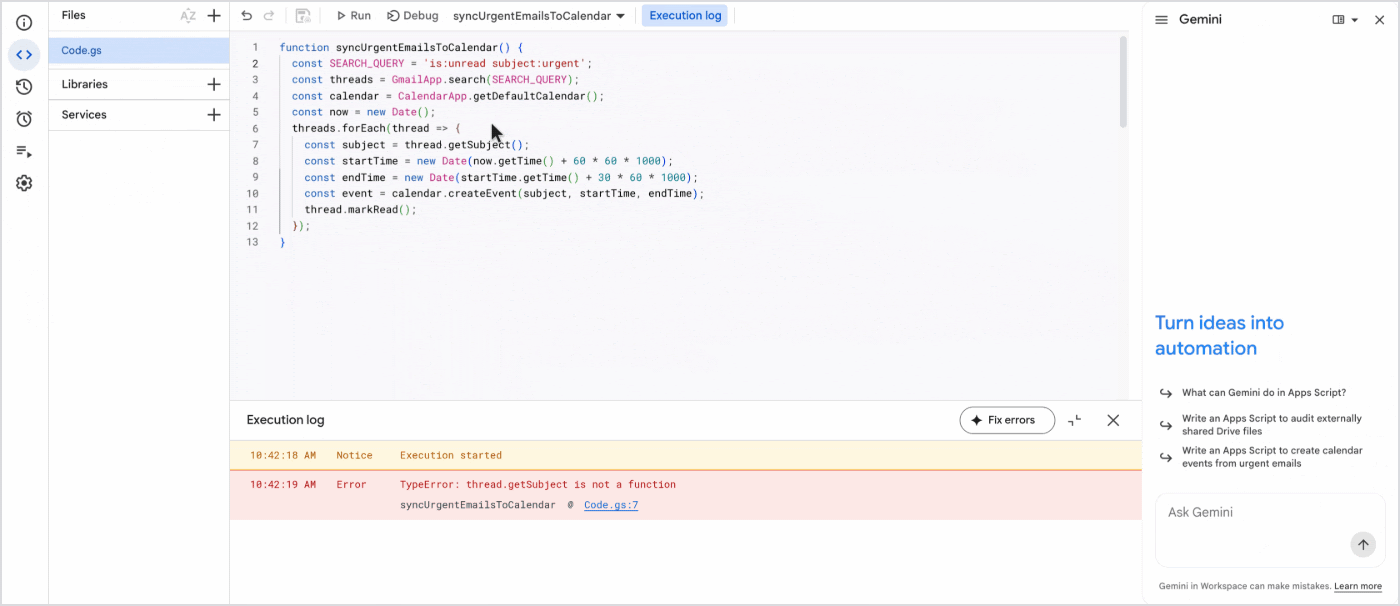
In Google’s demo, a Gmail-to-Calendar script failed with “TypeError: thread.getSubject is not a function.” Gemini answered that a Gmail thread has no such method, so the fix reads the subject from the latest message instead.
Some problems throw no error at all. For those, the developer guide suggests a plain prompt such as “The script doesn’t throw an error but the output is wrong.”
The Quotas That Stop a Script
Gemini writes the script, but Google’s servers still ration how long and how often it runs. The numbers below come from Google’s Apps Script quotas page.
| Limit | Consumer account (gmail.com) | Google Workspace account |
|---|---|---|
| Script runtime | 6 minutes per execution | 6 minutes per execution |
| Custom function runtime | 30 seconds per execution | 30 seconds per execution |
| Triggers | 20 per user per script | 20 per user per script |
| Total trigger runtime | 90 minutes per day | 6 hours per day |
| Email recipients | 100 per day | 1,500 per day |
When a script crosses a limit, it throws an exception and stops. Google adds that quotas can change at any time without notice.
Custom functions carry one more rule. Per Google’s guide, a custom function “can’t affect cells other than those it returns a value to,” so ask Gemini for a custom menu item when you need to rewrite a whole range.
Limits of the Panel Itself
The developer guide lists a few more limits, and each is worth checking in your own editor.
- Language: English is the only supported language.
- Accounts: the panel might not load when several Google Accounts are signed in to the same browser session.
- Access: Gemini only works on script projects you own or can edit.
- Links: Gemini “occasionally omits URLs from generated code,” so paste the exact URL into your prompt.
No Gemini Plan? Where GPT Workspace Fits
Apps Script itself is not the gated part. Google’s quota table covers consumer gmail.com accounts as well as Workspace accounts, so the editor is available well below Business Standard.
What those accounts lack is the assistant. That is the gap GPT Workspace fills, from the sheet instead of the editor.
- Open the GPT Workspace sidebar in your sheet and pick a model: ChatGPT, Claude, or Gemini.
- Ask for the script the way you would ask Gemini, naming the schedule, the data, and the output.
- Paste the code into the editor under Extensions, then Apps Script, and save it.
- If a run fails, paste the error line back into the sidebar and ask for a fix.
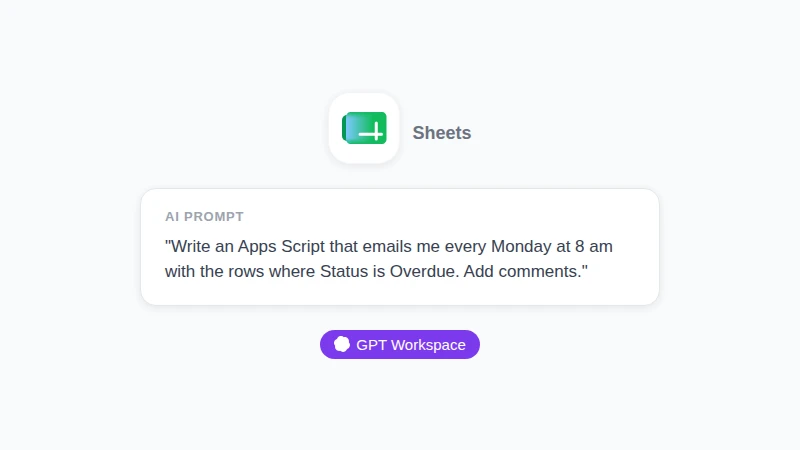
Illustration, not a screenshot: a request you could type in the GPT Workspace sidebar in Sheets. It names the schedule, the data, and the output, the same three parts a Gemini prompt needs.
 Try GPT Workspace
Use ChatGPT, Claude, and Gemini directly inside Google Docs, Sheets, Slides, Gmail, and Drive. No tab switching.
Get Started FreeOften the better answer is no script at all.
| What you want | Shortest path |
|---|---|
| A recurring job on an eligible Google plan | Gemini in Apps Script |
| The same job on Business Starter or free Gmail | GPT Workspace writes the script, and you paste it into Apps Script |
| AI on every row: label, translate, look up | GPT Workspace formulas such as =GPT, =GPT_CLASSIFY, =GPT_TRANSLATE, and =GPT_WEB |
| A one-off cleanup or summary | A prompt in the GPT Workspace sidebar on the selected range |
A formula beats a script when the work is one judgment per row. Our guide on how to use AI in Google Sheets covers the sidebar, and the =GPT_CLASSIFY walkthrough shows how to classify data in Google Sheets with fixed labels.
Where Gemini wins: it lives in the editor, proposes changes as a reviewable diff, and fixes errors straight from the log. If your plan includes it, use it for anything that runs on a trigger.
Where GPT Workspace wins: it needs no Gemini plan, it lets you choose the model, and its formulas skip the editor entirely. It has a free plan with usage limits, and paid plans raise them.
Not sure which model to ask for a script? Our guide on when to use Claude and when to use ChatGPT compares them on real Workspace tasks.
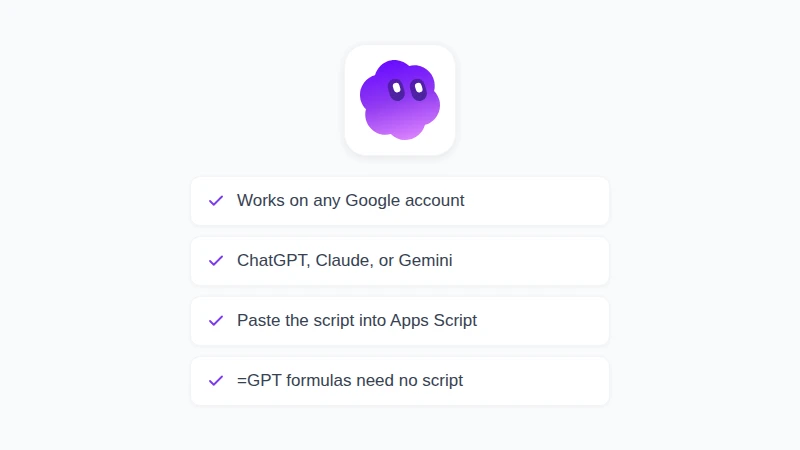
Illustration, not a screenshot: the four points of this section in one list. On a work or school account, your admin decides which add-ons you can install.
Frequently Asked Questions
Conclusion
Learning how to use Google Apps Script used to start with a JavaScript course. Now it starts with a sentence: open Extensions, click Apps Script, tell Gemini what you want, review each block, and keep an eye on the quotas.
If your plan does not include the panel, or the job is really one AI answer per row, GPT Workspace covers both from inside your sheet. Install it, ask for your first script or formula, and see which path is shorter.