Clean Data Excel
Clean data excel. Learn how to clean data in Excel with practical techniques, before-and-after examples, and repeatable workflows that scale


A CRM export arrives just before your first meeting. The rows look familiar, but trailing spaces stop lookups from matching, dates arrive in several formats, merged cells disrupt filters, and a second header row sits halfway down the sheet. The formulas still calculate, which makes the file more dangerous, not less.
Reliable clean data in Excel isn’t about making a worksheet look tidy. It’s about preserving the original input, applying transformations that someone else can inspect, and producing values that downstream formulas, pivots, charts, and models can use safely. Spreadsheet research has long treated cleaning as a high-risk activity, with a major review reporting that 94% of spreadsheets contain errors and an average cell error rate of 5.2% in the historical studies it summarized (spreadsheet error literature review).
The practical approach is a governed workflow. You’ll see where functions such as TRIM, CLEAN, SUBSTITUTE, VALUE, and DATEVALUE save time, where structural tools handle problems formulas can’t reach, and when Power Query becomes the sensible replacement for repeated manual edits. If your wider reporting process also depends on dependable inputs, reliable business data with Streamkap provides useful context on data quality beyond a single workbook.
Table of Contents
- When a Messy Spreadsheet Steals Your Morning
- Setting Up a Safe Cleaning Workspace
- Cleaning Text and Values with Built-In Functions
- Fixing Structure, Dates, and Mixed Formatting
- When Manual Cleaning Stops Scaling
- A Repeatable Cleaning Workflow You Can Reuse
- Habits That Keep Your Data Clean Tomorrow
When a Messy Spreadsheet Steals Your Morning
The first instinct is often to start fixing visible problems. Delete the rogue header, remove blank rows, run Find and Replace, and paste the results over the original. That feels productive until the next export changes shape and your carefully placed formulas point to the wrong columns.
A trailing space in Customer Name can make an exact lookup miss. A date stored as text can disappear from a calculation. A category entered as Retail, retail, and RETAIL can appear as separate labels in a pivot table, while an apparently harmless merged cell can break sorting or filtering. VLOOKUPs may return missing matches without making the underlying cause obvious, and formulas can count the wrong records.
Practical rule: If a cleaning action can’t be explained and repeated, treat it as a temporary repair, not a finished workflow.
A governed pass produces a different result within the same working session. Strings become consistent, dates become parseable, duplicate rows are assessed against defined keys, and the cleaned output stays connected to the source. A colleague reopening the workbook later should be able to identify what changed, why it changed, and where the original value came from.
The difference matters because errors can travel into formulas, summaries, charts, and decisions. The research literature emphasizes that trustworthy detection requires more than visual formatting. Cell-level inspection, formula inspection, and consistency checks all have a role, which is why a reliable process beats a collection of clever one-off tricks.
Setting Up a Safe Cleaning Workspace

A safe workspace starts before the first edit. Save a dated backup, keep the received workbook unchanged, and work from a separate copy. Freeze the top row so headers remain visible, and preserve a recovery point before deleting, pasting, or replacing values. These steps make accidental range changes recoverable instead of forcing you to reconstruct the source.
Convert the source range into an Excel Table. Stable headers, automatic formula fill, and structured references are easier to audit than fixed cell coordinates. Use the Table for controlled inspection and output, while keeping the imported values separate from any transformation logic. Microsoft’s Power Query profiling guidance covers profiling data and reviewing blanks, errors, and duplicates as part of a repeatable cleaning process.
Separate source logic and output
Use three clearly named layers:
- Raw sheet: The unchanged import, with original headers and values.
- Cleaning sheet: Helper columns, formulas, mappings, and validation checks.
- Output sheet: The analysis-ready Table, pivot source, or report result.
Keep one field per column. Use descriptive headers, include units where relevant, and remove merged cells from the data block. Avoid placing unrelated tables on one worksheet or keeping competing versions across tabs. Consistent headers and null values make later checks easier, especially when another analyst inherits the file.
For large edits, manual calculation can reduce delays, but recalculate and validate before saving. Disable AutoCorrect where exact text matters, including identifiers and imported codes. Add a Cleaning Log with the source filename, date, operator, and a concise record of each transformation.
This structure protects auditability. The Raw sheet shows the starting value, helper logic shows how it changed, and the log records the decision. Microsoft’s Clean Data in Excel guidance also recommends retaining raw data and using helper columns before replacing source fields.
Cleaning Text and Values with Built-In Functions
Formula-based cleaning works best at the cell level. Keep the raw value in Raw!A2, then place the transformation in a helper column rather than overwriting the input. This preserves lineage and lets you compare the before and after values side by side.
TRIM removes leading and trailing spaces and collapses repeated internal spaces. If A2 contains North Region , =TRIM(A2) returns North Region. It’s a useful first pass for names, locations, and categories that fail exact matching because of ordinary spaces.
CLEAN removes non-printable characters. Data copied from older systems or web pages can contain characters that aren’t visible in the grid. For stubborn whitespace, including non-breaking spaces, combine several functions:
=TRIM(CLEAN(SUBSTITUTE(A2,CHAR(160)," ")))
That formula replaces the non-breaking space with a normal space, removes non-printable characters, and then normalizes the result.
Coerce values deliberately
SUBSTITUTE is useful before converting text to numbers. If A2 contains $1,250, a formula such as =VALUE(SUBSTITUTE(SUBSTITUTE(A2,"$",""),",","")) removes the currency symbol and comma before coercion. VALUE then turns the remaining text into a number that SUM and AVERAGE can use.
For regional formats, NUMBERVALUE gives you explicit control over decimal and grouping separators. This matters when an export uses a comma for decimals while the workbook expects a period. Formula separators themselves can vary by Excel locale, so test the syntax in the target environment instead of copying a formula blindly.
Dates need the same discipline. DATEVALUE converts recognizable date text into an Excel date serial, while TIMEVALUE handles time text. TEXT controls the displayed result, for example =TEXT(B2,"yyyy-mm-dd"), although you should keep a genuine date value for calculations and use TEXT only for presentation or export formatting.
For more formula examples and patterns, the Excel formula creation guide can help translate a desired transformation into a working expression.
| Function | Before input | After output | Use case |
|---|---|---|---|
TRIM | Acme Ltd | Acme Ltd | Normalize ordinary whitespace |
CLEAN | Text containing hidden control characters | Printable text | Repair imported or scraped text |
SUBSTITUTE | $1,250 | 1250 before coercion | Remove symbols or replace characters |
VALUE | "1250" | 1250 as a number | Make numeric text calculable |
DATEVALUE | "12/03/2024" | Excel date value | Convert recognizable date text |
TEXT | A valid date value | 2024-03-12 display | Present dates consistently |
Formula cleaning breaks down when one expression tries to solve every possible input. A nested formula can be powerful, but it becomes hard to audit when it contains many exceptions, locale assumptions, and replacement rules. Keep each meaningful transformation in its own helper column when reviewability matters.
Fixing Structure, Dates, and Mixed Formatting
Some spreadsheet problems aren’t cell-value problems. A formula can clean text inside a cell, but it can’t decide safely how to split a column containing Smith, Jordan or repair a worksheet where merged headers interrupt the data region.
Use Text to Columns when a field contains a consistent delimiter. Comma-separated names, codes, and address fragments can be split into separate fields, but preview the result first. The wizard can overwrite neighboring columns if you haven’t inserted enough space, so work on a copy or a helper area.
For the reverse operation, & handles simple joins, such as =A2&" "&B2, while TEXTJOIN handles ranges and delimiters more cleanly. Flash Fill is convenient for pattern-based tasks, such as extracting the domain from an email address or changing a name from Last, First to First Last. It isn’t a governed transformation by itself, though. Review the generated pattern, especially when exceptions appear halfway through the data.
Formatting can create false confidence. Use Format Painter only when the target range is understood, and use Paste Special Values when you need to remove formula dependencies from a final output. Hidden characters may survive visual cleanup, so a value that looks identical still needs a function or comparison test.
Make dates unambiguous
12/03/2024 can represent different dates depending on regional convention. Don’t normalize it by changing the cell format alone. First establish whether the source means day-month-year or month-day-year, then construct a true date with DATE, YEAR, MONTH, and DAY, or use Power Query’s locale-aware parsing when the source convention is explicit.
Serial numbers, auto-detected dates, and text dates should end in one dedicated date column with a consistent underlying type. Display that value as an ISO-style layout when users or systems need an unambiguous view.
A number stored as text often shows a green warning triangle, aligns left, or gets ignored by SUM. Select the affected cells and use the warning menu to convert them, multiply by one in a helper formula, or apply VALUE or NUMBERVALUE when you need explicit handling. The right choice depends on whether separators, symbols, and locale rules are involved.

When Manual Cleaning Stops Scaling
Formula-based cleaning works well for a controlled, one-off correction. Its limits appear when exports grow, arrive repeatedly, or must be reviewed by someone else. TRIM and SUBSTITUTE can slow down across large ranges, Flash Fill may infer a different pattern after the source changes, and helper columns can spread transformation logic across the workbook. Pasting the result over the source saves time immediately, but removes the visible connection between input and transformation.
Power Query fits recurring cleanup because the process can be stored and refreshed. It supports actions such as profiling data, keeping or removing duplicates, removing empty values, removing errors, and replacing errors. Each action is recorded in the Applied Steps pane, so refreshing the query runs the same sequence against a new source instead of requiring manual reconstruction.
The trade-off is maintenance. Power Query takes time to learn, and stakeholders accustomed to older workbook workflows may find a query-driven file less familiar. The payoff is a documented process that can be inspected, refreshed, and handed to another analyst. That generally provides stronger auditability than a long chain of formulas rebuilt after every export.
Choose the method by workload
The ranges below are operating guidance, not Excel’s technical limits. They indicate when the cost of maintaining manual work usually exceeds its convenience.
| Approach | Best for row range | Auditability | Reproducibility |
|---|---|---|---|
| Manual cleanup | Under 1,000 rows | Low unless carefully logged | Low |
| Formulas and helpers | 1,000 to 50,000 rows | Moderate, if source and helper layers stay separate | Moderate |
| Power Query or scripts | Above 50,000 rows | High through recorded steps or code | High through refresh or rerun |
Power Query is a strong fit when the same source arrives repeatedly, columns may shift, or several analysts need to review one result. For formula-heavy workbooks, AI-assisted spreadsheet cleaning can help draft transformations. Treat generated formulas as a starting point, then test them against the raw values and documented business rules.
Row count alone should not decide the method. A small report requiring strict traceability may justify Power Query, while a one-off personal list may be faster to clean manually. Ask whether the work repeats, whether another analyst must audit it, and whether the input structure changes over time. Those answers determine whether a quick formula fix remains practical or becomes an undocumented process that breaks downstream formulas.
A Repeatable Cleaning Workflow You Can Reuse
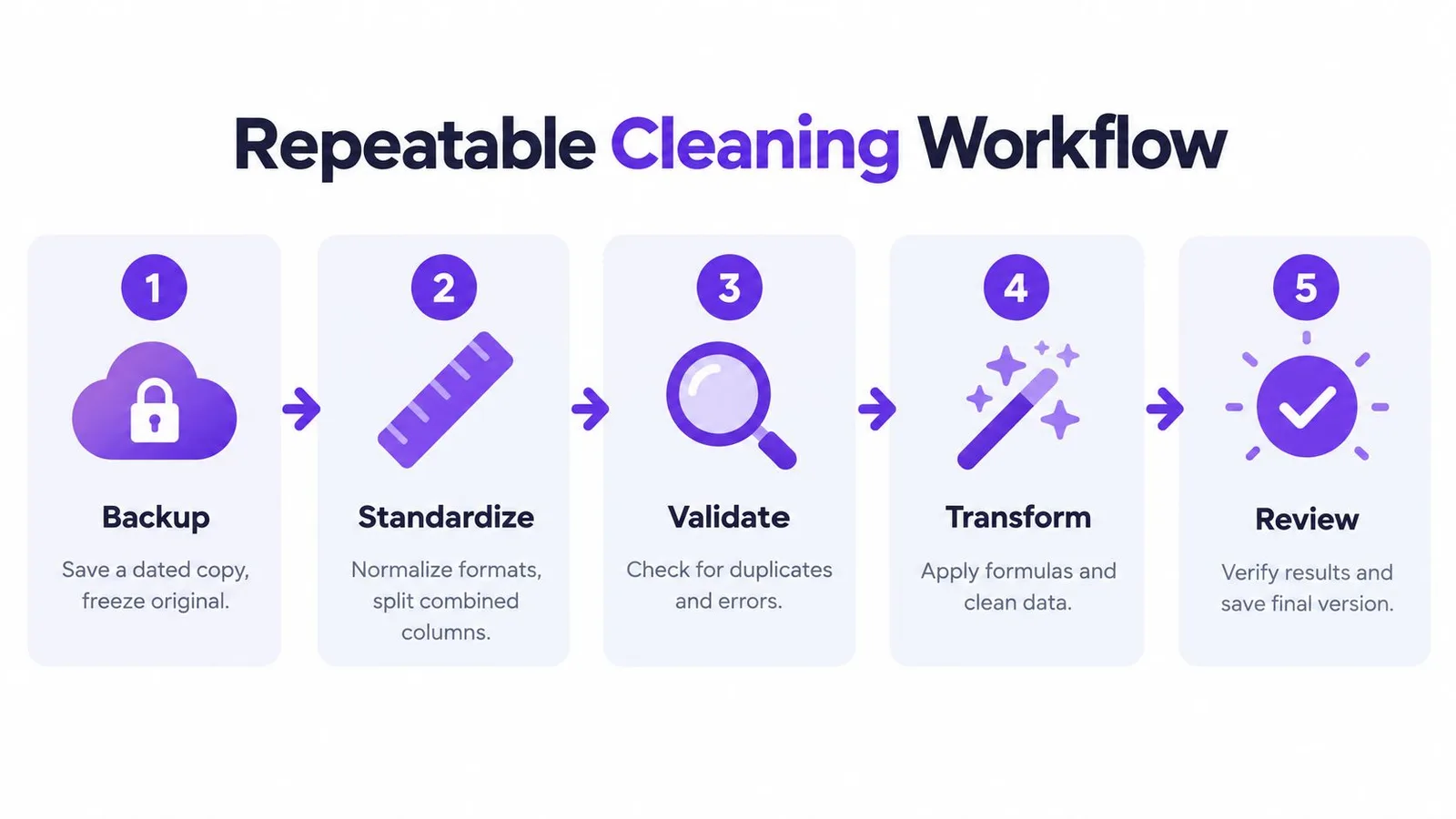
Treat the workbook as a small data pipeline with five phases. The order protects you from validating a result that was produced from an already damaged source.
Phase one and two establish control
Backup comes first. Save a dated copy, preserve the original input, and freeze the source tab. If a destructive operation slips through, you can restore the starting point instead of guessing what was changed.
Profile before transforming. Use Ctrl+Down to inspect the actual extent of each column, apply conditional formatting to expose blanks and duplicates, and use LEN to find unusually short or long values. Profiling gives you a map of the problems and prevents you from treating formatting symptoms as duplicate records.
Phases three through five create evidence
Transform in a stable sequence. Apply text functions in helper columns, repair structural layout, normalize dates and numeric types, and only then prepare the final output. Microsoft guidance recommends inserting a helper column, filling a transformation formula down, pasting values, and deleting the original only after the result has been checked (Microsoft’s Excel cleaning guidance).
Validate against the source. Compare totals, use COUNTIF to confirm expected categories or statuses, and inspect exceptions rather than relying on a clean-looking grid. Run Remove Duplicates after the data is normalized, so spacing and case inconsistencies don’t disguise the true duplicate count.
Document the outcome. A Notes sheet should record the source filename, transformations applied, validation checks, date, and any assumptions about dates, missing values, or category mappings. If you also work across Google Sheets, connecting Google Sheets to ChatGPT can support analysis workflows, but the same documentation standard still applies.
The sequence matters as much as the individual actions. Backup makes recovery possible, profiling reveals scope, transformation changes values, validation tests the result, and documentation makes the process intelligible to the next person.
Habits That Keep Your Data Clean Tomorrow
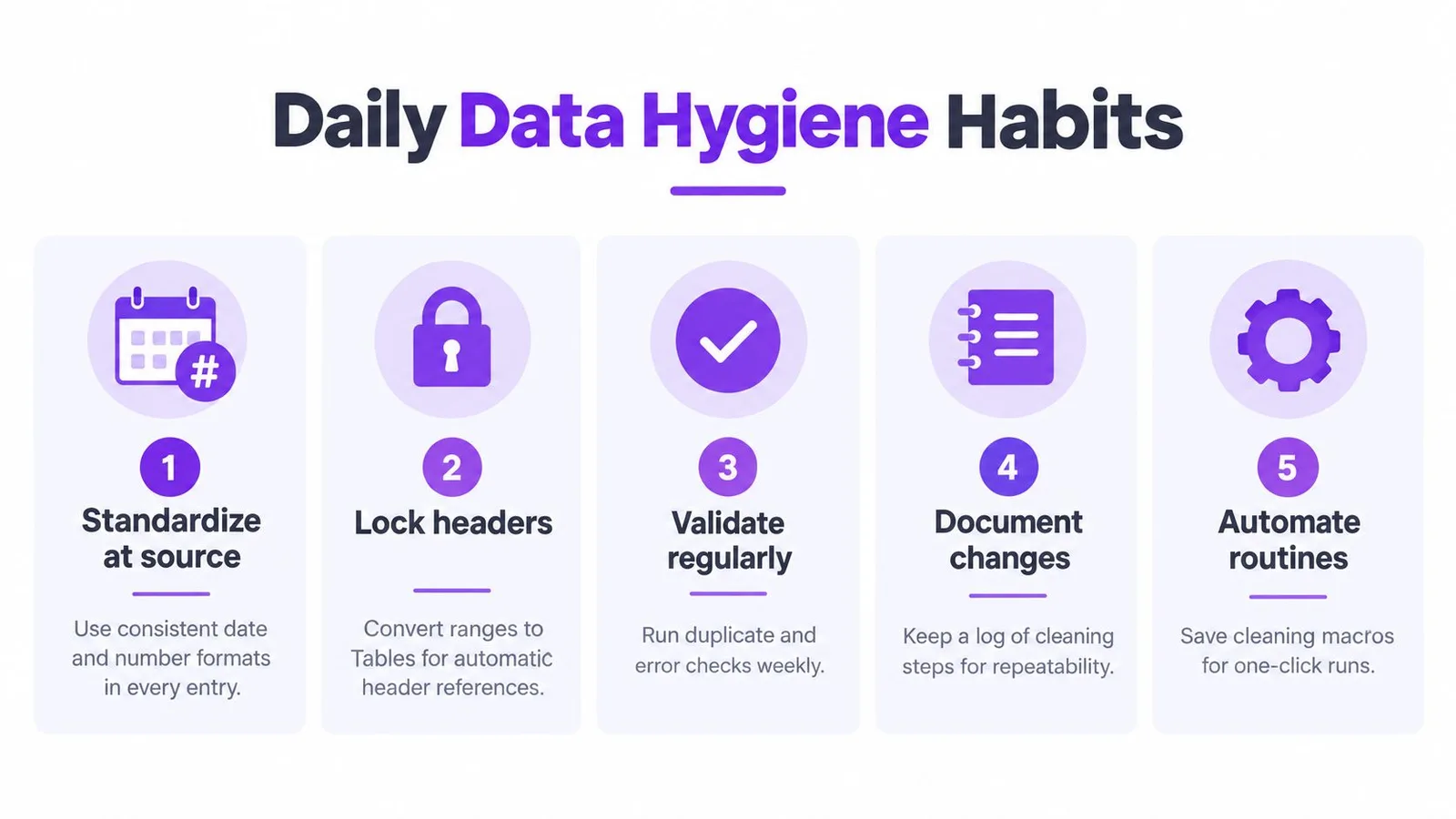
Reliable cleaning starts before the export arrives. Standardize date and number formats at the point of entry, use data-validation dropdowns for controlled categories, and keep headers stable by working inside an Excel Table. These choices reduce the number of repairs later.
Archive each cleaned file with a dated filename and a one-line change log. Never overwrite the source tab in place, and don’t rely on fragile Find and Replace loops that can alter labels, formulas, or identifiers outside the intended range.
For recurring semi-structured exports, AI-assisted cleanup in Google Sheets or Excel can help classify values, suggest formulas, standardize fields, and flag anomalies. GPT Workspace provides spreadsheet features for data analysis and cleaning inside Google Workspace, but the tool doesn’t replace source preservation, validation, or a clear log.
Before the next messy file lands, remember: preserve the raw data, profile before editing, transform in helpers, validate against the source, and document the result.
GPT Workspace brings AI assistance into Gmail, Docs, Sheets, Slides, Drive, and Forms, including spreadsheet formula generation, analysis, and cleaning workflows. If you want to reduce repetitive spreadsheet preparation while keeping transformations reviewable, visit GPT Workspace and explore how it fits your existing files.