How to Make an Invoice as a Freelancer (Free Tool + Google Docs)
How to make an invoice as a freelancer: a free two-minute tool, a Google Docs template, a Google Sheets invoice with automatic totals, and an AI sidebar prompt.

Your first freelance invoice is usually written the night the client asks for it, in whatever app is open. By the tenth you have three layouts and no idea which number comes next, which is why how to make an invoice as a freelancer is worth settling once.
This guide covers three ways that scale: a free browser tool for the one-off, a Google Docs template you control, and a Google Sheets invoice where the totals and tax calculate themselves. It also shows how the GPT Workspace sidebar drafts the invoice inside Docs from a single prompt.
GPT Workspace is a Chrome extension that puts ChatGPT, Claude and Gemini inside Google Docs, Sheets, Slides, Gmail and Drive. The free invoice tool below does not need it; the Docs and Sheets shortcuts do.
How to Make an Invoice as a Freelancer: Three Options
Each option suits a different stage. Pick by how many invoices you send a month, not by which looks nicest.
| Option | Time for the first invoice | Totals and tax | Where it lives | Best when |
|---|---|---|---|---|
| Free invoice tool | 2 minutes | Automatic | Your browser, PDF download | You bill a few clients, occasionally |
| Google Docs template | 15 minutes to set up | Typed by hand | Google Drive | You want your own layout and branding |
| Google Sheets invoice | 20 minutes to set up | Automatic formulas | Google Drive | You send several a month and track clients |
Whatever you pick, the fields are the same: your details, the client’s, a unique invoice number, issue and due dates, line items, tax and total. The full list with the UK and EU legal requirements is in what to include on an invoice.
Option 1: The Free Invoice Tool
The fastest route is the free invoice generator on gpt.space. Fill in your details, the client, the line items, the tax rate and the currency, watch the preview update, and click Download PDF.
There is no sign-up and nothing is uploaded; the page works entirely in your browser. If you prefer to describe the job, switch to AI mode and type “3 days of design work for Acme at $600/day, 20% VAT”, and the line items, tax and due date are filled in for you.
The full walk-through is in free invoice generator: create a PDF invoice in 2 minutes. The rest of this guide is for the day you want the invoice to live in your own Drive.
Option 2: Freelance Invoice Template in Google Docs
A Docs invoice is a one-page document with a table. Build it once, then File, Make a copy for each new invoice.
Set up the page
Open a new document and name it “Invoice template”. Add your logo and business name at the top left, and the word INVOICE in a large font at the top right.
Below that, create two short blocks: your address, email and VAT or tax ID on the left; “Bill to” with the client’s name, address and VAT number on the right. A two-column, one-row table with the borders set to 0 pt keeps them aligned.
Add the details block
Under the addresses, list four lines: Invoice number, Invoice date, Supply date, Due date. Leave the values as placeholders such as [2026-014] so you remember to change them.
Insert the line items table
Go to Insert, then Table, and choose the grid size, four columns by six rows is a good start (Google Docs Help). Head the columns Description, Qty, Unit price, Amount, and make the last four rows Subtotal, VAT or tax, Discount and Total.
Right-align the three number columns and bold the Total row. The amounts are typed by hand in Docs, so check them twice; this is the main reason to move to Sheets once volume grows.
Finish and export
Close with a payment block: bank account name, IBAN and BIC or account number and sort code, and the terms, for example “Payment within 14 days. Late payments may incur statutory interest.”
For each invoice, make a copy, fill in the placeholders, then File, Download, PDF Document. Name the file with the invoice number and the client, such as 2026-014-acme.pdf.
Option 3: Google Sheets Invoice With Automatic Totals
Sheets does the arithmetic and keeps a client list in the same file. The layout is the same as the Doc; the difference is the formulas.
Lay out the invoice
In a new spreadsheet, use rows 1 to 8 for your details, the client’s details and the invoice number and dates. Put the tax rate in its own cell, for example B8 holding 20%, so you can change it once.
From row 10, set up the columns: A Description, B Qty, C Unit price, D Amount. Rows 11 to 20 are your line items.
Add the formulas
In D11 enter the amount formula and fill it down to D20:
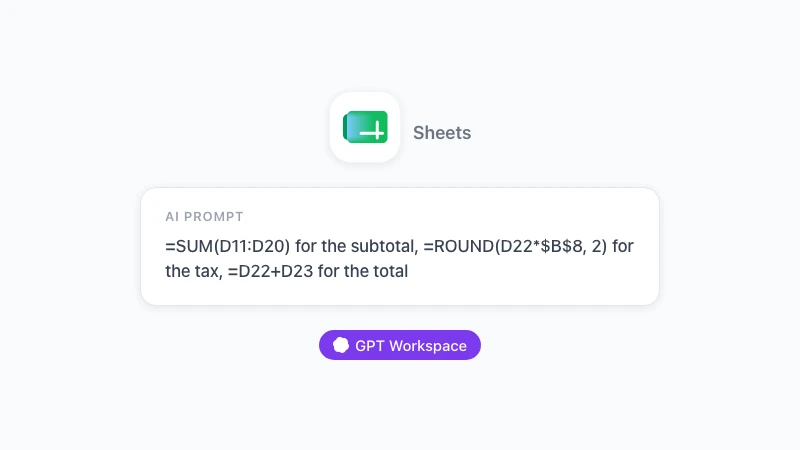
=B11*C11Below the items, three rows do the totals. Subtotal uses SUM, whose syntax is SUM(value1, [value2, …]) (Google Sheets Help):
Subtotal   =SUM(D11:D20)
Tax        =ROUND(D22*$B$8, 2)
Total      =D22+D23
If you offer a discount, add a row between Subtotal and Tax, and calculate the tax on the discounted figure. Select the number cells and set Format, Number, Currency so the symbol and decimals match.
Make it reusable
Keep a second tab called Clients with one row per client: name, address, VAT number, email, default rate. On the invoice tab, a dropdown on the client cell (Data, Data validation, from a range) plus a few VLOOKUP formulas fills the address block automatically.
Add a third tab called Log with the invoice number, client, amount, due date and a Paid column. The next invoice number is the last one plus one, and the Log tab is the answer to “what is still outstanding?”
To export, go to File, Download, PDF, choose Current sheet and Fit to width, and switch off gridlines. The result is the same clean PDF a Doc produces, with totals you did not have to check.
 Try GPT Workspace
Use ChatGPT, Claude, and Gemini directly inside Google Docs, Sheets, Slides, Gmail, and Drive. No tab switching.
Get Started FreeDraft the Invoice From a Prompt With GPT Workspace
Building the template is a one-time job. Filling it in every month is the part worth handing to an AI sidebar.
In Google Docs
Install GPT Workspace from the Chrome Web Store, open your invoice template, and click the GPT Workspace icon to open the sidebar. Then describe the invoice:
Draft an invoice for Acme Ltd, 14 Market Street, London, for October 2026: 12 hours of consulting at 150 per hour and 2 hours of travel at 75, 20% VAT, invoice number 2026-015, due in 30 days from today. Use the same layout as this document.
The sidebar writes the itemised table with the subtotal, the VAT line and the total into the document, and you adjust anything that is off before downloading the PDF. Because it reads the open document, it keeps your headings and address block rather than inventing new ones.
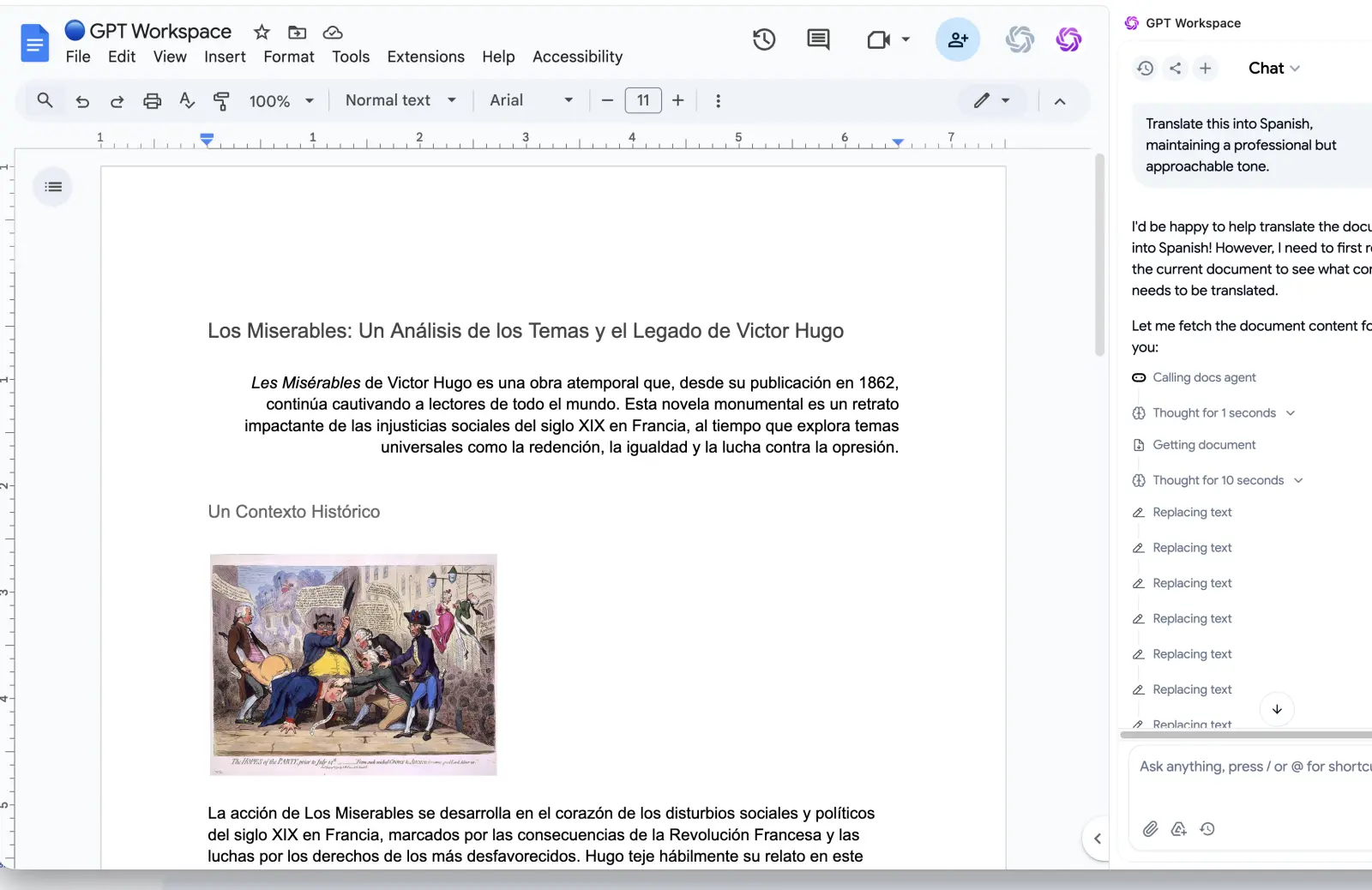
The same sidebar edits what is already there: “Change the due date to 15 December and add a 10% early payment discount line” is a normal request. For more Docs prompts, see how to use ChatGPT in Google Docs.
In Google Sheets
In the Sheets invoice, the sidebar handles the messy inputs. Paste a client’s email signature and ask it to split the name, company, address and VAT number into the Clients tab columns.
The =GPT formula works per cell, which is useful for descriptions. If column A on a timesheet holds raw notes like “tues call w/ acme re homepage”, a formula in column B turns them into invoice-ready lines:
=GPT("Rewrite as a short, professional invoice line item: " & A2)Fill it down, review, and paste the results as values into the invoice. How to use AI in Google Sheets covers the formula and the sidebar in detail.
Freelance Invoicing Habits That Get You Paid
The document is half the job. These habits cover the other half.
Invoice the day the work is delivered, not at the end of the month. Every day you wait is added to the client’s payment terms.
Ask for a deposit on projects longer than two weeks, typically 30 to 50 percent, and issue a proper invoice for it with its own number. The final invoice then shows the deposit as a deduction.
State a due date as a calendar date and follow up on it. A friendly reminder on the due date and a firmer one two weeks later are short emails, and GPT Workspace drafts them in Gmail from a one-line prompt.
Keep one numbering sequence across all three methods. If you make a one-off invoice in the free tool and the rest in Sheets, write the tool’s number in the Log tab too.
Frequently Asked Questions
Conclusion
How to make an invoice as a freelancer depends on how often you send one. For the occasional job, the free invoice tool gives you a PDF in two minutes. For regular clients, a Google Docs template gives you control over the layout, and a Google Sheets invoice gives you totals and a client list that do not need checking.
Whichever template you settle on, let GPT Workspace fill it in: one prompt in the Docs sidebar drafts the itemised invoice, one formula in Sheets tidies the line items, and the Gmail reminders write themselves. The Chrome Web Store listing has the reviews if you want to check before installing.