How to Add a Caption to an Image in Google Docs (Now Built In)
Learn how to add a caption to an image in Google Docs with the new Inline caption tool, then link to it with cross-references and build a table of captions.

For years, the honest answer to how to add a caption to an image in Google Docs was a workaround: a line of text that drifted away, a borderless table, or a drawing. That changed on November 18, 2026, when Google added a real caption tool to Docs.
The short version: select the image, click Insert, then Page elements, then Inline caption. Type the caption, pick a label such as Figure, and click Insert.
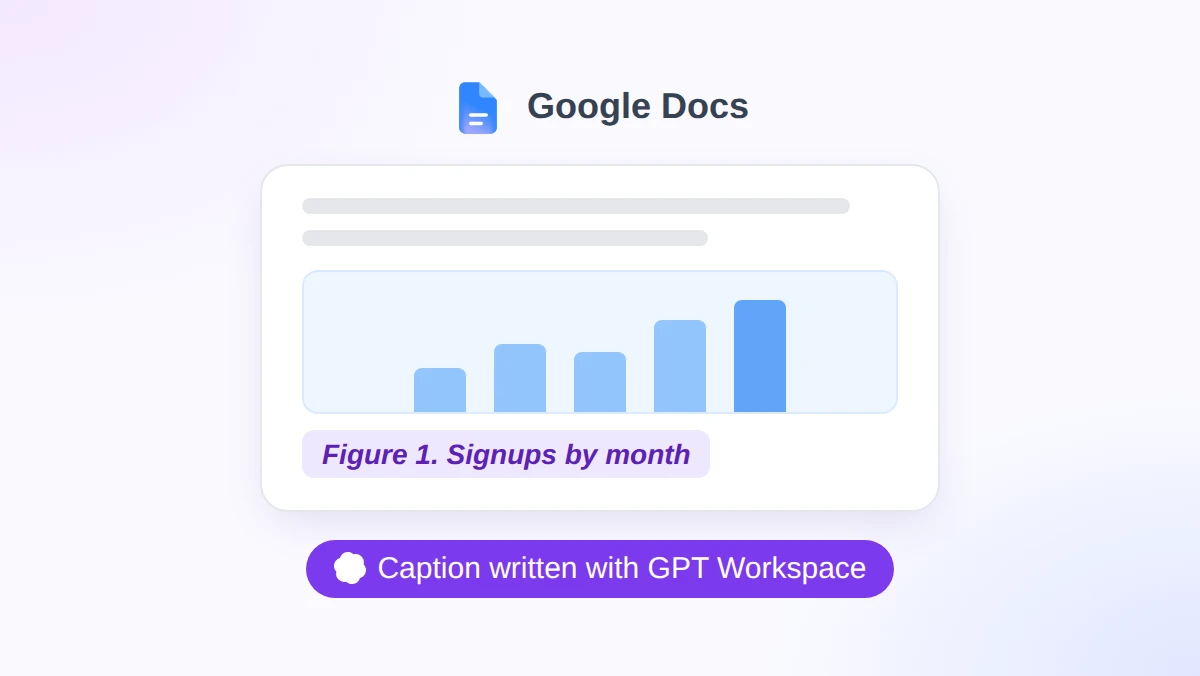
Docs adds the label and the number, and Google says the numbers stay in order as figures come and go. The words are still yours to write, which is where GPT Workspace helps: a Chrome extension and Google Workspace Add-on that puts ChatGPT, Claude, and Gemini inside Docs, Sheets, Slides, and Gmail.
What Changed: Google Docs Now Has Native Captions
Google’s Workspace Updates post of November 18, 2026 adds three linked tools to Docs. All three sit in the same submenu.
| Tool | What it does | Where it is |
|---|---|---|
| Inline caption | Adds a numbered label such as Figure 1 or Table 1, or a custom label, to an item | Insert, Page elements, Inline caption |
| Cross reference | Links your text to a caption, and the link text follows the caption | Insert, Page elements, Cross reference |
| Table of captions | Builds a clickable list of captions with page numbers | Insert, Page elements, Table of captions |
The headline feature is the numbering. Google describes labels that “automatically order and renumber themselves in sequence as captions are added, reordered, or removed.”
Who Gets It
- Accounts: all Google Workspace customers, Workspace Individual subscribers, and personal Google accounts.
- Price: no paid plan or Gemini add-on is required, since free personal accounts are on the list.
- Timing: Google lists it as “Available now” for both Rapid Release and Scheduled Release domains.
- Admins: “There is no admin control for this feature,” so nobody has to switch it on.
How to Add a Caption to an Image in Google Docs: Step by Step
These steps follow Google’s help article on inline captions and the demo in the launch post.
- Select the image. Click the image, chart, table, or equation you want to label.
- Open the caption tool. Click Insert, then Page elements, then Inline caption.
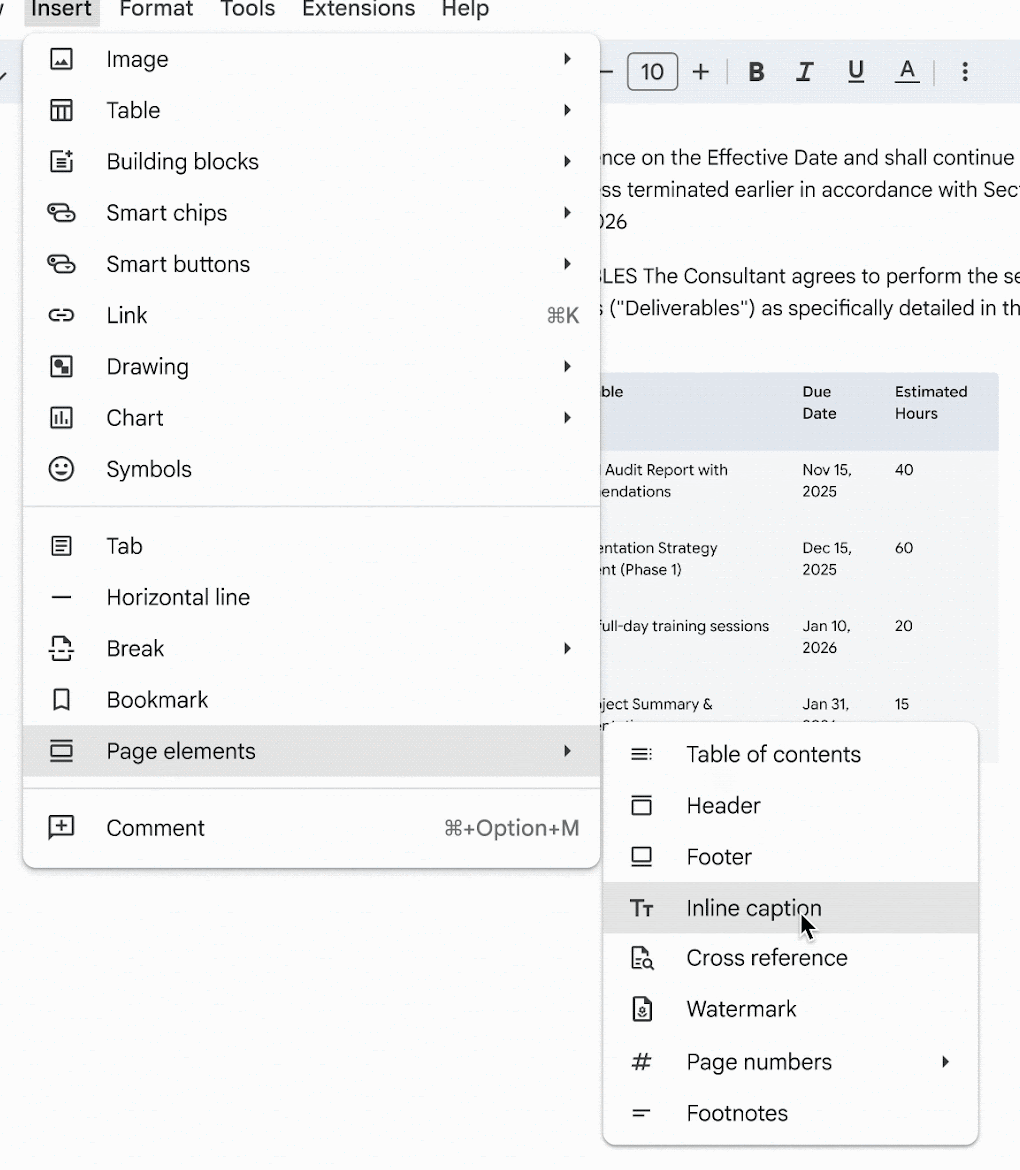
- Type the caption. In Google’s demo, a small card opens under the selected item with a Caption text box.
- Pick a label type. The Caption label type menu offers Figure, Table, Equation, and Custom.
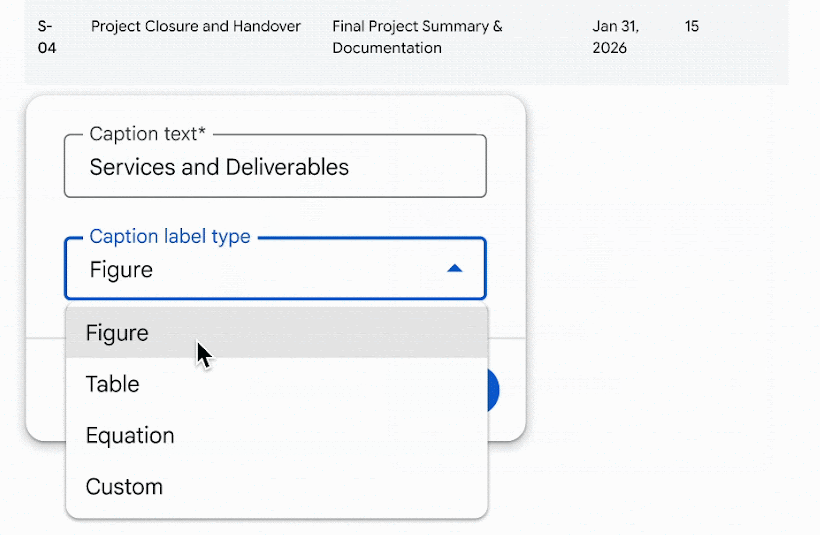
- Click Insert. The caption appears under the item, with its label and number in front of your text.
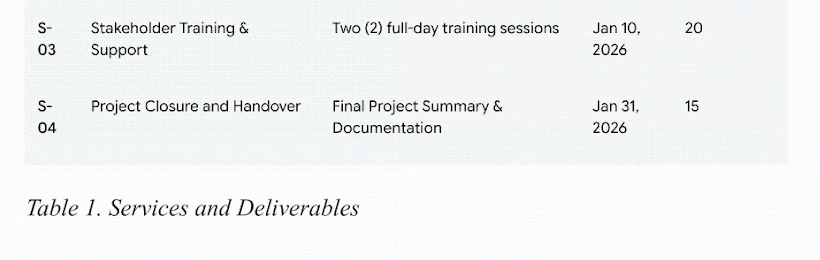
Repeat the steps for the next image. Docs gives it the next number, so you never type “Figure 2” by hand.
Customize the Label and the Numbering
The card has a Customize button next to Insert. Google’s help article describes the fuller set of options in an Inline Caption panel.
| Option | What it controls |
|---|---|
| Caption type | Figure, Table, Equation, or a custom label you add yourself |
| Include label in the caption | Whether the caption type appears in the caption |
| Numbering style | How the number is written |
The help article does not list the numbering styles. Google’s demo shows the same caption as “Table 1” in one shot and “Table I” in another, which suggests Roman numerals are one of them.
What You Can Caption
The tool is not limited to pictures. The help article names figures, charts, tables, images, and equations, and it says captions work “with or without sequential numbering.”
If your figure is a chart, build it first. Our guide on how to make a pie chart in Google Docs covers that part.
Cross-References: Point Your Text at a Caption
A typed “see Figure 3” goes stale the moment you add a figure above it. A cross-reference fixes that: it is a link to a caption, and its text comes from the caption.
Google’s help article puts the difference this way: “Unlike traditional links which have static display text, these cross-references can dynamically update their display text based on the caption.”
One rule comes first. The help article says: “You must insert at least one caption in the document before you can add a cross-reference.”
- Place the cursor where the reference should appear in your sentence.
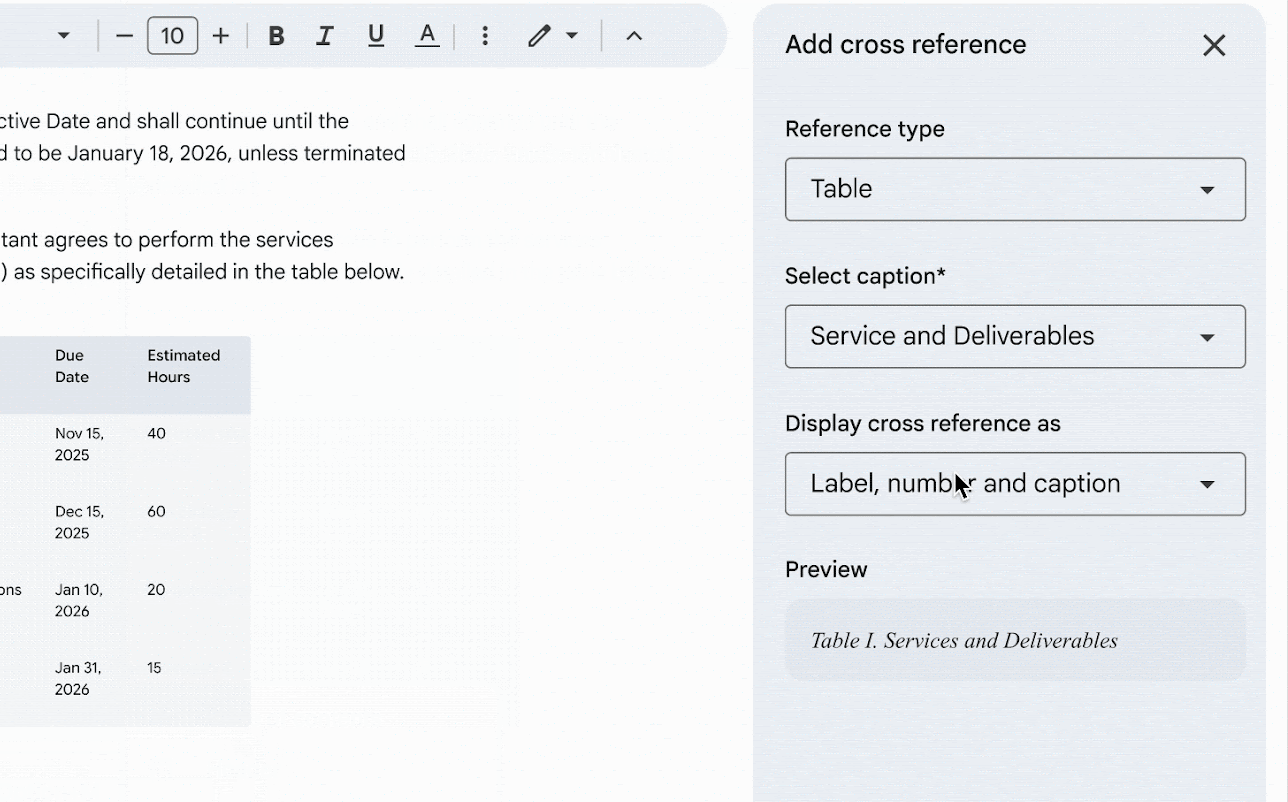
- Open the panel. Click Insert, then Page elements, then Cross reference, then Insert cross reference.
- Choose the reference type: Figure, Table, Equation, or a custom label.
- Select the caption from the list of captions with that label.
- Pick a display format. Google’s demo shows “Label, number and caption” selected, with a Preview box underneath.
- Click Insert. The reference lands at the cursor as a link.
Refresh a Cross-Reference After You Edit
The launch post says the display text “updates to reflect the caption.” The help article adds a manual step: “If you update a caption of a visual element, you can refresh to update the link.”
- One reference: click the linked text, then click Refresh cross-reference.
- Every reference: click Insert, then Page elements, then Cross reference, then Refresh all.

Table of Captions: A Clickable List of Figures
Long reports often open with a list of figures. Docs now builds one from your captions, which Google describes as “a clickable list of captions and page numbers.”
- Place the cursor where the list should go.
- Open the panel. Click Insert, then Page elements, then Table of captions.
- Select a caption label type, such as Figure.
- Check “Include label and numbers” to show the label and number with each entry.
- Click Insert.
The help article gives the list its own update button, so treat these actions as part of your final check.
| Task | How |
|---|---|
| Update after edits | Select the table, then click Update table of captions |
| Change the layout | Select the table, click More, then Edit table of captions |
| Remove it | Select the table, click More, then Delete table of captions |
One detail is easy to miss in pageless documents. Per the help article, “Pageless format hides page numbers and dot or dash separators in a table of captions,” so switch the document to Pages format to see them.
Google’s launch demo ends at the cross-reference, so there is no official screenshot of this panel yet. The submenu in that demo does not list Table of captions either, though the launch post and the help article both give the same path.
Google Docs Captions vs Word, and the Old Workarounds
Word has had captions for years, so the comparison matters if your team uses both. Microsoft’s support page puts the command on the References tab.
| Feature | Google Docs | Microsoft Word |
|---|---|---|
| Where | Insert, Page elements, Inline caption | References tab, Captions group, Insert Caption |
| Labels | Figure, Table, Equation, Custom | Figure, Table, Equation, or a label you type |
| Renumbering | Google says captions renumber when added, reordered, or removed | Automatic when you insert a caption. After a delete or move, “you must manually start a caption update” |
| List of figures | Table of captions | Table of figures |
Google also says the new tools work with Microsoft Word (.docx) files, “so your formatting stays intact on import and export.” We found no independent round-trip test yet, so export a copy and check the numbering before you send a contract.
When an Old Workaround Still Makes Sense
Search for this topic and you still land on workarounds. The four below come from How-To Geek’s guide, last updated in September 2023, when Docs had no native caption feature.
| Method | How it works | Use it when |
|---|---|---|
| Text under the image | Set the image to In line and type below it | You need one quick label and no numbering |
| Drawing | Insert, Drawing, New, then add the image and a text box | The caption must move with the image as one object |
| Borderless table | A 1 x 2 table with the image on top and the border set to 0 pt | You want the image and its caption held in one block |
| Caption Maker add-on | Captions every item at once with generic labels | An older document already relies on it |
The first three are plain text and layout. Docs does not number them, and a cross-reference or a table of captions has nothing to point at.
Write the Caption Text With GPT Workspace
Docs now handles the label and the number. The sentence after “Figure 1” is still on you, and in a report with twenty figures that is real writing time.
A useful caption says what the figure shows and why it matters, in one line. GPT Workspace drafts that line from the text you already wrote.
- Open the GPT Workspace sidebar in your document and pick a model: ChatGPT, Claude, or Gemini.
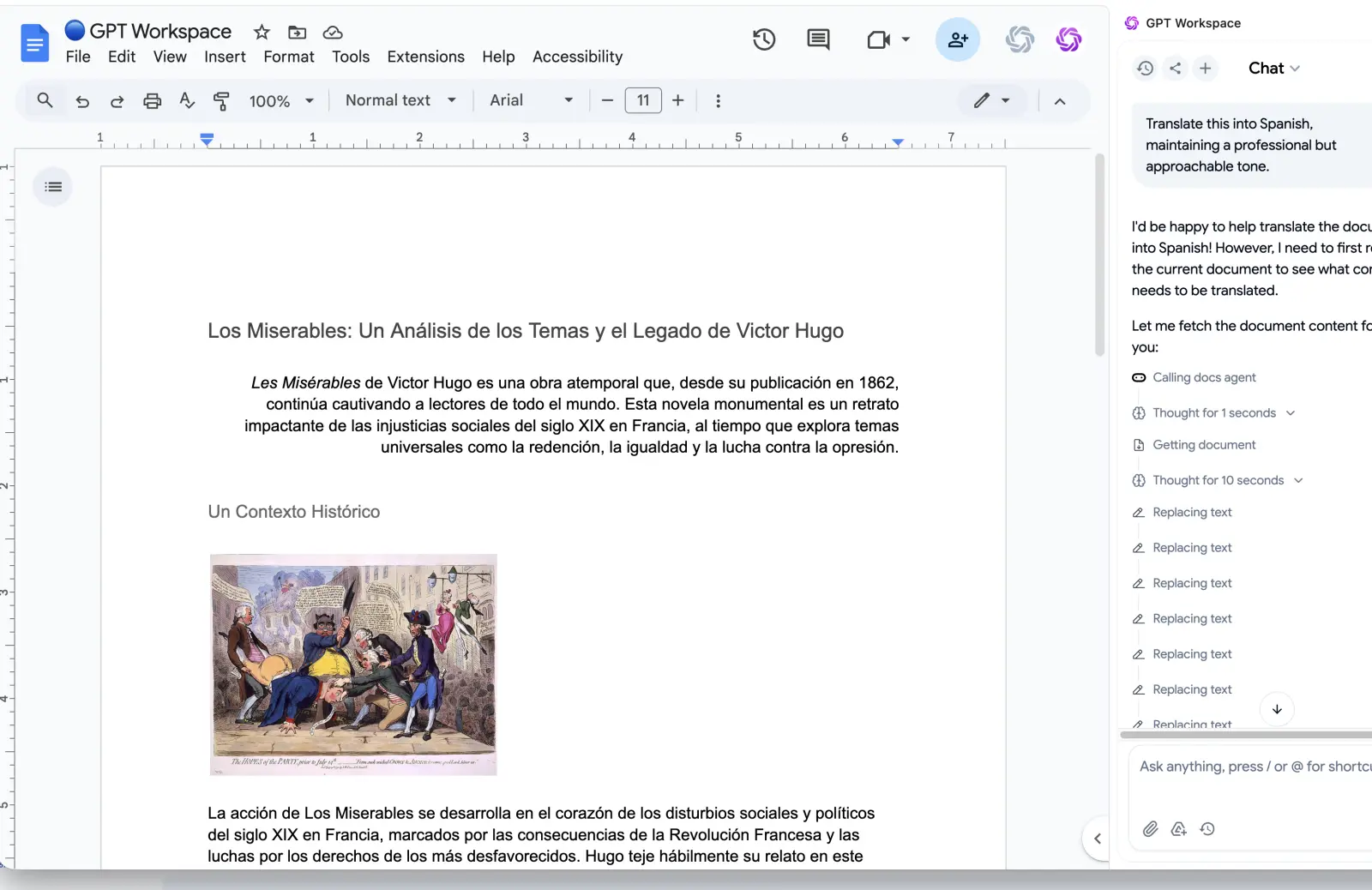
- Select the paragraph that discusses the image, so the sidebar has the context.
- Ask for the caption. Name the length and what it must mention.
- Paste the result into the Caption text box, then click Insert.
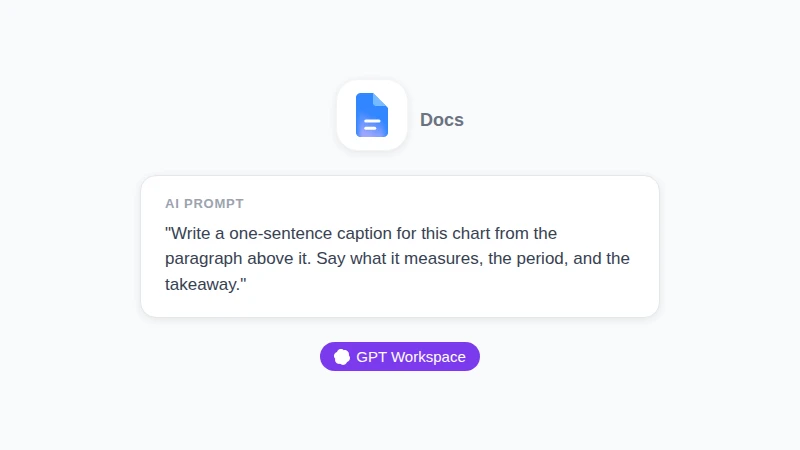
Illustration, not a screenshot: a request you could type in the GPT Workspace sidebar in Docs. It names the length and the three things the caption must mention.
These prompts cover the usual cases.
| Goal | Prompt |
|---|---|
| First draft | “Write a one-sentence caption for this chart from the paragraph above it. Say what it measures, the period, and the takeaway.” |
| One style | “Rewrite these captions so each starts with a noun phrase, uses sentence case, and stays under 15 words.” |
| Shorter | “Cut this caption to one line without losing the unit or the year.” |
| Table | “Write a caption of under 10 words for a table of services, deliverables, due dates, and estimated hours.” |
Two limits, stated plainly. GPT Workspace writes the words, while the label, the number, and the cross-references come from Docs.
Give it words to work from, too. That means the paragraph around the figure, or a one-line description of what the image shows.
 Try GPT Workspace
Use ChatGPT, Claude, and Gemini directly inside Google Docs, Sheets, Slides, Gmail, and Drive. No tab switching.
Get Started FreeNew to the sidebar? Our walkthrough on how to use ChatGPT in Google Docs covers setup, and the guide to ChatGPT for grant writing shows it at work on a long, formal document.
GPT Workspace has a free plan with usage limits, and paid plans raise them.
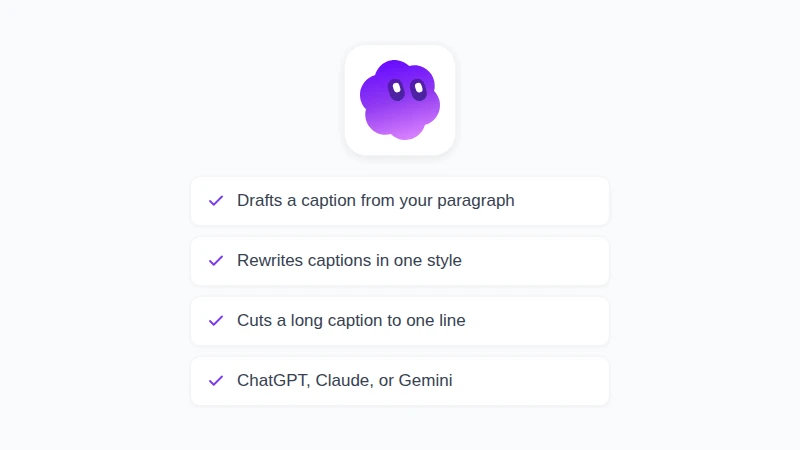
Illustration, not a screenshot: what GPT Workspace contributes to a caption. The label, the number, and the links still come from Docs.
Frequently Asked Questions
Conclusion
Knowing how to add a caption to an image in Google Docs no longer means choosing between a drawing and a borderless table. Select the image, open Insert, Page elements, Inline caption, and let Docs handle the label, the number, the cross-references, and the list of figures.
What Docs will not do is write the caption. GPT Workspace drafts it from your own paragraph, inside the same document, so install it and caption your next figure in one pass.