How to Compare Two Word Documents (Now in Google Docs Too)
How to compare two Word documents in Word for Windows or Mac, or free in Google Docs, which now reads .docx files without converting. Steps, limits, AI tips.

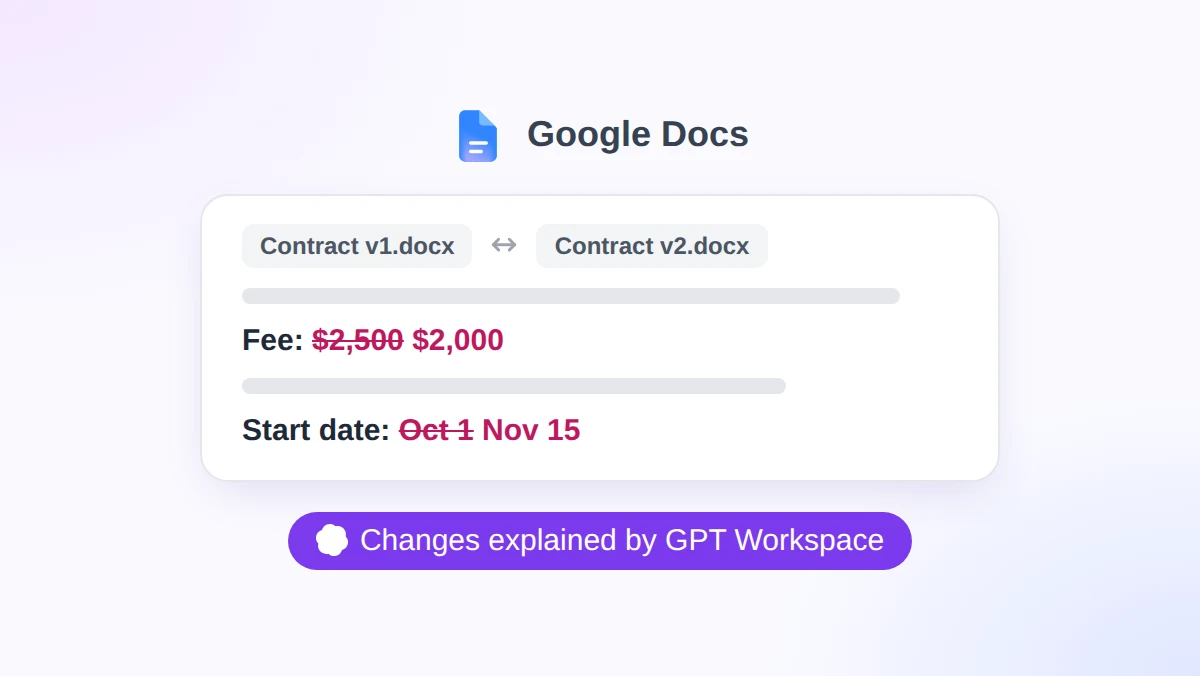
A client sends your contract back as a new .docx and says only one typo changed. Knowing how to compare two Word documents lets you check that claim in about a minute, without reading both files line by line.
The short version: in Word for Windows or Mac, open the Review tab and click Compare. With no desktop Word, put both files in Google Drive and use Tools, then Compare documents in Google Docs, which has read .docx files without conversion since November 16, 2026.
Either tool marks every change, but neither says which change matters. That is where GPT Workspace fits: a Chrome extension and Google Workspace Add-on that puts ChatGPT, Claude, and Gemini inside Docs, Sheets, Slides, and Gmail.
How to Compare Two Word Documents: Your Options at a Glance
The right method depends on what you have installed. By default, each one leaves your two files alone and puts the differences in a third document.
| Where you work | Compare command | What you get |
|---|---|---|
| Word for Windows | Review tab, Compare, “Compare two versions of a document (legal blackline)” | A new third document with tracked changes |
| Word for Mac | Review tab, Compare, Compare Documents | A new copy with revision marks |
| Word for the web | Not listed | Track Changes, but no comparison |
| Google Docs in a browser | Tools, Compare documents | A new Google Doc with suggested edits |
The third row surprises people. Microsoft’s feature comparison for Word ticks “Compare and Merge revisions” for Word Desktop and leaves the Word for the web column empty, while Track Changes is ticked in both.
So if Word in the browser is all you have, Google Docs is now the shortest route. It needs a Google account and a desktop browser.
What Changed: Google Docs Now Compares .docx Files
Docs already opens and edits Word files directly. Its Compare documents tool was the gap, and Google’s Workspace Updates post of November 16, 2026 closes it.
The post is short and specific: “You can now compare .docx files directly in Google Docs without converting them first.” Google adds that this means “no more duplicate files cluttering your Drive.”
Who Gets It
- Accounts: all Google Workspace customers, Workspace Individual subscribers, and personal Google accounts.
- Price: no paid plan is required, since free personal accounts are on the list.
- Timing: “Available now” for both Rapid Release and Scheduled Release domains.
- Admins: “There is no admin control for this feature,” so nobody has to switch it on.
One nuance is worth knowing before you start. The post says the tool is “available by default when opening .docx files in Google Docs,” while Google’s help article on comparing documents documents one pairing: a Google Doc compared with a .docx file.
Compare Word Documents in Google Docs, Step by Step
These steps follow that help article and the demo in the launch post. They are written for a desktop browser: the article’s first step begins “On your computer.”
- Put both Word files in Google Drive. The help article is strict about the second file: “The file must be stored in Google Drive.”
- Open the older version in Google Docs. Google calls it the primary document, and it is the baseline for the comparison.
- Click Tools, then Compare documents. The command sits right under Review suggested edits.
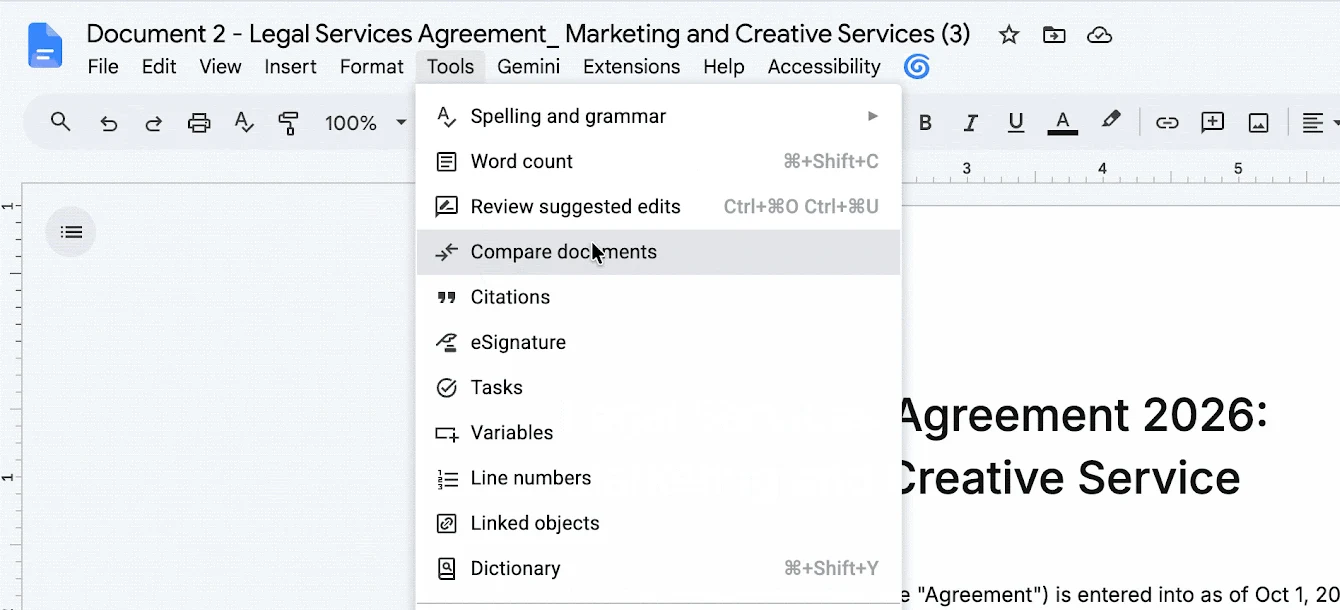
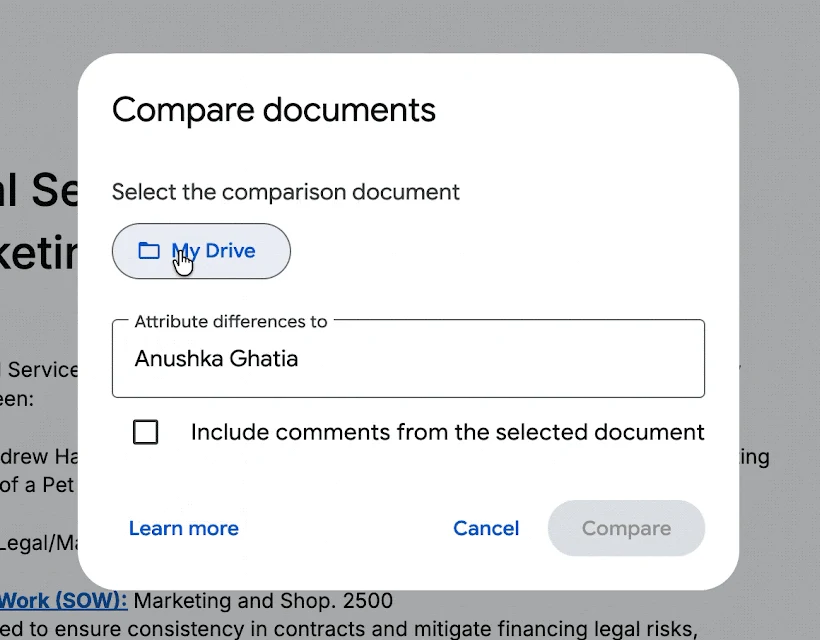
- Open the file picker. Under “Select the comparison document,” click the Drive button. The help article calls it From Drive, and Google’s demo labels it My Drive.
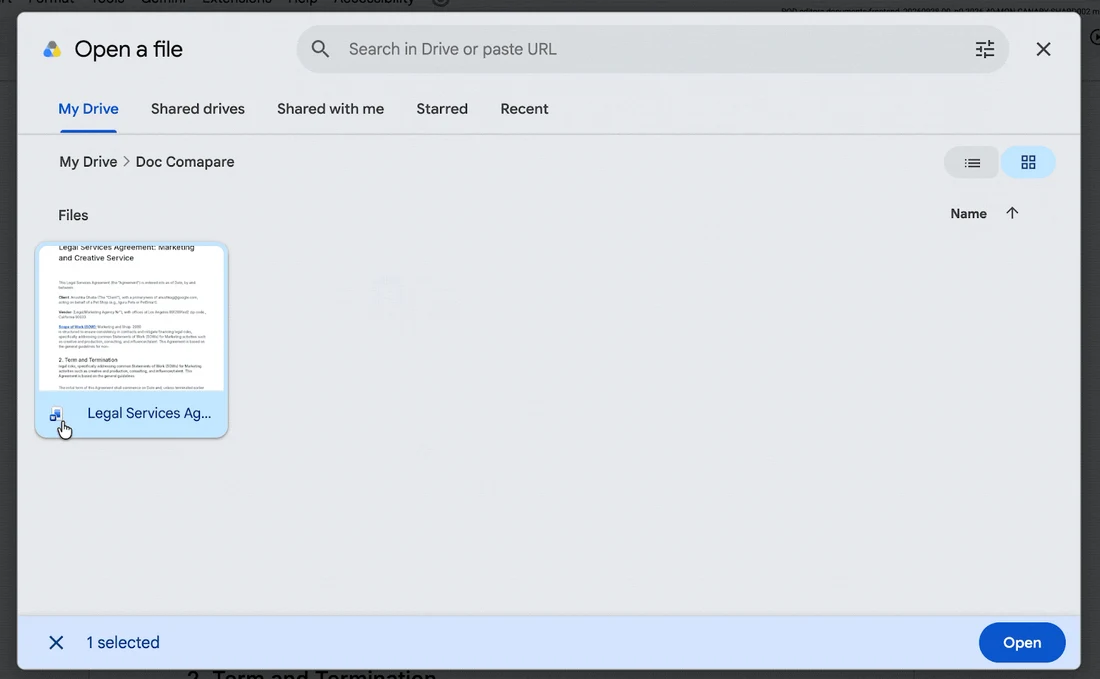
- Select the newer Word file, then click Open. Word files carry a small blue W icon in the picker.
- Set the two options. “Attribute differences to” is the name shown on each suggested edit, and it defaults to yours. Check “Include comments from the selected document” to carry that file’s comments over.
- Click Compare, then Open. In Google’s demo, a small “Comparison is ready” box holds the Open button.
Read the Comparison
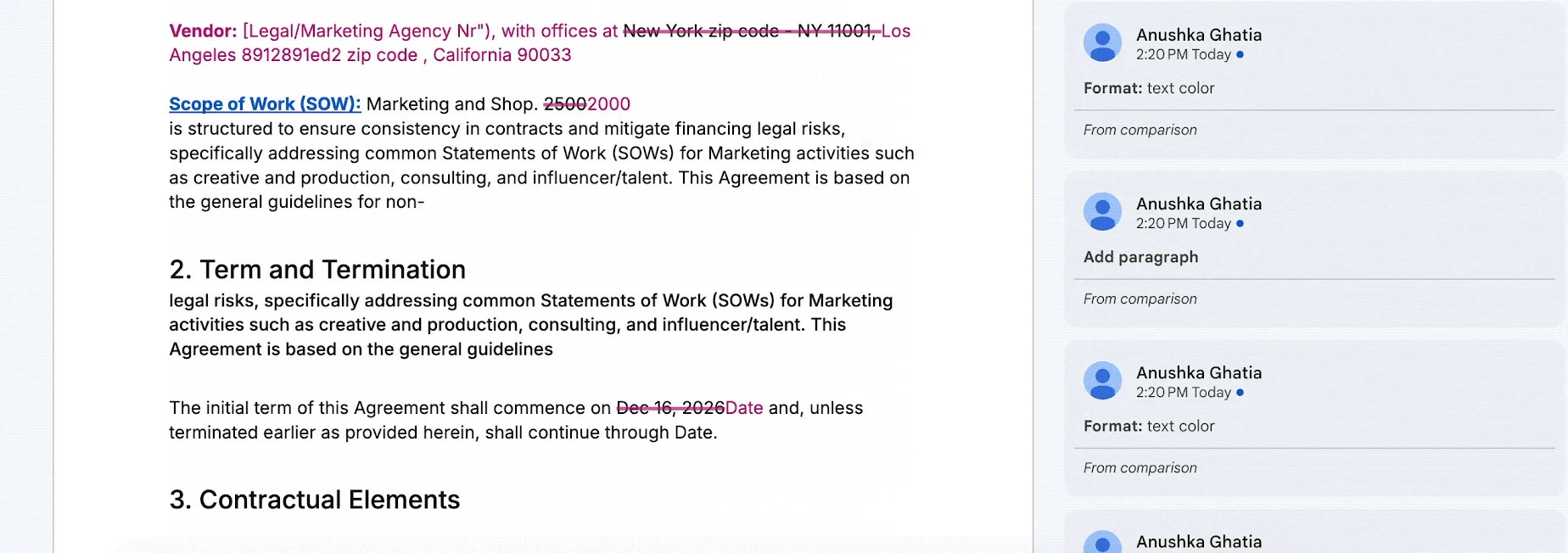
The help article describes the output in one line: comparing “creates a third Google Doc that shows the differences as suggested edits.” In Google’s demo, the new file is named “Comparison of” followed by both file names.
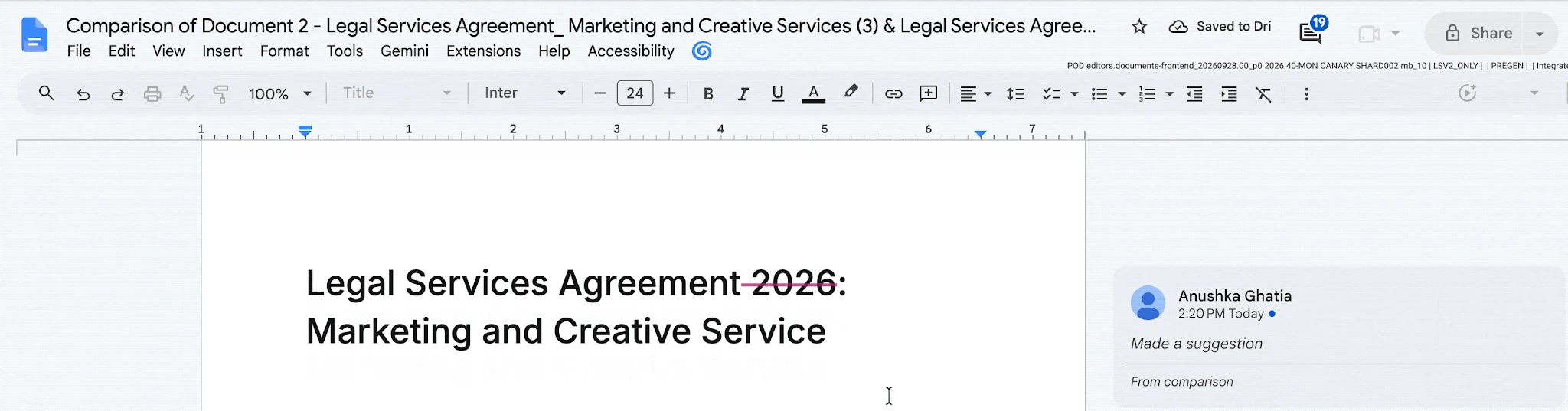
Text that only the first file has is struck through. Text that only the second file has appears in color, and each change gets a card in the right margin.
Accept or Reject the Changes
Suggested edits are yours to resolve. Google’s help article on suggested edits gives two routes.
- One by one: choose a comment card, then click Accept or Reject.
- All at once: click Tools, then Review suggested edits. A box appears at the top right, where you click Accept all or Reject all.
The Down arrow in that box previews the document with or without the changes before you commit.
Sending the result back to a Word user? The same article says that on conversion, “Any suggestions in Google Docs editors become tracked changes in Microsoft Office,” so a comparison you download as a Word file should arrive as tracked changes.
Limits to Know Before You Rely on It
| Limit | What Google says |
|---|---|
| Layout | “Changes to the document column layout and table column width won’t be compared.” |
| Storage | The Word file you select must be stored in Google Drive |
| Device | The steps are written for a computer |
| File pairing | The help article covers a Google Doc compared with a .docx file |
| Old extension | The legacy “Office Editing for Docs, Sheets & Slides” Chrome extension “may open Word files in a restricted viewer tab” |
Two of these have fixes. If Compare documents is unavailable in your Word file, convert the older version to a Google Doc and start from that copy.
Google’s Office files help page confirms the original survives: “When you convert, you make a copy of your Office file.” For the extension problem, open the file from Drive with Right-click, then Open with, then Google Docs.
How to Compare Two Documents in Word on Windows and Mac
If desktop Word is installed, its Compare command does the same job on local files, with finer controls.
Word for Windows
These steps come from Microsoft’s legal blackline article, which covers Word for Microsoft 365 and other Windows desktop versions.
- Open both documents in Word.
- Go to the Review tab. In the Compare group, select Compare.
- Click “Compare two versions of a document (legal blackline).”
- Set Original document to the older file.
- Set Revised document to the newer file.
- Choose what to compare. The options cover comments, formatting, and text changes, shown at the character level or the word level.
- Select OK.
Microsoft sums up the result: Word “displays what changed between them in a third new document. The documents that are being compared are not changed.”
Three details save trouble later.
- Keep the default output. Under “Show changes in,” choosing Original document or Revised document “will modify the selected document.”
- Tracked changes come first. If either file has them, Word shows a message box, and clicking Yes accepts them and runs the comparison.
- Several reviewers. Microsoft says not to use this option for that case and points to “Combine revisions from multiple authors into a single document.”
Word for Mac
Microsoft’s Mac article is shorter.
- Open one of the two versions.
- On the Review tab, select Compare, then Compare Documents.
- Pick the older file in the Original document list.
- Browse to the newer file in the Revised document list, then select OK.
Word merges the changes into a new copy based on the original. Microsoft notes that “The original copy remains untouched.”
Word or Google Docs: Which to Use
| Word desktop | Google Docs | |
|---|---|---|
| Runs in | The Windows or Mac app | A desktop browser |
| Files live | On your computer | In Google Drive |
| Result | A third document with tracked changes | A third Google Doc with suggested edits |
| Controls | Character or word level, plus what to compare | A name label and a comments checkbox |
| You need | A desktop version of Word | Any Google account |
Use Word when the app is on your machine and you want its finer controls. Use Docs on a Chromebook, on a borrowed laptop, or when the team already keeps its files in Drive.
Make Sense of the Changes With GPT Workspace
A comparison is a list, not a judgment. Forty marked changes can hide the one that moves a deadline or drops a zero.
GPT Workspace works on that part, inside the comparison file. That file is a regular Google Doc, which matters: Google’s Office help page lists add-ons among the reasons to convert an Office file.
- Open the comparison document and start the GPT Workspace sidebar.
- Pick a model: ChatGPT, Claude, or Gemini.
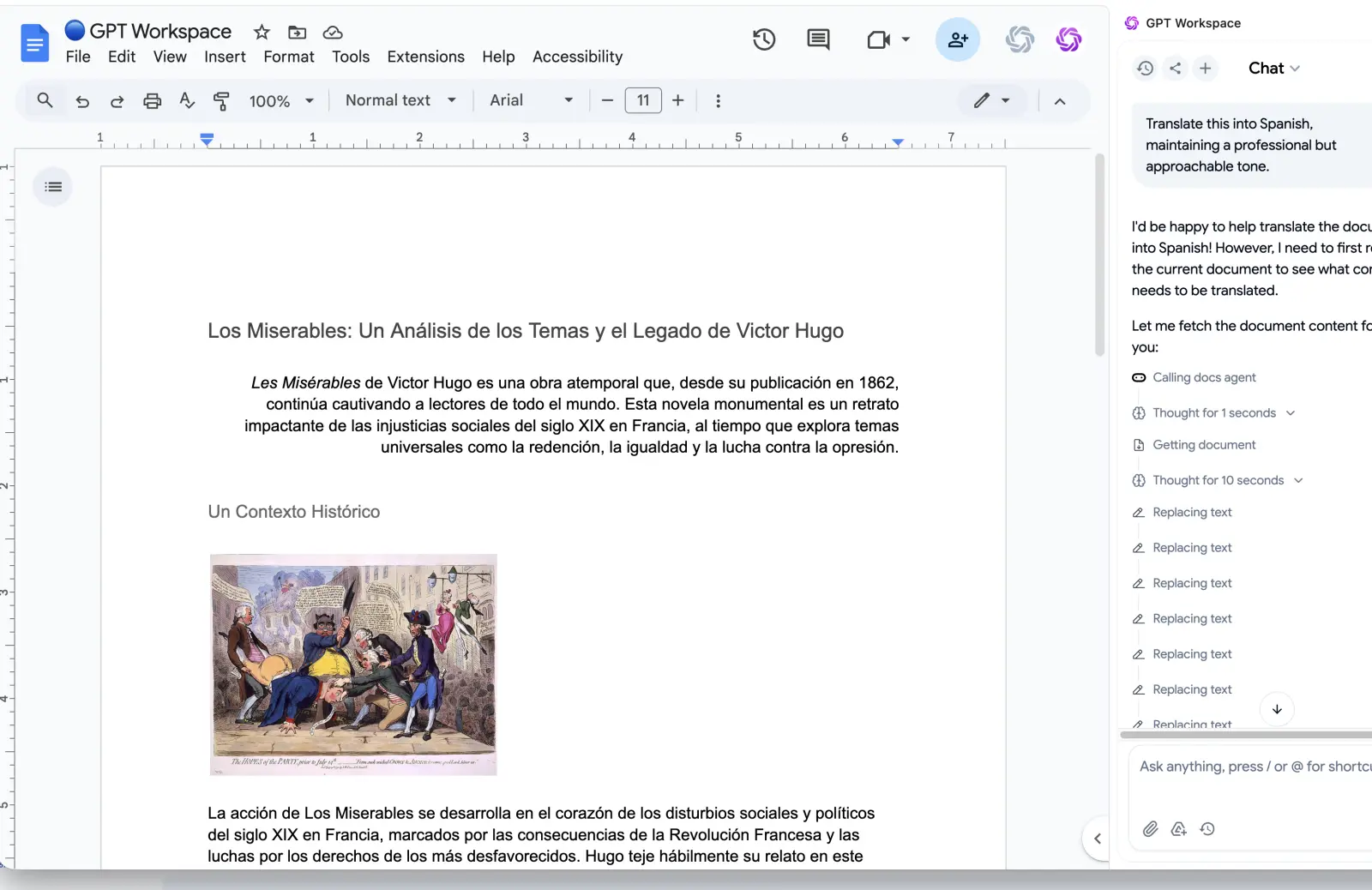
- Paste the old and the new wording of a clause into the request box.
- Ask what changed in meaning, not only in words.
- Decide in Docs. Accept or reject each suggestion yourself.
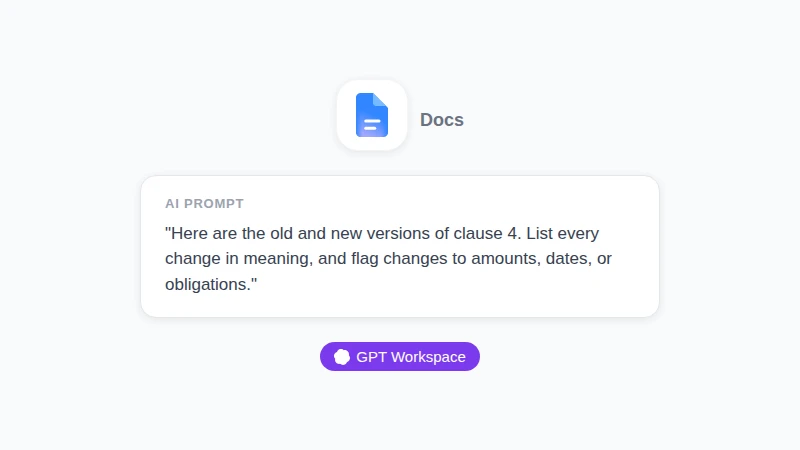
Illustration, not a screenshot: a request you could type in the GPT Workspace sidebar after pasting both versions of a clause. It asks for meaning, then names the three things to flag.
These prompts cover the usual review.
| Goal | Prompt |
|---|---|
| Meaning | “Here are the old and new versions of clause 4. List every change in meaning, and flag changes to amounts, dates, or obligations.” |
| Triage | “Sort these changes into three groups: wording only, changes a fact, changes an obligation. One line each.” |
| Summary | “Summarize what changed between these two versions in five bullets for someone who has read neither.” |
| Counter | “Rewrite this clause so it keeps their new deadline and restores our payment terms.” |
| Reply | “Draft a short reply to the sender. Accept changes 1 to 3, reject change 4, and give the reason in two sentences.” |
Two limits, stated plainly. GPT Workspace does not run the comparison or resolve the suggestions: Docs and Word do that.
Check its reading against the document, numbers above all. For a contract, treat the answer as a reading aid, not as legal advice.
 Try GPT Workspace
Use ChatGPT, Claude, and Gemini directly inside Google Docs, Sheets, Slides, Gmail, and Drive. No tab switching.
Get Started FreeNew to the sidebar? Our guide on how to use ChatGPT in Google Docs covers setup.
For long legal text, our guide on when to use Claude and when to use ChatGPT helps you pick the model. For the message that goes back with your changes, start from our email prompts.
GPT Workspace has a free plan with usage limits, and paid plans raise them.
Illustration, not a screenshot: what GPT Workspace contributes to a review. The comparison itself, and every accept or reject, still happens in Docs or Word.
Frequently Asked Questions
Conclusion
Knowing how to compare two Word documents no longer depends on owning desktop Word. Review, then Compare still works in the Windows and Mac apps, and Google Docs now does the same for .docx files in any browser, on a free account.
The comparison shows what changed, not what it means. GPT Workspace reads the old and new wording with you inside the same Google Doc, so install it and review your next redline in one pass.